How to export Inter Branch Transfer Send document as CSV file for synch to other Branches in ADempiere Retail
The process of generating and exporting data related to stock items that are being sent from one branch to another, typically into a file format (like Excel or CSV) for record-keeping, sharing, or system integration.
User Access
Who Can Access
- IT Admin
- Cashier
- Manager
- Back office
What User Can Do
- Search and Select Transfer Records
- Export Data to File
- Review Exported Information
- Share or Upload File
Pre-Requisite Activities
- Complete Transfer Send Process
- User Access and Permissions
- Identify Export Criteria
Business Partner
- Export Only Finalised Transfers
- Authorised Access Required
- Export Format Standardisation
User Interface
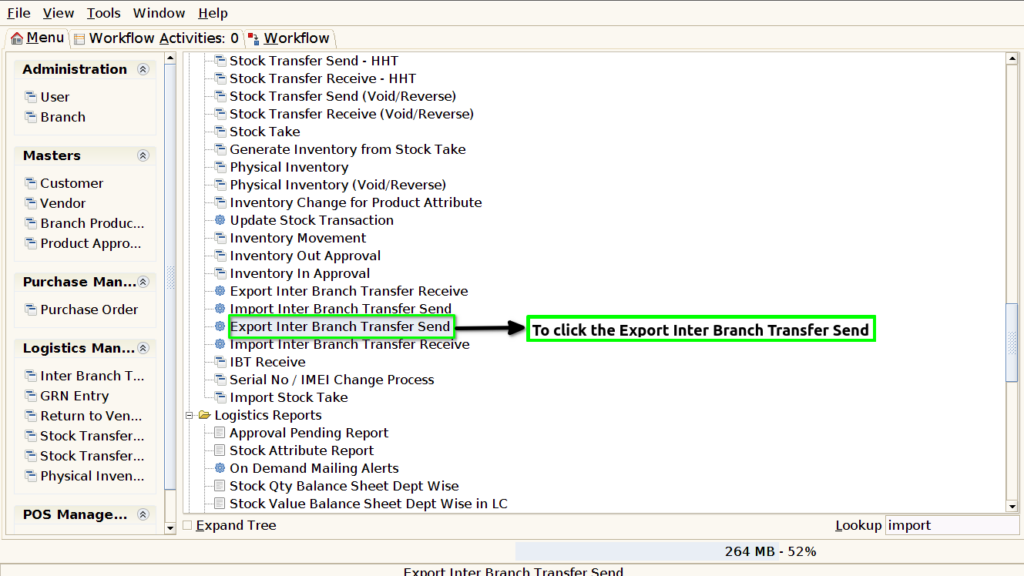
STEP 1: To select the Export Inter Branch Transfer Send.
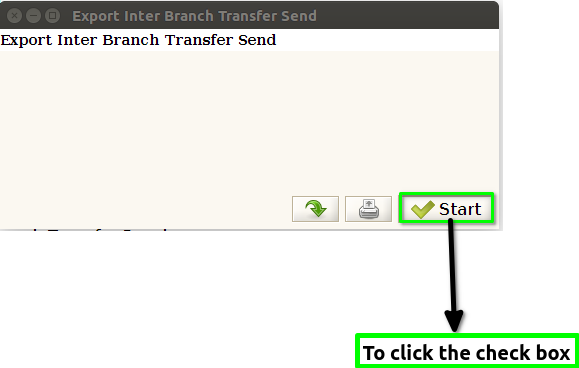
STEP 2: To click the check box.To run the process.
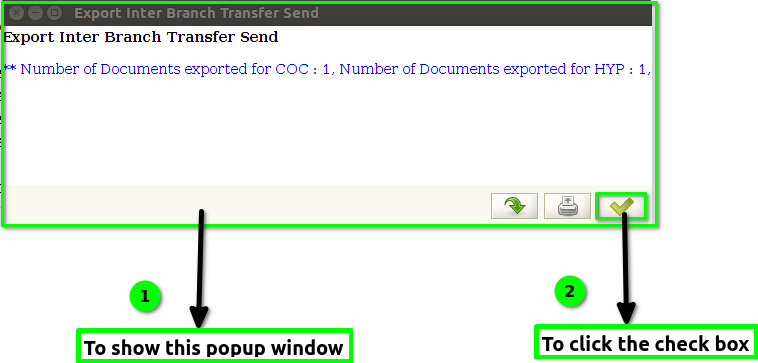
STEP 3: Once to run the process to show this popup window Number of Documents Exported for Location and count will show and then finally to click the check the check box.