How to view Inter Branch Transfer Report in Adempiere Retail
The process of moving stock or goods from one branch/location of a business to another branch/location within the same company.
User Access
Who Can Access
- Admin
- Cashier
- Sales Manager
- Manager
What User Can Do
- Initiate stock transfers between branches.
- Track movement and status of transferred goods.
- Manage inventory levels across multiple branches.
Prerequisite Activities
- Maintain accurate stock records
- Assign roles and permissions
- Ensure proper packaging and documentation
Business Rules
- Transfers must be authorized .
- Stock quantities must be verified .
- Only available stock can be transferred; no negative inventory allowed.
- Transfer documents must include details of items, quantities, and source/destination branches.
User Interface
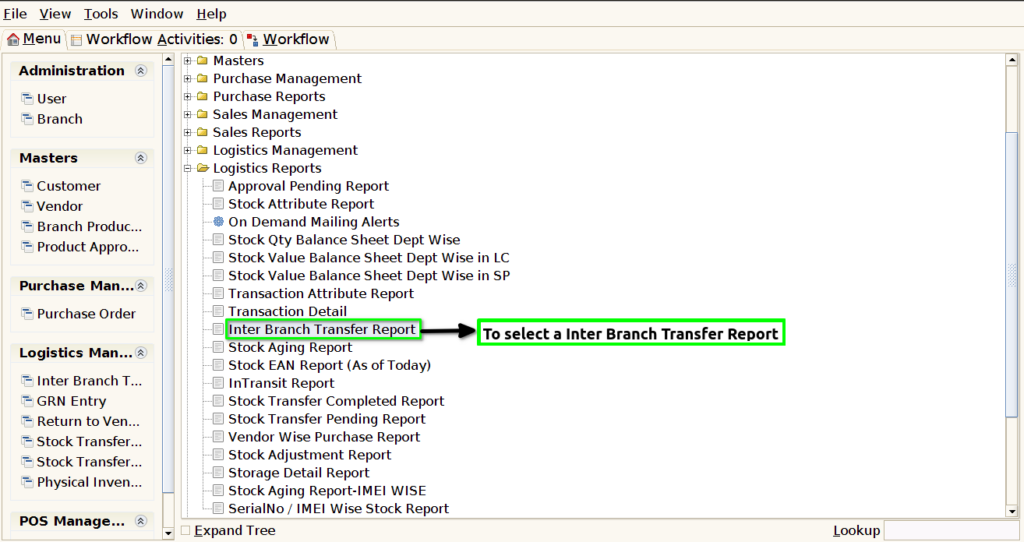
STEP 1: To select a Inter Branch Transfer Report.
STEP 2: To enter the Dynamic Report to fill default and to enter the movement date.To click the start check box and to run the process.Movement Date field is Mandatory.

STEP 3: Once to complete the process to show the report based on given parameter.
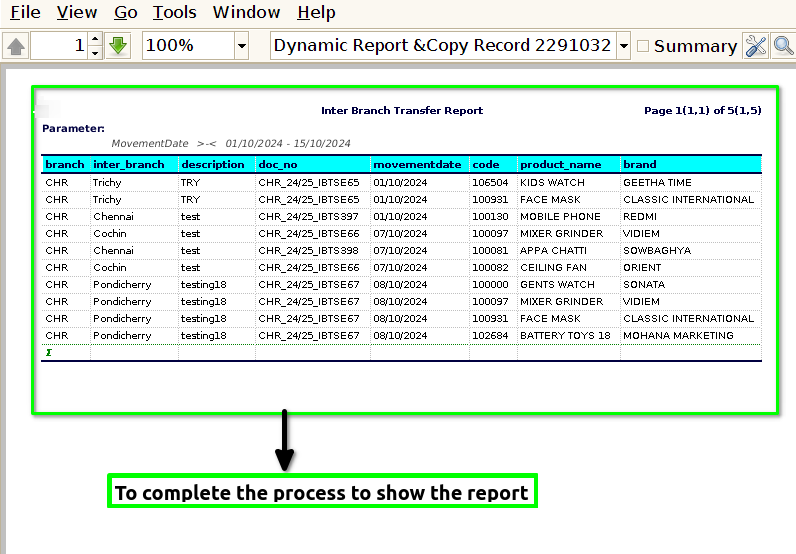
STEP 4: Inter branch transfer Document details will show the report.