How to create Stock Transfer Send document using HHT in Adempiere Retail
Stock Transfer Send (HHT) is the process of sending goods/items from one location/branch/warehouse to another using a Handheld Terminal (HHT) device.
User Access
Who Can Access
- Admin
- Cashier
- Manager
- Back office
What User Can Do
- Create a Stock Transfer Send document
- Scan items to be sent
- Enter or confirm quantities
- Validate items
- Remove or edit scanned items
Pre-Requisite Activities
- HHT Device Should Be Synced
- User Login Must Be Valid
- Source Location Must Be Set
- Stock Must Be Available in the Store
- Transfer Request (if required) Must Be Created
- Items Must Have Valid Barcodes.
BUSINESS RULES
- Only Available Stock Can Be Sent
- Barcodes Must Match System Records
- User Must Select the Correct Destination Location
- Item Quantities Must Match Physical Stock
- No Negative or Zero Quantity Allowed
- Document Cannot Be Submitted Without Mandatory Fields
USER INTERFACE
Step 1 : To click a application on HHT Device then to login.
Step 2: To click a Logistics Management in Menu.
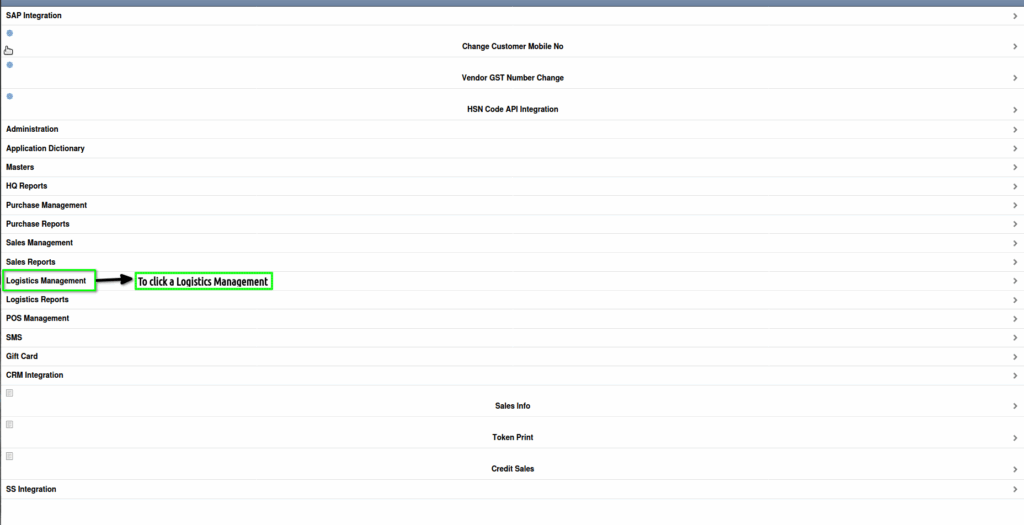
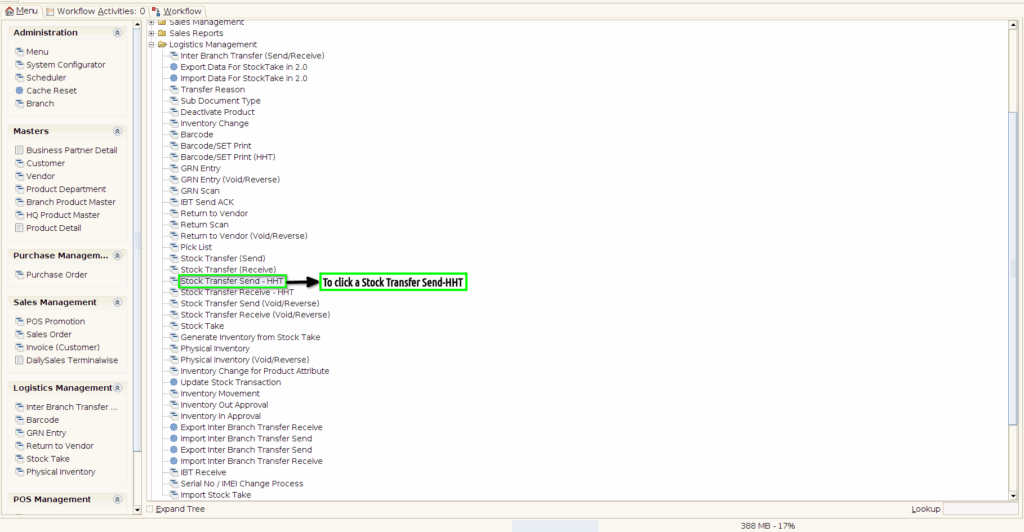
Step 3:To click a Stock Transfer Send -HHT in Menu.

Step 4:To click a create new record option.Then to enter a DC no and to select a Warehouse finally to click a save option.
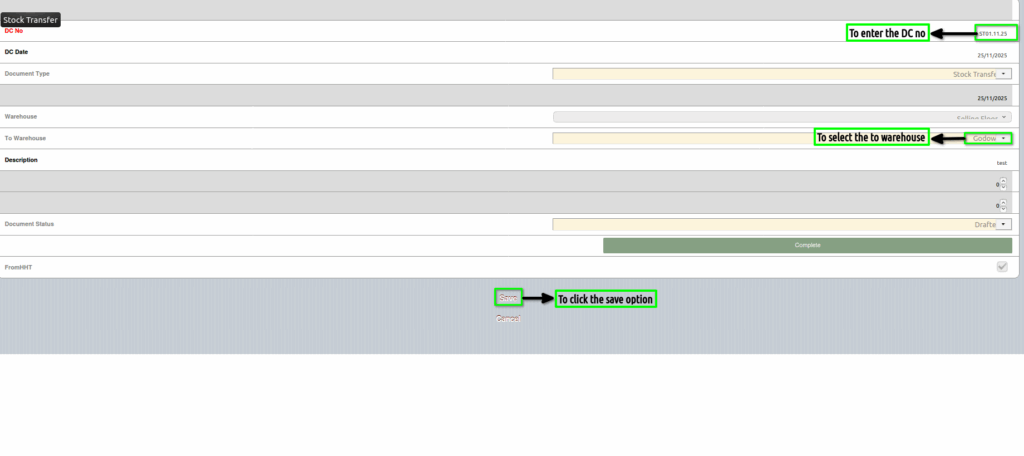
Step 5:Once to save the header tab to generate Document no Automatically.Then to click a Stock transfer Line.

Step 6:To click a create new option.To enter the Product value and to enter the Quantity.Finally to click the save option.

Step 7:Then go to header tab to click Complete process.
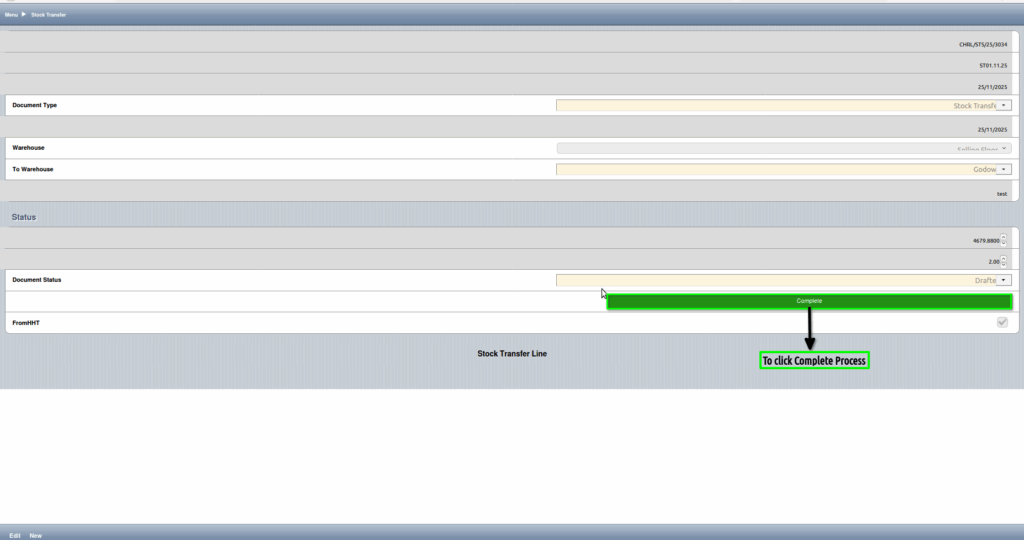
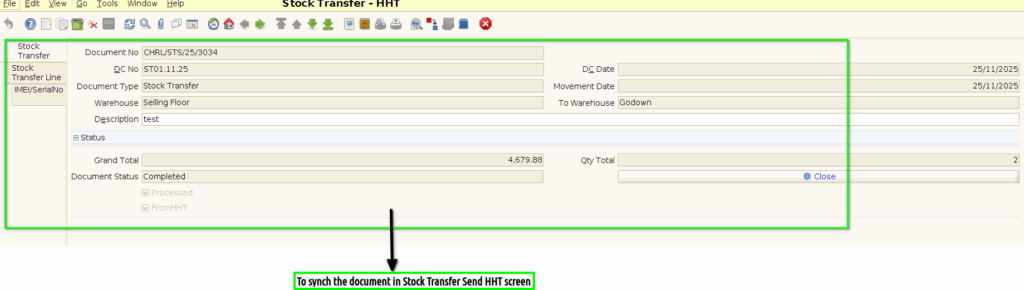
Step 8:Once to complete the process the document status will show completed.

Step 9:Then to click on application Stock transfer Send-HHT in Menu.
Step 10:To synch the document from HHT device to application.