How to create Product Department for SuperStore in ADempiere Retail
Product Department refers to a classification or grouping of products based on type, category, or function (e.g., Electronics, Grocery, Clothing). It helps in organizing, reporting, and managing products efficiently within the system.
User Access
Who Can Access
- Admin
- Manager
- Cashier
- Back office
What User Can Do
- Create or edit product departments
- Assign products to the correct department
- Filter or search products based on department
Pre-Requisite Activities
- Define the list of departments
- Ensure products are classified based on their department
- Department names should be unique
Business Rules
- Each product must be assigned to only one department
- Departments must have unique names or codes
- Inactive departments should not be available for new product assignments
- Reports should support department-wise grouping or filtering
User Interface
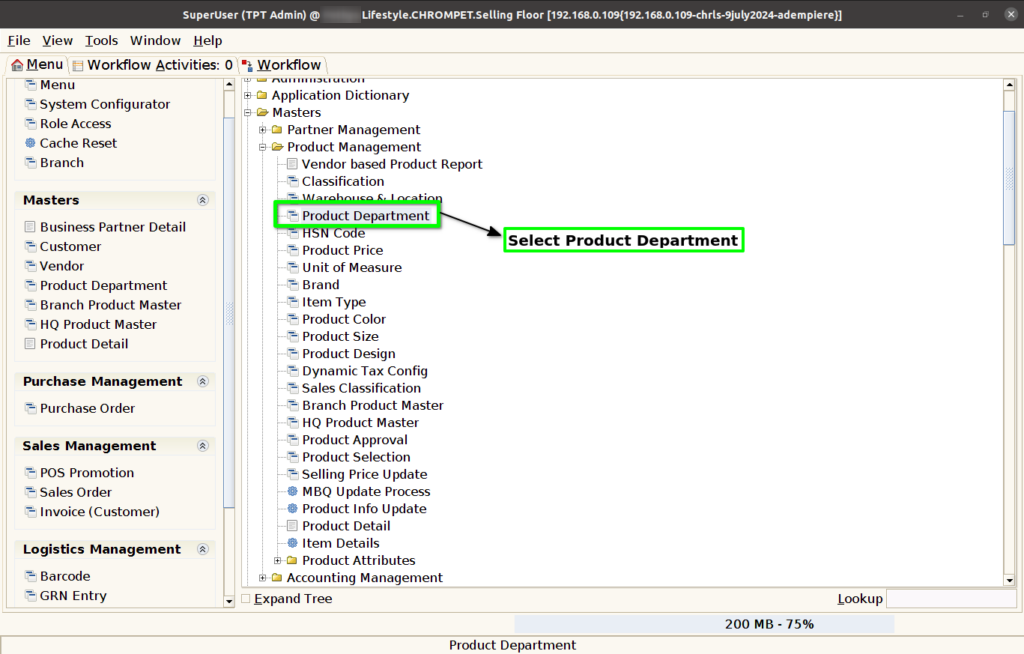
Step 1 : Select ‘Product Department’ in Menu Masters -> Product Management -> Product Department or Search Product Department in Lookup.
Step 2 : Enter Department Name.
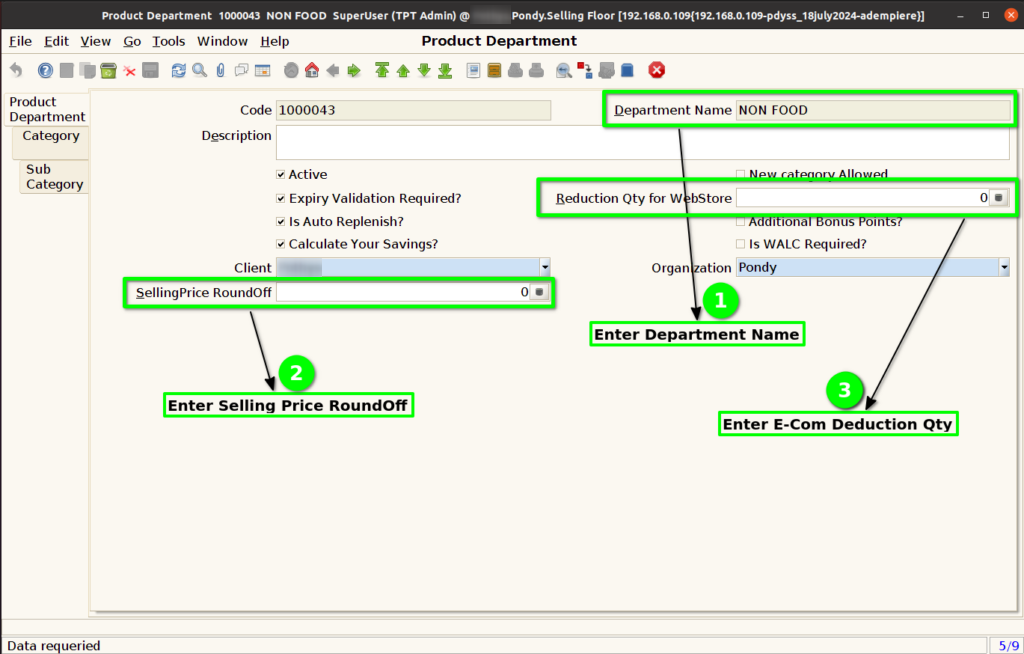
Step 3 : Select below function based on Department needs
- Expiry Validation Required – While GRN Entry, Concern Department Products should have Expiry date
- New Category Allowed – New category creation allow or not for concern department
- Is Auto Replenish – Auto PO creation for concern department
- Additional Bonus Points – Additional Bonus calculation for concern department
- Calculate Your Savings – Calculate Your Savings based on MRP – Selling Price
- Is WALC Required – Weighted Average Cost calculation for concern department.

Step 4 : Click “Save” Button.
Category
Step 5 : Click Category tab and Click New Record.
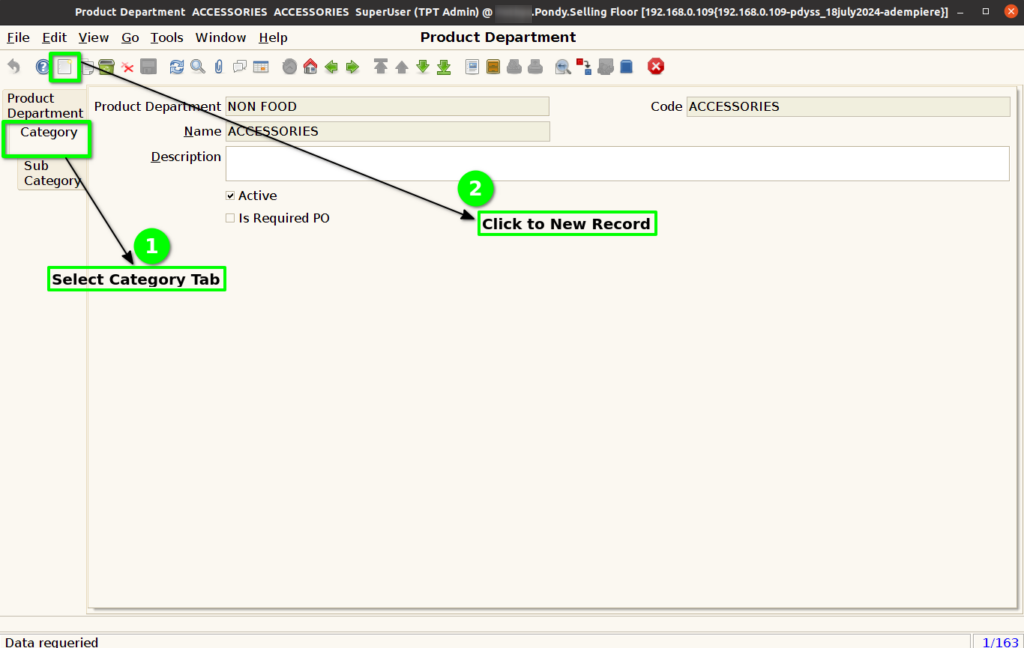
Step 6 : Enter Category Name and Click to Save record.

Sub Category
Step 7 : Click Sub Category tab and Click New Record.

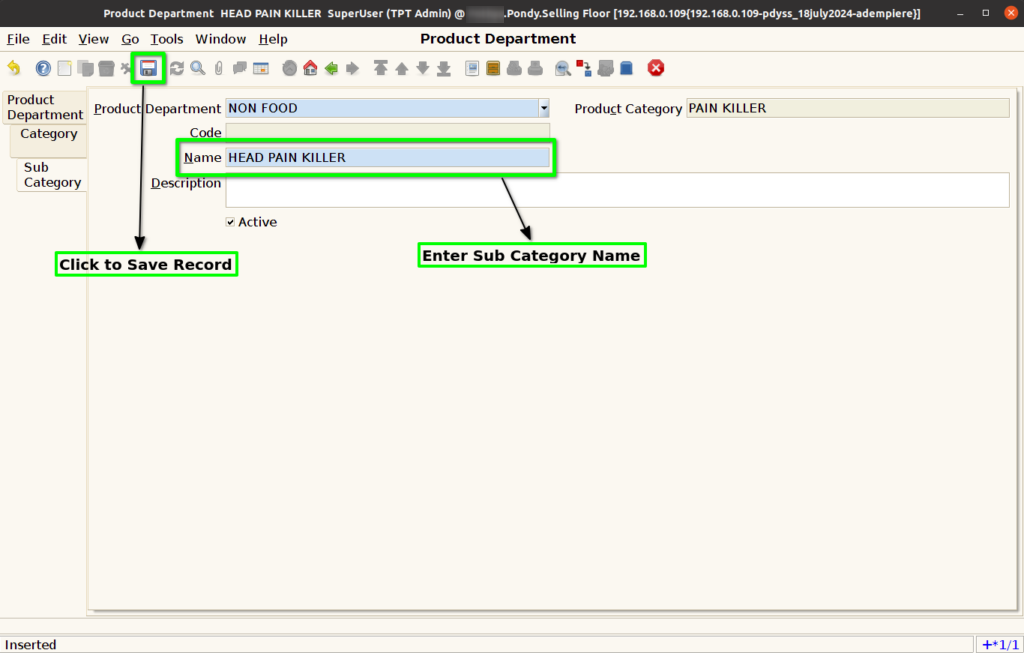
Step 8 : Enter Sub Category Name and Click to Save record.