How to view Stock Value Balance Sheet Dept Wise with Selling Price for Lifestyle in Adempiere Retail
A report showing the total value of stock in each department calculated using the Selling Price (SP) of the items.
User Access
Who Can Access
- Admin
- Cashier
- Sales Manager
- Manager
What User Can Do
- The potential sales value of stock in each department
- Plan sales targets and promotions based on inventory value
- Identify departments with high or low sales potential stock.
Prerequisite Activities
- Maintain accurate stock quantities
- Assign selling prices (SP)
- Ensure the inventory system supports valuation by selling price.
Business Rules
- Selling Price must be up-to-date
- Stock quantities must be accurate
- Each stock item must be assigned to only one department.
- Exclude damaged or obsolete stock
- Report should be generated for a specific date/time to ensure consistency.
User Interface
STEP 1: To select a Stock Value balance sheet dept wise in SP.

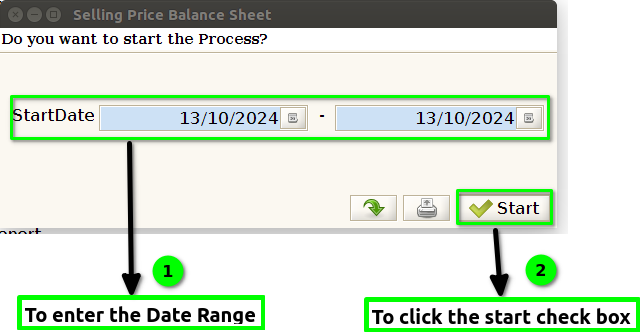
STEP 2: To enter a Date Range and to click the start check box.To run the process.
STEP 3: Once to complete the process to show the report based on the given parameter.
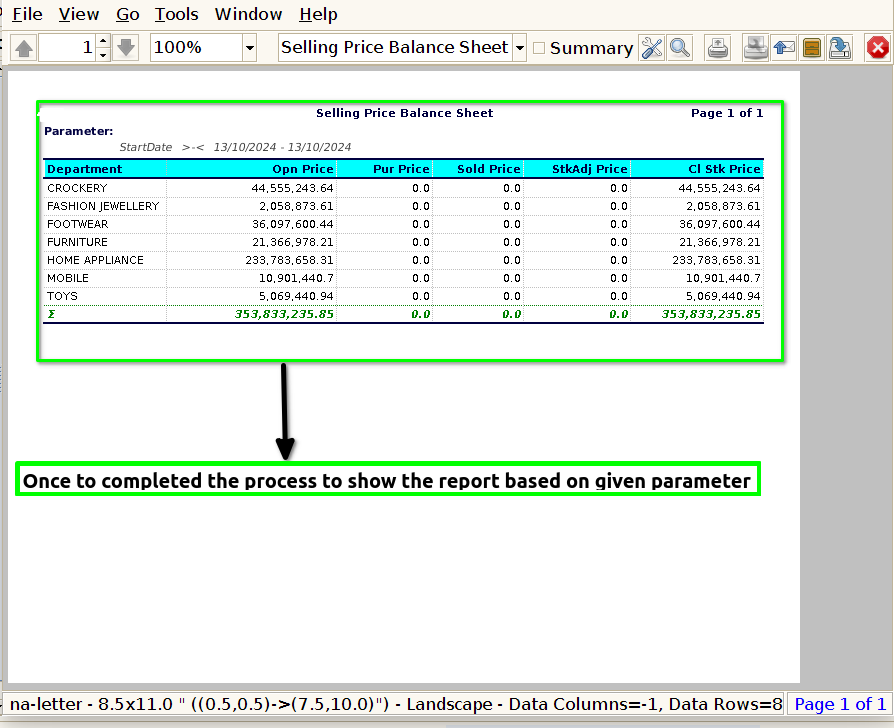
STEP 4: Department-> Product Department name to show the product based on department wise.
Opening price->Total number of products opening price.
Purchase price->Total number of Purchasing quantity price.
Sold price->Total number of sales quantity price.
Stock adj price->Total number of sales and purchase quantity price mismatch to adjust the price.
Closing price->End of the day total number of sales and purchase count.