How to run Deactivate Product-SS Process in ADempiere Retail
Deactivating a Product means marking the product as inactive in the system so it can no longer be used in transactions like sales, purchase, or stock transfer. This helps in managing discontinued or obsolete items.
User Access
Who Can Access
- Back Office
- Cashier
- Manager
- Admin
What User Can Do
- Disable the product from being selected in sales or purchase
- Hide the product from lookup/search screens
- Retain product history and transactions for reporting
- Prevent new price entries or stock updates for the product
- Reactivate the product later if required.
Pre-Requisite Activities
- Ensure no open transactions (like PO or GRN) are pending for the product
- Settle all stock or inventory adjustments
- Confirm product is not part of any active combo or promotion
- Check if alternate product mapping is required
Business Rules
- Only users with appropriate roles can deactivate a product
- Deactivated products should still appear in historical reports
- Stock on hand for inactive products should be tracked and managed
- Deactivation should not delete the product master
- Once deactivated, product cannot be sold or purchased
User Interface
STEP 1: To select the Deactivate Product.

STEP 2: To select any parameters based on our Requirements.
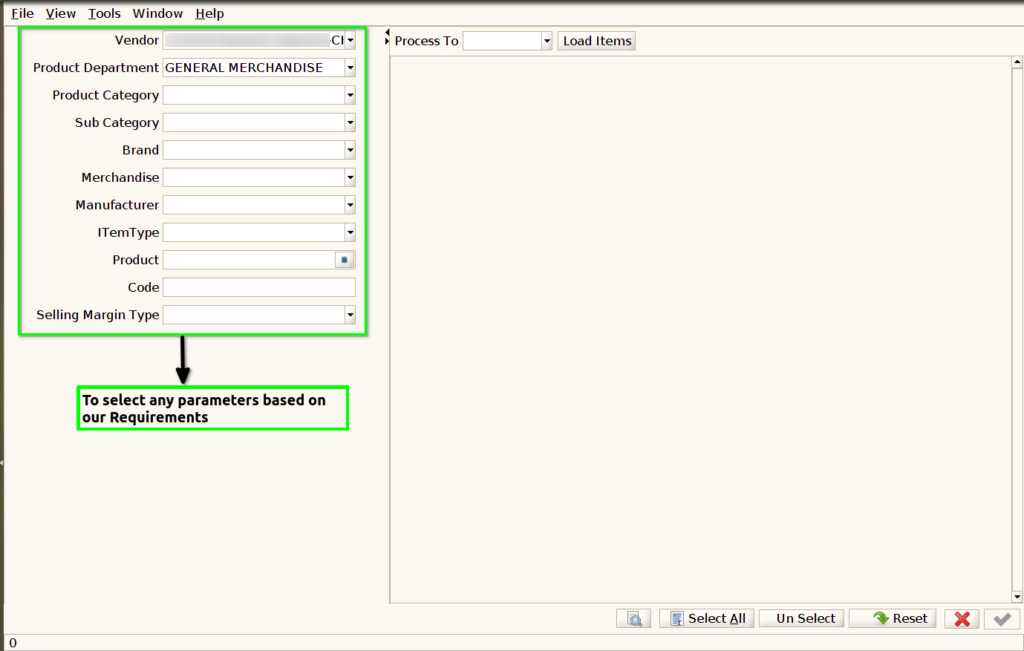
STEP 3: To select process To based on our Requirements and then to click Load Items,Then to show the products and to select.Finally to click the check box.
