How to do Brite CRM API setup in Adempiere Retail
BRITE CRM API Setup refers to the process of connecting your system with BRITE CRM using API (Application Programming Interface). This enables automatic data exchange like customer details, transactions, loyalty, or communication between your software and BRITE CRM.
User Access
Who Can Access
- Admin
- Cashier
- Manager
- Back office
What User Can DO
- Create
- Update
Pre-Requisite Activities
- Get API credentials from BRITE CRM support team
- Ensure your system is internet-enabled and has outgoing API access
- Define what data types to sync (e.g., customer master, sales, points)
- Validate data formats and API fields as per BRITE documentation
- Perform a sample API test call to ensure connectivity
- Ensure mapping fields between POS/ERP and BRITE CRM
Business Rules
- API connection must be secure via HTTPS and tokens
- Only authorized users/systems can push/pull data
- Duplicate records must be handled based on configuration (ignore, update, create new)
- API logs should be maintained for error tracking and debugging
- Sync failures should trigger alerts or retries automatically
User Interface
Step 1 : Select ‘Branch’ in Menu Branch Configuration -> Branch or Search Branch in Lookup.

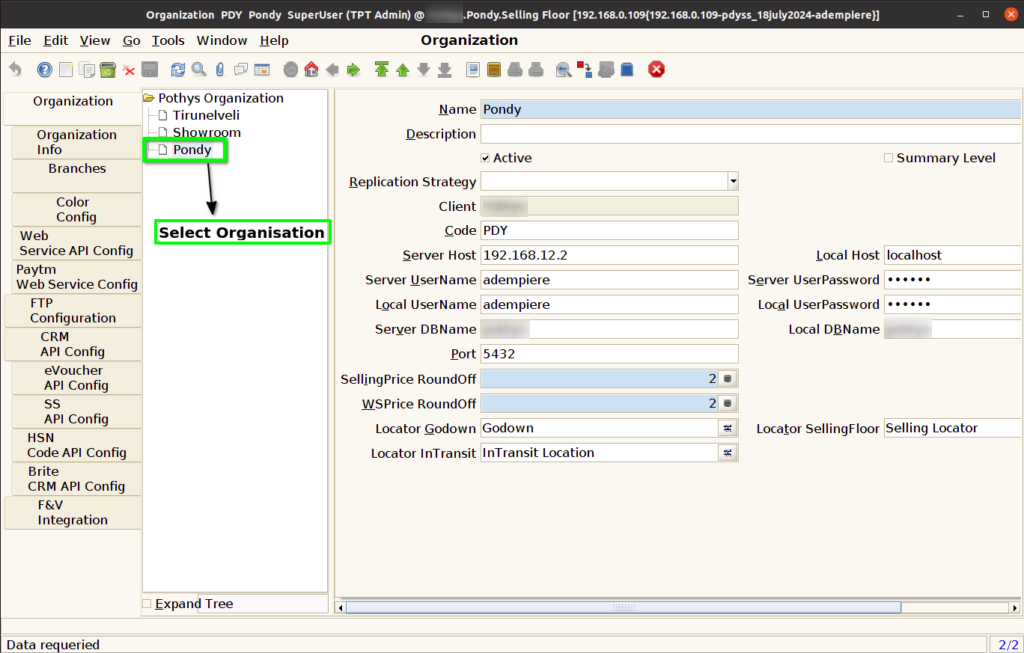
Step 2 : Select Organisation.
Step 3 : Click Brite CRM API Config Tab and Click New Button.

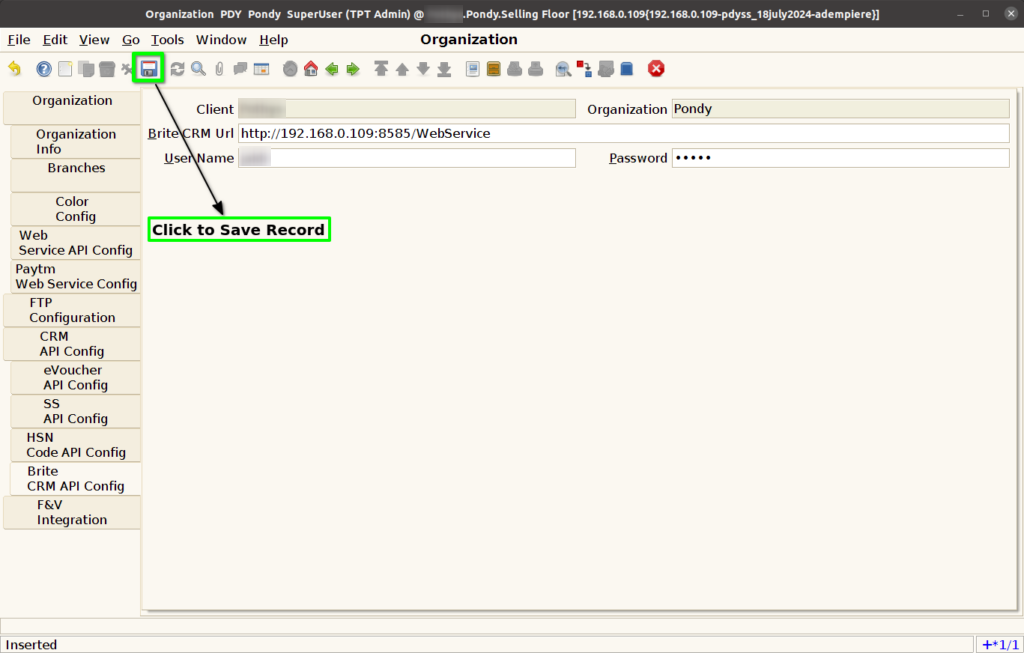
Step 4 : Enter Below Credentials for Brite CRM API Config
- Brite CRM Url
- User Name
- Password

Step 5 : Click to Save the Record.