How to view Cashier Wise Sales Report in Adempiere Retail
A report that shows the total sales made by each cashier during a specific time period. It helps track how much revenue each cashier has processed.
User Access
Who Can Access
- Admin
- Cashier
- Sales Manager
- Manager
What User Can Do
- Check sales performance
- Verify cash collected
Pre-Requisite Activities
- Assign Unique IDs
- Record sales transactions
- Set accurate date and time
- Ensure proper login/logout
- Regularly update and maintain.
Business Rules
- Be linked to cashier ID
- Each cashier should have a unique identifier
- Sales date and time must be accurate
- Cashier login/logout records should be maintained
- Sales returns and cancellations must be recorded against the original cashier.
User Interface
Step 1 : Select ‘Cashier Wise Sales Report’ in Menu -> Sales reports > Cashier report > Cashier Wise Sales Report or Search Cashier Wise Sales Report in Lookup.
Step 2 : Select the date range to open the Cashier Wise Sales Report.

Step 3 : To view a preview of the Cashier Wise Sales Report.
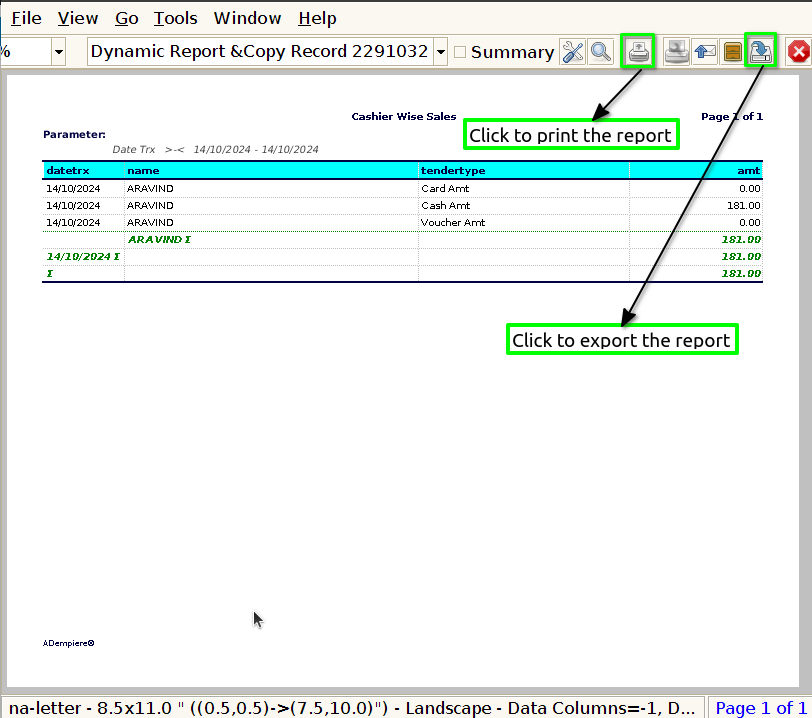
Date : The Date is shown in the Cashier Wise Sales Report to provide context for the sales data, allowing businesses to track performance over specific time periods.
Name : The Name is included in the Cashier Wise Sales Report to identify the individual cashier responsible for processing each transaction.
Tender type : The Tender Type is shown in the Cashier Wise Sales Report to indicate the method of payment used for each transaction, such as cash, credit card, debit card, or mobile payment.
Amount: The Amount is included in the Cashier Wise Sales Report to reflect the total revenue generated by each cashier during a specified period.