How to view Pay Mode Wise Sales Report in Adempiere Retail
A Pay mode Wise Sales Report shows how much sales revenue was generated through each type of payment method.
User Access
Who Can Access
- Admin
- Head cashier
- Sales Manager
- Manager
What User Can Do
- Analyze Payment Preferences
- Manage Cash and Payments
- Improve Customer Experience
- Inform Business Decisions
Prerequisite Activities
- Accurate Transaction Recording
- System Integration
- Data Validation
Business Rules
- Accurate Payment Recording
- Exclude Cancelled or Refunded Sales
- Timely Data Entry
- Partial Payment Handling
User Interface
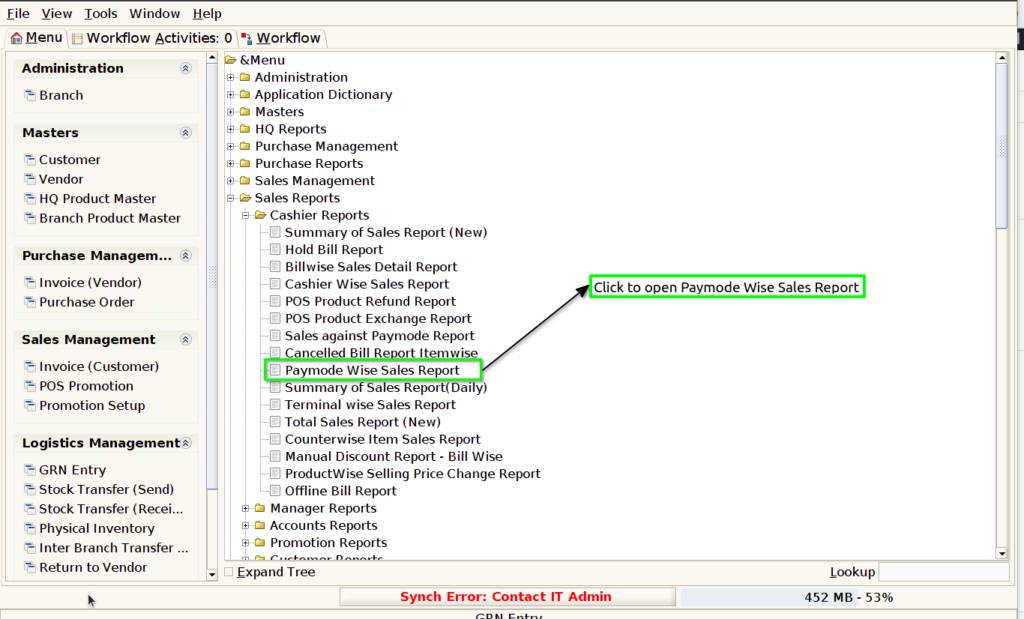
Step 1 : Select ‘Pay mode Wise Sales Report’ in Menu -> Sales reports > Cashier report > Pay mode Wise Sales Report or Search Pay mode Wise Sales Report in Lookup.
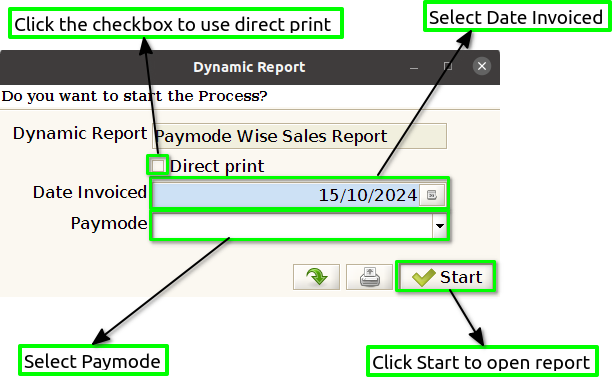
Step 2 : Select the date range and pay mode to open the Pay mode Wise Sales Report.
Step 3 : To view a preview of the Pay mode Wise Sales Report .
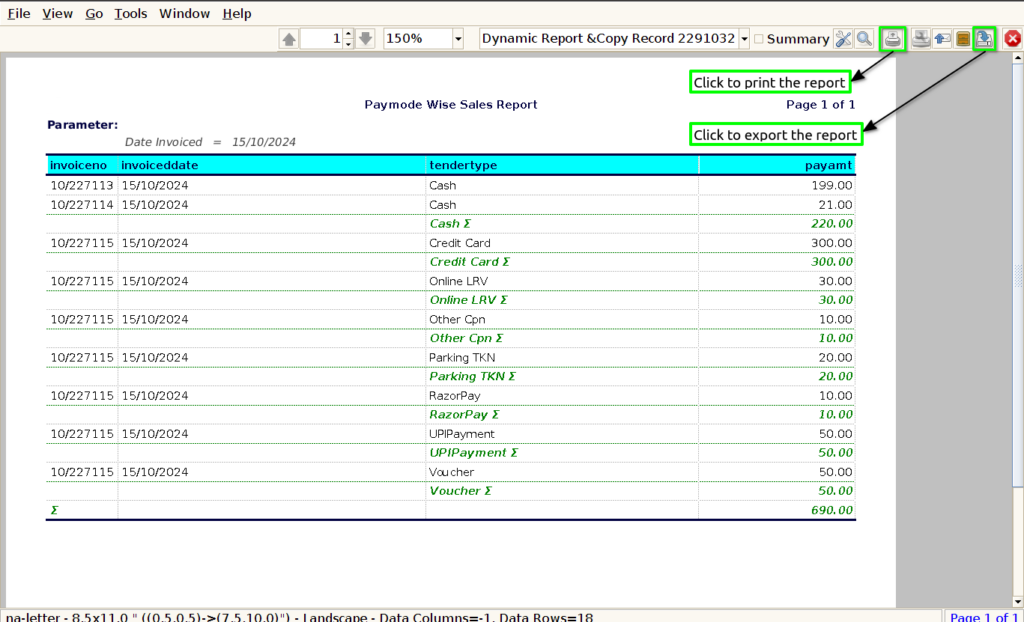
Invoice no : Including the invoice number in a “Pay mode Wise Sales Report” is essential for tracking and referencing specific transactions, as it allows for easy identification of individual sales and payment details.
Invoice date : Displaying the invoice date in a “Pay mode Wise Sales Report” is important for contextualizing sales transactions, as it helps track when sales occurred relative to payment methods used.
Tender type : Including the tender type in a “Pay mode Wise Sales Report” is crucial for distinguishing between various payment methods used by customers, such as cash, credit cards, or digital wallets.
Payment : Displaying the payment amount in a “Pay mode Wise Sales Report” is essential for quantifying sales revenue associated with each payment method, allowing businesses to assess the financial impact of different payment modes.