How to create Unit of Measure in ADempiere Retail
Unit of Measure (UOM) defines the standard quantity used to measure and manage products in your system – like Pieces, Kilograms, Liters, Meters, etc. It helps in inventory control, sales, purchase, and pricing activities.
User Access
Who Can Access
- Back Office
- Purchase Manager
- Manager
- Admin
What User Can Do
- Create new UOMs (e.g., PCS, BOX, DOZEN, KG)
- Define conversion rules between base and alternate UOMs (e.g., 1 BOX = 12 PCS)
- Assign UOMs to products, purchase orders, and sales orders
- Set default UOM for each item
- Map UOMs to vendor-specific or customer-specific needs
Pre-Requisite Activities
- Identify all required UOMs used in procurement, warehousing, and billing
- Determine conversion rates between UOMs
- Ensure product master is ready for UOM assignment
- Assign UOM roles (Base UOM, Alternate UOM)
Business Rules
- Every product must have a Base UOM defined
- Alternate UOMs must have a defined conversion factor
- UOM must be consistent across all transactions (GRN, Sales, PO)
- UOM changes after transactions are restricted unless approved
- Prices and quantities are calculated based on UOM
- UOM must comply with statutory norms (if applicable)
User Interface
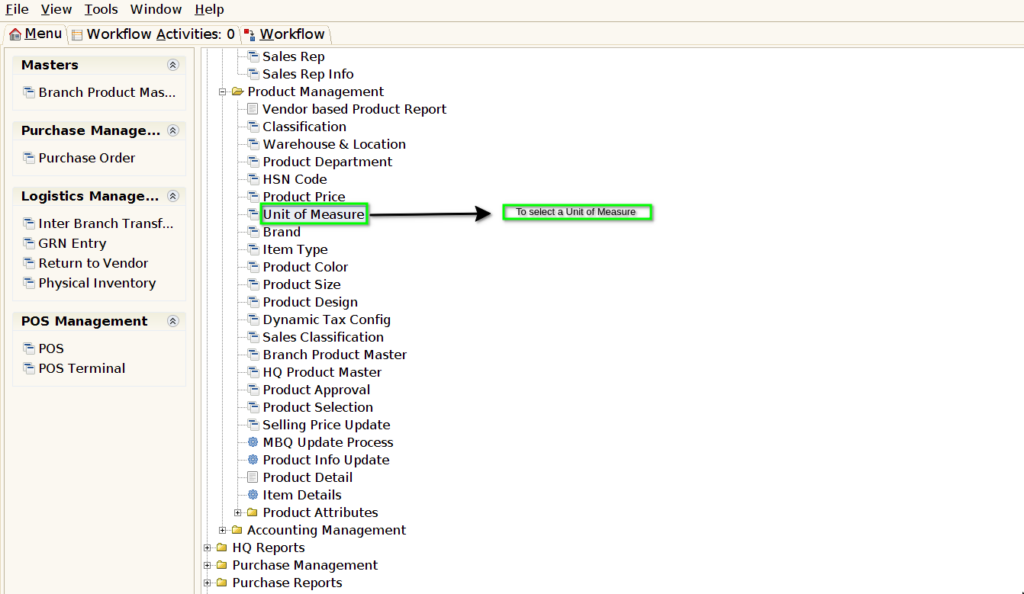
STEP 1: To select a Unit of Measure.
STEP 2: To Open a New Document.

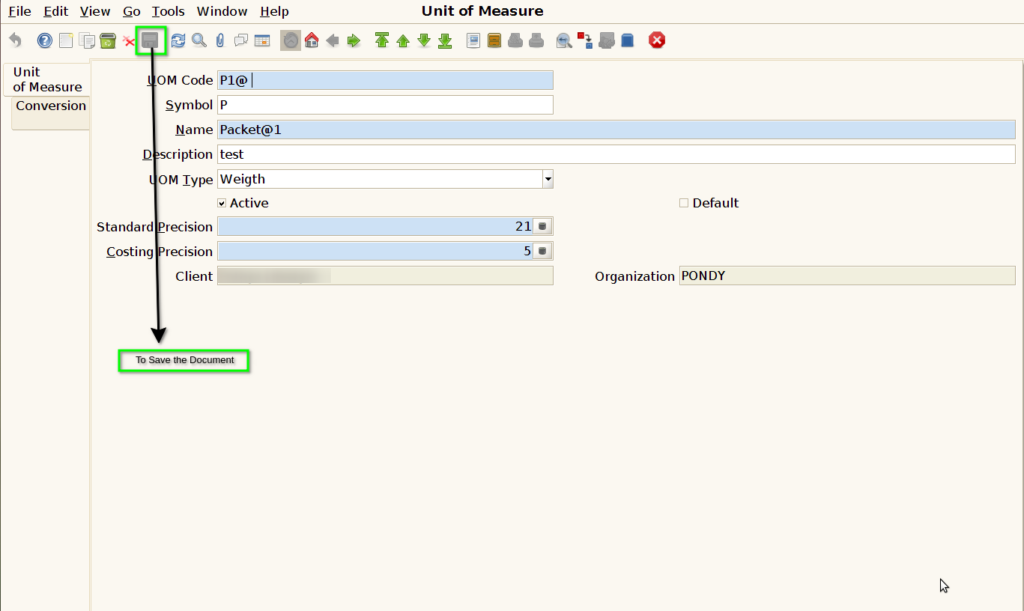
STEP 3: To enter a UOM Code,UOM Symbol,UOM Name,UOM Type and then to enter a Standard Precision & Costing Precision.

STEP 4: To Save the document.
STEP 5: To select a Conversion Tab.
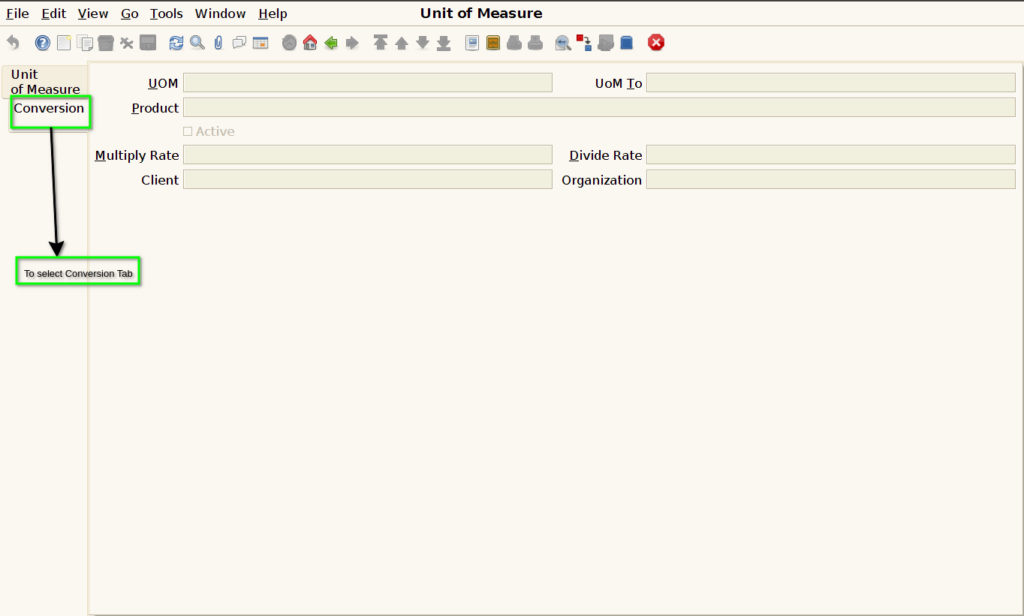
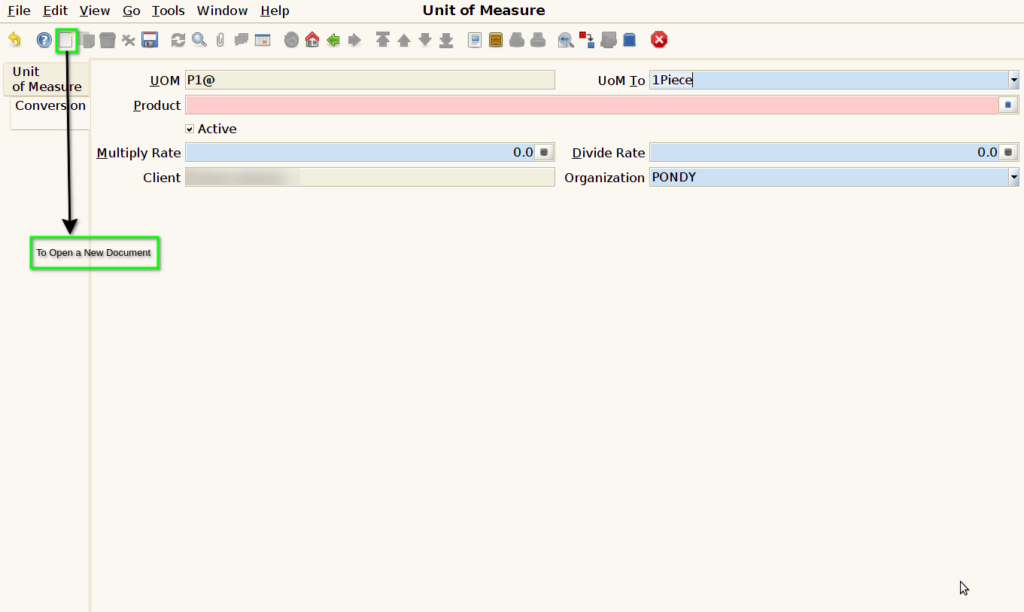
STEP 6: To open a new document.
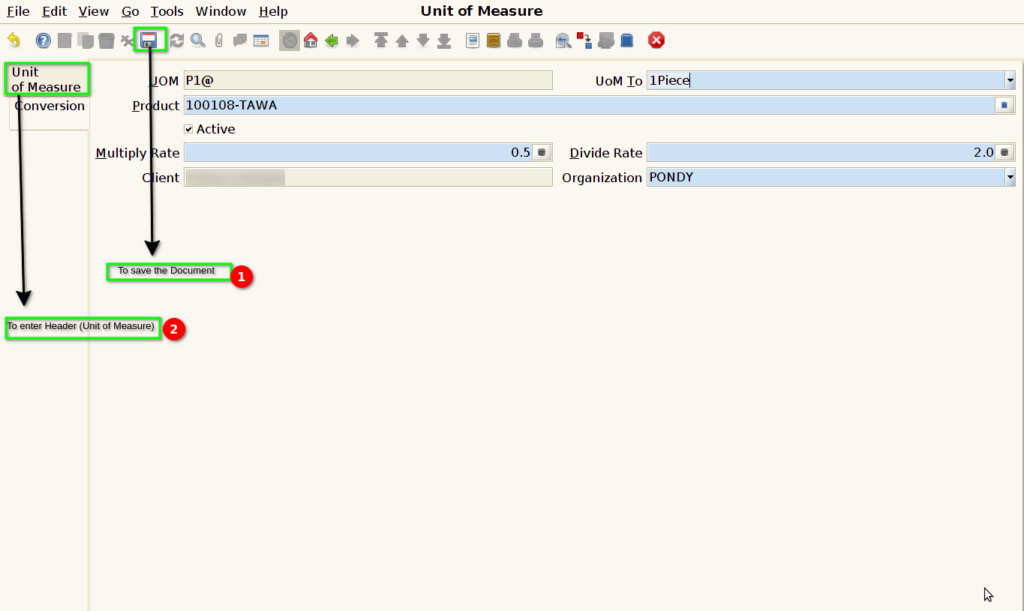
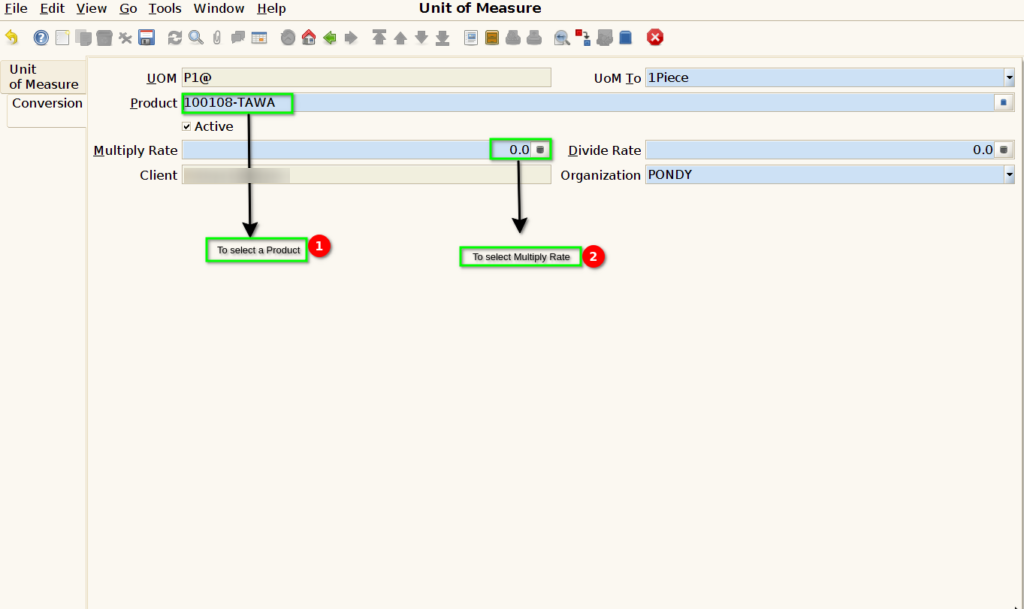
STEP 7: To enter the Product & then to enter a Multiply Rate.
STEP 8: Finally to save the document.