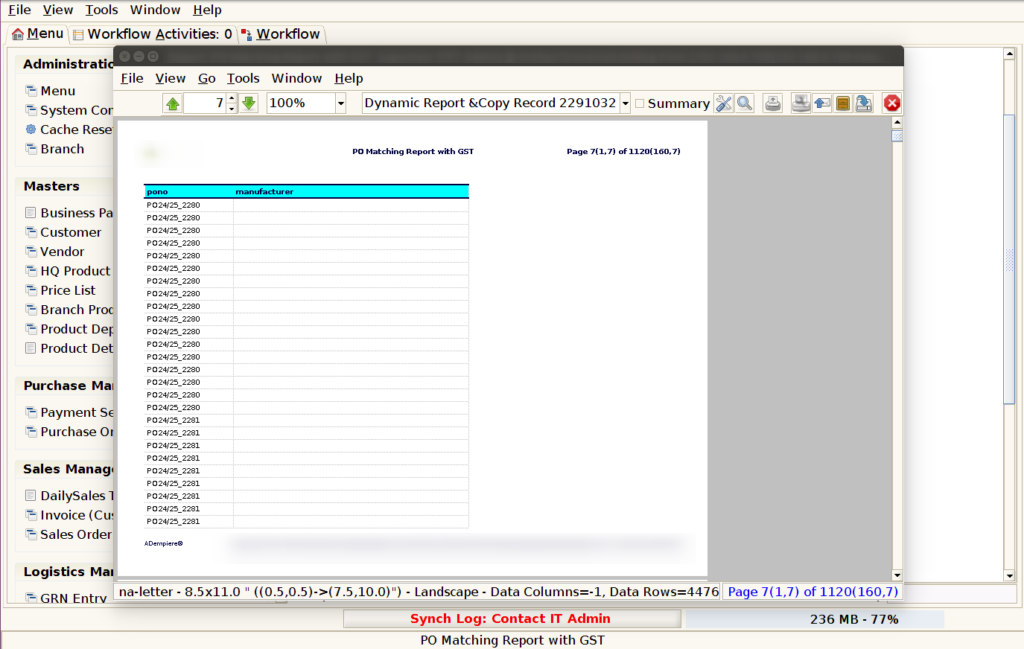
How to view PO Matching Report with GST in Adempiere Retail
A PO (Purchase Order) Matching Report with GST compares purchase orders with the corresponding invoices and payment records, including GST details, to ensure everything matches correctly.
User Access
Who Can Access
- Admin
- Head cashier
- Sales Manager
- Manager
What User Can Do
- Verify Purchase Accuracy
- Improve Vendor Management
- Approve Payments Confidently
Pre-Requisite Activities
- Accurate Purchase Order Creation
- User Roles & Permissions
- Data Validation
Business Rules
- Exact Matching Criteria
- Partial Matching Allowed
- Exclusion of Cancelled or Voided Records
- Date Range Filtering
User Interface
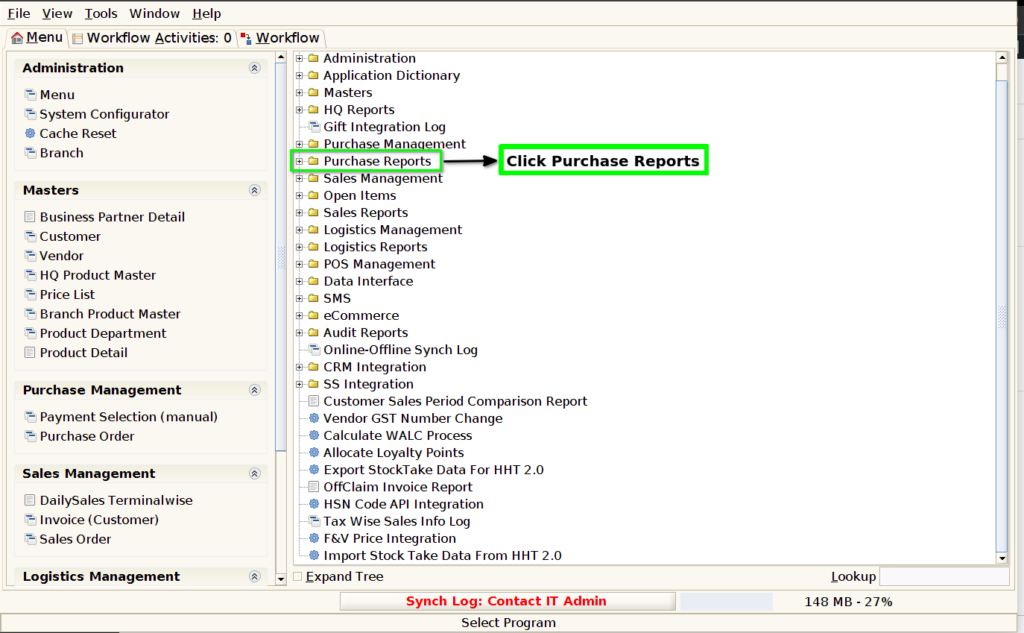
STEP 1: Click Purchase Reports Folder.
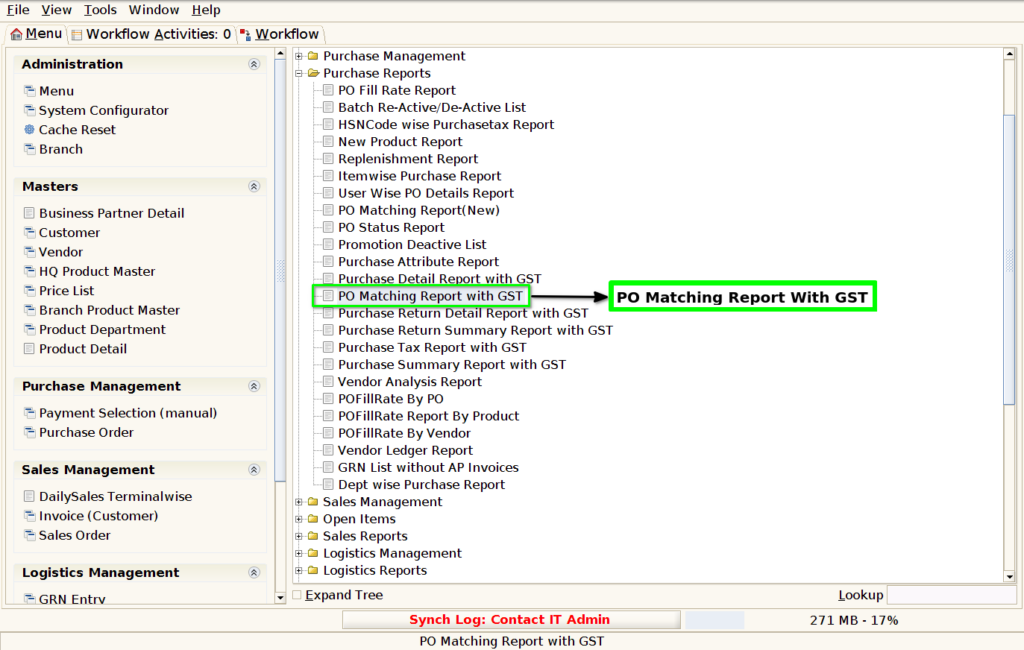
STEP 2: Click PO Matching Report With GST.
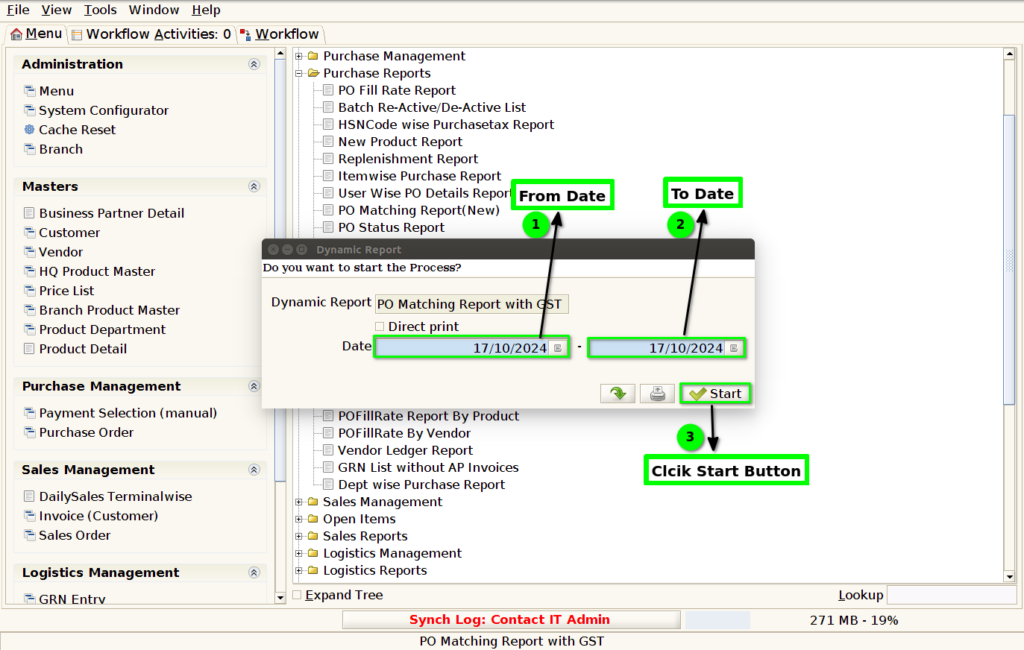
STEP 3: Choose Parameter From Date, To Date .
STEP 4: Show Columns Details.
1.Purchase Order Number.
2.Purchase Order Date.
3.Vendor Name.
4.Product Code.
5.Product Name.
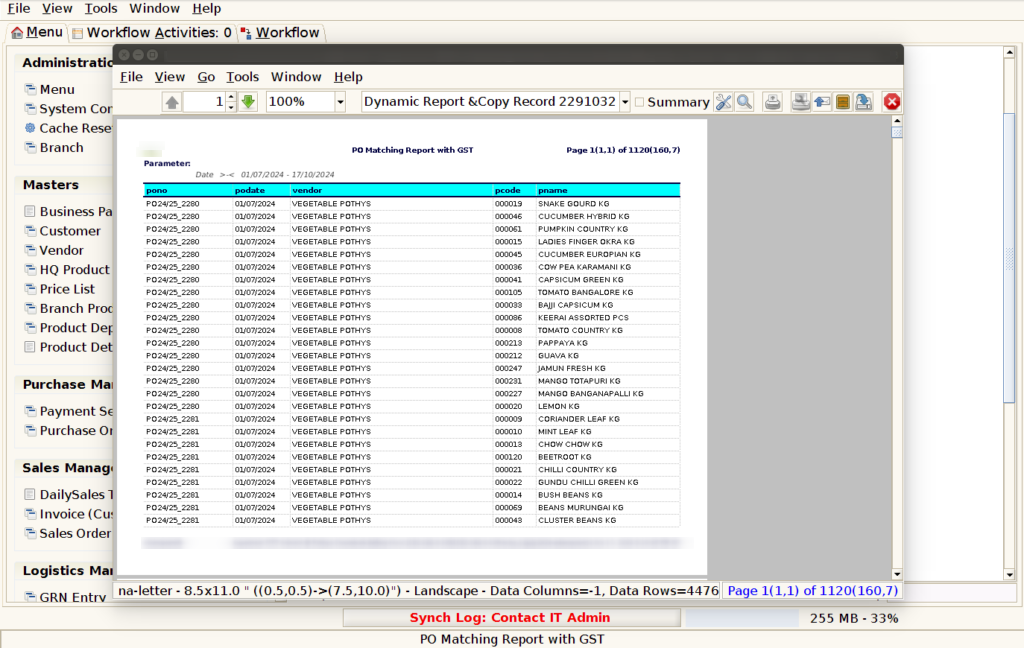
STEP 5: Click Page Down Button Show Columns Details.
6.Purchase Order Quantity.
7.Purchase Order Land Cost.
8.Purchase Order Tax.
9.Purchase Order Tax Amount.
10.Process Amount.
11.IGST Tax.
12.CGST Tax.
13.SGST Tax.
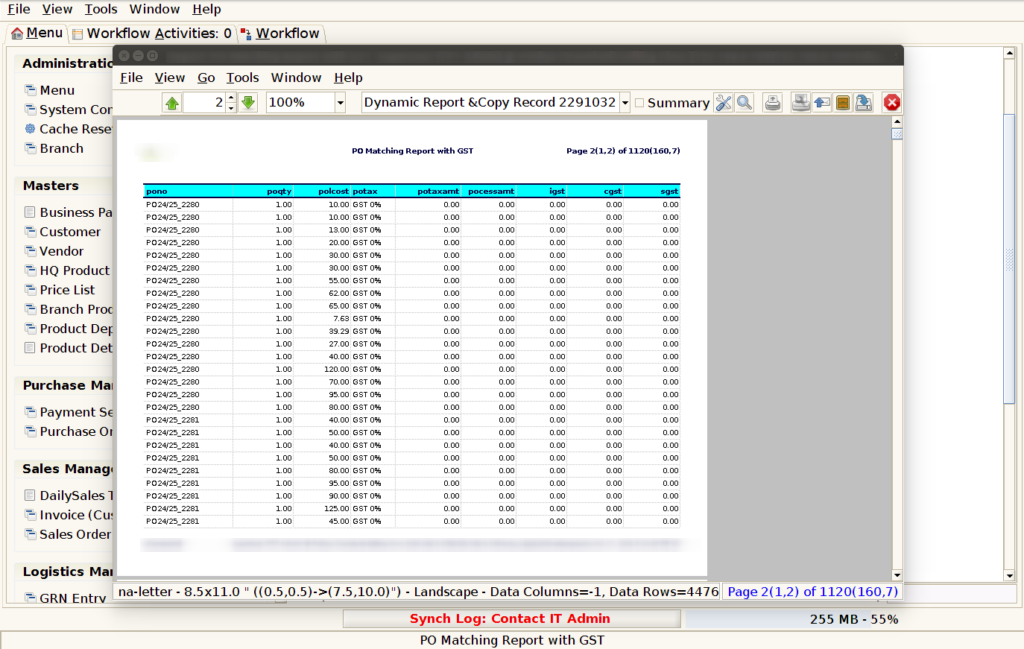
STEP 6: Click Page Down Button Show Columns Details.
14.Purchase Order Line Amount.
15.Invoice Number.
16.Vendor Bill Number.
17.Invoice Product Code.

STEP 7: Click Page Down Button Show Columns Details.
18.Invoice Product Code.
19.Invoice Quantity.
20.Invoice Land Cost
21.Invoice Tax.

STEP 8: Click Page Down Button Show Columns Details.
22.Invoice VAT Amount.
23.Invoice CESS Amount.
24.Invoice Line Amount.
25.Brand.
26.Department
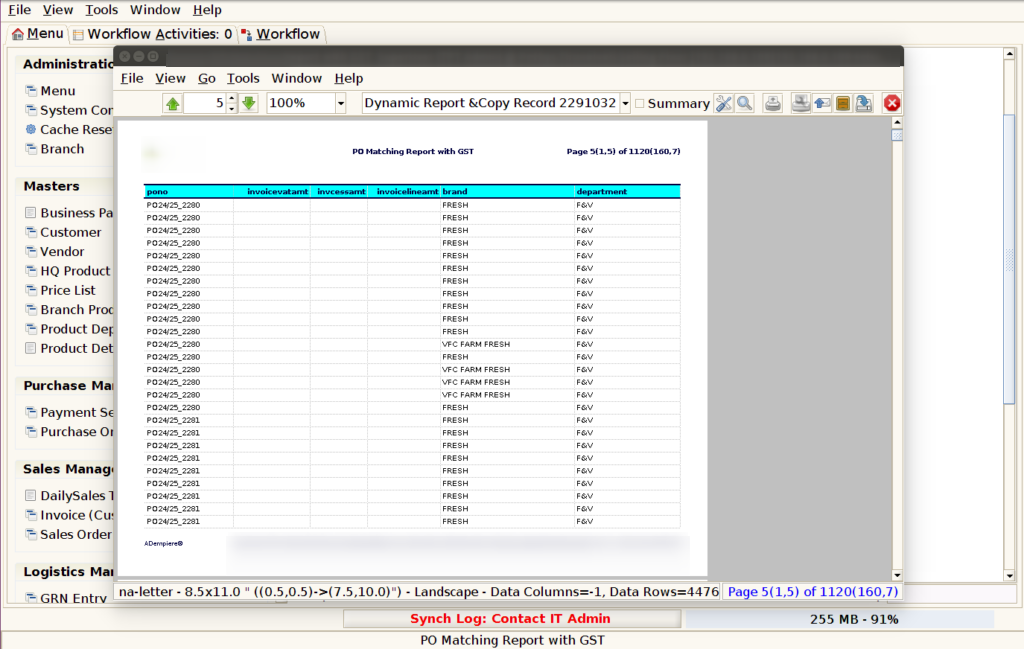
STEP 9: Click Page Down Button Show Columns Details.
27.Category.
28.Sub Category.
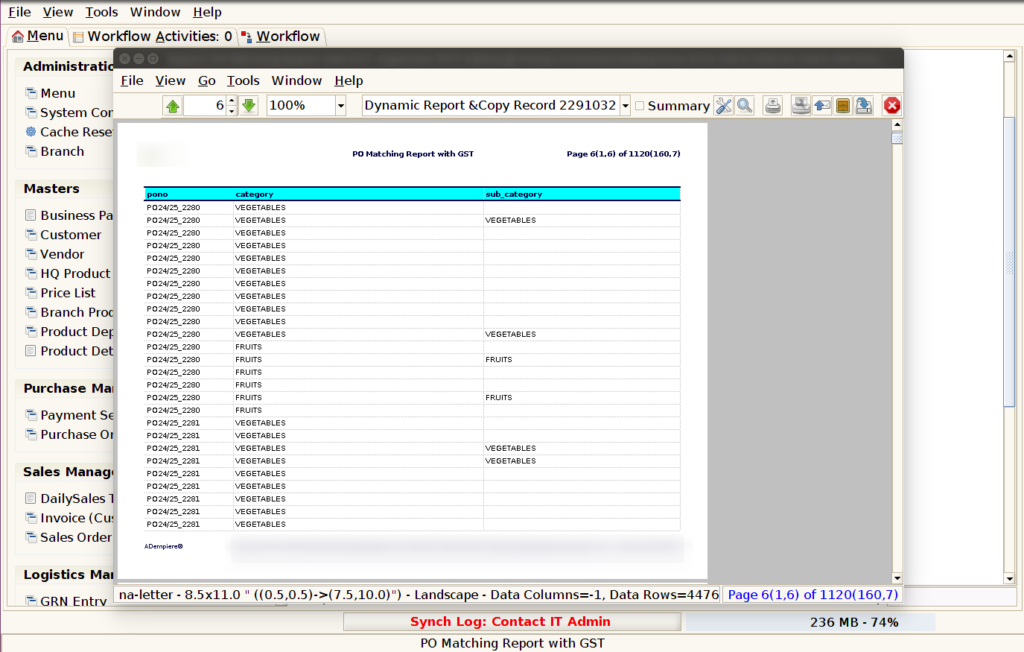
STEP 10: Click Page Down Button Show Columns Details.
29.Manufacturer.