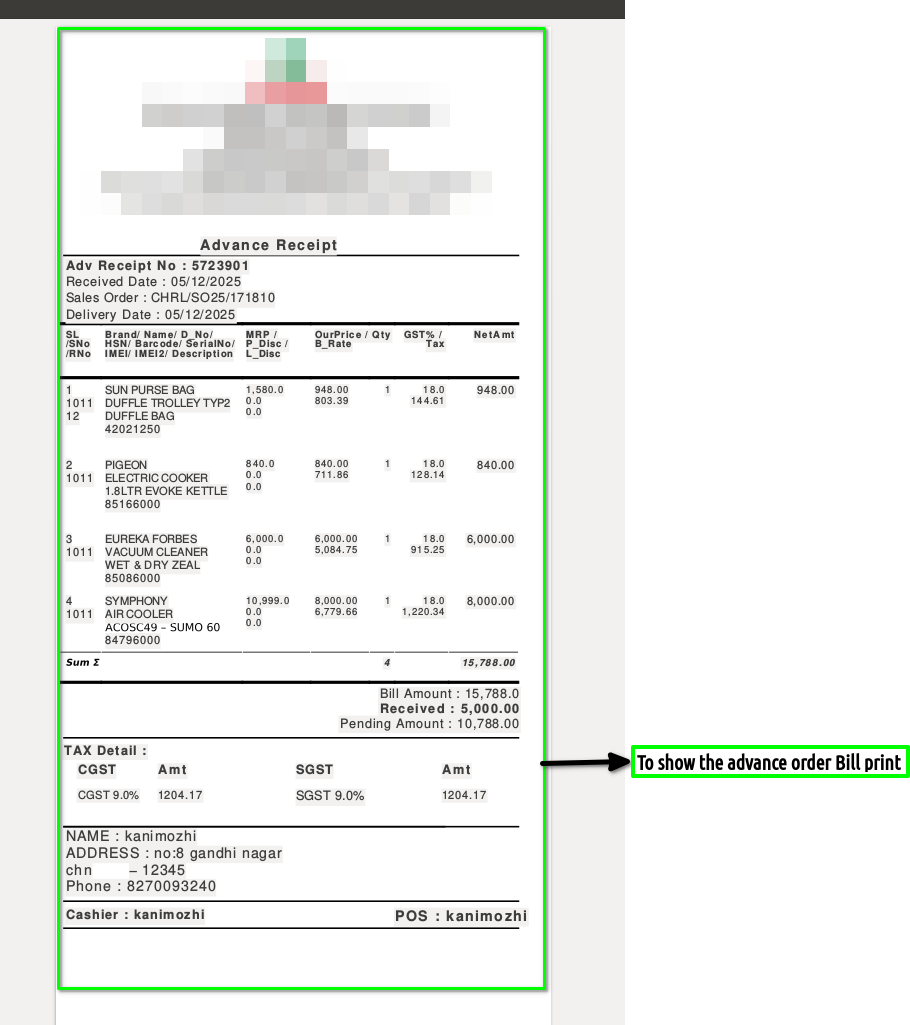
How to create Advance Order (ALT+A) in Adempiere Retail
Advance Order in POS is a feature that allows the customer to place an order in advance for items they want to buy later and pay fully or partially at the time of booking.
User Access
Who Can Access
- Admin
- Back Office
- Purchase Manager
- Manager
What User Can Do
- Create a new advance order
- Modify or update an existing order
- Collect additional advance payment
- Print or reprint advance order receipt
Pre-Requisite Activities
- Customer details must be available
- Items must be available in POS system
- Stock should be available
- POS terminal must be active
- Payment modes should be configured
- Advance order number series should be configured.
Business Rules
- Customer must pay advance to confirm the order
- Advance Payment Cannot Exceed Total Order Value
- Tax Should Be Calculated Based on Item & POS Rules
- Order Number Must Be Unique
- Order Cannot Be Delivered Before Advance Payment
User Interface
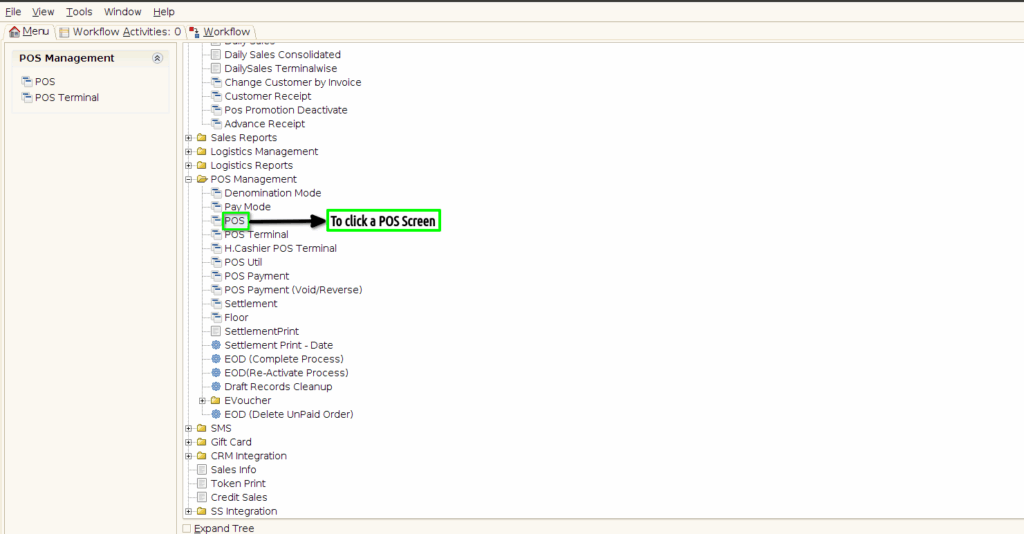
STEP 1: To click a POS in Menu.
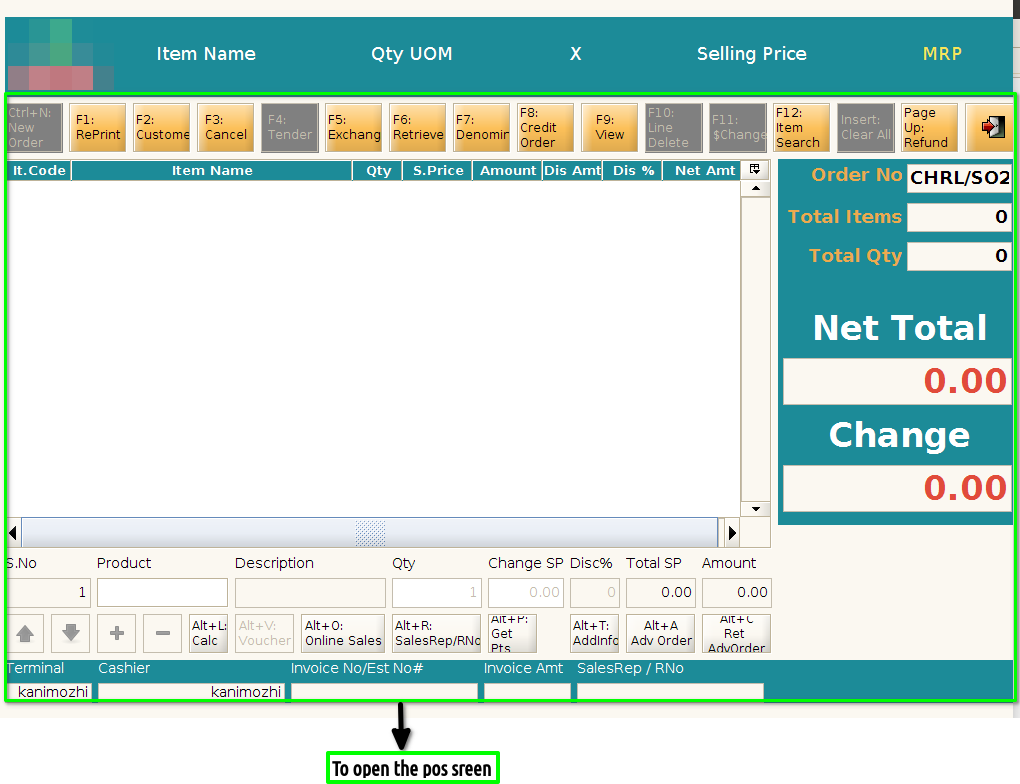
STEP 2: To open a POS Screen.
STEP 3: To click a Alt+A Advance order option.Once to click a Advance order to show the popup window to enter a customer details.Its not Mandatory its an optional. POS configuration customer details check box are enable to show the popup mandatory other wise not showing.
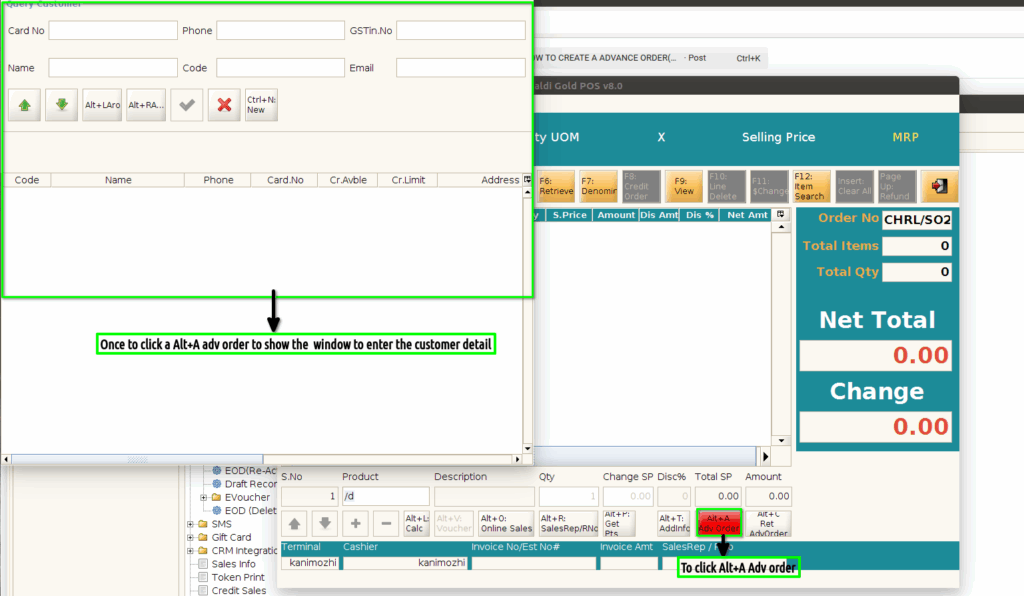
STEP 4: To enter a Card no or any of these parameter and to click a check box.Then to click a
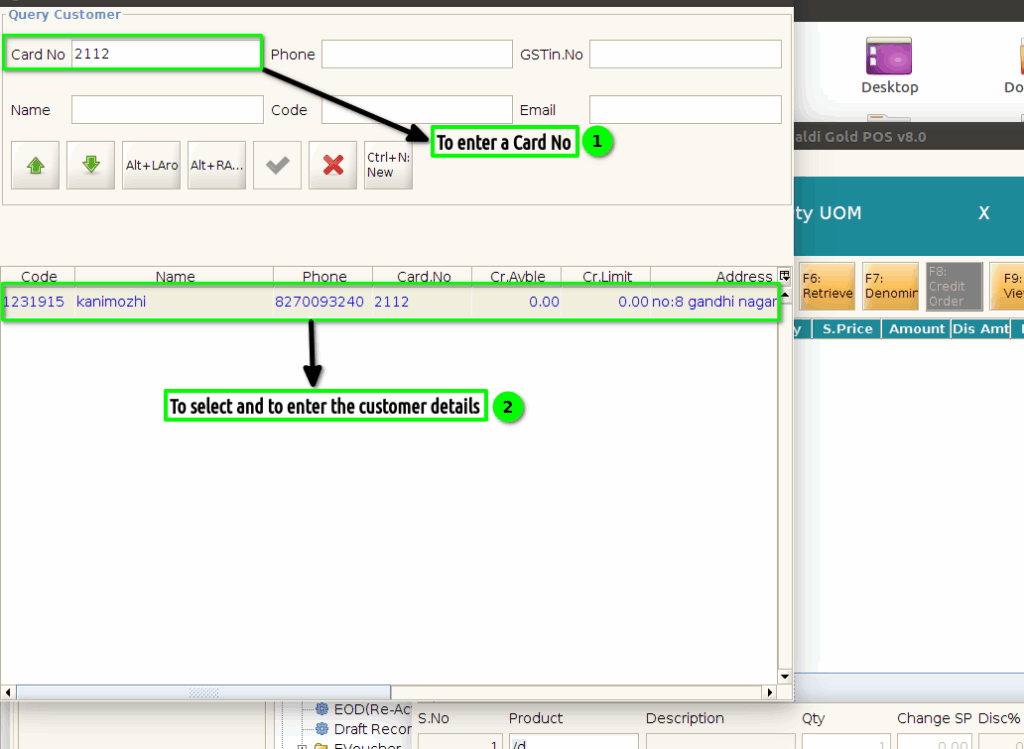
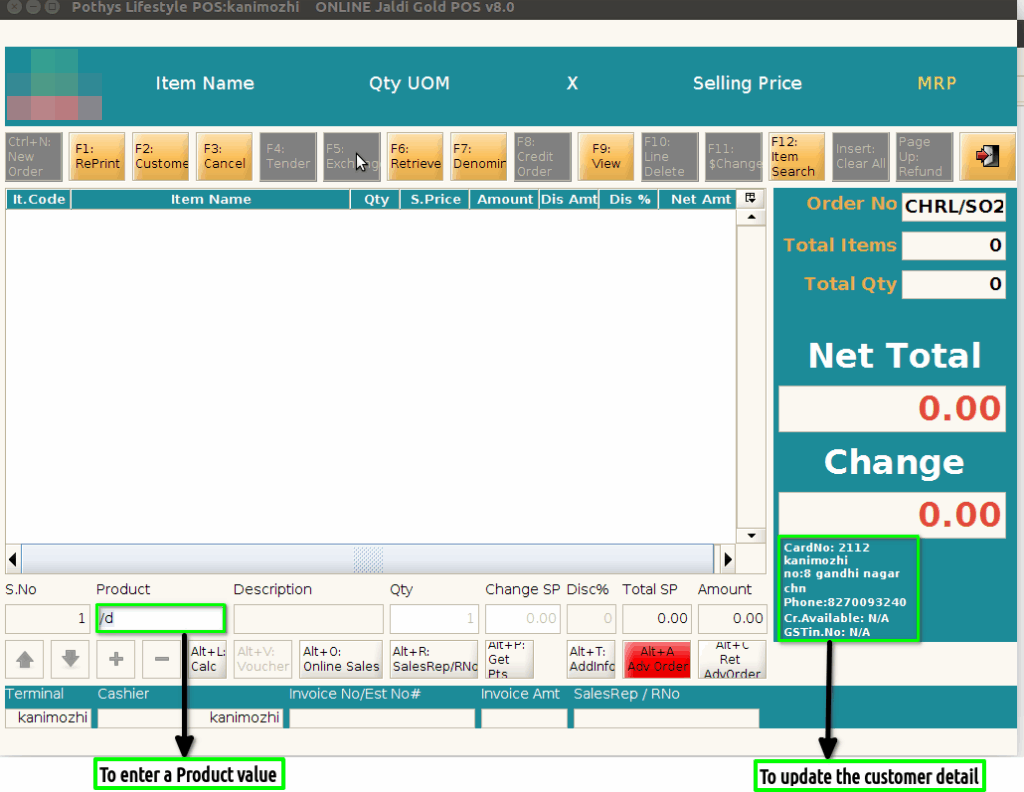
STEP 5: Once to enter the customer details and to show the selected customer detail in the screen.And then to enter a Product value.
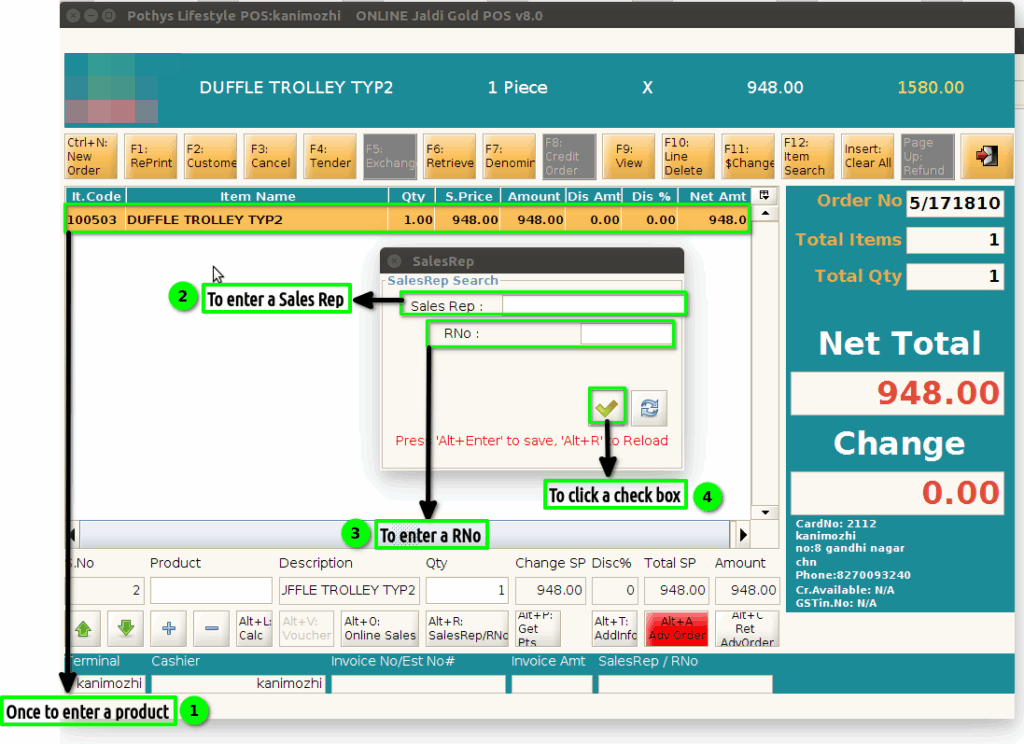
STEP 6: Once to scan a product to show the popup msg. To enter a Sales Rep and to enter a RNo. Finally to click a check box.
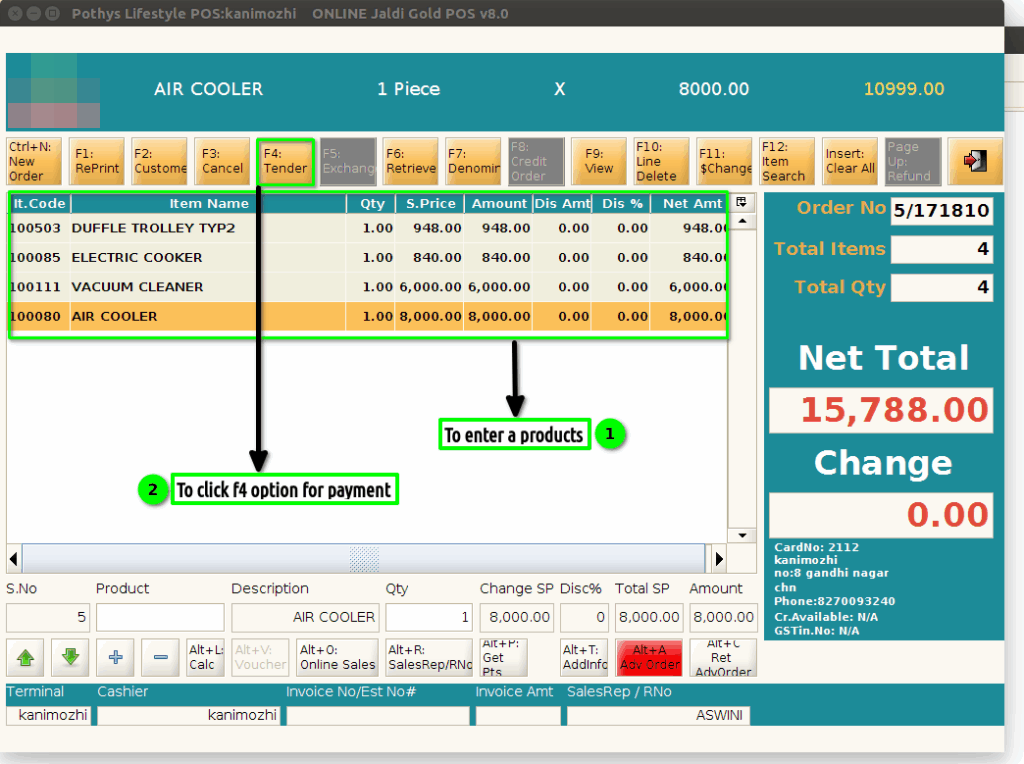
STEP 7: Once to scan the products then to click a f4 option for payment option.
STEP 8: Once to enter a f4 option and to show the popup for Advance Pay amt screen.Then to enter a Advance Pay Amt.Finally to click a check box.
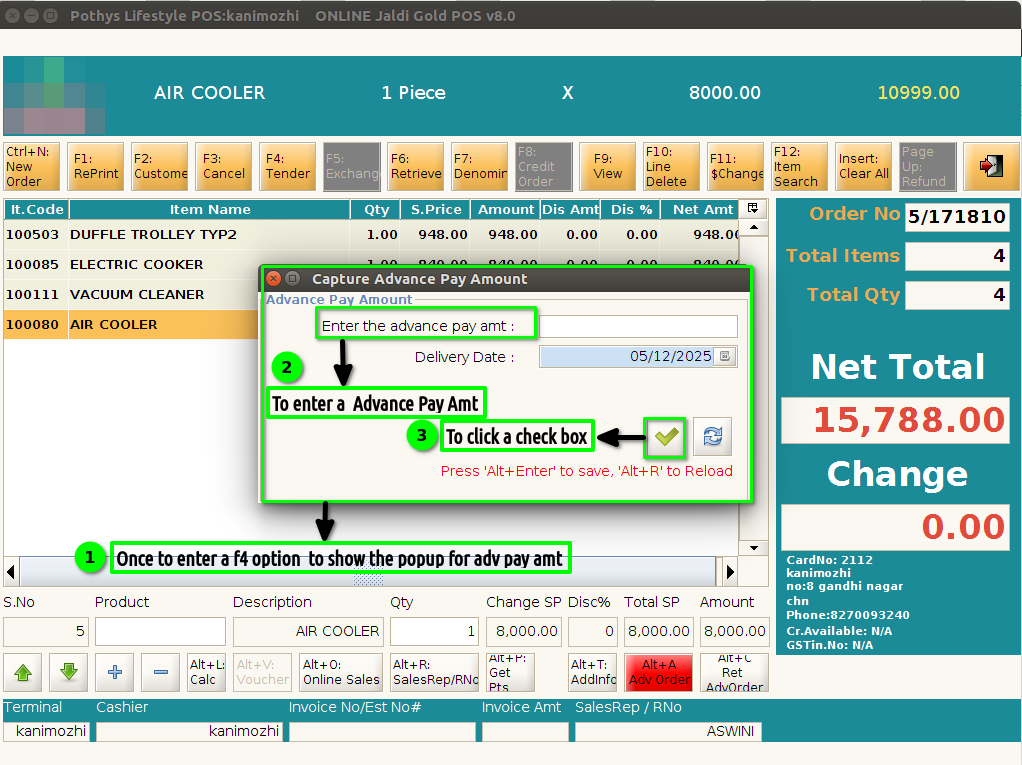
STEP 9: Once to complete the Advance Order document to show the Advance print.