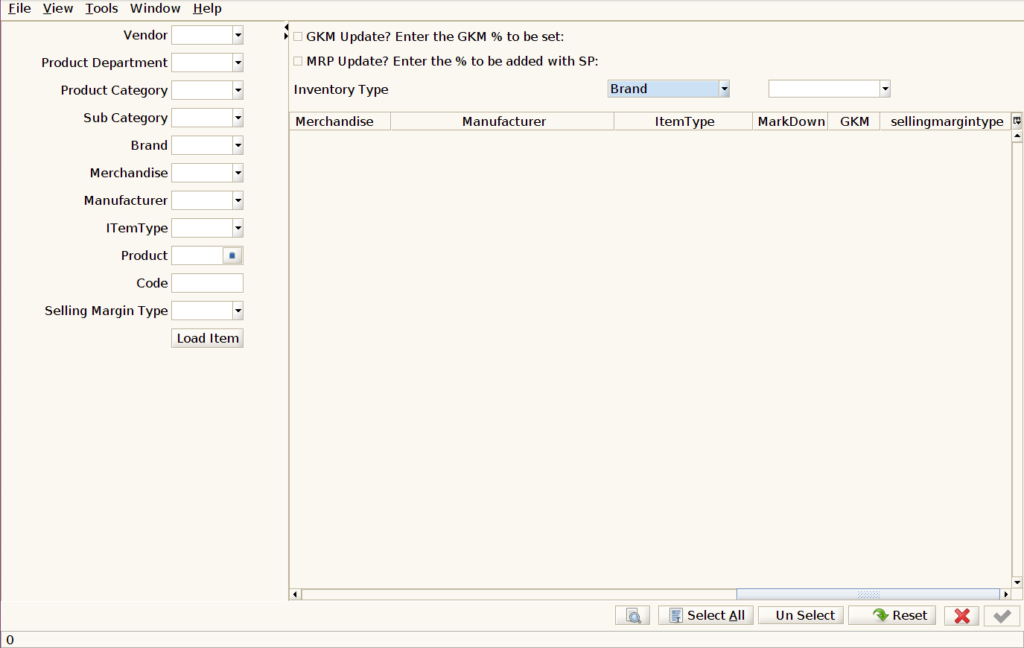
How to make Product Master attribute update in Batches in ADempiere Retail
Inventory Change means any update or modification made to the quantity, status, or details of items in the inventory system. It reflects adjustments like adding, removing, or correcting stock records.
User Access
Who Can Access
- Back Office
- Cashier
- Manager
- Admin
What User Can Do
- Add new stock
- Remove stock
- Update item details
- Adjust quantities
Pre-Requisite Activities
- Identify the Need for Change
- Verify Current Inventory Data
- Gather Relevant Information
- Prepare Documentation
Business Rules
- Authorised Users Only
- Valid Reason Required
- Accurate Data Entry
- Real-Time Updates
- Supporting Documentation Required
User Interface
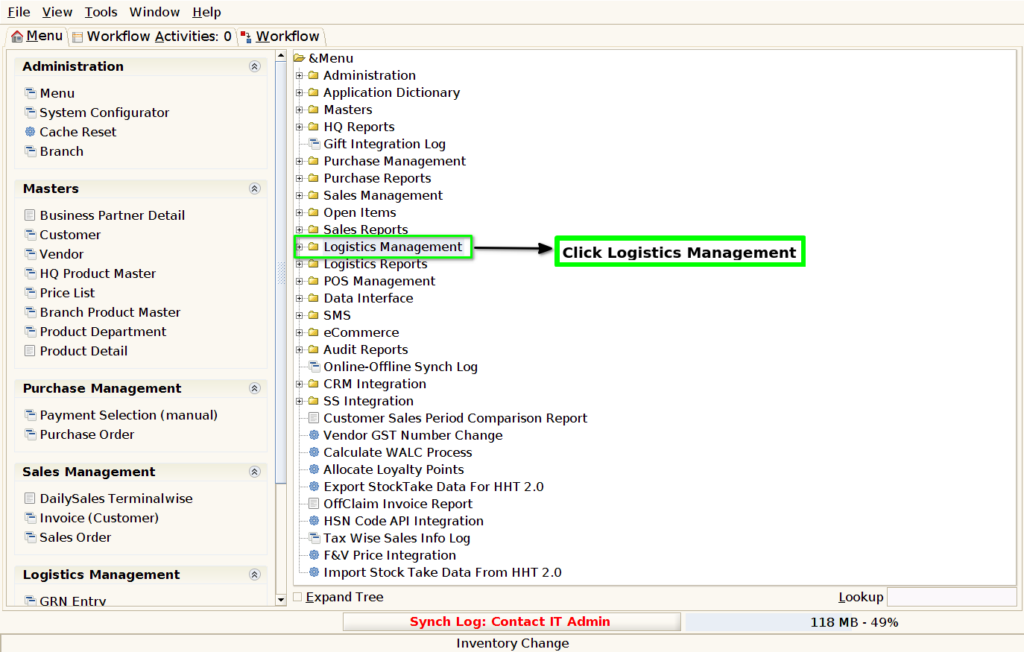
STEP 1: Click Logistics Management Folder.
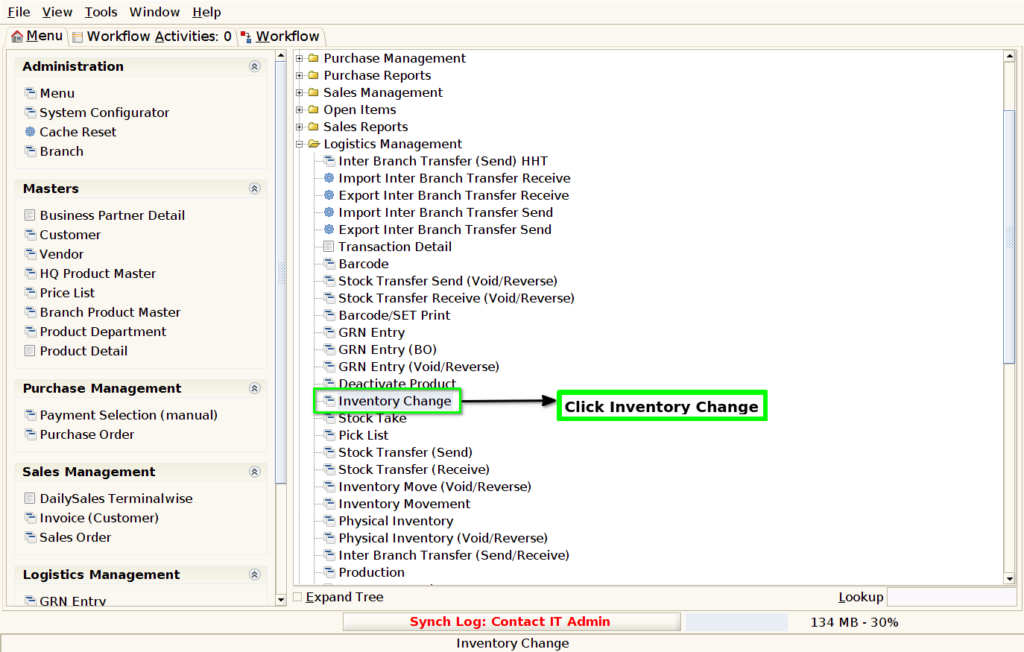
STEP 2: Click Inventory Change.
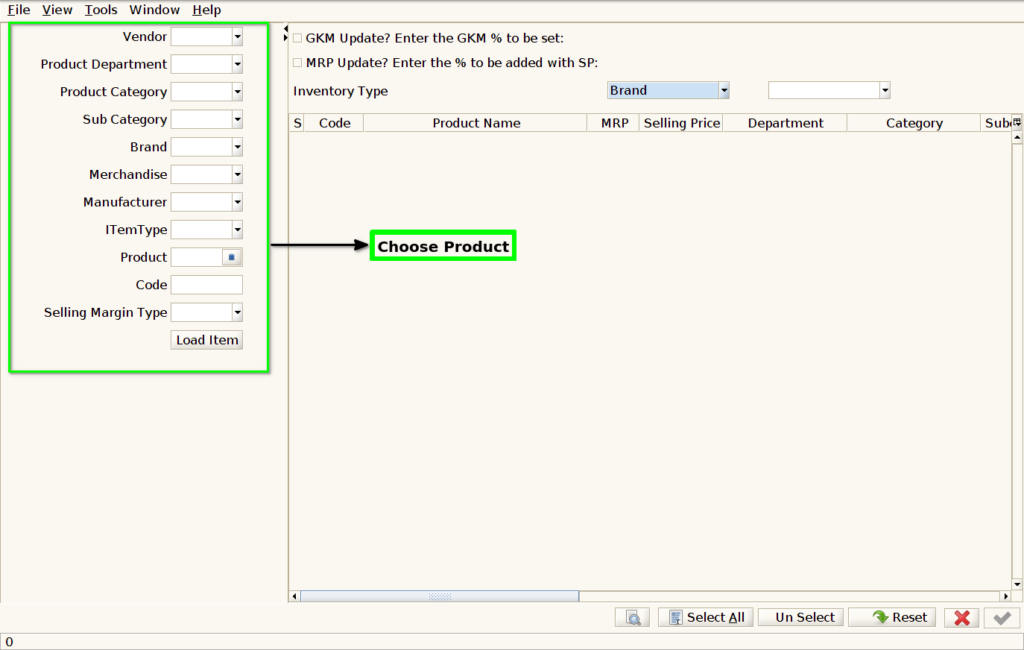
STEP 3: Choose Products.
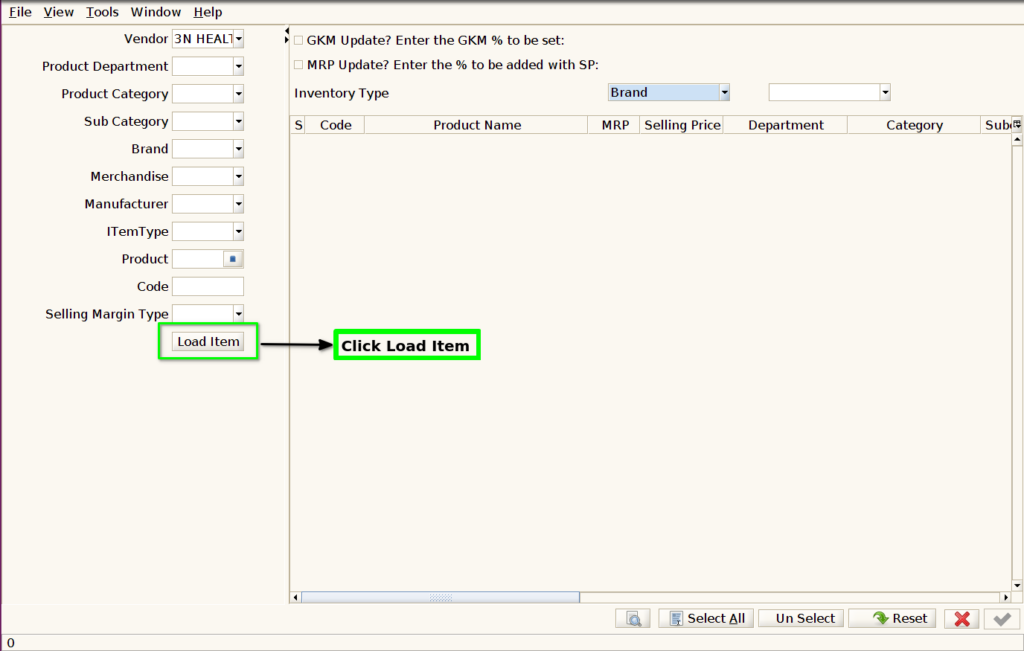
STEP 4: Click Load Item.
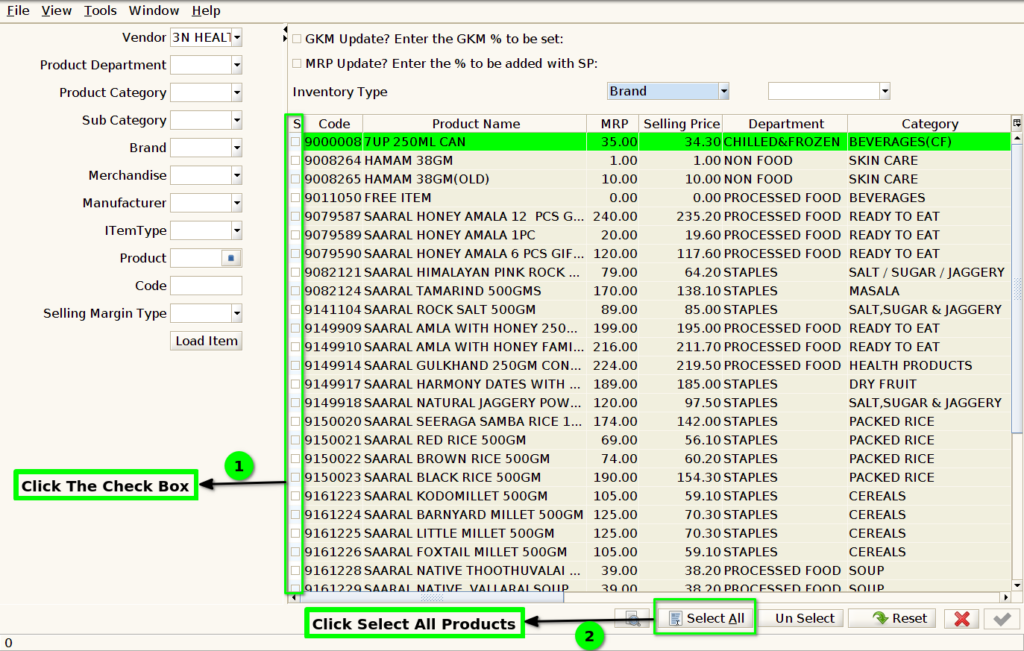
STEP 5:
1.Click Check Box Select Particular Products only
2.Using Select all button select all products.
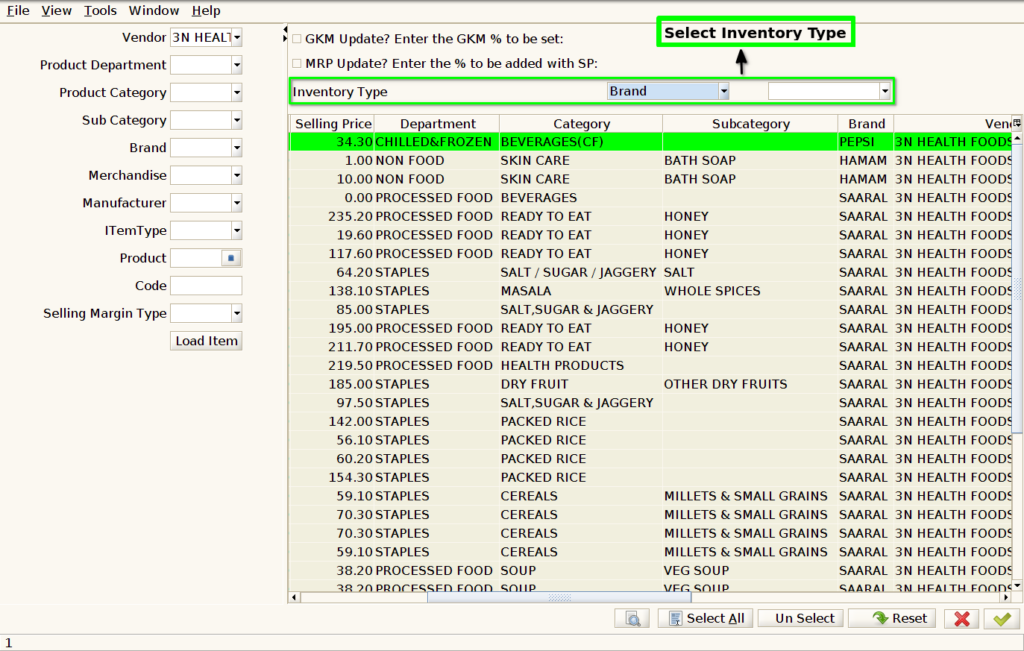
STEP 6: Select Inventory type Change the Product One Brand to another brand.
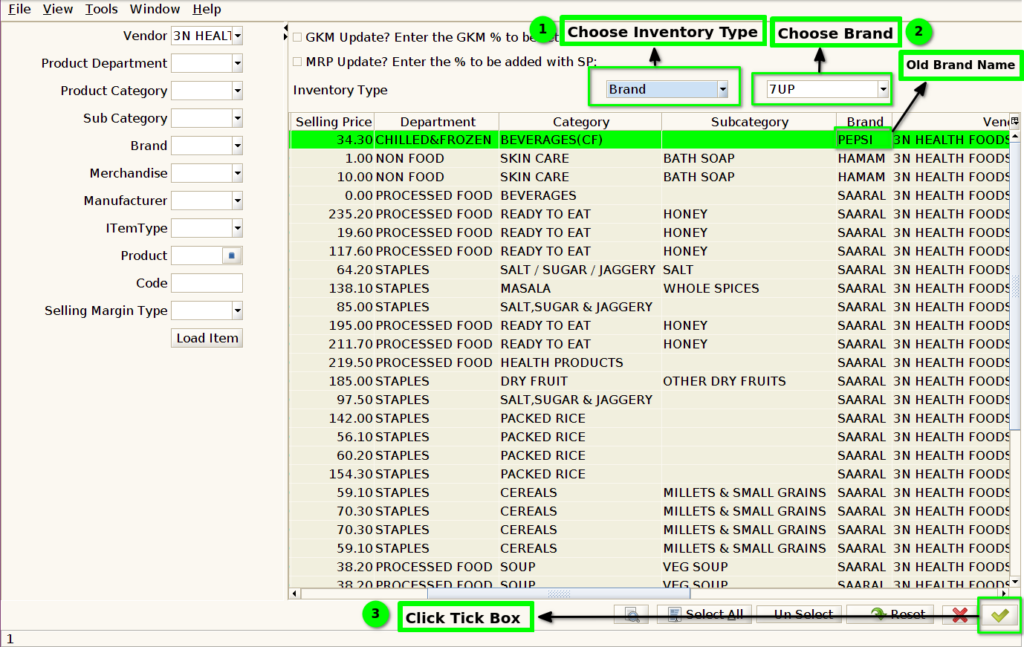
STEP 7:
1.Click The List Box and Choose Inventory Change Type
2.Select Change Brand
3.Click The Tick Box and Run the Process.
STEP 8: Process Successfully pop Show.
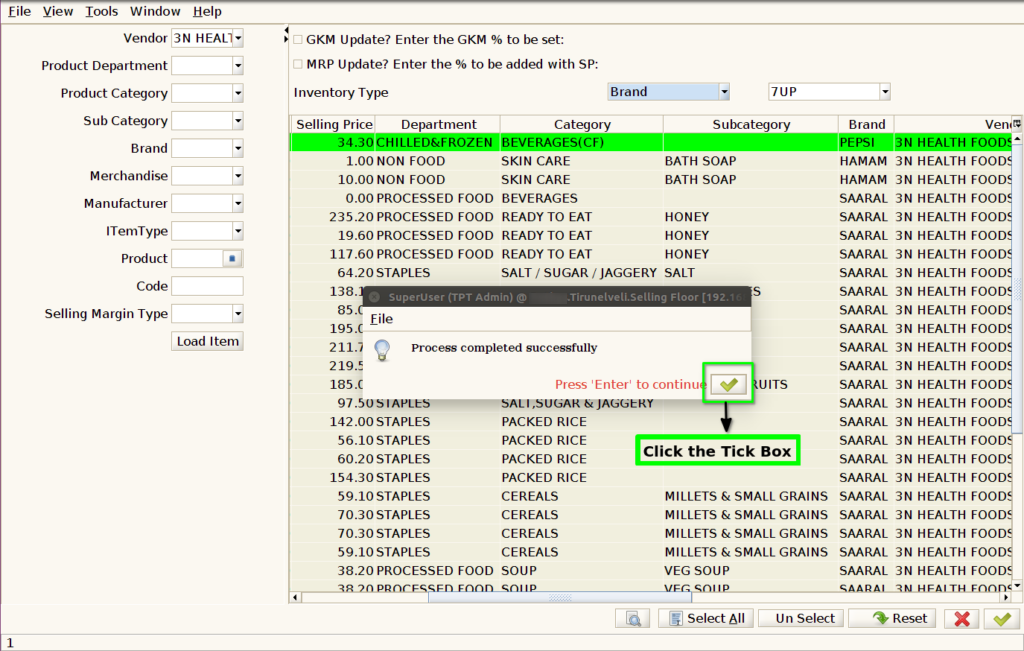
STEP 9: Brand Name Change the Window and Click Reset Button.
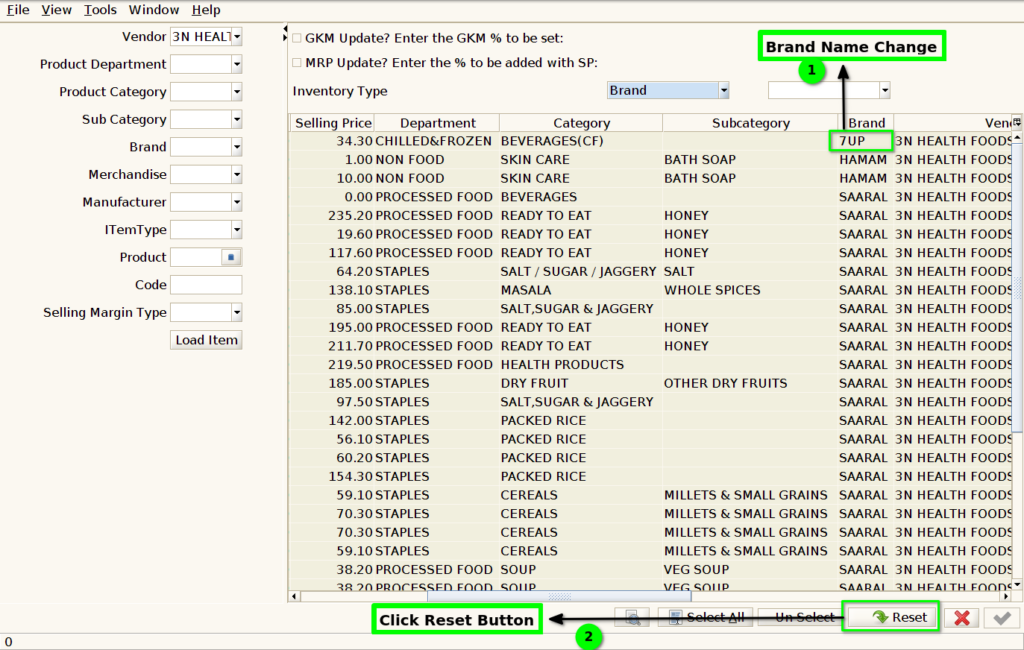
STEP 10: Reset the Window.