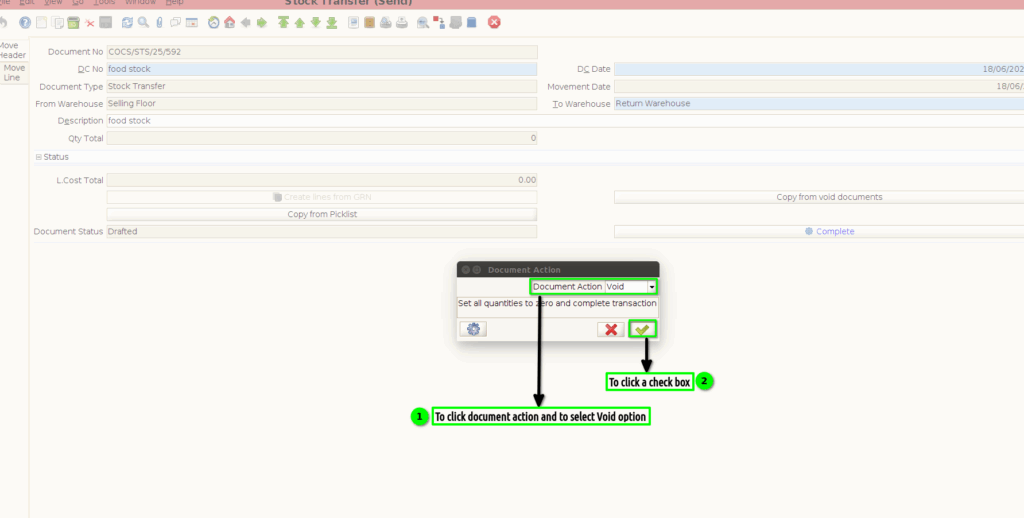
How to create Stock Transfer Send (Void/Reverse) document in Adempiere Retail
Stock Transfer Send means sending goods from one store/location to another within the same company.Stock Transfer Send (Void/Reverse) means cancelling or undoing a stock transfer entry to keep inventory accurate.
User Access
Who Can Access
- Admin
- Cashier
- Manager
- Back office
What User Can Do
- Cancel the Stock Transfer (VOID)
- Undo the Stock Movement (REVERSE)
- Correct Wrong Entries
- Maintain Inventory Accuracy
- Add Reason for Void/Reverse
Pre-Requisite Activities
- Check if the Stock Transfer Send document exists
- Check the Current Status of the Document
- Ensure Items Are Not Yet Received by Destination Store
- Check Stock Availability at Sending Location
- User Must Have Proper Permissions
Business Rules
- Document must be in a voidable/reversible status
- Reverse is allowed only if stock is available
- No dependent documents should exist
- User must have proper system permissions
- Mandatory reason for void/reverse
User Interface
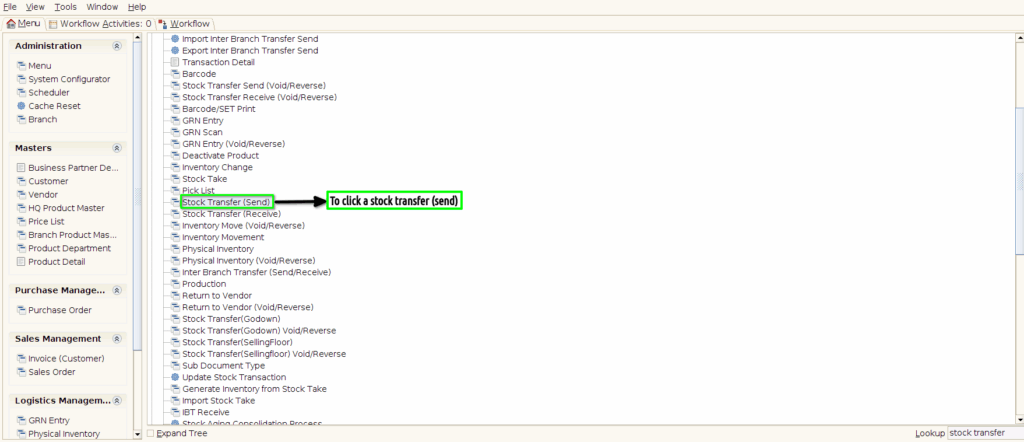
Step 1 : Select ‘Stock transfer send’ in Menu -> Logistics management > Stock transfer send or Search Stock transfer send in Lookup.
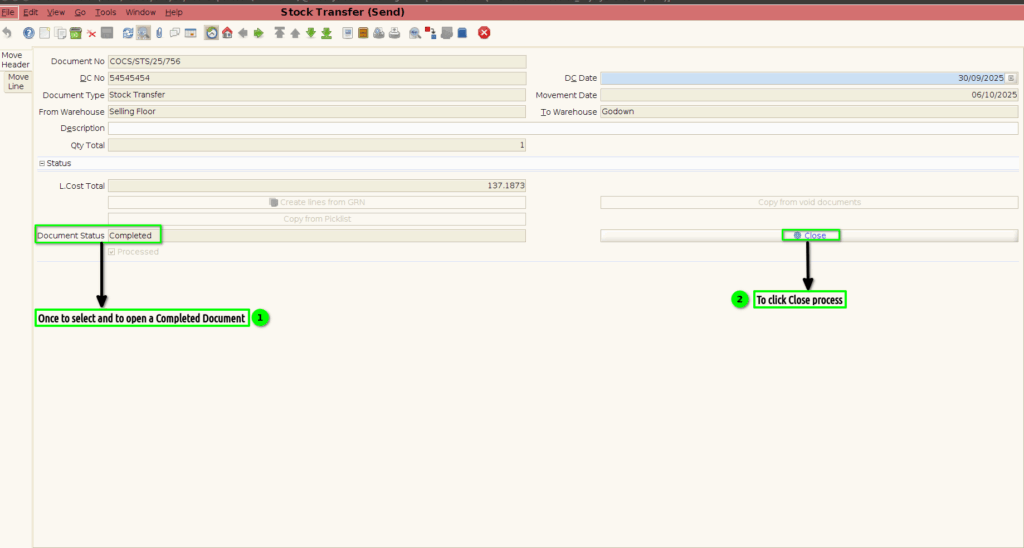
Step 2 :Once to select the completed document and then to click the close process.
Step 3 :Once to click the close process then to click a document action and to select a Void option.
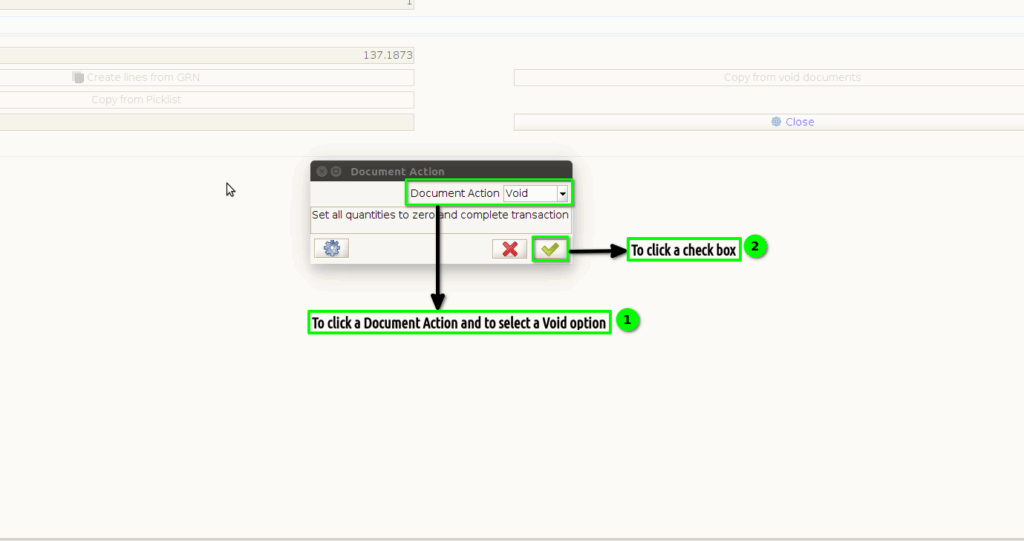
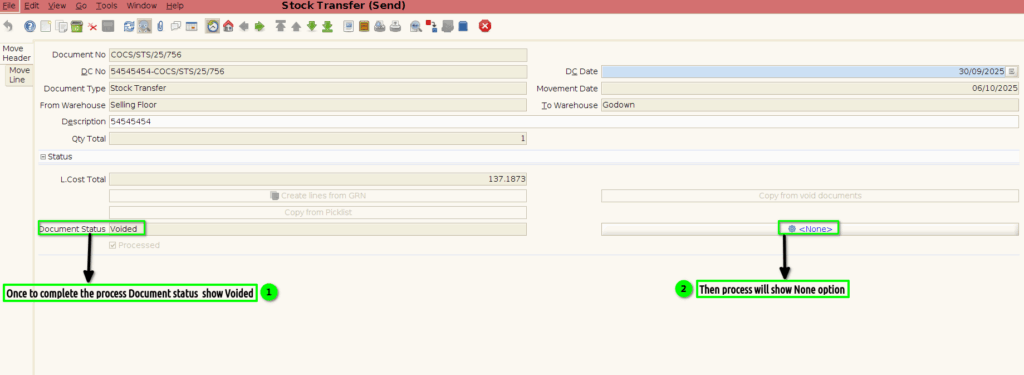
Step 4 :Once to complete the process .Document status will show Voided.
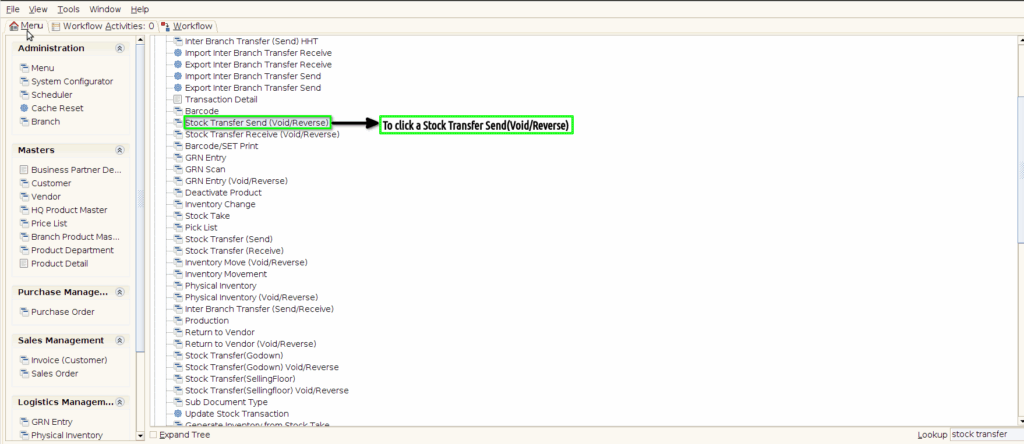
Step 5 :To click Stock Transfer Send(Void/Reverse) in menu.
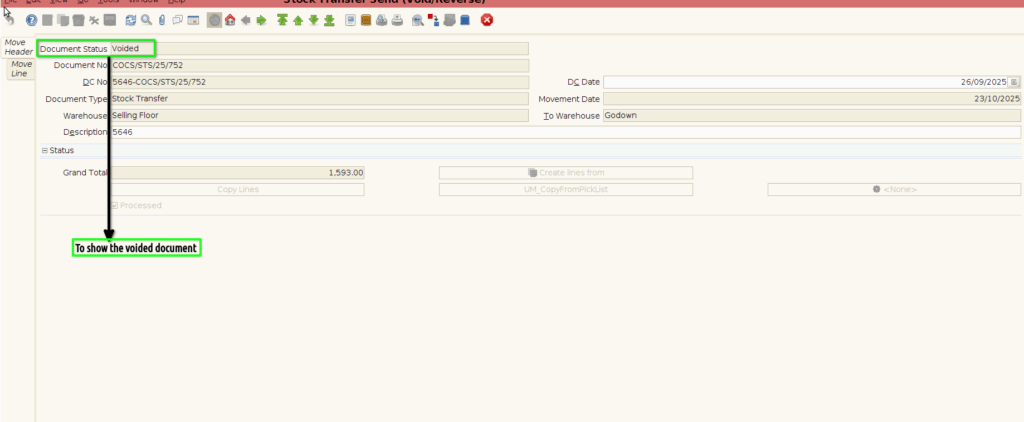
Step 6 :To show the Voided documents.
Step 7 :To click a Drafted document and then to click a complete process.
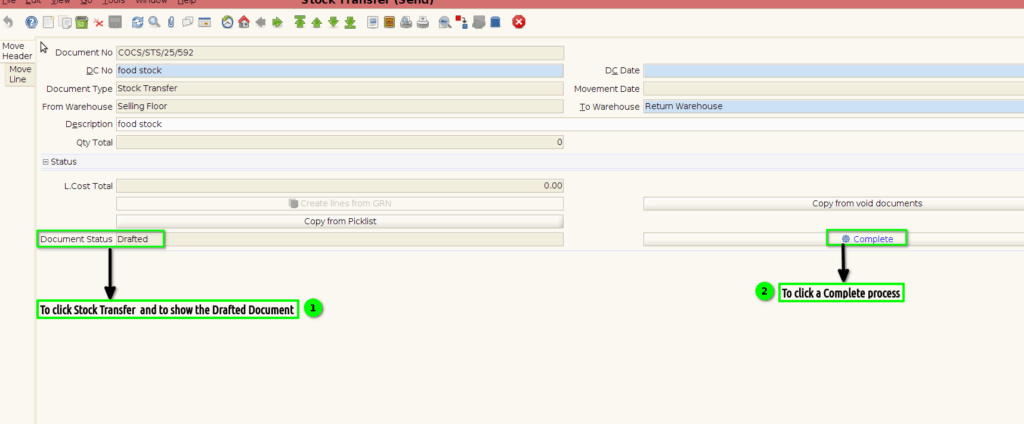
Step 8 : Once to click the complete process then to click document action and to select a void option.