How to use Product Tax Mapping in Adempiere Retail
Product tax mapping means assigning the correct tax category or code to a product so that the right tax rate (like GST, VAT, or sales tax) can be applied when the product is sold.
User Access
Who Can Access
- Cashier
- Back Office
- Purchase Manager
- Manager
- Admin
What User Can Do
- Assign Tax Codes
- Ensure Accurate Tax Calculation
- Update Tax Rates Easily
- Generate Compliant Reports
- Avoid Tax Errors and Penalties
Pre-Requisite Activities
- Set Up Tax Jurisdictions and Rates in the System
- Create or Import Products
- Define Tax Categories or Codes
- Map Product Categories (if applicable)
- Back Up Existing Data
Business Rules
- Tax Mapping Must Reflect Legal Requirements
- One Tax Code per Product
- Tax Mapping Must Consider Location
- Mapping Must Align with Financial and Tax Reporting
- Changes to Tax Rates Require Updated Mapping
User Interface
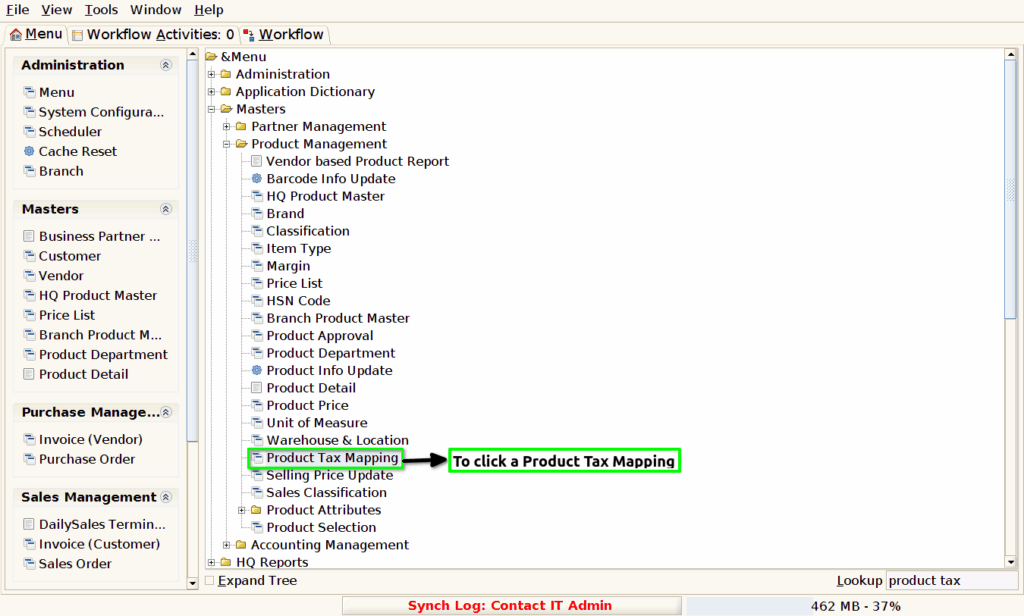
STEP 1: To select a Product tax mapping in the menu.
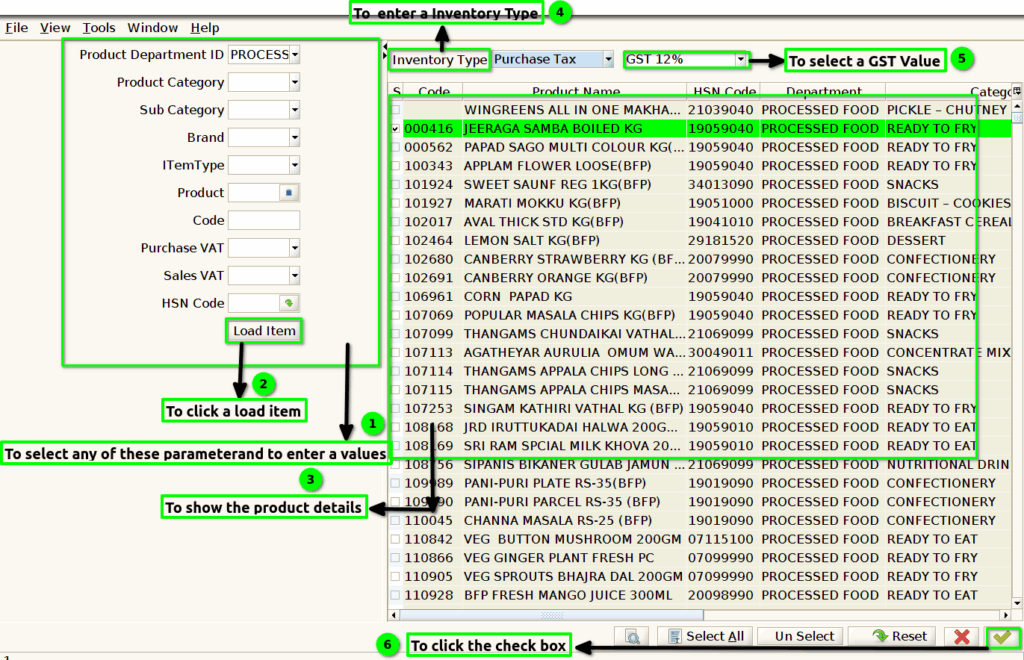
STEP 2: Once to click a Product tax mapping to show the form and to select the any parameter to enter the values.Then to click a Load item.To show the product details and to select any of these product and then to select Inventory type and GST.Finally to click the check box.
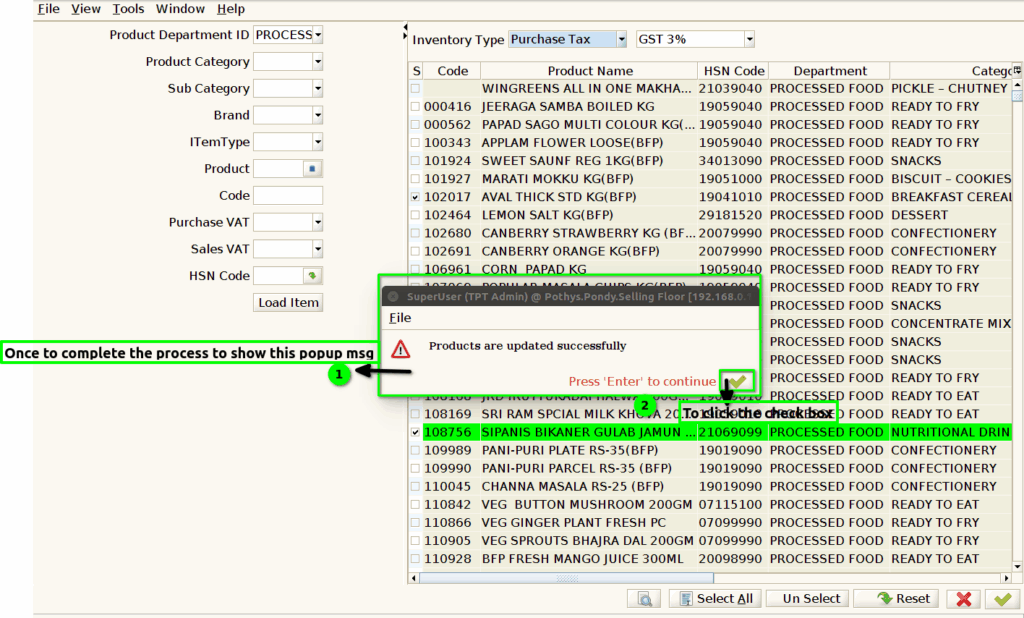
STEP 3: Once to complete the process to show this popup message for product updated successfully.If any mistakes to make product could not updated through popup message .