How to create Product Department for Lifestyle in ADempiere Retail
Product Department refers to a classification or grouping of products based on type, category, or function (e.g., Electronics, Grocery, Clothing). It helps in organising, reporting, and managing products efficiently within the system.
User Access
Who Can Access
- Admin
- Manager
- Cashier
- Back Office
What User Can Do
- Create or edit product departments
- Assign products to the correct department
- Filter or search products based on department
Pre-Requisite Activities
- Define the list of departments
- Ensure products are classified based on their department
- Department names should be unique
Business Rules
- Each product must be assigned to only one department
- Departments must have unique names or codes
- Inactive departments should not be available for new product assignments
- Reports should support department-wise grouping or filtering
User Interface
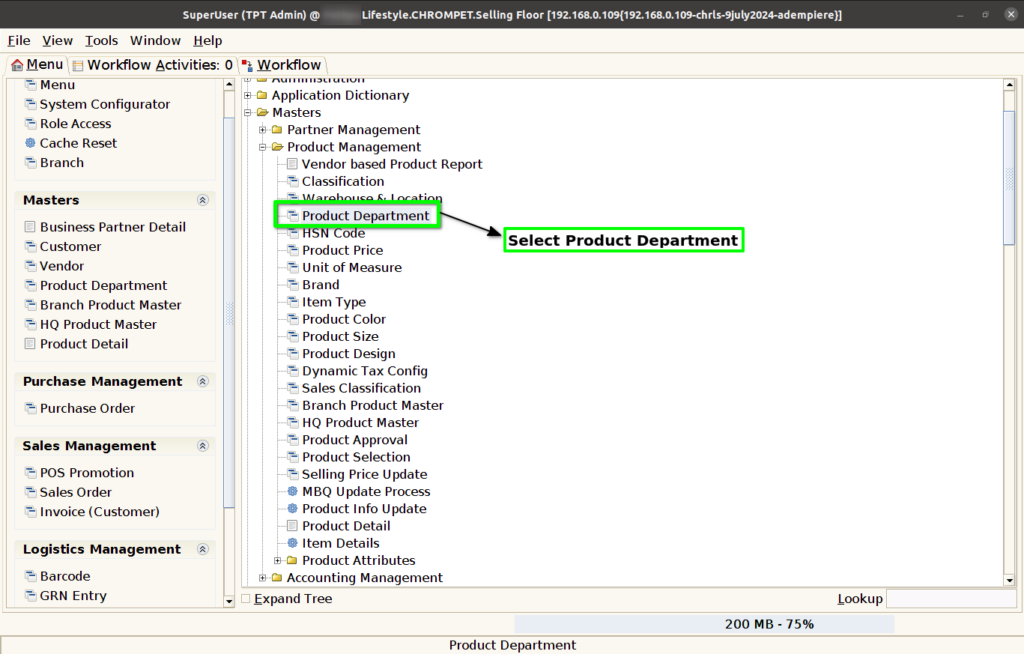
Step 1 : Select ‘Product Department’ in Menu Masters -> Product Management -> Product Department or Search Product Department in Lookup.
Step 2 : Enter Department Name and Department Code.
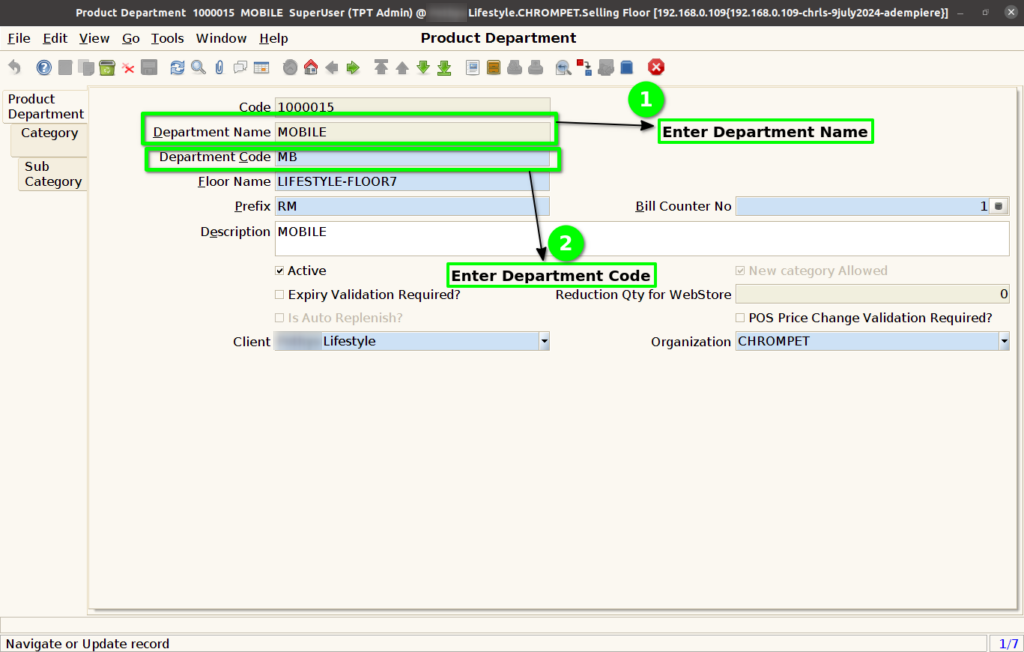
Step 3 : Enter Floor Name, Prefix, and Bill Count No.

Step 4 : Enable Expiry Date Validation Required?, POS Price Change Validation Required? (Optional).

Product Category
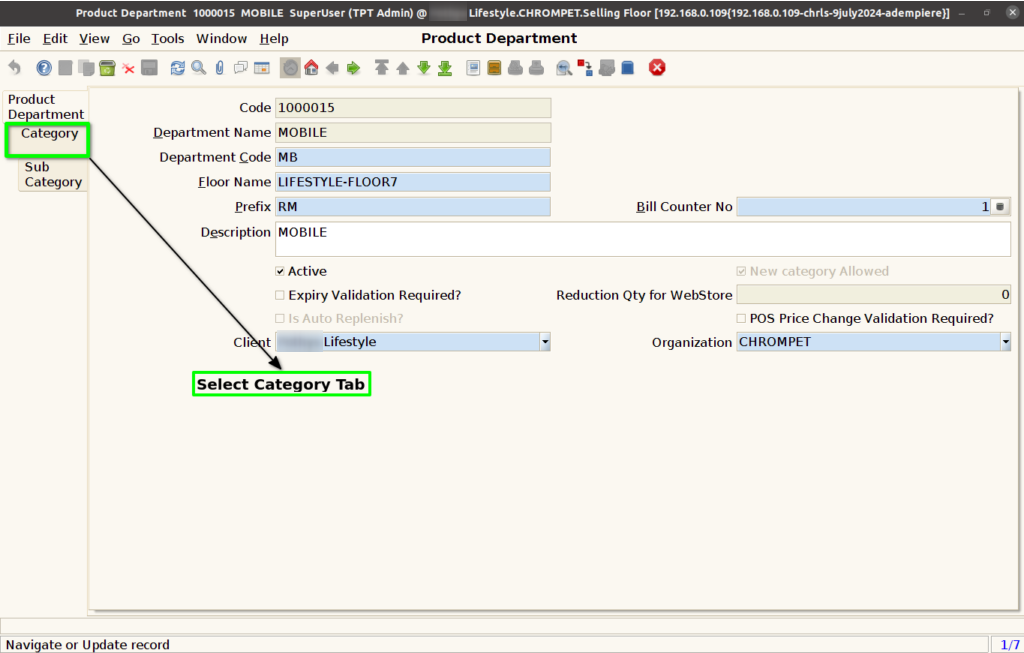
Step 5 : Select Category tab.
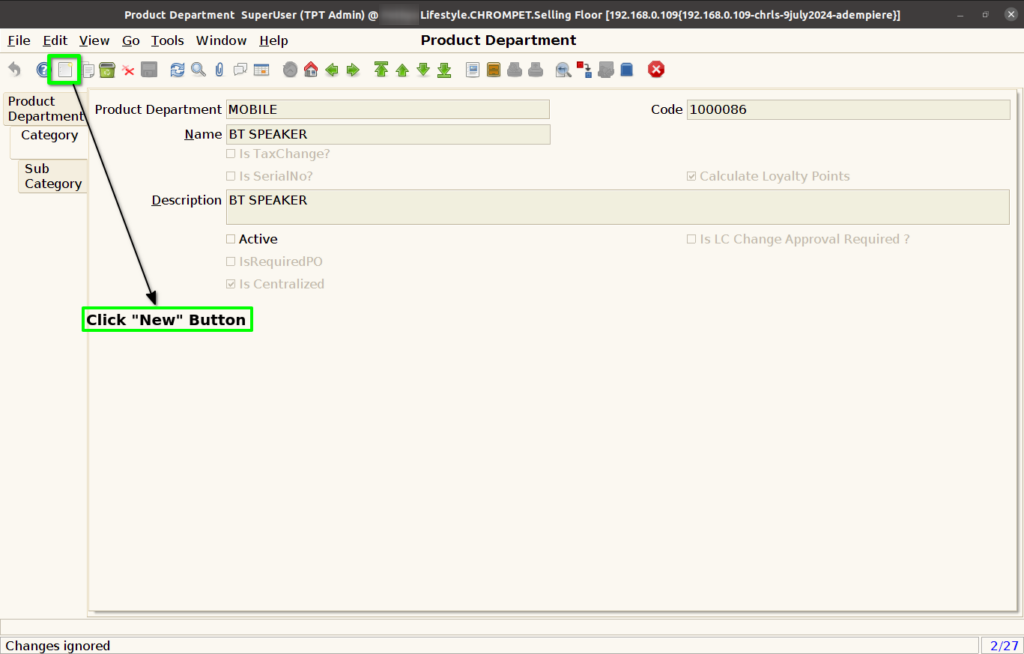
Step 6 : Click New Record Button.
Step 7 : Enter Category Name.
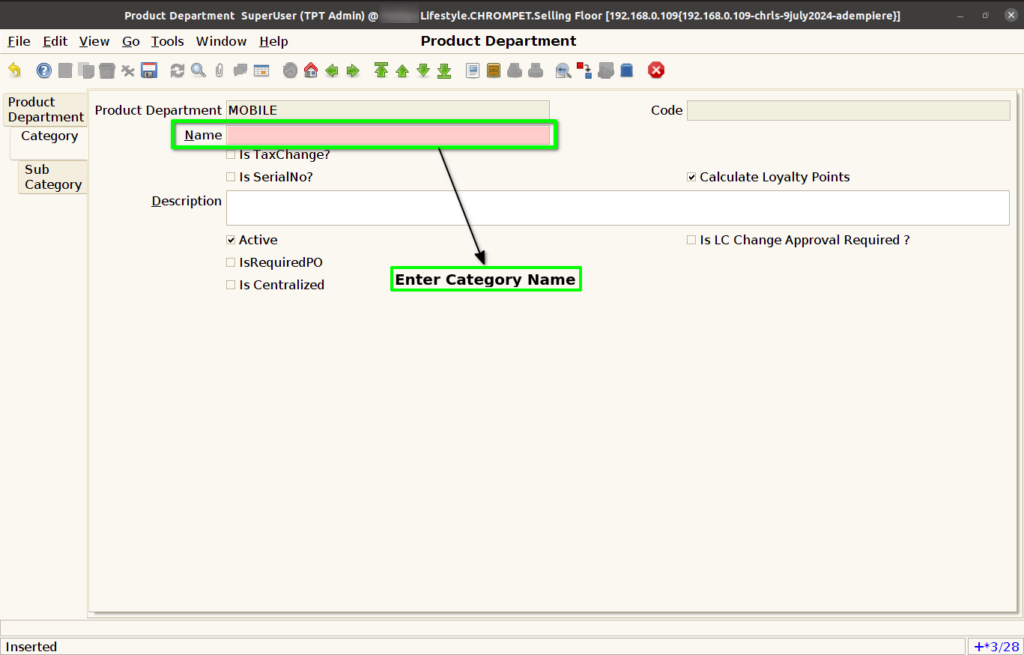
Step 8 : Select below function based on category needs
- Is Tax Change – Dynamic Tax change based on configuration
- Is Serial No? – For Serial Number based Products
- Is IMEI – For IMEI based Products
- Calculate Loyalty Points – Need to calculate loyalty points for the category
- Is Required Po – If PO Mandatory for the selected Category
- Is Centralized – If selected category products show only HQ Product Master
- Is LC Approval Required? – Land Cost change approval required to complete GRN.
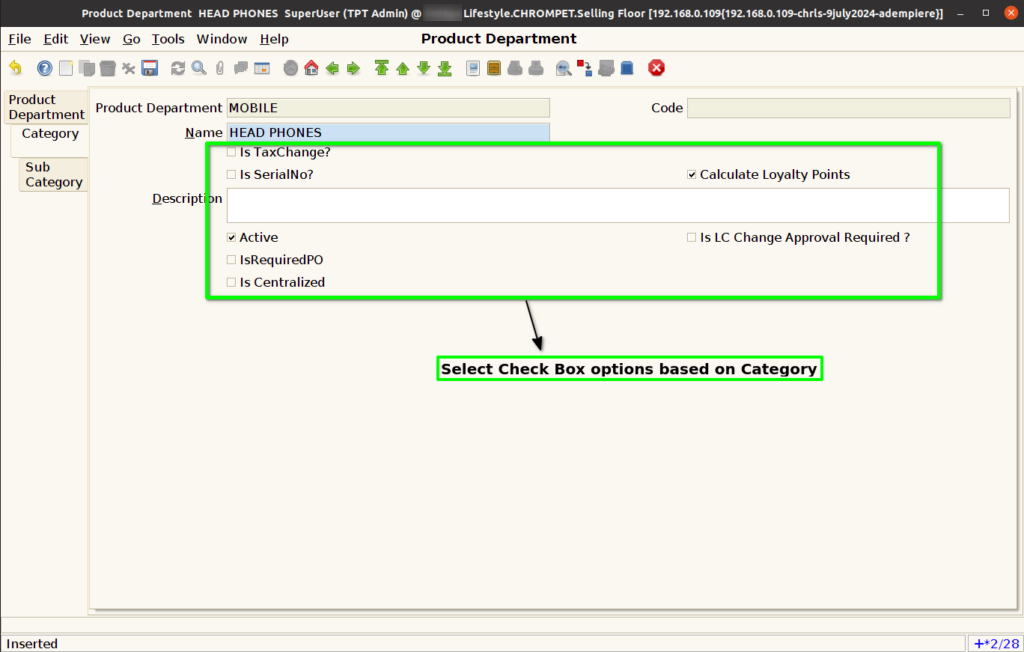
Step 9 : Click to “Save’ Category.

Product Sub Category
Step 10 : Select Sub Category tab, and Click New Record Button.

Step 11 : Enter Sub Category Name and Click Save button.
