How to view Terminal Wise Sales Report in Adempiere Retail
A Terminal Wise Sales Report shows the sales figures grouped by each sales terminal or point of sale (POS) device.
User Access
Who Can Access
- Admin
- Head cashier
- Sales Manager
- Manager
What User Can Do
- Monitor Terminal Performance
- Detect Terminal Issues
- Support Financial Reconciliation
Pre-Requisite Activities
- Terminal Setup
- Accurate Transaction Recording
- Data Validation
Business Rules
- Unique Terminal Identification
- Accurate Transaction Assignment
- Exclude Cancelled Transactions
- Handling Multiple Locations
User Interface
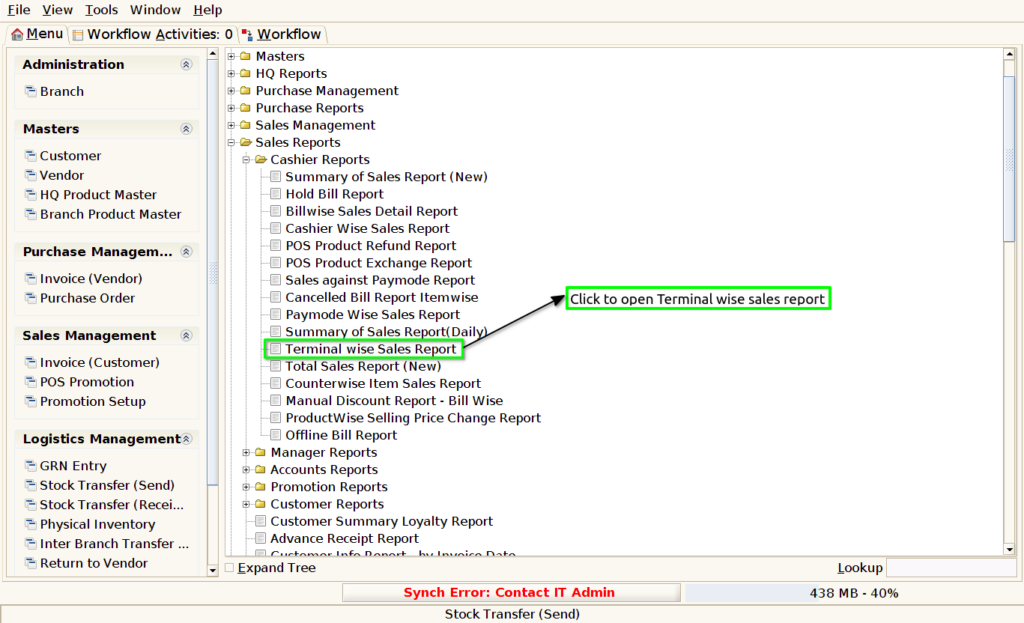
Step 1 : Select ‘Terminal Wise Sales Report’ in Menu -> Sales reports > Cashier report > Terminal Wise Sales Report or Search Terminal Wise Sales Report in Lookup.
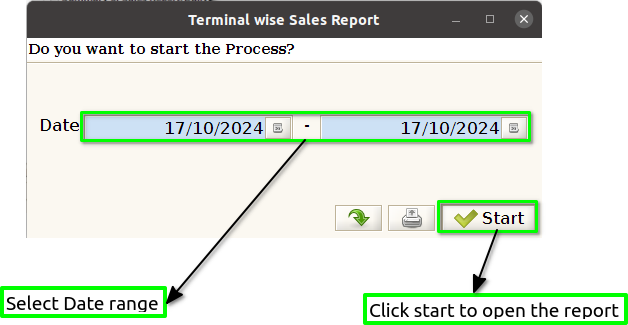
Step 2 : Select the date range and open the Terminal Wise Sales Report.
Step 3 : To view a preview of the Terminal Wise Sales Report
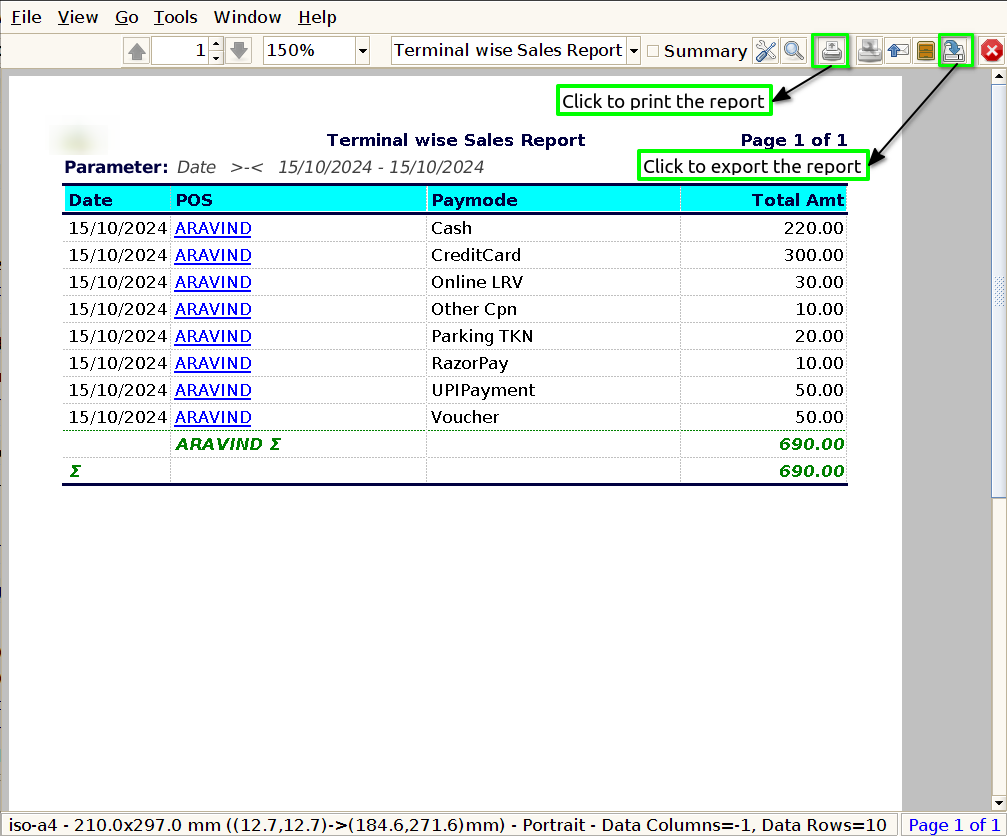
Date : Including a date in the Terminal Wise Sales Report is crucial for tracking sales trends, enabling performance analysis over specific periods, and ensuring accountability by linking transactions to particular days.
POS : Including POS (Point of Sale) information in the Terminal Wise Sales Report is essential for accurately attributing sales to specific terminals, enabling detailed performance analysis and operational insights. Showing the average bill amount in the Total Sales Report is essential for assessing customer spending behavior and the overall effectiveness of sales strategies.
Pay mode : Including payment mode information in the Terminal Wise Sales Report is vital for understanding customer preferences and payment trends, as it allows businesses to analyze the distribution of sales across different payment methods, such as cash, credit card, or mobile payments.
Total Amount : Including the total amount in the Terminal Wise Sales Report is essential for providing a clear overview of sales performance at each terminal, enabling businesses to assess overall revenue generated during a specific period.