How to search Customer in Customer Info feature of Adempiere Retail
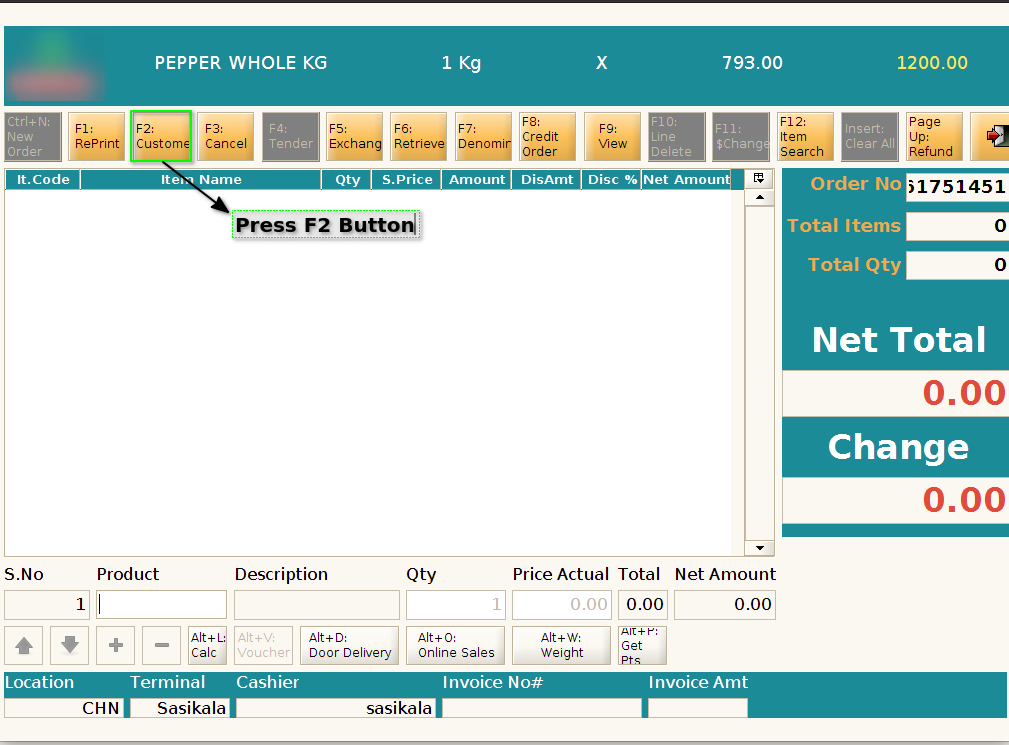
Pressing the F2 key on the keyboard opens or displays the Customer Information screen or form. User can able to create a new customer, edit the customer, search and CUSTOMER INFO – F2 Select the customer by using their details.
User Access
Who Can Access
- Admin
- Cashier
- Manager
- Back Office
What User Can Do
- View Customer Details
- Edit Customer Information
- Check Customer Status
Pre-Requisite Activities
- User Logged In
- Customer Data Available
- Access Rights Confirmed
Business Rules
- Access Control
- Valid Customer Selection
- Data Validation on Edit
- Save Confirmation
- Real-Time Data
- No Access for Inactive Customers
User Interface
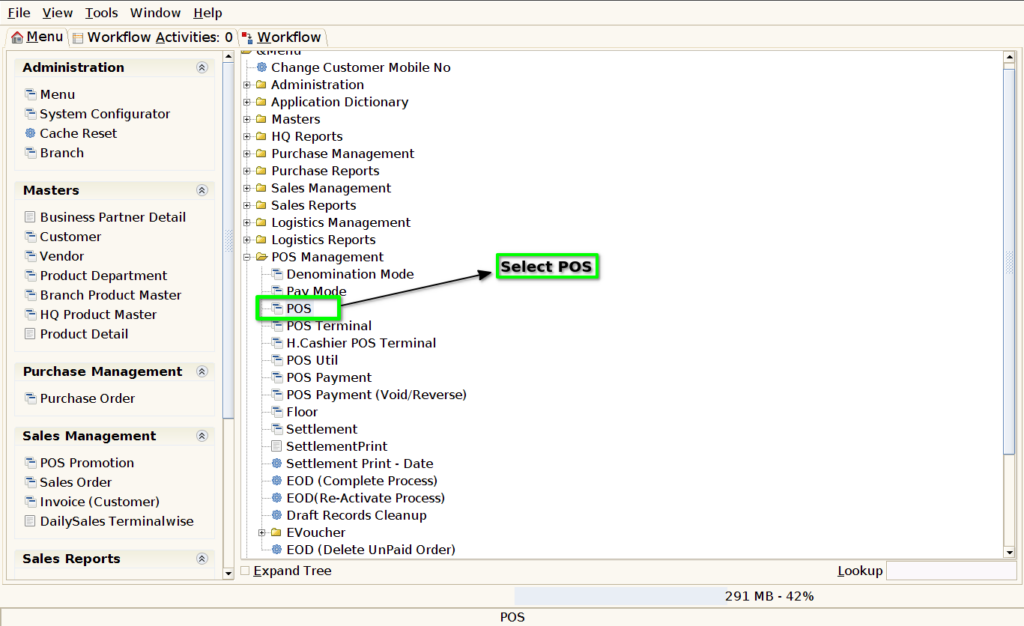
Step 1: Select ‘Pos‘ in Menu-> POS Management -> POS or Search POS in Lookup
Step 2: Click F2 Button
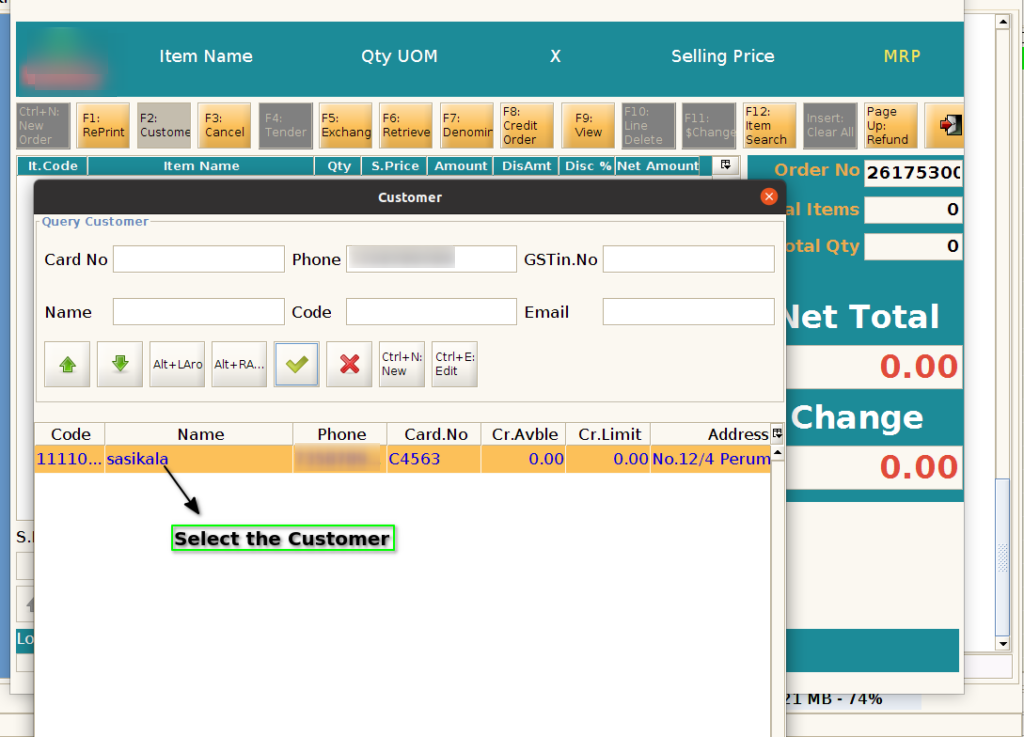
Step 3: User can able to search the customer by using any one of the field like mobile no, name, card no. etc.

Step 4: Select the customer
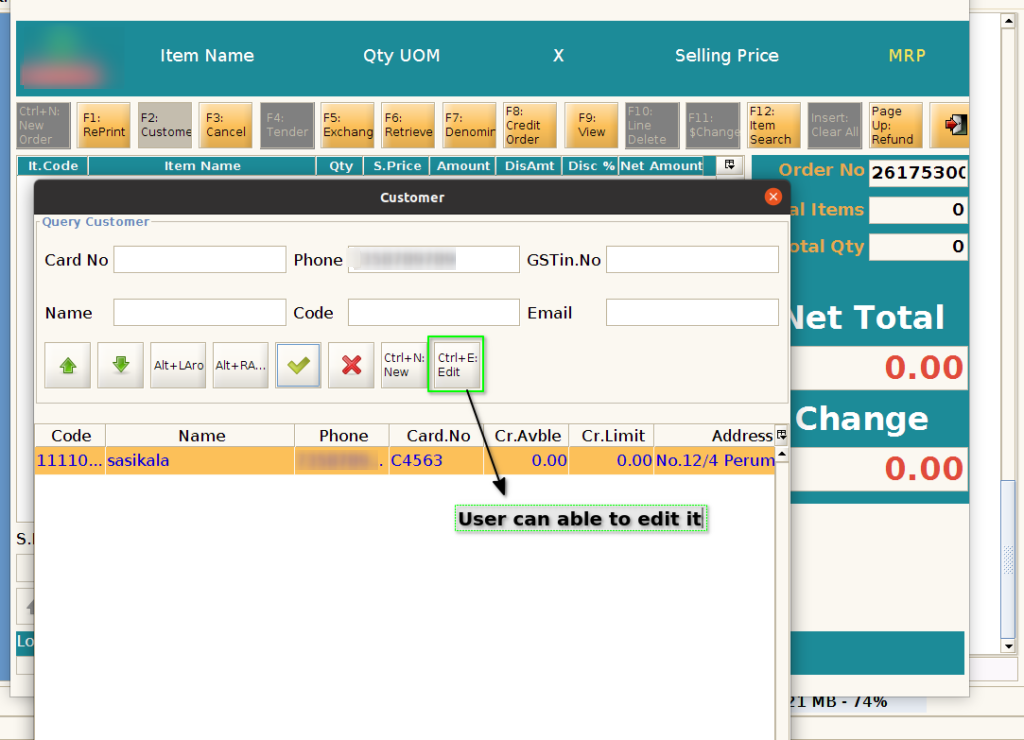
Step 5: By using Crtl+N New , create a new customer

Step 6: By using Ctrl+E key, edit the customer
Step 7: Customer not found it display a Pop up message.
