How to create Inventory Move (Void/Reverse) document in Adempiere Retail
Inventory Move (Void/Reverse) allows you to cancel or undo an internal stock movement to fix mistakes and keep inventory correct.
VOID = Cancel the move before it updates stock.
REVERSE = Undo the move after the stock has already been moved.
User Access
Who Can Access
- Admin
- Cashier
- Manager
- Back office
What User Can Do
- Cancel an Incorrect Move (VOID)
- Undo an Already Completed Move (REVERSE)
- Correct Mistakes in Stock Placement
- Add Reason for Void/Reverse
- View Updated Status and Stock
Pre-Requisite Activities
- Inventory Move Document Must Exist
- Check the Current Status of the Move
- Verify Stock Availability (for Reverse)
- Ensure No Further Transactions Exist
- Validate Original Locations
Business Rules
- Inventory Move must already exist
- Document status rules
- No dependent transactions
- Stock availability check (for Reverse)
- Original locations must be valid
- User must have the correct permissions
User Interface
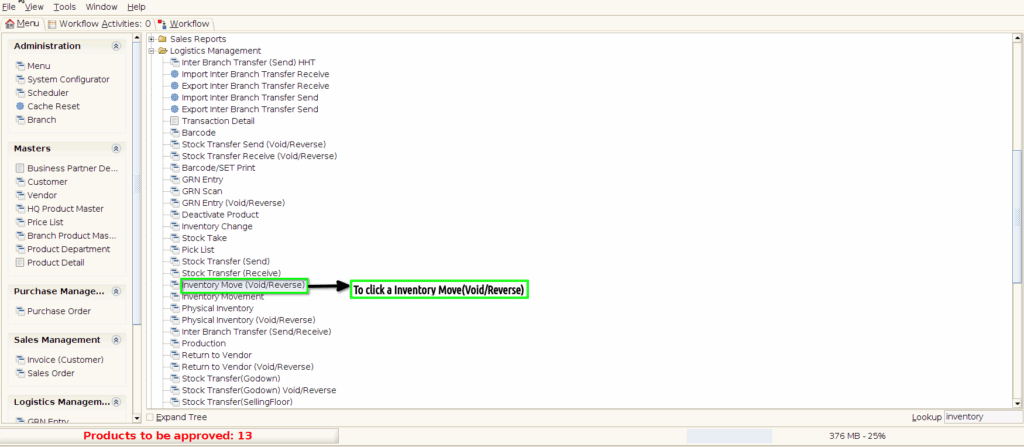
Step 1: To click a Inventory Move(Void/Reverse) in Menu.
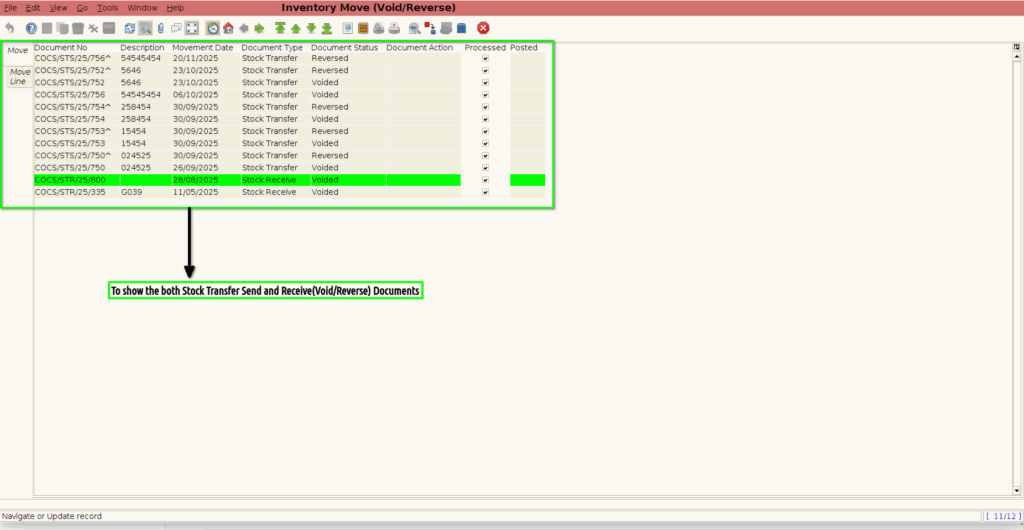
Step 2: Once to open the Inventory move(Void/Reverse)screen to show the both Stock Transfer Send and Receive(Void/Reverse)Documents.