How to view Promotion Sales Report in Adempiere Retail
A Promotion Sales Report shows the sales made under various promotional offers during a specific period.
User Access
Who Can Access
- Admin
- Head cashier
- Sales Manager
- Manager
What User Can Do
- Monitor Sales from Promotions
- Identify High-Performing Promotions
- Export Reports
Pre-Requisite Activities
- Create and Configure Promotions
- Link Promotions to Products
- Maintain Accurate Sales Data
Business Rules
- Promotion Application
- Date Range
- Discount Calculation
- Data Integrity
User Interface
Step 1 : Select ‘Promotion Sales Report’ in Menu -> Sales reports > Promotion report > Promotion Sales Report or Search Promotion Sales Report.

Step 2 : Select the date range and vendor to open the Promotion Sales Report.
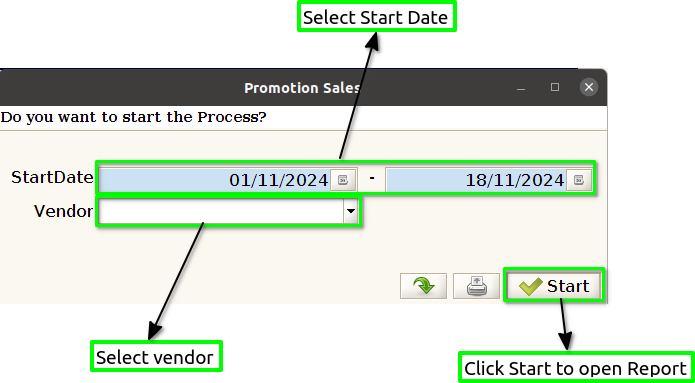
Step 3 : To view a preview of the Promotion Sales Report.
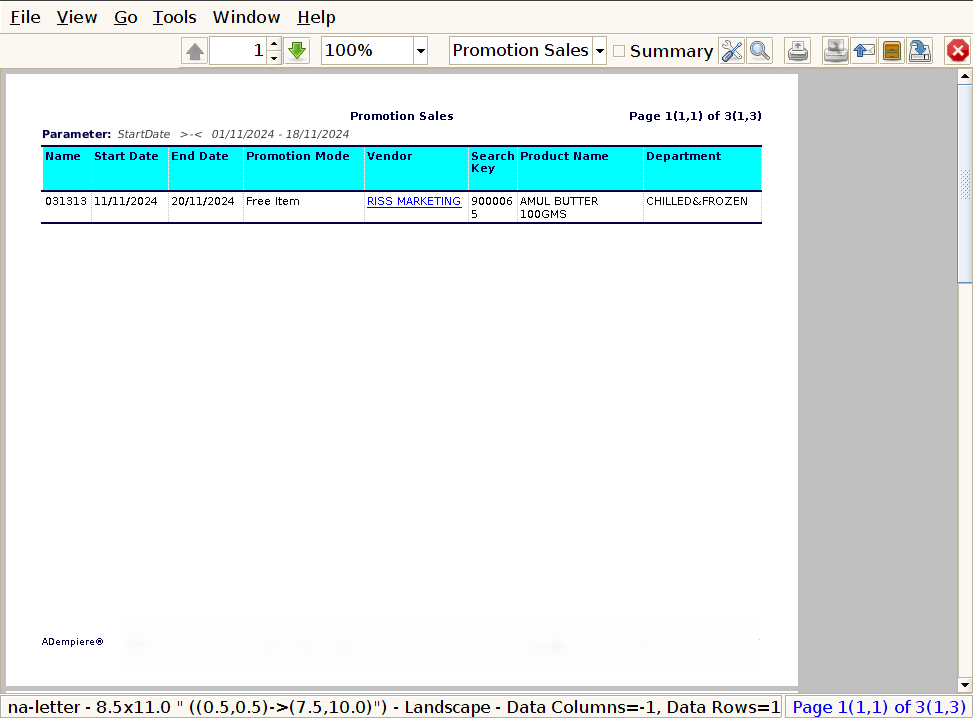
Name : In a Promotion Sales Report, the Promotion Name refers to the specific title or identifier for each promotional activity. It helps to clearly identify and distinguish between different promotions that are run by the business.
Start Date : The Start Date is essential for businesses to measure the effectiveness of each promotion, compare performance across different time periods, and ensure proper alignment with marketing strategies and sales targets.
End Date : The End Date helps businesses analyze the effectiveness of the promotion, assess its impact on sales, and determine whether the timing of the promotion aligns with customer behavior or business goals.
Promotion Mode : The Promotion Mode helps businesses understand the type of promotional tactic used and allows for performance tracking across different modes to evaluate which methods are most effective in driving sales and customer engagement.
Vendor : In a Promotion Sales Report, the Vendor column identifies the supplier or business partner responsible for the products or services involved in the promotion.
Brand : The Brand information is typically displayed alongside other key details such as Promotion Name, Discount Type, and Sales Metrics.
Search Key : In a Promotion Sales Report, the Search Key refers to a unique identifier or keyword associated with the promotion, product, or promotional campaign. This key is used to easily search for and filter specific promotions within the report or database, ensuring quick access to relevant data.
Product Name : In a Promotion Sales Report, the Product Name column displays the specific name of the product(s) included in the promotion.
MRP : In a Promotion Sales Report, the MRP (Maximum Retail Price) column shows the original, full retail price of the product before any discounts or promotions are applied
Promotion Price : In a Promotion Sales Report, the Promotion Price column displays the discounted price of a product during the promotional period.
Discount : In a Promotion Sales Report, the Discount column indicates the value or percentage of the reduction applied to the product’s price as part of the promotion.
Free Item : In a Promotion Sales Report, the Free Item column indicates any product(s) that are offered at no charge as part of a promotional offer, such as “Buy One, Get One Free” (BOGO) or other free-item deals.
Free Item MRP : Tracking the Free Item MRP is important for businesses to calculate the total cost of the promotion, assess its impact on profitability, and determine the value of the free products given away.
Landed Cost : In a Promotion Sales Report, the Landed Cost column reflects the total cost incurred by the business for acquiring a product, including the purchase price, shipping, handling, taxes, and any other associated costs that bring the product to the store or warehouse.
Sold Quantity : In a Promotion Sales Report, the Sold Quantity column indicates the actual number of units sold during the promotion.
Free claim by MRP : If you purchase an item above its MRP, you may be entitled to a refund or compensation for the excess amount, which is sometimes called a “free claim” in promotional or refund schemes.
Free claim by Net Cost : If a company or policy allows for a free claim based on net cost, they might provide you with a refund or reimbursement equal to the amount you actually paid for the item or service, excluding any additional charges or fees.