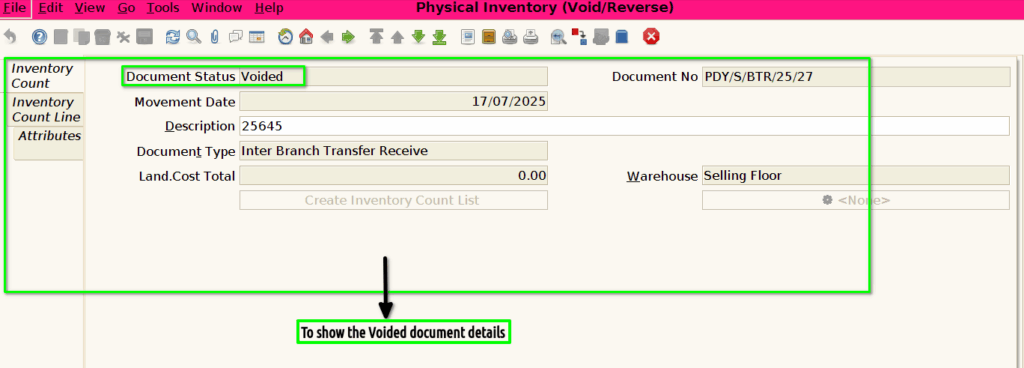
How to create Physical Inventory (Void/Reverse) document in Adempiere Retail
- Physical Inventory: The actual counting and verification of products or stock items in a store or warehouse.
- Void: Cancelling or invalidating a physical inventory transaction or entry because it was made by mistake or is incorrect.
- Reverse: Undoing or rolling back a physical inventory transaction that has already been recorded, to correct errors or update stock counts.
Who Can Access
- Back Office
- Cashier
- Manager
- Admin
What User Can Do
- Void a Physical Inventory Entry
- Reverse a Physical Inventory Transaction
- Request Approval
- Re-enter or Adjust Physical Inventory
Pre-Requisite Activities
- Complete Initial Physical Inventory Count
- Verify Inventory Data
- User Access and Permissions
- Define Void/Reverse Policies
BUSINESS RULES
- When Void or Reverse is Allowed
- User Authorization
- Impact on Inventory Records
- Recount and Adjustment After Void/Reverse
USER INTERFACE
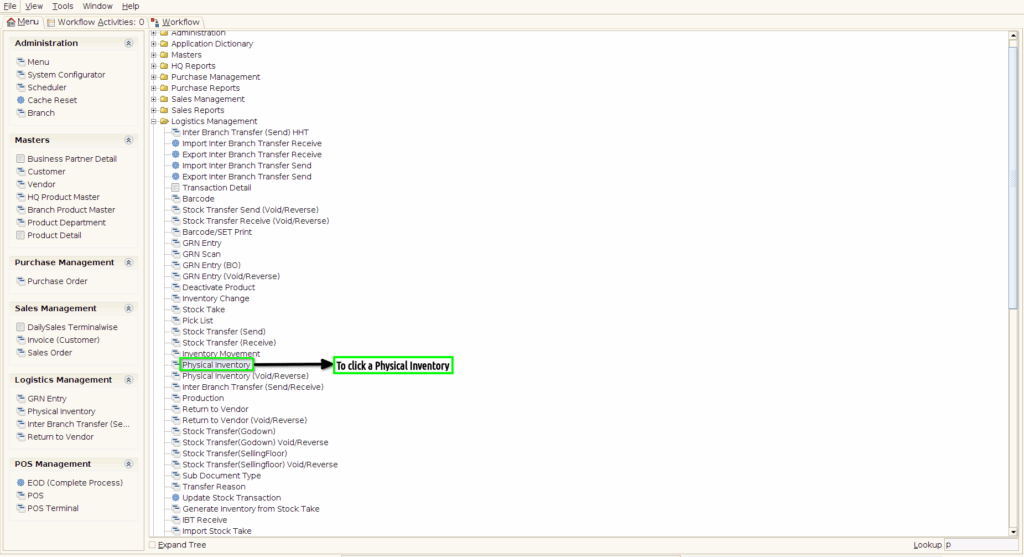
Step 1 : To Select a Branch in Menu.Then to click a Physical Inventory.
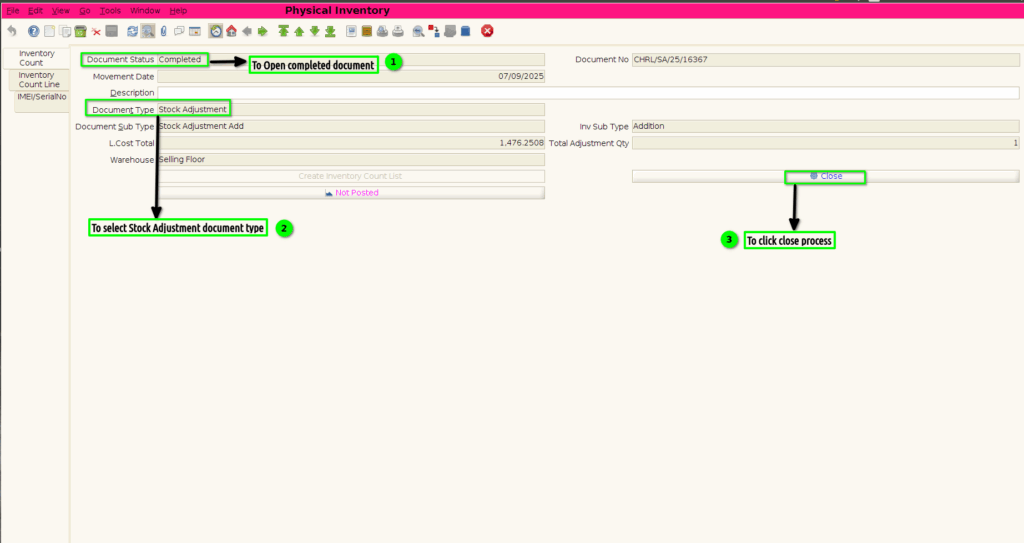
Step 2 : To open completed document and to select a document type in stock adjustment.Then to click a close process.
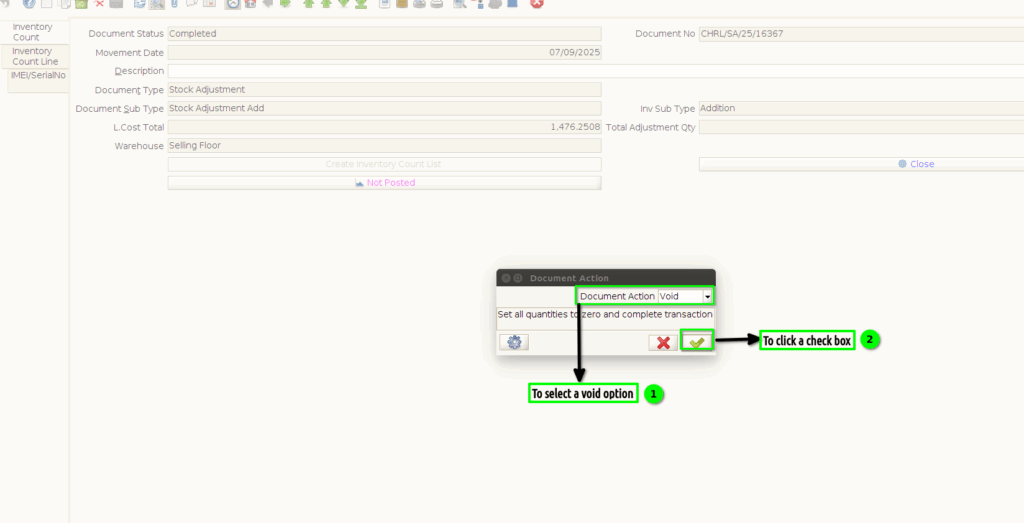
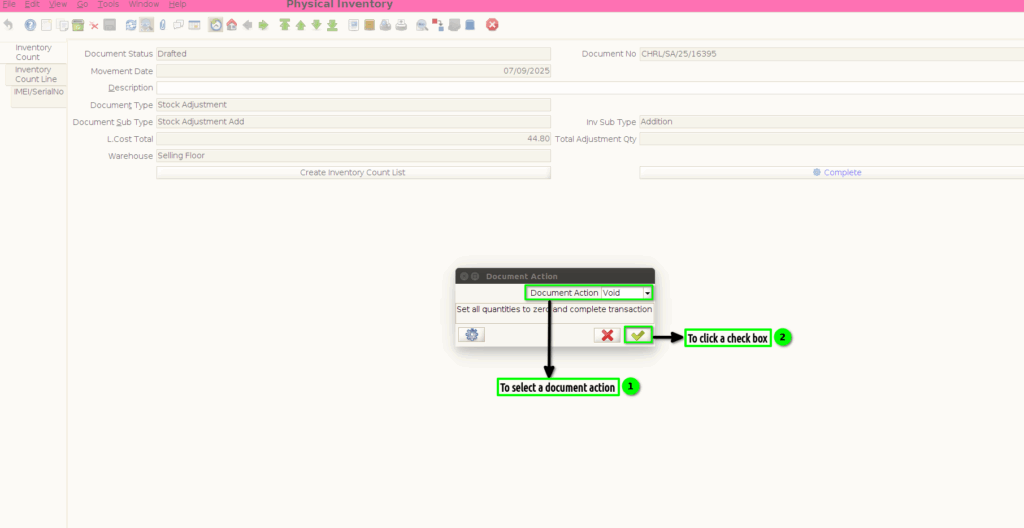
Step 3 : To select a document action to click void and then to click a check box.
Step 4 : To open a drafted document and to select a document type in stock adjustment.Then to click a close process.
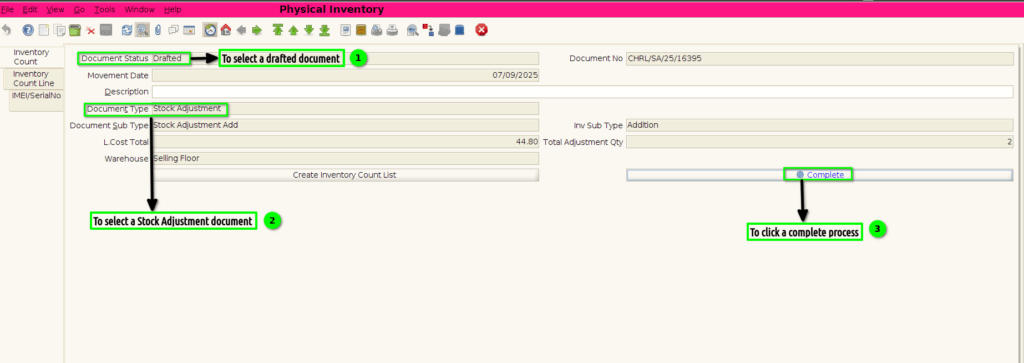
Step 5 : To select a document action to click void and then to click a check box.
Step 6 : To Select a Branch in Menu.Then to click a Physical Inventory(Void/Reverse).
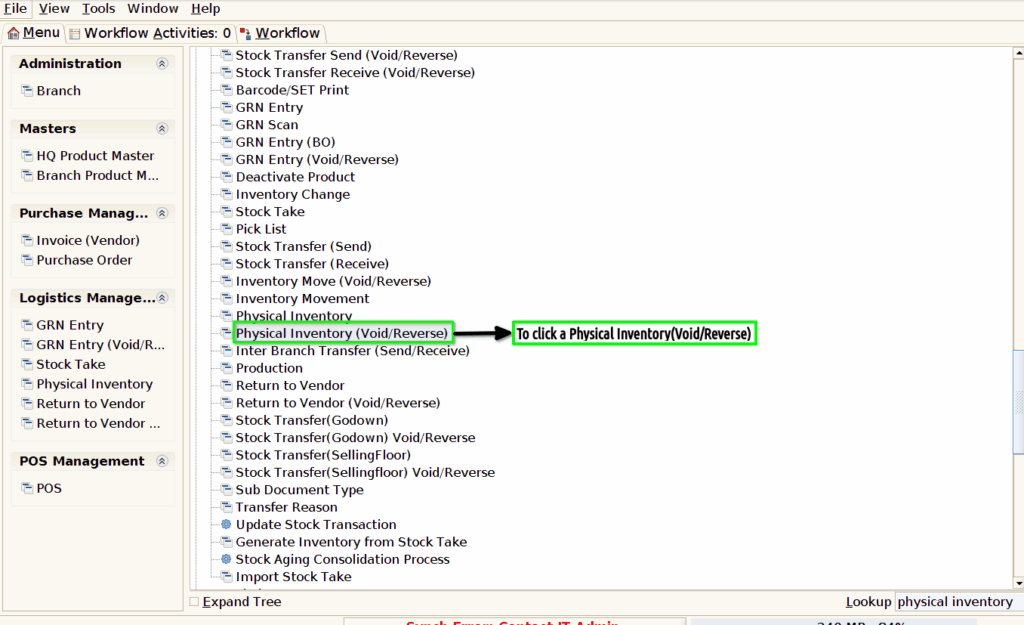
Step 7 :Once to void the document in physical Inventory screen and then to show the voided documents in Physical Inventory(void/reverse)screen.Only completed documents should be voided.