How create Stock Transfer Receive (Void/Reverse) document in Adempiere Retail
When one store sends stock/items to another store, the receiving store must confirm the items in the system.
This process is called Stock Transfer Receive.
User Access
Who Can Access
- Admin
- Cashier
- Manager
- Back office
What User Can Do
- Cancel the Stock Transfer (VOID)
- Undo the Stock Movement (REVERSE)
- Correct Wrong Entries
- Maintain Inventory Accuracy
- Add Reason for Void/Reverse
Pre-Requisite Activities
- Stock Transfer Send Must Be Created
- Items Must Be Physically Arrived
- Check the Transfer Document
- Check Quantities
- Validate Item Condition
Business Rules
- Stock Transfer Send must exist
- Document must be in correct status
- No further transactions should exist
- Stock availability rules
- Reason is mandatory
- No duplicate receiving allowed
User Interface
Step 1 : Select ‘Stock transfer Receive’ in Menu -> Logistics management > Stock transfer Receive or Search Stock transfer Receive in Lookup.
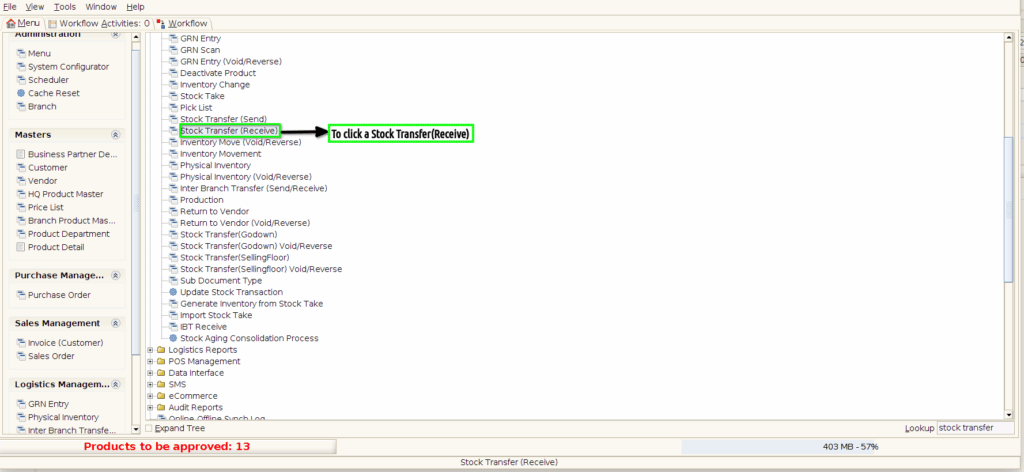
Step 2 :Once to open the Stock transfer Receive and to select a Completed Document Status.And then to click a Close process.

Step 3 : Once to click a close process to click a Document Action and to select a Void option.
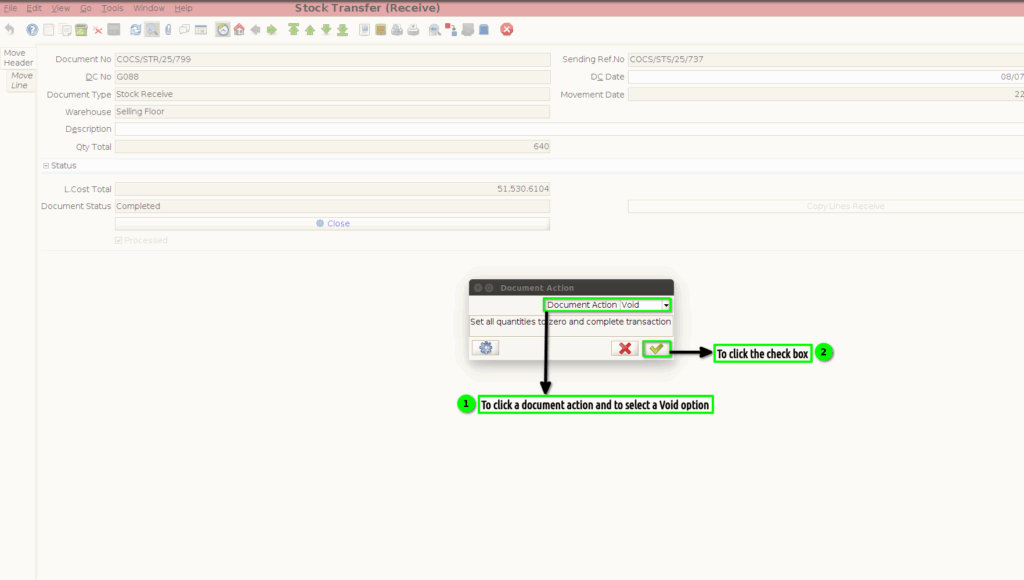
Step 4 : Once to open a stock transfer (receive) and to select the drafted document.And then to click a Complete process.

Step 5 :To click the Document Action and to select Void option and then to click the check box.

Step 6 :To click a Stock Transfer Receive(Void/Reverse).
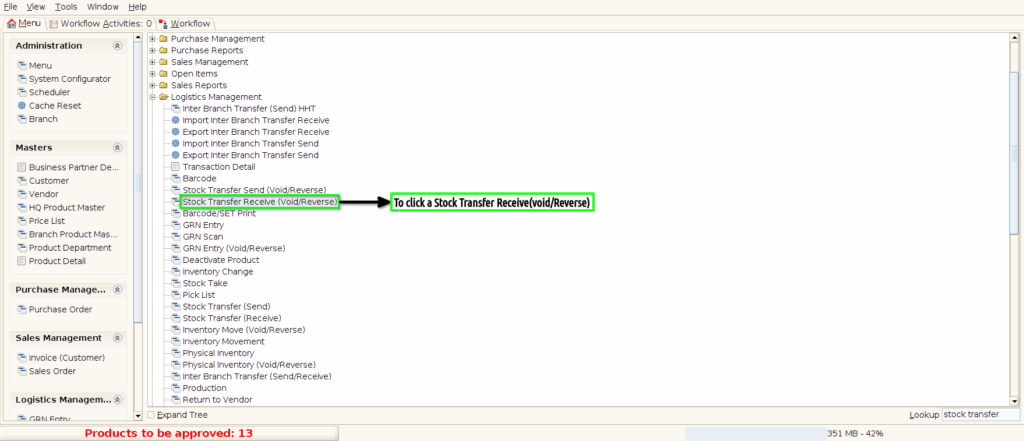
Step 7 :Once to open the screen and to show all voided documents.
