How to create Batch Adjustment document using Physical Inventory in Adempiere Retail
Physical Inventory-Batch Adjustment means updating inventory records in bulk to match the actual physical stock after counting. It is used to correct multiple item quantities at once based on the physical inventory results.
User Access
Who Can Access
- Back Office
- Cashier
- Manager
- Admin
What User Can Do
- Enter adjustments in bulk
- Review and verify
- Submit for approval
- Update the inventory system
- Generate reports
Pre-Requisite Activities
- Complete Physical Stock Count
- Prepare Adjustment List
- Freeze Inventory Movements
- Backup Current Inventory Data
Business Rules
- Adjustments Only After Physical Count
- Authorised Personnel Only
- No Adjustments During Active Transactions
- System Update Required
User Interface
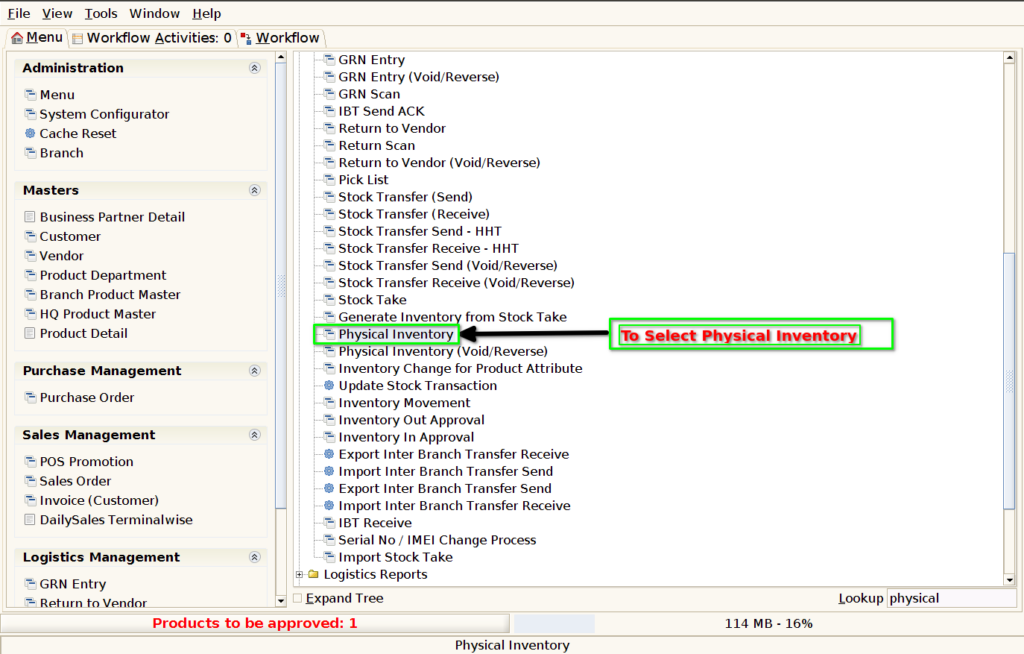
STEP 1: To Select a Physical Inventory.
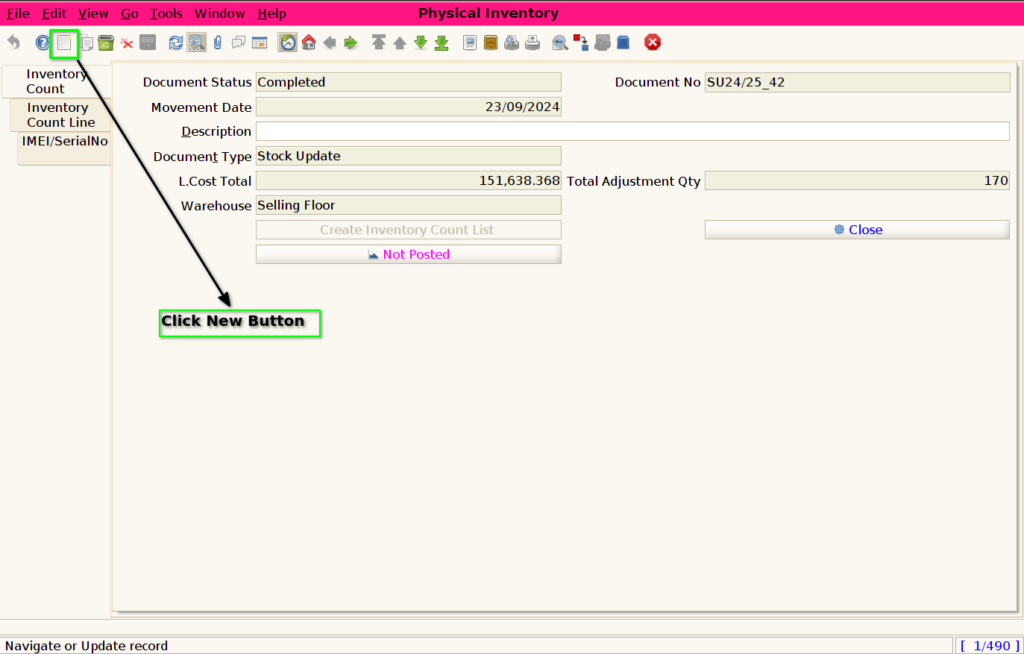
STEP 2: To Open a new document.
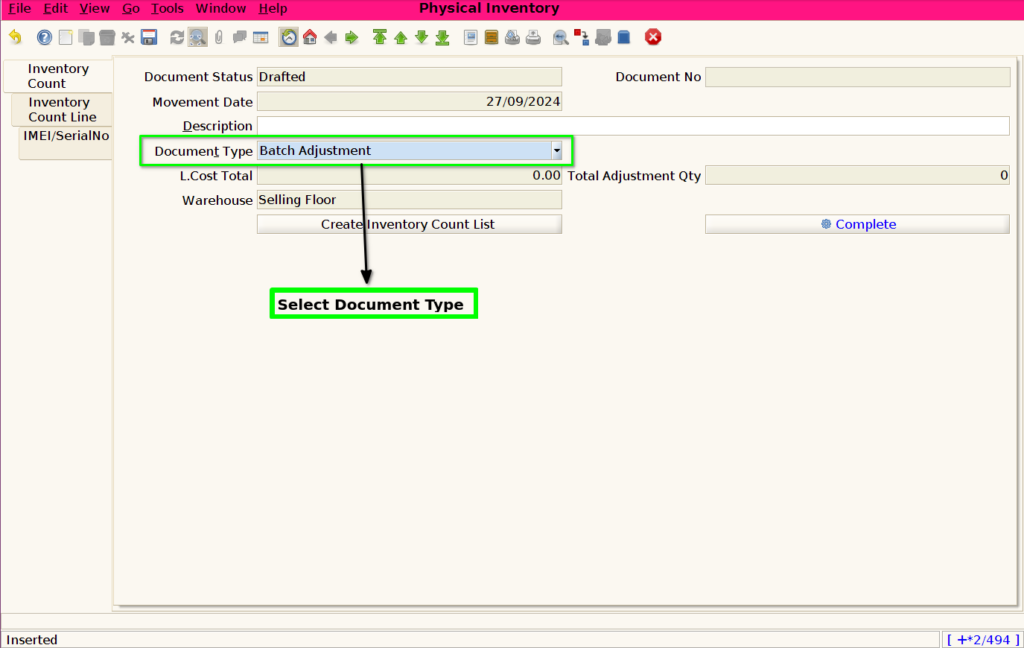
STEP 3: Select the Document Type.
STEP 4: To Save The Document.
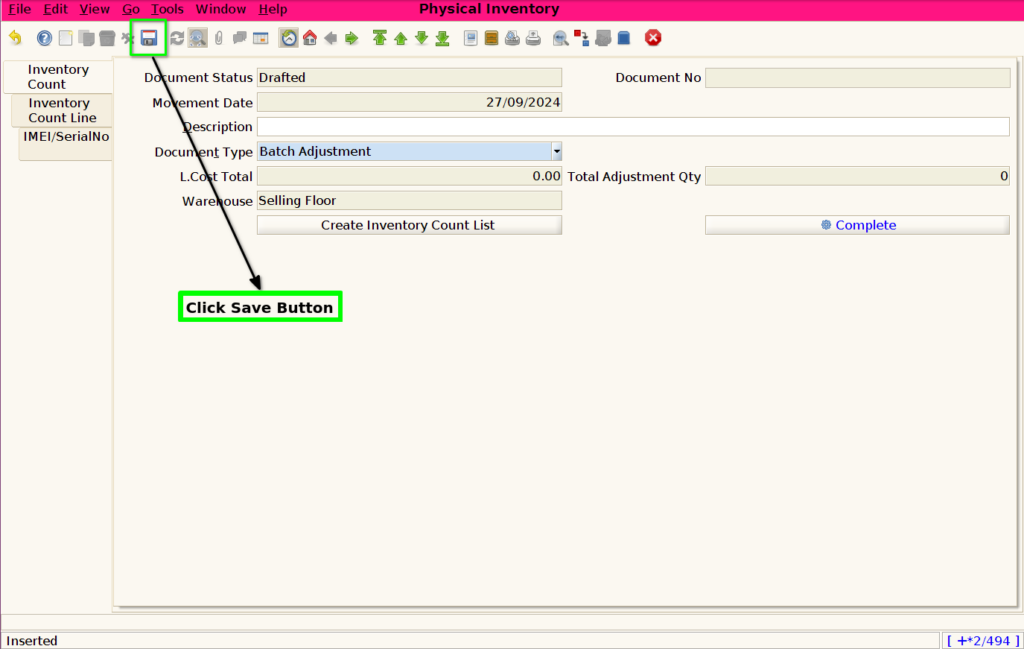
STEP 5: Click Inventory Count Line Tab.
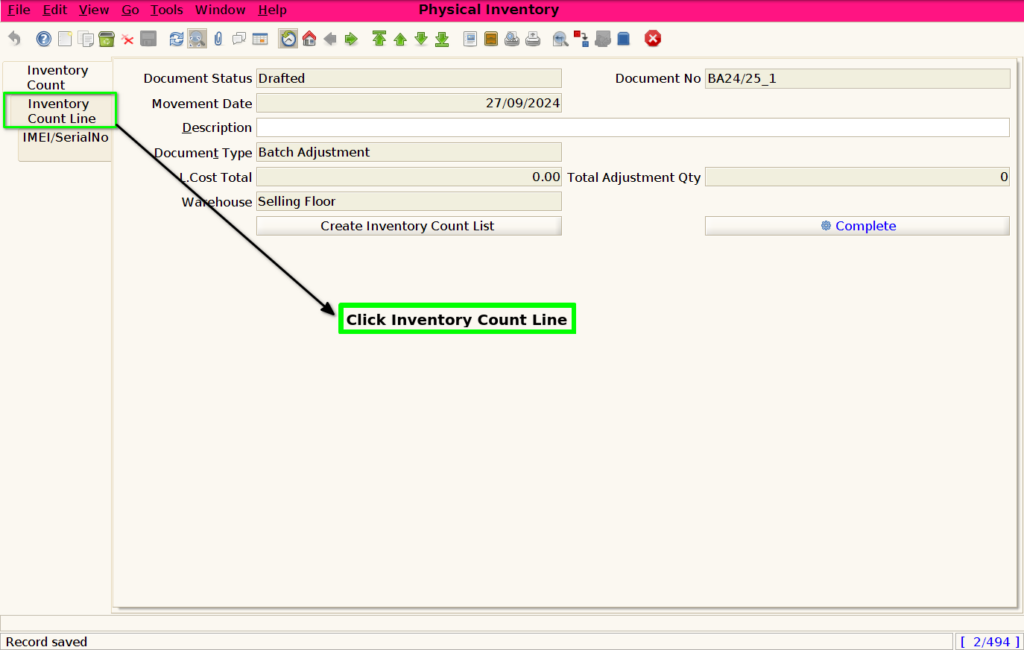
STEP 6: Click New Button.
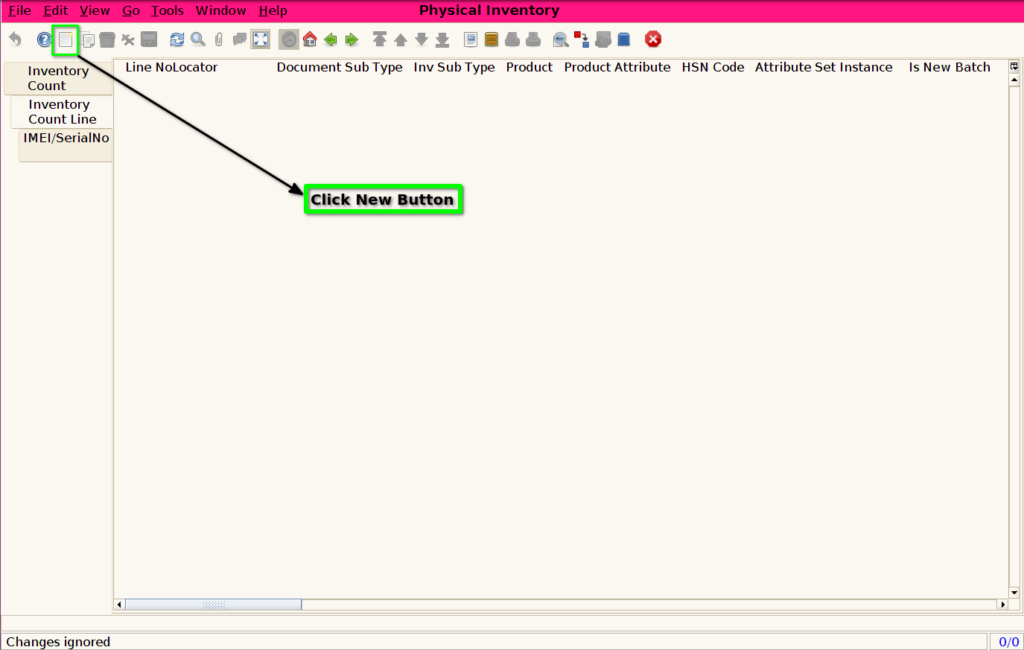
STEP 7: Click The Product.
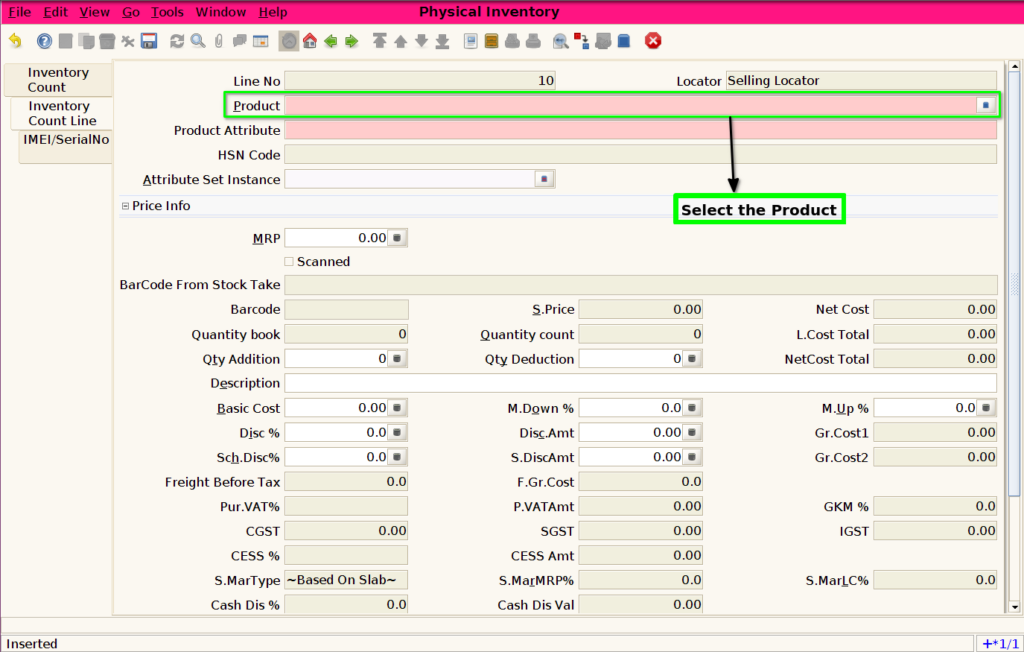

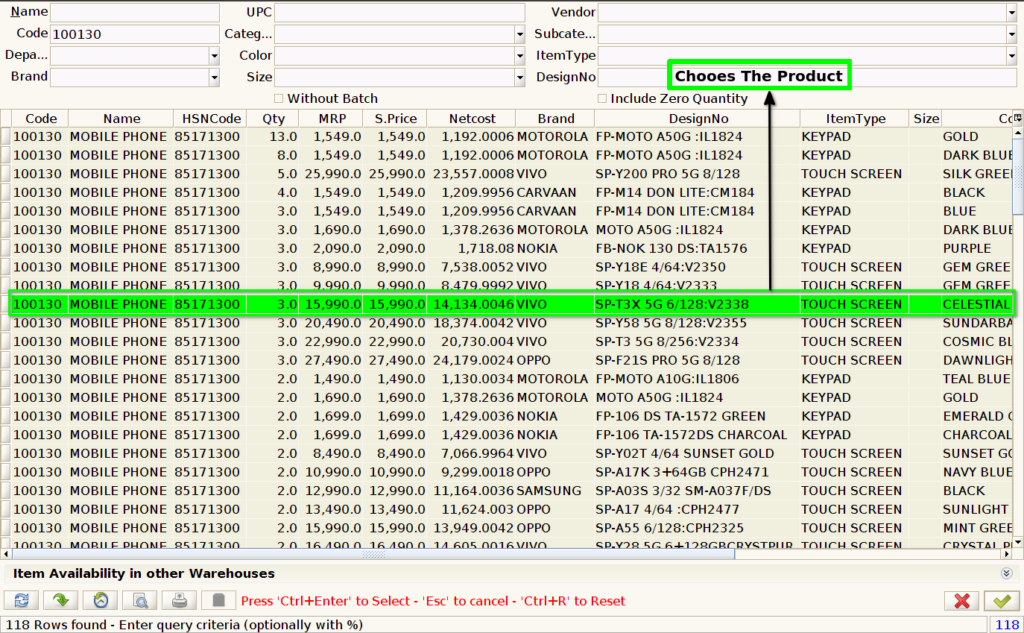
STEP 8: Choose The Product.
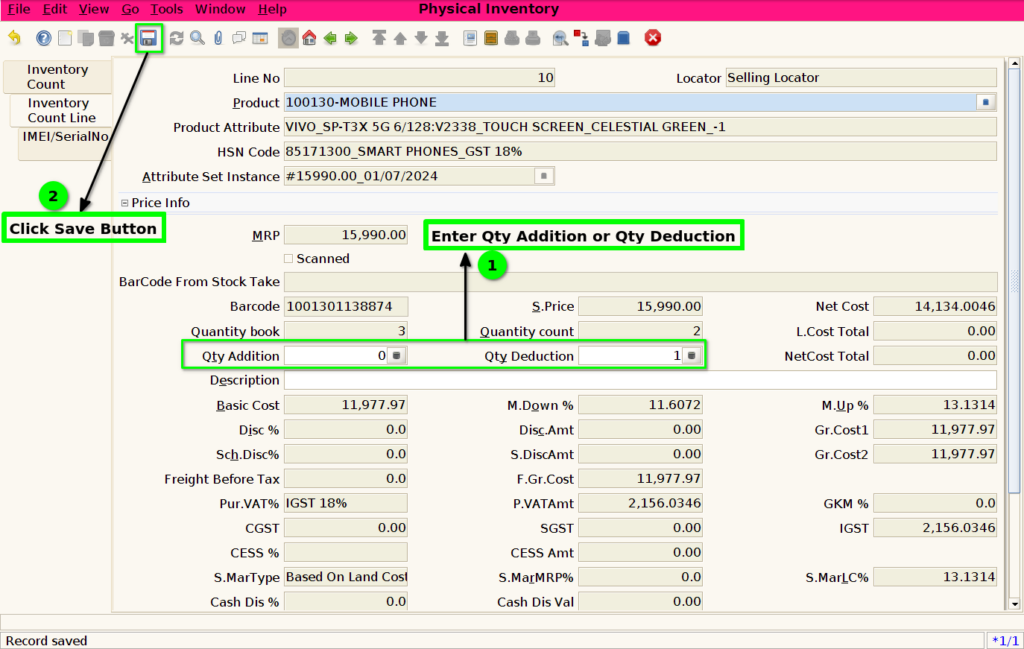
STEP 9: Enter the Batch Update Quantity.
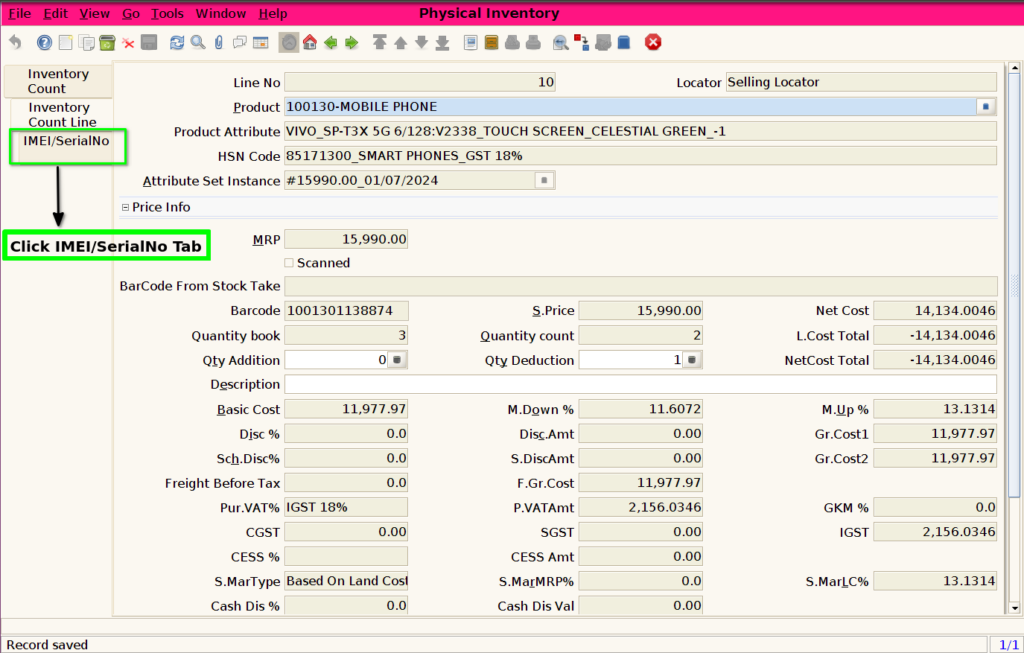
STEP 10: Click The IMEI/SerialNo Tab Only For Mobile Products or Mobile Accessories.
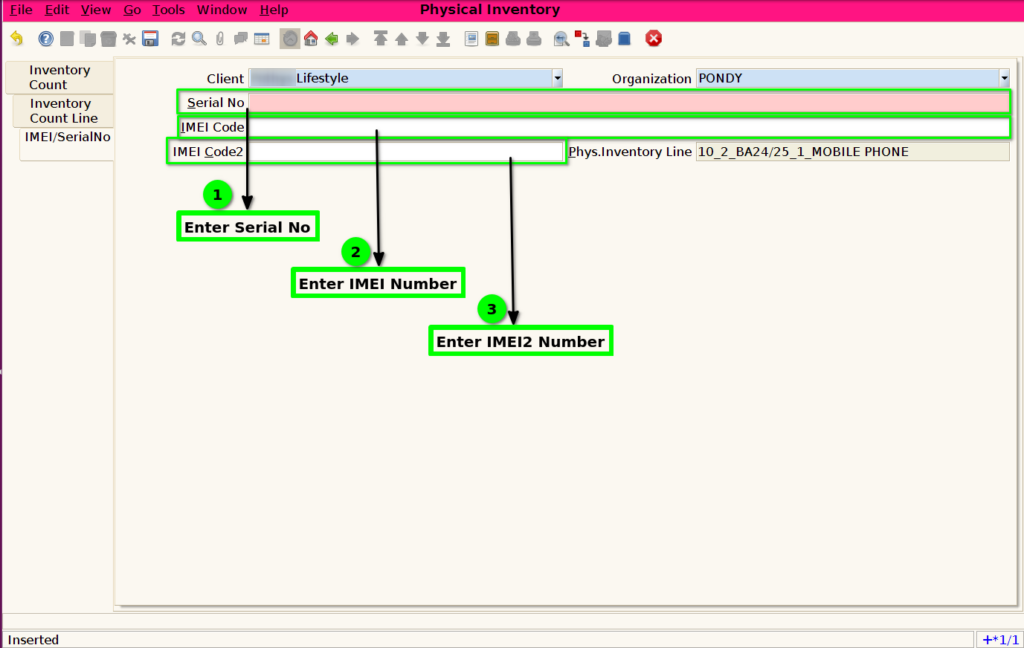
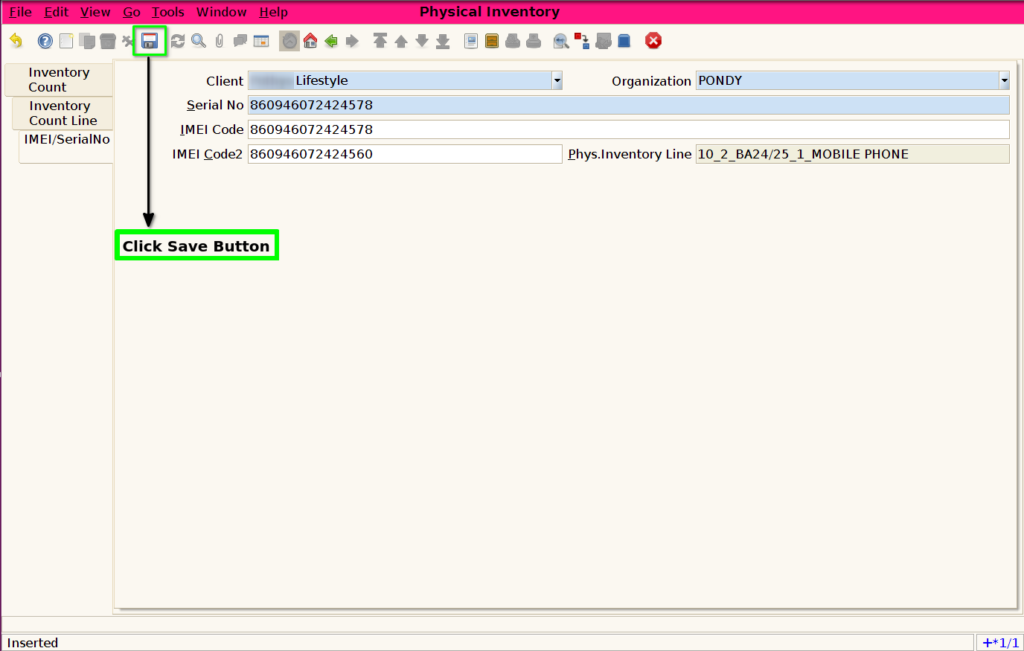
STEP 11: Enter the Product Serial Number ,IMEI , IMEI2.
STEP 12: Click the Save Button.
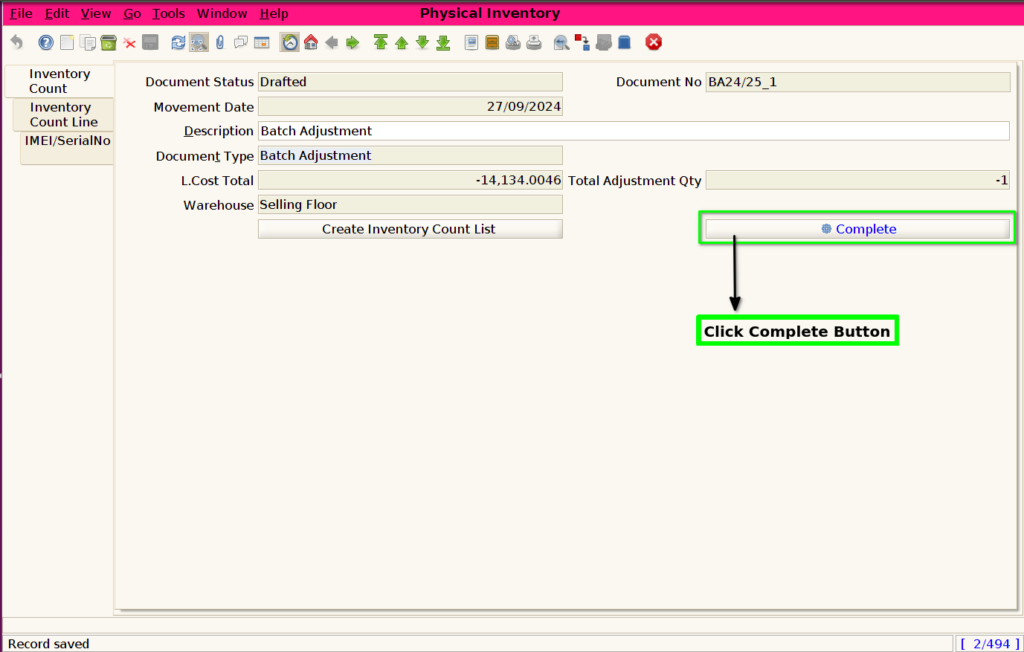
STEP 13: Click Inventory Count Tab.

STEP 14: Click Complete Button.
STEP 15: Select Document Action Type.
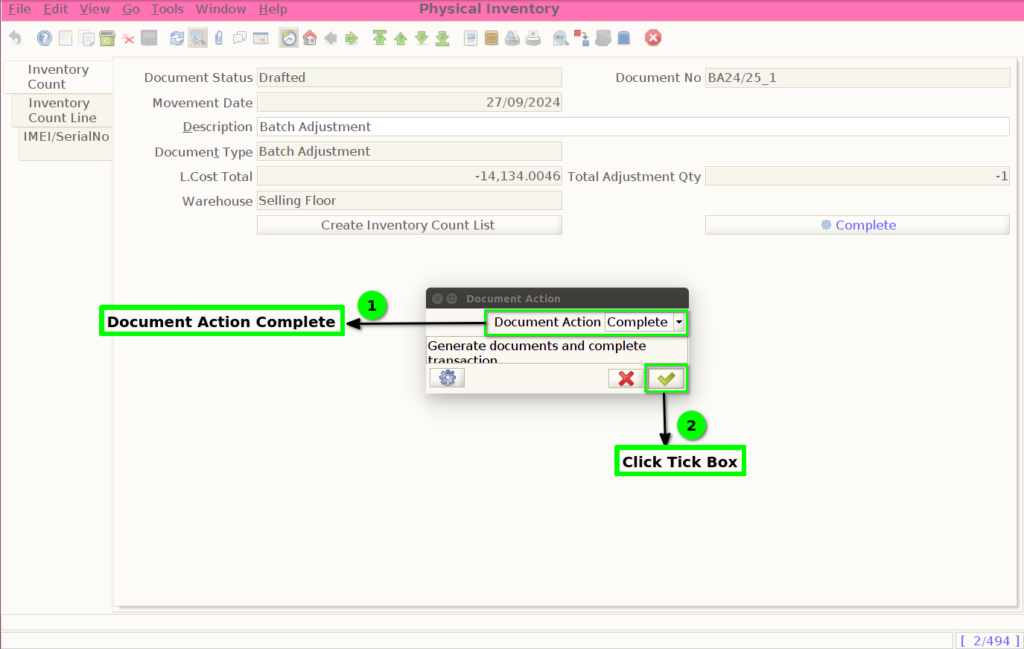
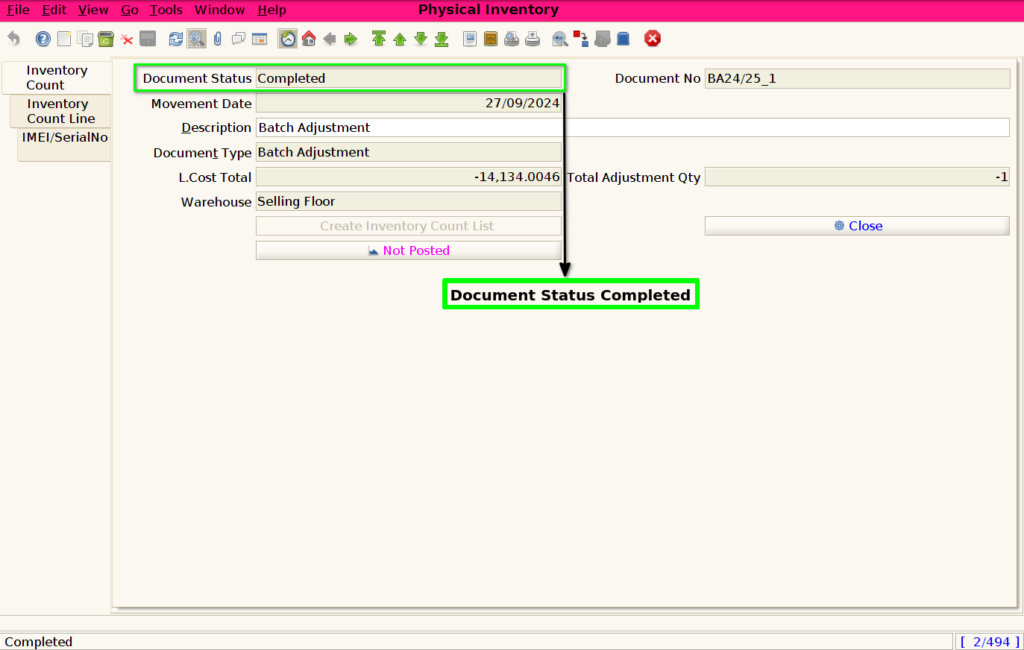
STEP 16: Complete the Stock Update Document , Document Status will Be Changed.