How to view Scanned/Missed Stock Take Locator Detail in Adempiere Retail
This report shows details about stock items counted (scanned) and those missed during a physical stock take, organised by their storage locations (locators).
User Access
Who Can Access
- Admin
- Back Office
- Purchase Manager
- Manager
What User Can Do
- Identify Missing Counts
- Verify Count Accuracy
- Improve Stocktaking Process
- Track Stock Location Details
Pre-Requisite Activities
- Plan Stock Take
- Perform Physical Stock Count
- Identify Missed Items
Business Rules
- Complete Locator Setup
- Missed Items Identification
- Real-Time Data Capture
- Periodic Review
User Interface
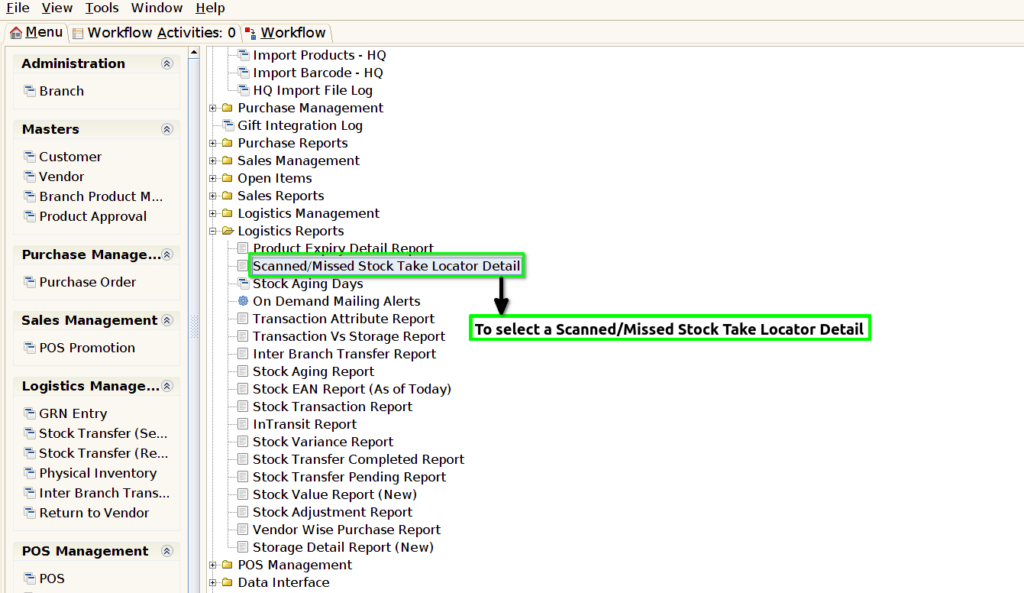
STEP 1: To Select the Scanned/Missed Stock Take Locator Detail.
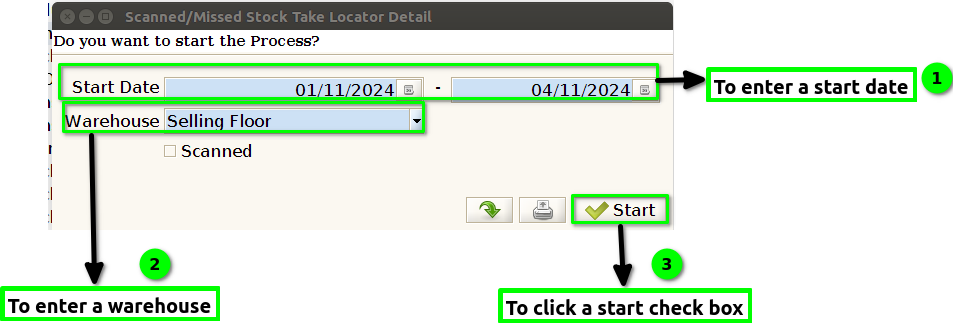
STEP 2: To enter a start date and to enter a warehouse field.Then to click the start check box.To run the process.
STEP 3: Once to complete the process.To open the report and to show the data with given details.

STEP 4: Start date-The term “start date” generally refers to the specific day or time when an event, activity, project, or task is scheduled.It should meant by documents.
End date-An end date refers to the specific day or time when an event, activity, project, or task is scheduled or expected to be completed or finished.
Locator-A locator is a general term that refers to anything that helps identify, find, or point to the location of something.
Scanned-The term scanned generally refers to the process of converting a physical object, image, or document into a digital format using a scanner or similar device. Scanning is used to capture a high-quality image or data of the physical item, often for storage, analysis, or sharing.