How to capture Online Orders in ADempiere Retail?
Online Sales refers to recording or processing sales orders received from online channels (website, app, third-party platforms) into the system for fulfilment and delivery.
User Access
Who Can Access
- Cashier
- Head Cashier
What User Can Do
- Create Online Sales
Pre-Requisite Activities
- User login with access to online sales module.
- Inventory sync enabled between online and offline stock.
Business Rules
- System allow to select the Online Sale option before scan products only
- In bill print “Online Sales” text should print top of the bill
- Need to print customer address in Online Sales bill copy
- If an order is set as Online Sales and is put on hold, when retrieving the online Sales should be set for that order
- Not allow to change Online Sales to normal order during mid of billing
User Interface
Step 1 : Select ‘POS’ in Menu -> POS Management -> POS or Search POS in Lookup.

Step 2 : Click Alt+O for Online Sales orders before scan products only

Step 3 : Search product after online sales option selected

Step 4 : If an order is set as Online sales and is put on hold, when retrieving the sales order Online sales option should be enabled.
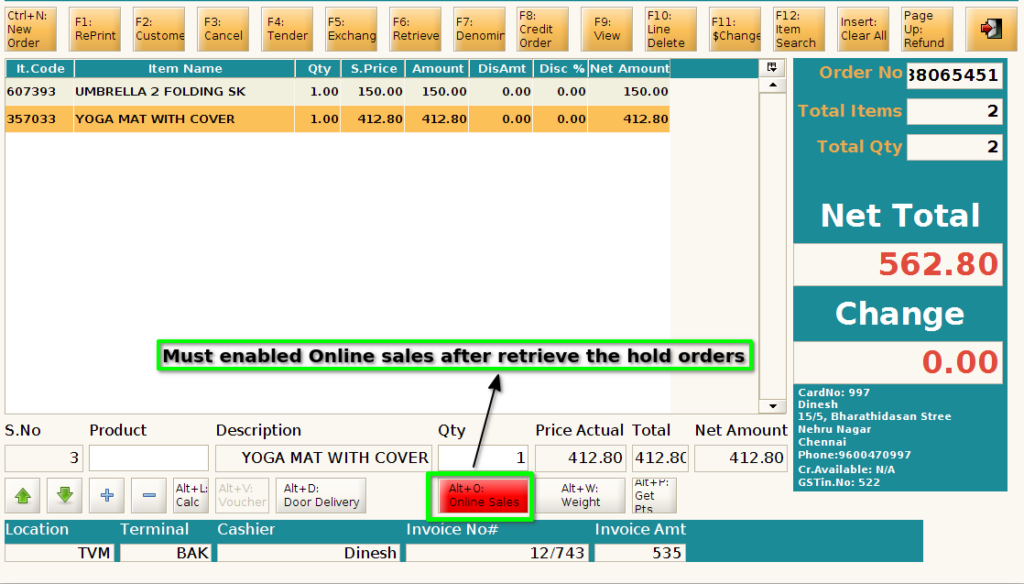
Step 5 : Click F4 for payment

Step 6 : Select Customer after click F4

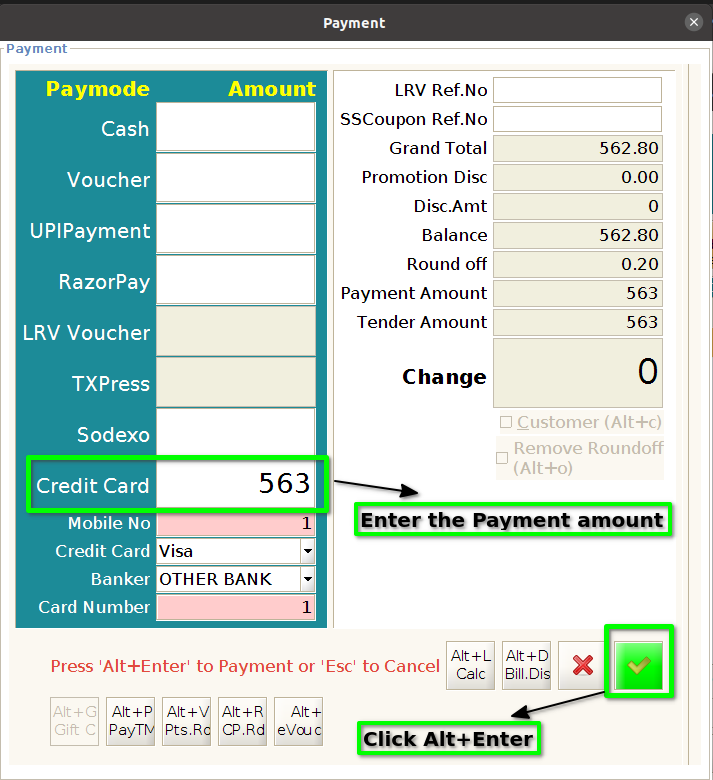
Step 7 : Enter the payment amount for respective paymode and click Alt+Enter to complete order
Step 8 : In Bill print, Online Sales text will show in top of the bill(like below image) and customer address will be printed