How to Configure Recurring Run in iDempiere
The Recurring Run process in iDempiere executes recurring transactions that belong to a selected Recurring Group. It automatically generates business documents from predefined recurring transaction definitions, eliminating repetitive manual processing.
Retail organizations use this process for monthly payroll, recurring rent, subscriptions, maintenance charges, utility bills, and other scheduled financial activities. Running the process on time helps ensure recurring transactions are processed consistently and accurately.
The process evaluates recurring transactions using the specified Cut Date and applies the selected Document Action to every eligible document. It improves operational efficiency, reduces manual effort, and supports accurate financial processing.
Process Flow
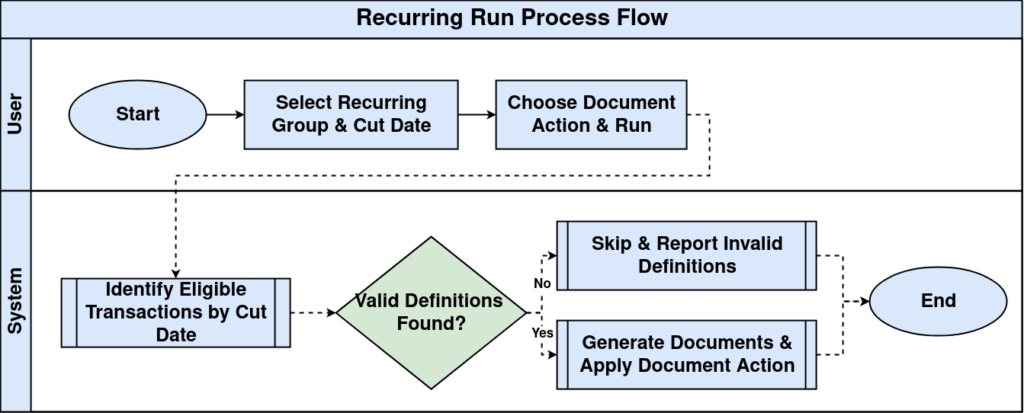
Business Rules
- Recurring Group is mandatory.
- Only active recurring transactions are processed.
- Cut Date determines eligible recurring transactions.
- Only transactions due on or before the Cut Date are executed.
- Document Action is applied to all generated documents.
- The process generates documents from recurring definitions.
- Processed transactions are not recreated in the same run.
- Invalid recurring definitions are skipped and reported.
- Parameter Comment records execution remarks.
- Run as Job executes the process in the background.
- Generated documents follow standard document validation rules.
- Review the process log after execution.
- Run large recurring groups during non-peak hours.
- Only authorized users should execute the process.
Prerequisites
- A valid Tenant must be configured.
- The required Organization must be available and active.
- A Recurring Group must be created and active.
- One or more Recurring Transactions must be configured under the selected Recurring Group.
- The recurring transaction definitions must contain valid business data (such as Business Partner, Product, Account, or Document Type, depending on the transaction type).
- Required master data (Business Partners, Products, Accounts, Organizations, etc.) must already exist in iDempiere.
- Users must have the necessary security permissions to execute the Recurring Run process.
- The selected Document Action (for example, Complete or Prepare) must be valid for the recurring transaction.
Configuration Steps

Step 1: Select the Recurring Group
Select the Recurring Group that contains the recurring transactions to be executed. Only active recurring groups are available for selection.
Step 2: Enter the Cut Date
Specify the Cut Date to determine which recurring transactions are eligible for executi
Step 3: Select the Document Action
Choose the document action that iDempiere should apply to the generated documents.
Step 4: Enter Parameter Comment (Optional)
Provide additional remarks about the execution.
Common Issues and Resolutions
| Issue | Cause | Resolution |
| No recurring transactions processed | No eligible transactions for the selected Cut Date | Verify the Cut Date and recurring schedule. |
| Recurring Group is unavailable | Group is inactive | Activate the Recurring Group. |
| Process completes but no documents are created | No valid recurring transaction definitions | Review recurring transaction configuration |
| Document Action fails | Invalid document status or configuration | Select an appropriate Document Action. |
| Process terminates with validation errors | Mandatory master data is missing | Complete all required master data and retry. |
| User cannot execute the process | Insufficient security permissions | Grant the required process access. |
Next Steps
After successfully executing the Recurring Run process:
- Review the generated documents for accuracy.
- Verify the document status after the selected Document Action is applied.
- Check the process log for warnings or errors.
- Correct any failed recurring transaction definitions before the next execution.
- Post or complete generated financial documents, if applicable.
- Schedule future executions using Run as Job for recurring business activities.
- Monitor recurring transactions periodically to ensure they remain valid and up to date.
- Archive or deactivate obsolete recurring transaction definitions when they are no longer required.
This content is aligned with standard iDempiere behavior and is suitable for professional retail documentation.