How Accounting Fact Balances Window Works in iDempiere
Introduction
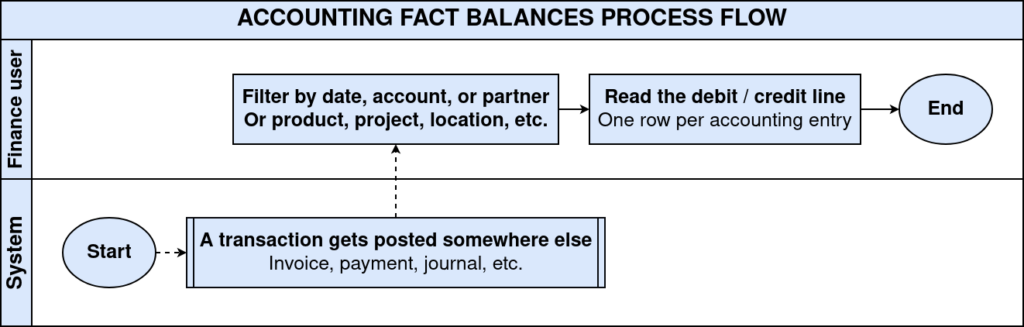
The Accounting Fact Balances window shows a daily summary of posted account movements in iDempiere. It groups amounts by account and by supporting details such as business partner, product, or project.
This window is used across Distribution, Service, and Financial operations whenever a business user needs to review how much value has been posted to an account on a given day, without opening every individual document.
It supports reconciliation, financial review, and reporting by giving a condensed, day-wise picture of debit, credit, and quantity movements for every account combination.
Process Flow
Business Rules
- Only records from completed and posted documents contribute to a daily balance.
- Each row groups movements by account, date, and supporting reference fields.
- A single account can show multiple rows on the same day when reference details differ.
- Accounted Debit and Accounted Credit reflect the accounting schema currency.
- Quantity is summarized only for accounts that track quantity movement.
- Blank reference fields are normal when a movement does not carry that detail.
- Balances update only after the source document is completed and posted.
- Active records are the only records available for review in this window.
Navigation
Menu → Performance Analysis and Accounting → Accounting Fact Balances
Opening the window shows the Daily Balances tab. Each record presents the Tenant, Organization, Accounting Schema, Account Date, Posting Type, and Account, along with a Reference area and the summarized Amounts and Quantities for that combination.

Configuration Steps
Step 1: Select the Accounting Schema and Organization
Every balance is tied to one Accounting Schema and one Organization. Reviewing the correct combination ensures the figures match the reporting currency and business unit being checked.
Instructions
Open the record and confirm the Accounting Schema and Organization shown match the business unit under review. Use the query field to filter by Organization when checking a specific branch.
Step 2: Review Account Date and Posting Type
The Account Date shows the day the movement was posted, and the Posting Type shows whether the amount is Actual, Budget, or another posting category.
Instructions
Filter records by Account Date to review a specific day or period. Check Posting Type to separate actual postings from budget or statistical amounts.
Step 3: Review the Account and Reference Details
The Account field shows which ledger account received the movement. The Reference area shows the business detail behind the amount, such as Business Partner, Product, or Project.
Instructions
Check the Account field first, then review Business Partner, Product, Project, Sales Region, Campaign, and Location fields to understand what generated the balance.
Step 4: Review Accounted Debit, Accounted Credit, and Quantity
These fields show the summarized value of the movement. Accounted Debit and Accounted Credit are shown in the accounting schema currency, and Quantity applies only to accounts that track quantity.
Instructions
Compare Accounted Debit and Accounted Credit to confirm the direction of the movement. Check Quantity only for accounts where quantity tracking is expected, such as inventory accounts.
Field Reference
| Field | Sample Value | Description |
| Tenant | POTS | Business ownership the record belongs to. |
| Organization | CDC | Business unit where the movement was posted. |
| Accounting Schema | POTS UN/38 Indian Rupee | Reporting currency and accounting rules used. |
| Account Date | 05/21/2026 | Day the movement is grouped under. |
| Posting Type | Actual | Category of the posted amount, such as Actual or Budget. |
| Account | P_INVENTORYCLEARING_Product Inventory Clearing | Ledger account that received the movement. |
| Sub Account | (blank) | Additional account-level breakdown, when used. |
| Business Partner | Standard | Customer or vendor linked to the movement. |
| Product | Standard_Standard | Product linked to the movement. |
| Location From / Location To | Trichy / Chennai | Origin and destination locations for the movement. |
| Accounted Debit | 1,000.00 | Total debit amount posted for the day. |
| Accounted Credit | 0.00 | Total credit amount posted for the day. |
| Quantity | 1 | Total quantity movement for the day, where applicable. |

Common Issues and Resolutions
| Issue | Cause | Resolution |
| Same account appears in several rows on one day | Each row groups a different Business Partner, Product, or Project combination | Compare the Reference fields to tell the rows apart |
| Total does not match a single document amount | The window shows the combined total for the day, not one document | Check the detailed transaction or journal window for individual entries |
| New posting not visible yet | The document has not been completed and posted | Complete and post the document, then reopen the window |
| Business Partner or Product field is empty | The account movement does not carry that detail | No action needed; this is expected for accounts like tax or bank accounts |
| Too many rows to review for one account | Several documents posted with different reference combinations | Filter by Business Partner, Product, or Project to narrow the list |
| Accounted Credit always shows 0.00 | The account normally increases only on the debit side | Confirm this matches the expected behavior for that account type |
| Account Date field cannot be changed | This window is for review only and does not accept new entries | No action needed; use the source document to make changes |
| Amount looks different from another report | Reports may use a different Accounting Schema or currency | Check the Accounting Schema shown on the record before comparing |
Next Steps
- Review the General Ledger Journal for detailed, document-level entries.
- Check the Accounting Schema setup if figures do not match expectations.
- Open the related transaction window to see the source document.
- Reconcile the summarized balances with Financial Reports.