How Accounting Fact Reconciliation (Manual) Form Woks in iDempiere
Introduction
Accounting Fact Reconciliation (manual) is a Form in iDempiere Core used to compare GL Journal Fact_Acct entries against the accounts they were generated from, and to flag matched records as reconciled.
It is used during month-end and year-end closing, when finance teams verify that subledger balances such as receivables, payables, inventory clearing, or bank accounts agree with the General Ledger.
Marking records as reconciled keeps the audit trail clean and helps identify posting errors, duplicate entries, or unbalanced accounts before financial statements are finalized.
Process Flow Diagram

Business Rules
- Only posted Accounting Fact records generated from GL Journals appear in the grid.
- Records are filtered by the selected Accounting Schema’s currency and calendar.
- The Reconciled checkbox shows whether a Fact_Acct row has already been matched.
- Selected records can only be processed when the Difference field equals zero.
- Organization value “*” includes Fact_Acct records across all organizations in the schema.
- Business Partner and Product filters narrow results to a specific subledger dimension.
- Account Date range restricts reconciliation to a specific posting period.
- Process action sets IsReconciled = Y on all selected Fact_Acct records.
- Reset clears current filters and the selected result set without saving changes.
Prerequisites
- Accounting Schema configured with a valid Calendar and Currency.
- GL Journals or source documents posted so Fact_Acct records exist.
- Organization structure configured for the client.
- Chart of Accounts and Account (Element Value) configured.
- Business Partner and Product master data configured, if filtering by these fields.
- User role has read/write access to the Accounting Fact Reconciliation form.
Navigation
Menu → Performance Analysis and Accountig → Accounting Fact Reconciliation (manual)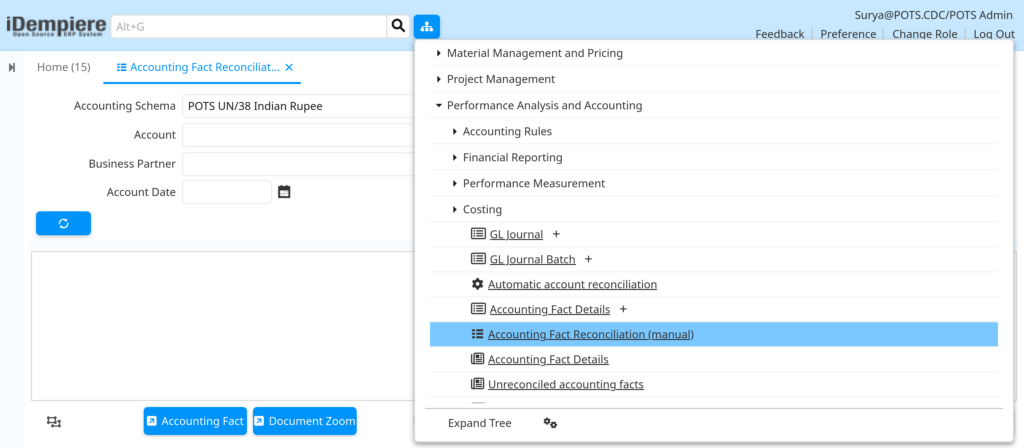
Opening the form displays filter fields at the top — Accounting Schema, Organization, Account, Business Partner, Product, Reconciled, and Account Date range — with an empty results grid below until Refresh is clicked.
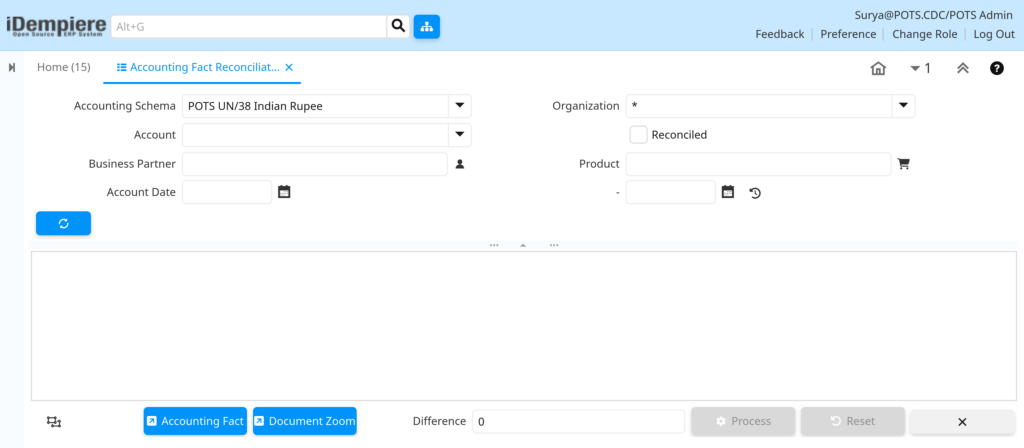
Configuration Steps
Step 1: Select the Accounting Schema
Fact_Acct records are schema-specific; selecting the schema scopes reconciliation to the correct ledger and currency.
Instructions
Choose an Accounting Schema, such as “POTS UN/38 Indian Rupee”, from the dropdown. This is mandatory before running a search.
| Field | Sample Value | Description |
| Accounting Schema | POTS UN/38 Indian Rupee | Defines the ledger, currency, and calendar used for reconciliation. |
Step 2: Apply Organization and Account Filters
Narrowing by Organization and Account focuses reconciliation on a specific business unit or GL account.
Instructions
Select an Organization (“*” for all organizations) and, if needed, an Account to reconcile a specific account such as a bank or clearing account.
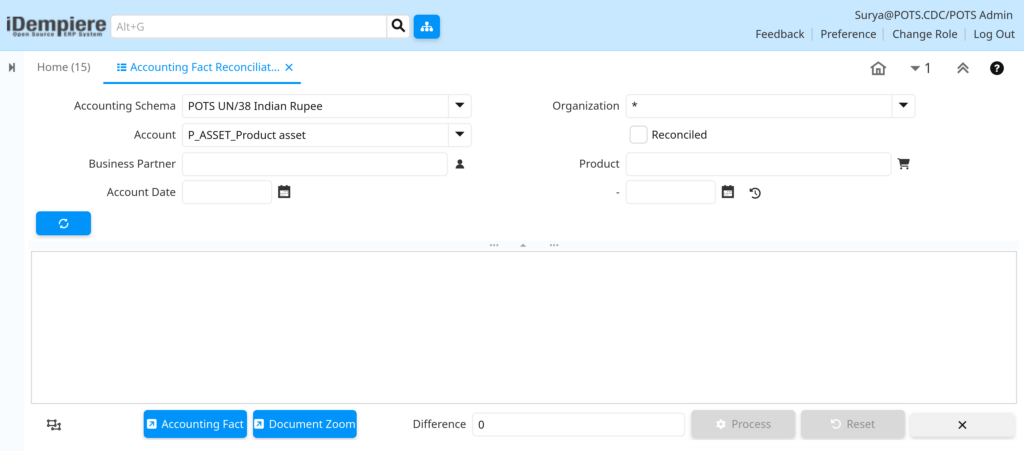
| Field | Sample Value | Description |
| Organization | (*) | Restricts results to one organization or includes all organizations. |
| Account | P_ASSET_Product asset | Filters Fact_Acct rows to a specific GL account. |
Step 3: Filter by Business Partner or Product (Optional)
Useful for subledger reconciliation, such as AR/AP by customer or vendor, or inventory by product.
Instructions
Enter a Business Partner or Product to isolate Fact_Acct entries tied to that partner or product.
| Field | Sample Value | Description |
| Business Partner | (blank) | Filters facts linked to a specific customer or vendor. |
| Product | (blank) | Filters facts linked to a specific product. |
Step 4: Set the Account Date Range
Limits reconciliation to a specific accounting period, such as the month being closed.
Instructions
Enter a From and To Account Date, for example 01-06-2026 to 30-06-2026, to reconcile a single period.
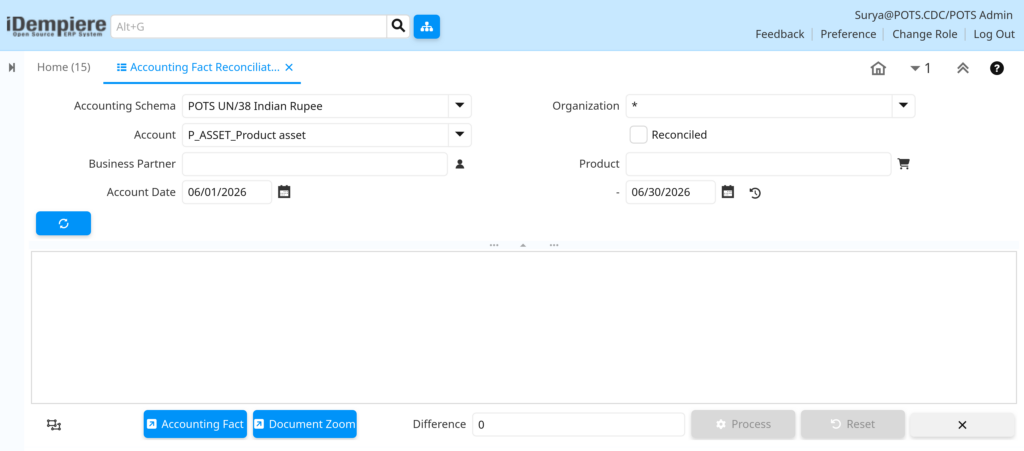
| Field | Sample Value | Description |
| Account Date (From) | 01-06-2026 | Start of the reconciliation period. |
| Account Date (To) | 30-06-2026 | End of the reconciliation period. |
Step 5: Refresh to Retrieve Fact_Acct Records
The results grid stays empty until the filters are applied and the search executes.
Instructions
Click the Refresh button (circular arrow icon) to load the matching Fact_Acct records into the grid below.
Step 6: Review Records and the Difference Field
The Difference field shows whether the selected debit and credit entries balance to zero.
Instructions
Review each row and confirm the Difference field reads 0 before marking records as reconciled.
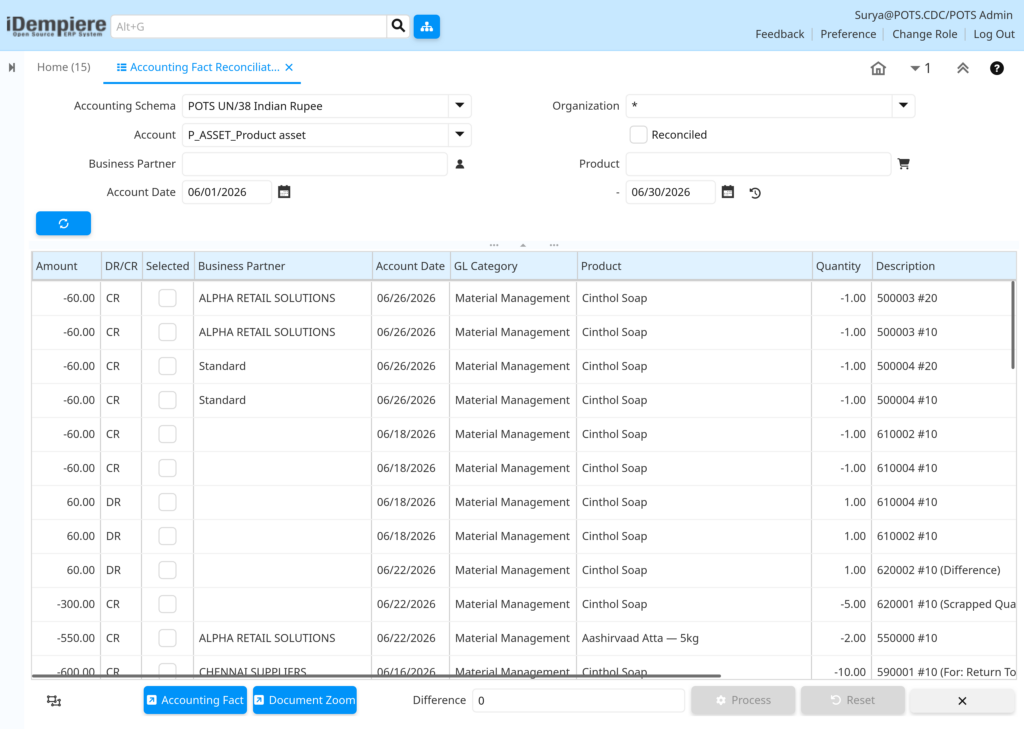
| Field | Sample Value | Description |
| Reconciled | Unchecked | Shows the current reconciliation status of a row. |
| Difference | 0 | Net debit/credit variance of the currently selected records. |
Step 7: Drill Down with Accounting Fact or Document Zoom
Confirms the source posting or originating document before committing the reconciliation.
Instructions
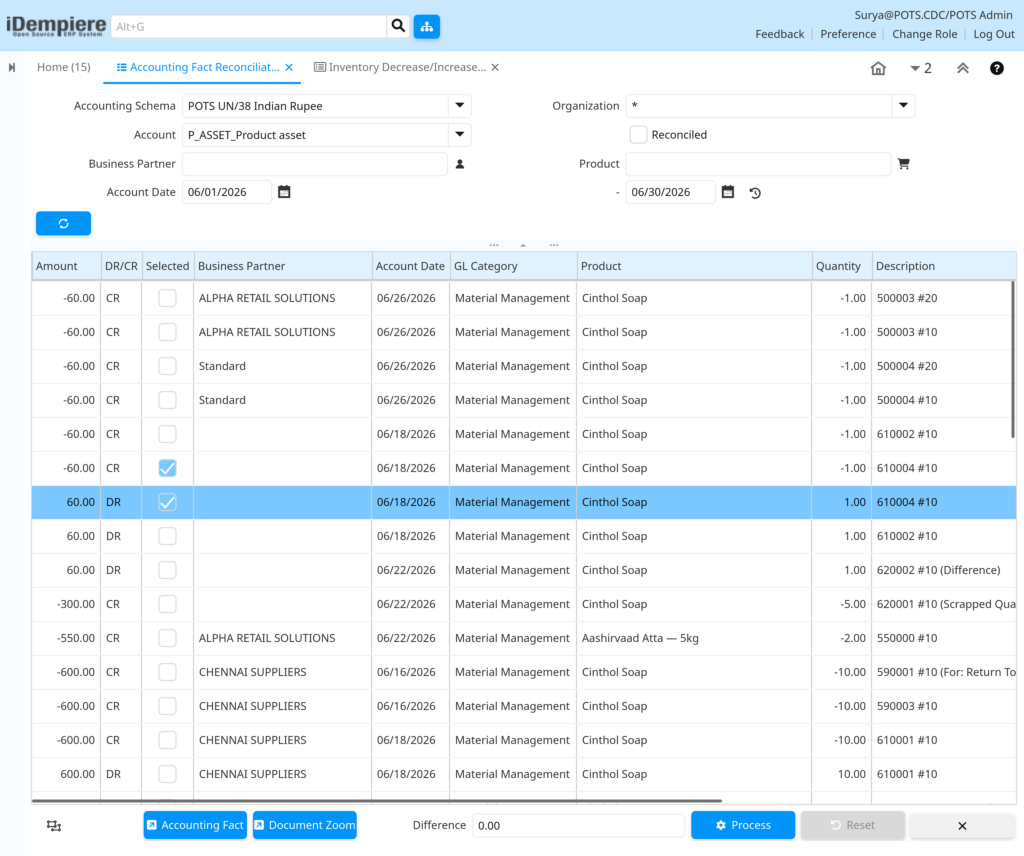
Select a row, then click Accounting Fact to view the GL posting, or Document Zoom to open the originating document.
Step 8: Process the Reconciliation
Commits the match and sets IsReconciled = Y on the selected Fact_Acct records.
Instructions
With Difference at 0, click Process to mark the selected records as reconciled. Use Reset to clear filters and start over.
Common Issues and Resolutions
| Issue | Cause | Resolution |
| Grid stays empty after filtering. | Refresh not clicked, or no Fact_Acct records exist for the filters. | Click Refresh; confirm documents are posted for the selected schema and date range. |
| Difference field is not zero. | Selected records include unbalanced or partially reconciled postings. | Narrow filters by Account or Business Partner and re-select matching debit/credit pairs. |
| Process button stays disabled. | No records selected, or Difference is not zero. | Select rows in the grid and confirm Difference equals 0 before processing. |
| Expected records missing from results. | Wrong Organization or Account Date range selected. | Set Organization to “*” and widen the Account Date range. |
| Records reconciled by mistake. | Process run without reviewing Document Zoom details first. | Reconciliation is manual; involve an administrator to correct the record if needed. |
| Business Partner or Product filter returns no rows. | Value is not linked to any Fact_Acct entry in the schema. | Clear the filter and confirm the partner or product appears on posted documents. |
| Accounting Schema dropdown shows no valid entries. | Accounting Schema not configured for the client or role. | Configure Accounting Schema under General Rules → Accounting Rules. |
Next Steps
- Review the General Ledger Journal for the reconciled period.
- Configure Bank Statement Matching for bank account reconciliation.
- Run Financial Reports to confirm subledger-to-GL balances.
- Set up Period Control to close the reconciled accounting period.