How Does Work Post It Window In iDempiere
Post-It in iDempiere is used to attach quick notes or reminders to business documents such as Purchase Orders and Sales Orders. It is accessed directly from the document’s additional actions menu, allowing users to record internal comments without changing any document data.
This feature is used across standard business processes wherever a document needs a supporting reminder or internal comment, and applies broadly to Retail, Distribution, Manufacturing, and Services organisations running iDempiere.
Business Rules
- A Post-It record is only created once the user enters a note and confirms with OK.
- The Post-It record automatically links to the source document through the Table and Record UUID fields.
- Post-It content can include plain text or HTML formatting.
- Post-It notes do not alter or affect any data on the source business document.
- A single business document can have multiple Post-It records associated with it.
- Post-It records created from a document are also visible in the standalone Post-It window.
Prerequisites
- The source business document, such as a Sales Order or Purchase Order, must be open and saved.
- Users must have access rights to the document to add a Post-It note.
Navigation
Menu → General → Post-It, or directly from any supported document using the additional actions (three-dot) menu.
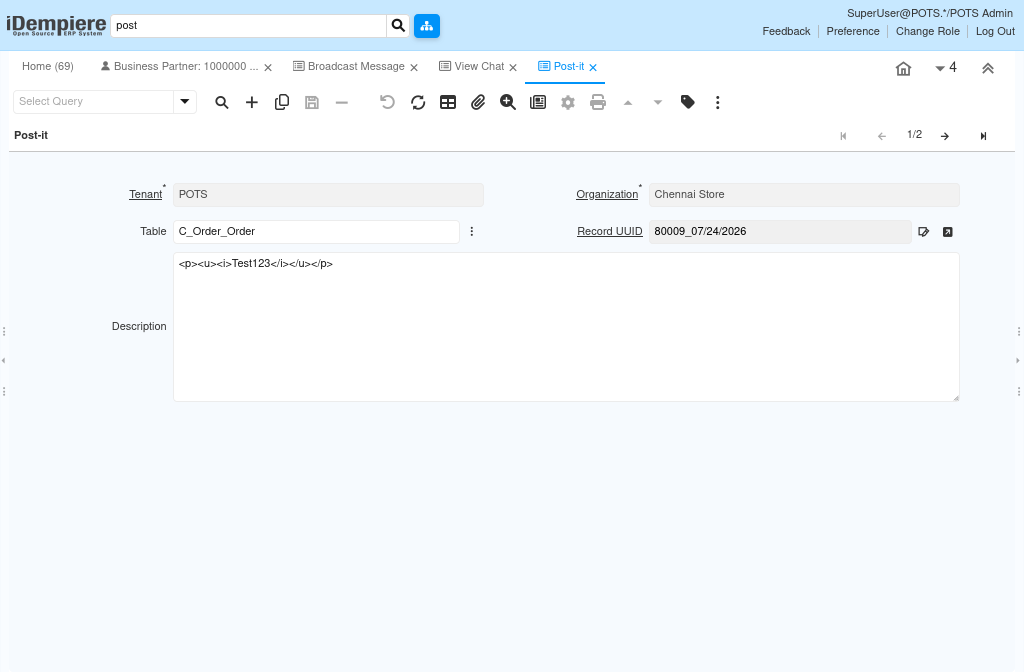
Upon opening the standalone Post-It window, users see a list of notes with the Tenant, Organization, linked Table, Record UUID, and Description for each entry.
Configuration Steps
Step 1: Add a Post-It Note from a Document
This step lets a user attach a quick note directly to the document they are working on, without navigating away or affecting the document’s data.
Open the document, such as a Sales Order, click the three-dot additional actions menu, select Post-it, enter a text or HTML note, and click OK.
| Field | Sample Value | Description |
| Note (Text/HTML) | Test | Free-form text or HTML content entered as the reminder or comment. |
Clicking OK automatically creates a Post-It record and links it to the document the user was viewing.
Step 2: Review Post-It Records
The standalone Post-It window lists every note created across documents, letting users review or manage notes outside the originating document.
Open the Post-It window to view the Tenant, Organization, linked Table, Record UUID, and Description of each saved note.
| Field | Sample Value | Description |
| Tenant | POTS | Identifies the tenant the Post-It record belongs to. |
| Organization | Chennai Store | Identifies the organization scope of the Post-It record. |
| Table | C_Order_Order | Business table of the document the note is linked to. |
| Record UUID | 80009_07/24/2026 | Unique reference identifying the specific source document record. |
| Description | Test123 | The note content entered when the Post-It was created. |
Common Issues and Resolutions
| Issue | Cause | Resolution |
| Post-It note not saved | Popup closed or Cancel selected instead of OK | Reopen the Post-it option and click OK after entering the note. |
| Cannot find a note added earlier | Note was not looked up in the standalone Post-It window | Open the Post-It window and locate the record by Table and Record UUID. |
| HTML formatting not displaying as expected | HTML content entered incorrectly in the note field | Re-enter the note using valid HTML formatting, or use plain text instead. |
| Multiple notes appear for the same document | Several Post-It records were created separately over time | Review each Post-It entry individually; this is expected standard behaviour. |
| Note not visible from within the document | Note was created against a different document record | Verify the Table and Record UUID match the document currently open. |
Next Steps
- Sales Order window – a common source document for creating Post-It notes.
- Purchase Order window – another common source document for creating Post-It notes.
- View Chat window – for structured, threaded discussion linked to a document, as opposed to a quick note