How to Configure Alert Processor in iDempiere
Introduction
The Alert Processor window in iDempiere controls how the system checks and runs alert rules on a scheduled basis. It works together with Alert Rules to notify responsible users when a defined business condition occurs.
It is used in system administration to keep alert checks running automatically, without manual intervention, so that business exceptions such as low stock or overdue payments are flagged on time.
This window directly affects how quickly the business is informed of exceptions. A well-configured Alert Processor keeps reporting accurate and helps teams act before issues escalate.
Process Flow

Business Rules
- Only an active Alert Processor record runs on its defined schedule.
- Each Alert Processor must have one schedule that controls how often it runs.
- A Supervisor is required and receives alert notifications and error updates.
- The Date Next Run is calculated automatically based on the schedule.
- Every run creates a Log entry, whether or not an alert condition was found.
- The Days to keep Log value controls how long log entries are retained.
- An Error flag on a log entry marks that a particular run did not complete normally.
- Deactivating the processor stops future scheduled runs without deleting history.
Prerequisites
- Organization configured for the Tenant.
- Alert Rule configured with the condition to be checked.
- Supervisor user configured with a valid email address.
- Scheduler enabled at the system level.
Navigation
Menu → System Admin → General Rules → Server → Alert Processor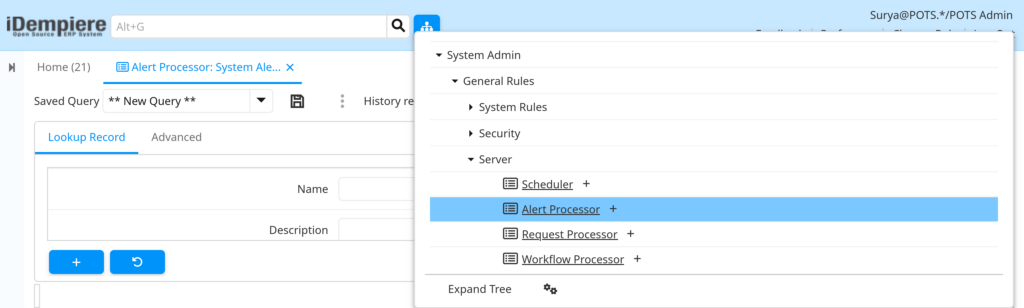
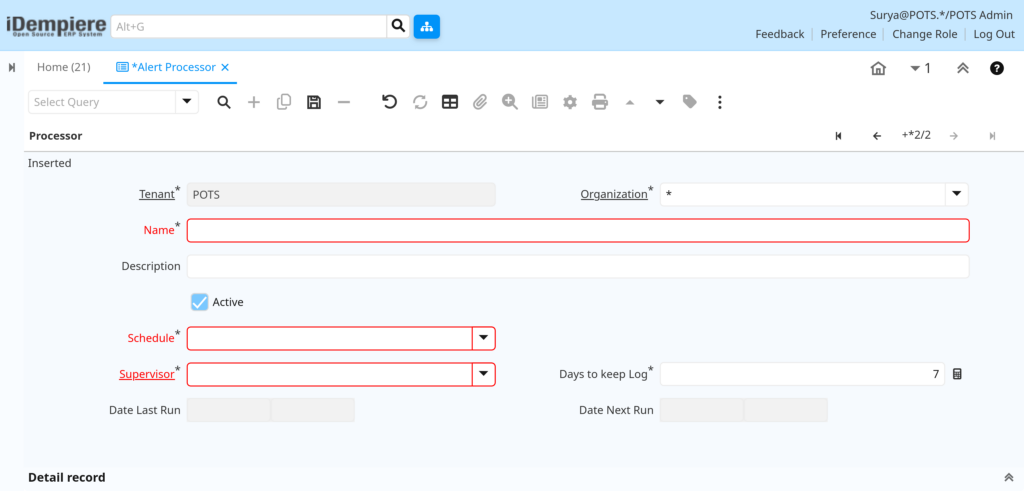
Opening the window shows the Processor tab with the schedule and supervisor details, and a Log tab below listing every past run with its summary and status.
Configuration Steps
Step 1: Open the Alert Processor Record
This step confirms the processor record that controls alert scheduling for the tenant.
Instructions
Search for Alert Processor in the menu and open the existing System Alert Processor record, or create a new one for a custom alert schedule.
Step 2: Name and Describe the Processor
A clear name and description help administrators identify the purpose of the processor at a glance.
Instructions
Enter a short, meaningful name and, if useful, add a description explaining what the processor checks.
| Field | Sample Value | Description |
| Name | System Alert Processor | Identifies the processor record |
| Description | Checks system alerts daily | Explains the purpose of the processor |
Step 3: Set the Active Status
The processor only runs automatically while it is marked active.
Instructions
Select the Active checkbox to allow the processor to run on schedule. Clear it to pause alert checking without deleting the record.
| Field | Sample | Purpose |
| Active | Checked | Allows the processor to run on schedule |
Step 4: Define the Schedule
The schedule sets how often the system checks the alert condition.
Instructions
Select or create a schedule, such as 1 Day, that matches how often the alert condition should be checked.
| Field | Sample | Purpose |
| Schedule | 1 Day | Sets how often the alert check runs |
Step 5: Assign a Supervisor
The supervisor is notified of alert results and is responsible for reviewing them.
Instructions
Select the user who should receive alert notifications and monitor the processor’s activity.
| Field | Sample | Purpose |
| Supervisor | System | Receives alert results and notifications |
Step 6: Set Log Retention
This step controls how much run history is kept before older entries are removed.
Instructions
Enter the number of days log entries should be kept before they are eligible for cleanup.
| Field | Sample | Purpose |
| Days to keep Log | 7 | Controls how long log entries are retained |

Step 7: Review Run Dates
These fields confirm when the processor last ran and when it will run next.
Instructions
Check the Date Last Run and Date Next Run values to confirm the processor is running as scheduled.
| Field | Sample | Purpose |
| Date Last Run | 07/30/2026 10:42:15 AM | Shows when the processor last executed |
| Date Next Run | 07/31/2026 10:42:15 AM | Shows when the processor will run next |
Step 8: Review the Alert Processor Log
Each run is recorded in the Log tab, giving a history of results and any errors.
Instructions
Open the Log tab or a Log entry to view the run summary, error status, and any reference or text message from that run.
| Field | Sample Value | Description |
| Alert Processor | System Alert Processor | Links the log entry to its processor |
| Created | 07/24/2026 10:42:14 AM | Date and time the run took place |
| Summary | Total=1 – Space in Database=No Result – Logs deleted=1 | Result summary of the run |
| Error | Unchecked | Marks whether the run completed without issues |
| Reference | #0 – 0’00:00:00.53 | Internal run reference and duration |
| Text Message | (blank) | Additional message text from the run, if any |

Common Issues and Resolutions
| Issue | Cause | Resolution |
| Processor does not run on schedule | Active checkbox is cleared | Select Active on the Processor record |
| No new log entries appear | Scheduler is not enabled or not running | Confirm the scheduler is enabled at the system level |
| Supervisor does not receive alerts | Supervisor user has no valid email set | Add a valid email address to the Supervisor user record |
| Log list grows very large | Days to keep Log is set too high | Lower the Days to keep Log value |
| Error flag appears on a log entry | Underlying alert rule failed to complete | Review the Reference and Text Message for details |
| Alert never triggers | Linked Alert Rule is inactive or misconfigured | Check the Active status and condition on the Alert Rule |
| Date Next Run does not update | Schedule record is inactive or incorrect | Verify the Schedule record is active and correctly set |
| Duplicate alert notifications | More than one active processor for the same rule | Deactivate the duplicate processor record |
Next Steps
- Configure or review the Alert Rule linked to this processor.
- Confirm the Supervisor user has a valid email address for notifications.
- Enable and verify the system Scheduler.
- Periodically review the Alert Processor Log for errors.