How to Use Session Audit in iDempiere
Learn how the iDempiere Session Audit window records user sessions and audited database changes for compliance, troubleshooting, and review.
Introduction
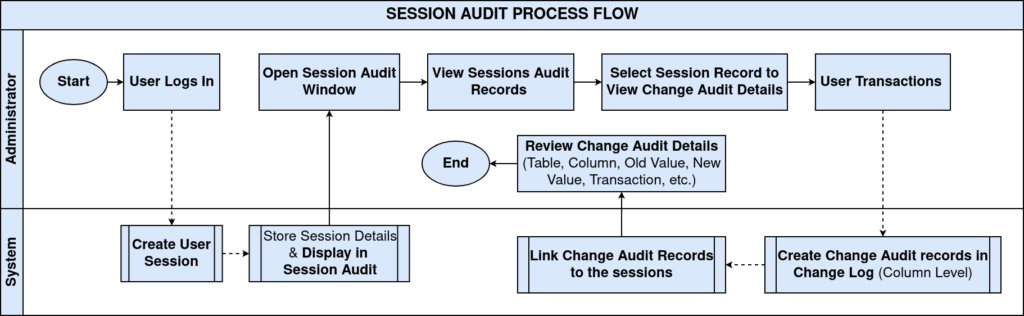
Session Audit is a standard iDempiere window that maintains a historical record of user login sessions together with the Change Audit entries generated during database transactions performed within each session.
It is used across standard business processes for change tracking, troubleshooting, and compliance reviews. By linking every audited change to the session, transaction, and user that produced it, Session Audit strengthens data governance and supports investigation of business transactions.
Process Flow
Business Rules
- Session records are created automatically each time a user logs into iDempiere.
- Session Audit displays session records for the current tenant only.
- A single session can contain multiple database transactions.
- Each transaction can generate multiple Change Audit records.
- Change Audit records are linked to their parent session.
- Change Audit stores changes at column level, not at record level.
- Update operations record only the columns that were actually modified.
- Delete operations create one Change Audit record for every audited column.
- On deletion, Old Value keeps the original data while New Value is set to NULL.
- Session Audit does not display active user monitoring information.
Prerequisites
- User must have menu access rights to the Session Audit window.
- Relevant tables must have Change Log (audit) tracking enabled in the Application Dictionary.
- User must be logged in with a valid Role, Organisation, and Tenant assigned.
Configuration Steps
Step 1: Open Session Audit
This step is required to access the historical record of user sessions and audited database changes.
Navigate to the Session Audit window from the menu. The window opens showing session header details for the current tenant, with the most recent session displayed by default.
| Field | Sample Value | Description |
| Tenant | POTS | Identifies the tenant (client) the session belongs to |
| Organization | * | Organisation associated with the session |
| Created | 07/28/2026 3:28:25 PM | Date and time the session record was created |
| Created By | Praveen | User associated with creation of the session record |
| Remote Address | 192.168.0.193 | IP address from which the user connected |
| Remote Host | 192.168.0.193 | Host name or address of the client machine |
| Server Name | ip-834-192-168-0-113 | Name of the server that processed the session |
| Web Session | 2hre6ixl | Unique identifier for the web session |
| Role | POTS Admin | Role used by the user at login |
| Login Date | 07/28/2026 | Date the user logged into the system |
| Description | Release 13_2026-03-09 iDempiere | System-generated description of the session |
| Processed | Unchecked | Indicates whether the session record has been processed |
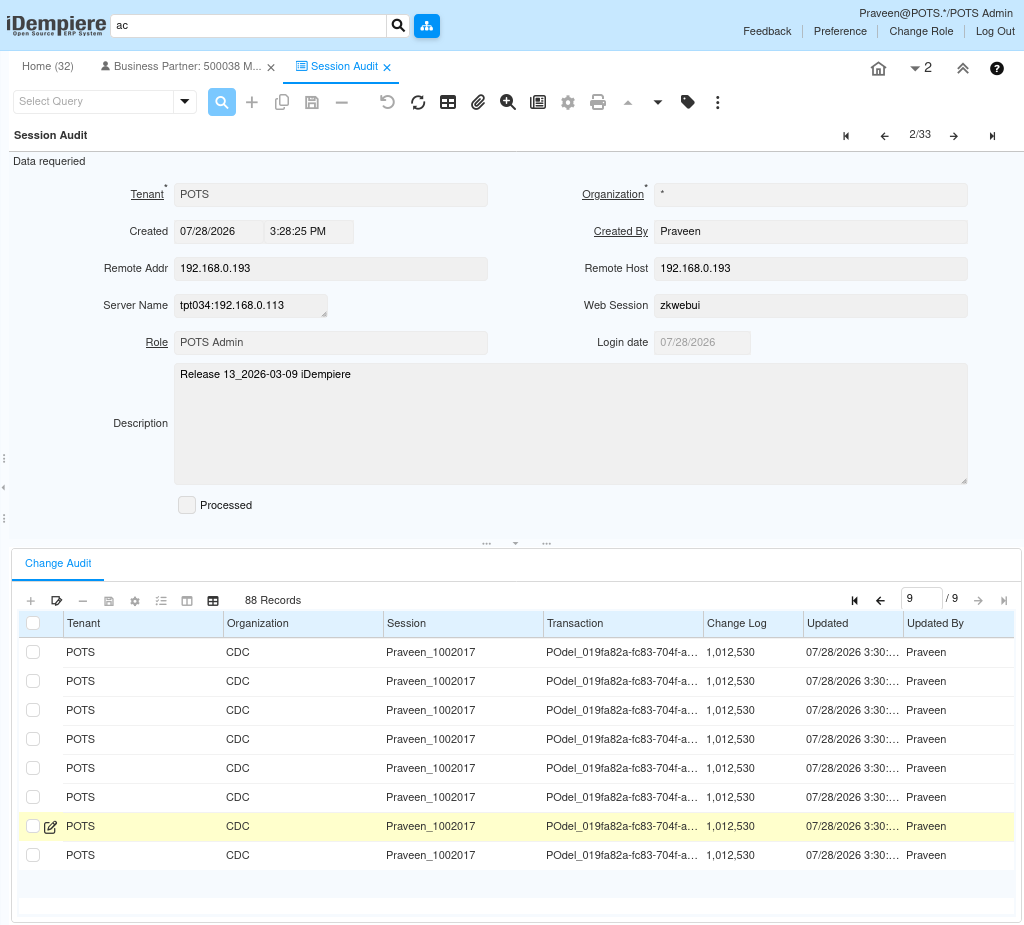
Step 2: Select a Session
This step is required to review the audit history that belongs to a specific login session.
From the session list, select the record for the user and login instance to be reviewed. The selected session displays its associated Change Audit records in the child tab.
| Field | Sample Value | Description |
| Tenant | POTS | Tenant to which the selected session belongs |
| User | Praveen | User who owns the selected session |
| Role | POTS Admin | Role used during the selected session |
| Session | Praveen_1002017 | Unique identifier of the selected session |
Step 3: Review Change Audit
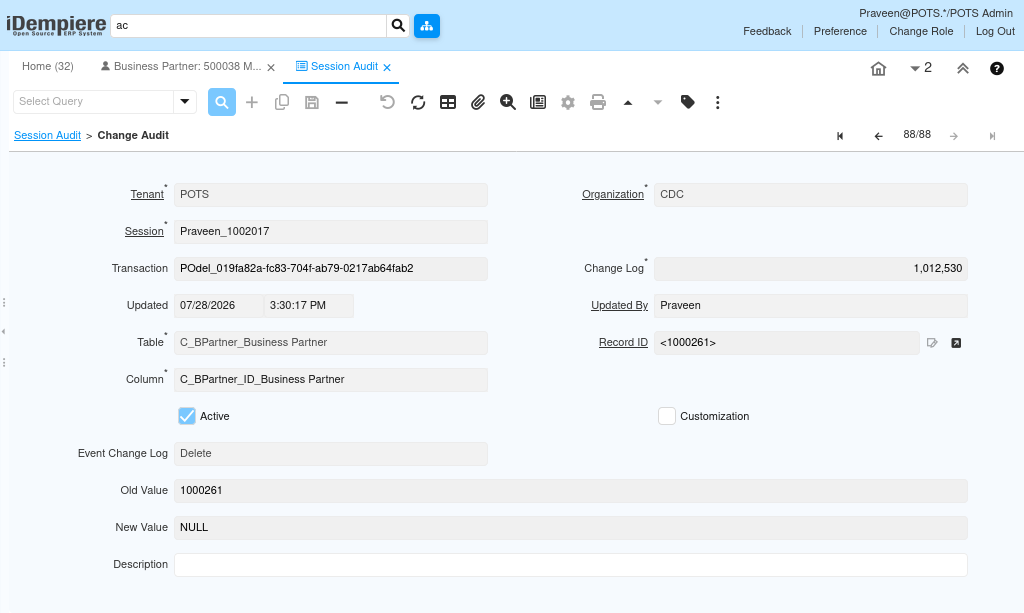
This step is required to analyse the database changes performed during the selected session.
Open the Change Audit tab under the selected session. Each record shows the table, column, and value change performed, allowing the reviewer to trace exactly what was modified.
| Field | Sample Value | Description |
| Transaction | PDdel_919a82a-fd83-… | Unique identifier of the database transaction |
| Change Log | 1,012,530 | Identifier grouping related column changes |
| Table | C_BPartner_Business Partner | Table where the audited change occurred |
| Record ID | <100261> | Identifier of the record that was changed |
| Column | AD_Client_ID_Tenant | Column that was modified |
| Event Change Log | Delete | Type of database operation performed |
| Updated By | Praveen | User who performed the change |
| Updated Date | 07/28/2026 3:30:17 PM | Date and time the change occurred |
| Old Value | 1000000 | Value before the change |
| New Value | NULL | Value after the change |
Session Audit vs. Active Session
Session Audit and Active Session serve different purposes. Active Session monitors users currently logged into the system, while Session Audit reviews historical session activity and associated Change Audit records for the current tenant.
Common Issues and Resolutions
| Issue | Cause | Resolution |
| No sessions displayed | No session records exist for the current tenant. | Verify user login activity for that tenant. |
| No Change Audit records | No audited changes were performed during the session, or the affected tables are not configured for change logging. | Perform an audited transaction and review the session again. |
| Deleted record not visible | Session Audit stores audit information rather than the deleted business record itself. | Review the Change Audit entries associated with the session. |
| Old Value and New Value hard to interpret | Values are stored as raw record identifiers rather than descriptive text. | Cross-reference the identifier with the related window or table. |
| Cannot locate a specific transaction | Multiple transactions and sessions share similar timestamps. | Filter or sort the Change Audit tab by Session, User, or Updated Date. |
| Session Audit window not visible in menu | The user role does not have access rights to the window. | Request menu access from a System Administrator. |
Next Steps
- Analyse the detailed Change Audit history for a selected session.
- Investigate user activity linked to a specific transaction.
- Verify database modifications performed during a session.
- Cross-reference audited changes with the affected business documents.
- Use Active Session to monitor users currently logged into the system.