How to Configure Position Category in iDempiere
Position Category is the iDempiere window that defines functional classifications for job positions, such as Finance & Accounting or Information Technology.
HR teams use it to group store and corporate roles into consistent business functions before creating individual Position records.
Assigning the right category keeps position management organized and simplifies later use in Position Assignment and Business Partner Contact setup.
Process Flow
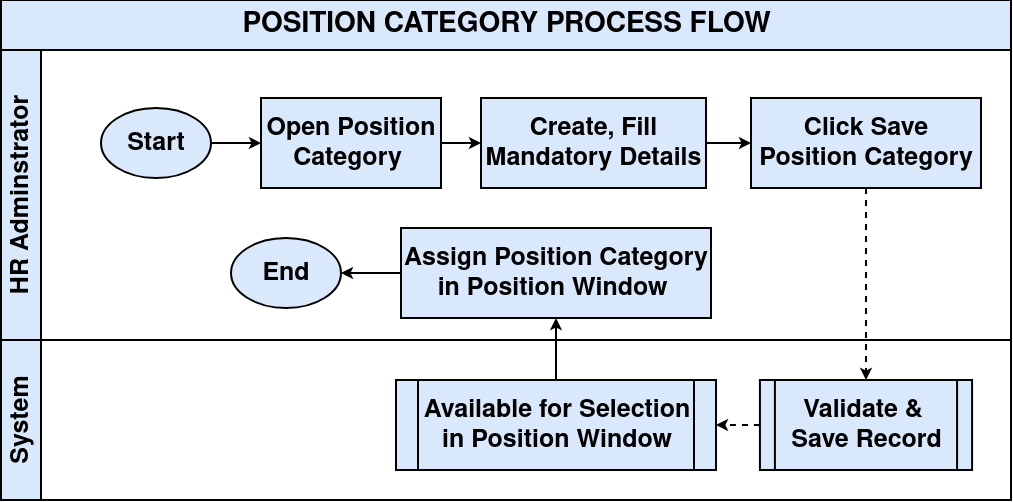
Business Rules
- Every Position Category belongs to a Tenant.
- Each Position Category is created under an Organization.
- Name is mandatory; the record cannot be saved without it.
- Active is enabled by default and controls availability for Position selection.
- Position Category is a master record referenced by Position records.
- Creating a Position Category does not automatically create Position records.
- Position Category does not support document actions, approvals, or workflow.
Configuration Steps
Step 1: Start a New Position Category Record
This begins a new functional classification that job positions can later reference.
Navigate to Partner Relations → Position Category, click New, and select the Organization.
| Field | Sample Value | Purpose |
| Organization | CDC | Organization the Position Category belongs to |
Step 2: Define Name and Description
Name and Description identify the category and the business function it represents.
Enter a business-oriented Name, and a Description explaining the scope of positions the category covers.
| Field | Sample Value | Purpose |
| Name | Information Technology | Identifies the Position Category |
| Description | Positions responsible for ERP implementation, software development, infrastructure, and technical support. | Explains the scope of the category |
Step 3: Add Comment/Help and Confirm Active Status
Comment/Help provides implementation guidance, and Active determines whether the category can be selected on a Position record.
Optionally enter Comment/Help, verify Active is checked, then save the record.
| Field | Sample Value | Purpose |
| Comment/Help | Used to classify all Information Technology-related positions. | Provides supplementary notes for administrators |
| Active | Yes | Makes the category available for Position selection |
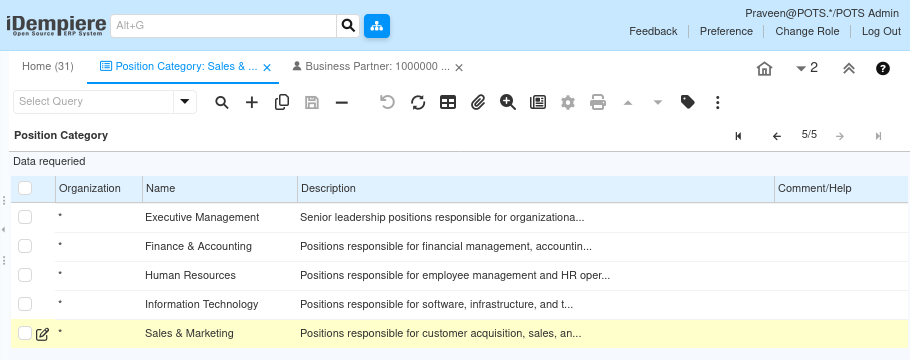
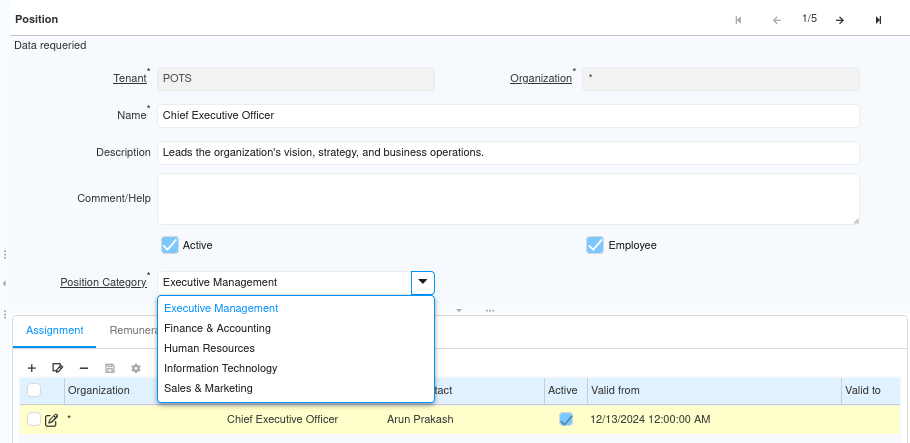
Step 4: Save and Verify
Saving confirms the category is ready for use when creating Position records.
Save the record, then open the Position window and confirm the new category appears in the Position Category lookup.
Common Issues and Resolutions
| Issue | Cause | Resolution |
| Unable to save the record | Organization or Name field left blank | Verify that the Organization and Name fields are populated |
| Position Category does not appear in the Position window | Category is inactive or in an inaccessible Organization | Ensure the category is Active and belongs to an accessible Organization |
| Duplicate Position Categories | Similar or generic names reused across records | Use unique business-oriented names to avoid confusion during Position creation |
| Category purpose unclear later | Description left blank when the record was created | Add a Description explaining the scope of the category |
| Category assigned to wrong Position | Incorrect category selected on the Position record | Correct the Position Category assignment on the Position window |
Next Steps
- Open the Position window to create Position master records.
- Assign each Position to the appropriate Position Category and save.
- Use the Position in Position Assignment and Business Partner Contact configuration.