How to Run Revenue Recognition Run in iDempiere
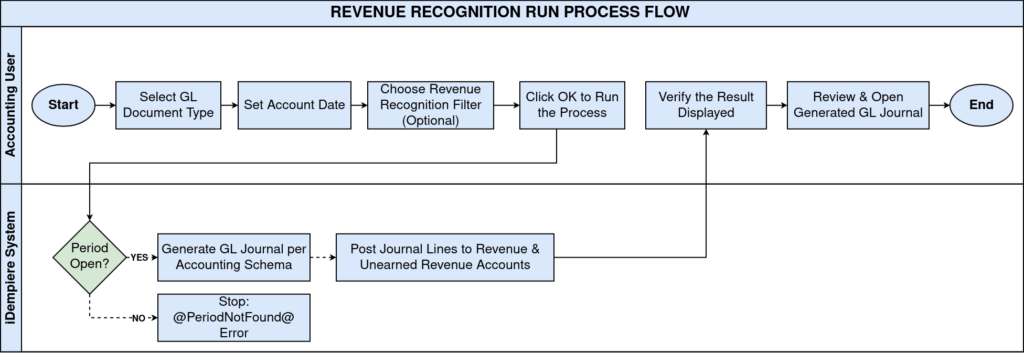
The Revenue Recognition Run window is a process in iDempiere Financial Management that converts posted Revenue Recognition Plan entries into GL Journal postings. Retailers use it to recognize revenue from annual subscriptions, extended warranties, and service contracts sold alongside merchandise. Running this process at period close moves balances from Unearned Revenue to recognized Revenue accounts, keeping financial statements, subscription reporting, and audit records accurate.
Process Flow
Business Rules
- Only Revenue Recognition Run entries with DateRecognized on or before the Account Date are processed.
- Entries already linked to a GL Journal are skipped, preventing duplicate revenue posting.
- A separate GL Journal is generated for each Accounting Schema defined for the client.
- The selected Document Type determines the GL Category used on the generated journal.
- Selecting a Revenue Recognition value filters the run to that plan type only.
- Leaving Revenue Recognition blank processes all active Revenue Recognition plans in one run.
- Run as Job queues the process in the background for large data volumes.
- Journal lines post to the Revenue Account and Unearned Revenue Account set on the Revenue Recognition Plan.
- The process stops with an error if no open Accounting Period exists for the Account Date.
Prerequisites
- Revenue Recognition Plan configured with Revenue Account and Unearned Revenue Account.
- Revenue Recognition record defined and linked to the Recognition Plan.
- Customer invoice posted and linked to a Revenue Recognition Plan line.
- Document Type “GL Journal” configured with a valid GL Category.
- Accounting Period opened for the target Account Date.
- Accounting Schema configured for the Organization and Client.
Navigation
Performance Analysis and Accounting → Accounting Rules → Revenue Recognition Run
Configuration Steps
Step 1: Select the GL Document Type
In the Document Type field, select “GL Journal” (or an org-specific GL Journal type). This value drives the GL Category on the resulting journal document.
| Field | Sample Value | Description |
| Document Type | GL Journal | GL document type used to create the journal; determines GL Category. |
Step 2: Set the Account Date
Enter the accounting date, or pick it using the calendar icon. Use the last day of the period being closed, e.g., 08/19/2026. Confirm the Accounting Period for this date is open.
| Field | Sample Value | Description |
| Account Date | 08/19/2026 | Posting date for the GL journal; also the recognition cutoff date. |
Step 3: Choose the Revenue Recognition filter (optional)
Select a value such as “ERP Annual Subscription Recognition” to process only entries under that definition. Leave the field blank to include all active Revenue Recognition plans.

| Field | Sample Value | Description |
| Revenue Recognition | ERP Annual Subscription Recognition | Filters run entries to a specific Revenue Recognition definition. |
Step 4: Decide whether to Run as Job
Check Run as Job to queue the process asynchronously. Leave it unchecked for immediate, on-screen execution with visible results.
| Field | Sample Value | Description |
| Run as Job | Unchecked | Runs the process in the foreground; checked runs it as a background job. |
Step 5: Execute and review results
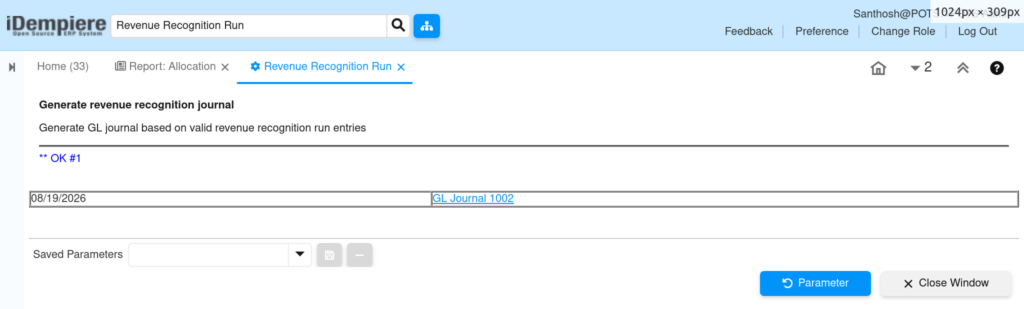
Click OK to execute. The result screen shows a “** OK #<count>” message and a table listing the Account Date with a link to the generated document, such as “GL Journal 1002.”
| Field | Sample Value | Description |
| Result Link | GL Journal 1002 | Opens the generated GL Journal document for review. |
Common Issues and Resolutions
| Issue | Cause | Resolution |
| Process completes with “OK #0” | No Revenue Recognition Run entries have DateRecognized on or before the Account Date, or matching entries already have a GL Journal. | Check recognition schedule dates and confirm entries are unposted before rerunning. |
| “@PeriodNotFound@” error on execution | No open Accounting Period exists for the selected Account Date. | Open or create the Accounting Period covering that date in Period Control. |
| Journal lines post to unexpected accounts | Revenue Account or Unearned Revenue Account missing or incorrect on the Revenue Recognition Plan. | Correct the account assignments on the Revenue Recognition Plan, then rerun. |
| One journal mixes entries from multiple organizations | The journal header organization is taken from the first processed run entry. | Filter runs by Revenue Recognition per organization, or review journal lines individually. |
| Process runs slowly or the browser times out | A large number of unprocessed Revenue Recognition Run entries are included in one execution. | Enable Run as Job to process the batch in the background. |
| Revenue appears recognized twice for the same invoice | A generated GL Journal was deleted or reversed without clearing the run record’s journal link. | Reverse the journal through proper accounting correction rather than deleting it directly. |
| No entries available despite posted invoices | The Revenue Recognition Plan is not linked to the selected Revenue Recognition filter. | Confirm the Plan references the correct Revenue Recognition value, or leave the filter blank. |
| Journal posts under the wrong GL Category | The selected Document Type does not map to the intended GL Category. | Select the correct GL Journal Document Type before running the process. |
Next Steps
- Open the generated GL Journal document and complete or post it if not auto-posted.
- Reconcile the Unearned Revenue account balance against the subscription or warranty liability schedule.
- Schedule the Revenue Recognition Run to execute automatically at each period close.
- Review the Revenue Recognition Plan window for upcoming recognition entries.