How does Work Language Window in iDempiere
The Language window in iDempiere defines the languages available in the system, including formatting rules and translation support. It lets administrators configure which languages users can log in with and how dates, times, and paper sizes display.
It is used in standard business processes wherever an organization operates across multiple regions or languages.
Process Flow

Business Rules
- Each Language record defines a language and locale that can be used across the application.
- Only languages marked System Language are available for a user to select at login.
- The Base Language represents the original application language and is normally English.
- Date Pattern, Time Pattern, and Print Paper define regional formatting defaults for that language.
- The Language Maintenance button generates translation records; it does not translate content automatically.
- Translators must enter translated text manually after translation records are generated.
- Users with the same ERP data can each view the application in their own configured language.
- A language must be Active before it becomes available anywhere else in the system.
Prerequisites
- User must have System Administrator access to the Application Dictionary / Language window.
- ISO Language Code and ISO Country Code standards should be confirmed before creating a new language.
- Translators or bilingual staff should be available to complete translation records after generation.
- Regional date, time, and paper size conventions should be confirmed for the language being added.
Navigation
Menu → System Admin → General Rules → System Rules → Language. Users see the Language header with locale, formatting, and translation settings.
Configuration Steps
Step 1: Access the Language Window
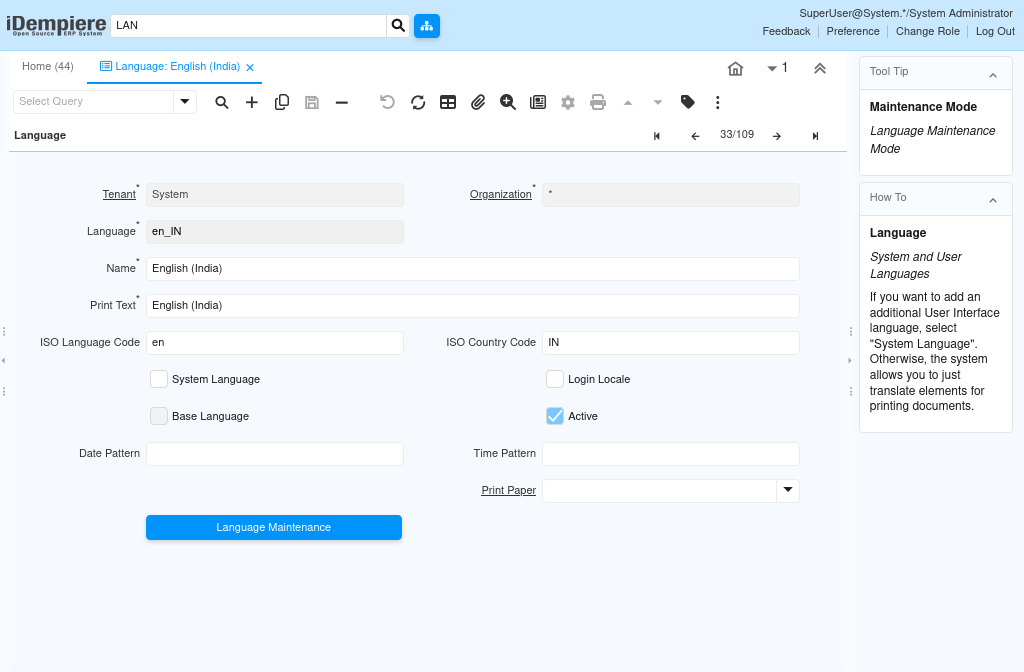
Opening the window is the starting point for reviewing existing languages or adding a new one.Search for Language from the main menu, or open it via System Admin. Select an existing language or create a new record.
Step 2: Define the Language Identity
These fields uniquely identify the language and how its name appears throughout the system.Enter the Language code, Name, Print Text, ISO Language Code, and ISO Country Code following standard ISO conventions.
Step 3: Configure Login and Base Language Settings
These flags control whether users can log in using this language and whether it acts as the system’s base language.
Enable System Language to allow login selection, Login Locale to apply regional login settings, and Base Language only for the original application language.
Step 4: Set Regional Formatting Defaults
Date, time, and paper settings ensure documents and screens display correctly for users of this language.Enter the Date Pattern, Time Pattern, and select the default Print Paper size for this language.
Step 5: Generate Translation Records
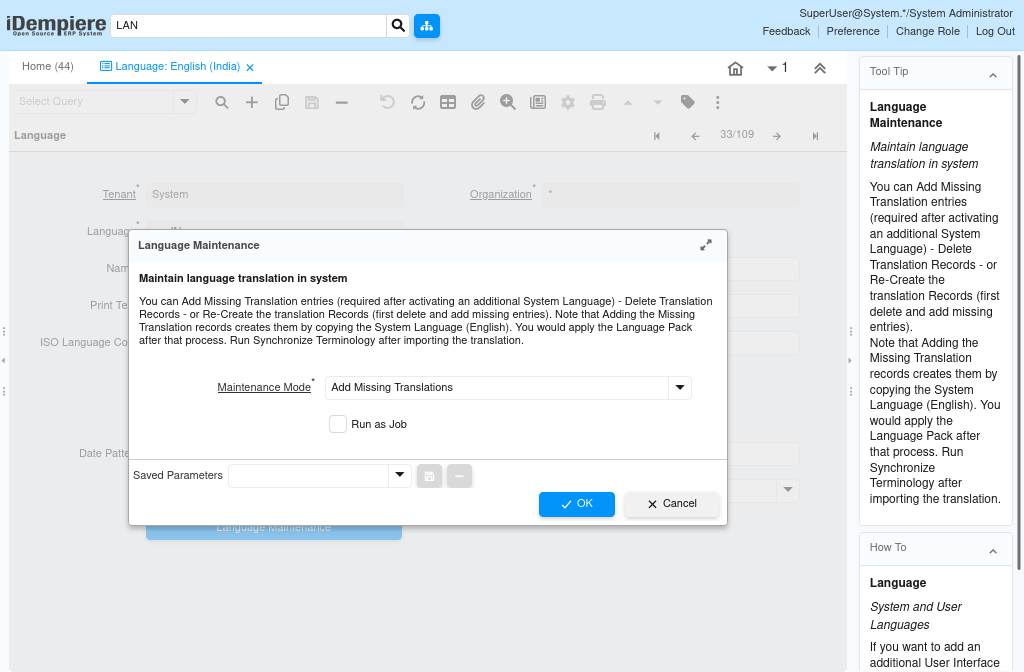
Translation records must exist before translators can enter translated text for windows, fields, menus, and messages.
Save the Language record, then click the Language Maintenance button to generate translation records for the new language.
Step 6: Activate the Language for Use
The language must be Active before users can select it at login or use it elsewhere in the system.Confirm the Active flag is checked, then save the record so the language becomes available system-wide.
Field Reference
The table below lists every field on the Language window, including translation-related settings, in a single reference table.
| Field | Sample Value | Description |
| Tenant | System | Client that owns the language record. |
| Organization | * | Organization scope; * indicates all organizations. |
| Language | en_US / es_CO | Internal identifier for the language and locale. |
| Name | English (United States) / Spanish (Colombia) | Full display name of the language. |
| Print Text | English | Language name shown on printed reports. |
| ISO Language Code | en / es | Standard two-letter ISO language code. |
| ISO Country Code | US / CO | Standard ISO country code associated with the language. |
| System Language | Checked | Allows users to log in using this language. |
| Login Locale | Checked | Applies regional locale settings during login. |
| Base Language | Checked for English only | Marks this as the original application language, normally English. |
| Active | Checked | Makes the language available for use in the system. |
| Date Pattern | dd/MM/yyyy | Default date format applied for this language. |
| Time Pattern | HH:mm:ss | Default time format applied for this language. |
| Print Paper | A4 | Default paper size used for printed output in this language. |
| Language Maintenance (Button) | N/A | Generates translation records for windows, tabs, menus, fields, reports, and messages. |
Common Issues and Resolutions
| Issue | Cause | Resolution |
| New language does not appear at login | System Language or Active flag is unchecked | Enable both System Language and Active, then save the record |
| Interface still shows English after switching language | Translation records were never generated or translated text was not entered | Run Language Maintenance, then have a translator complete the translation records |
| Dates or times display incorrectly for a language | Date Pattern or Time Pattern does not match the expected regional format | Update the Date Pattern and Time Pattern fields to the correct format |
| Reports print on the wrong paper size | Print Paper setting does not match the region’s standard paper size | Update the Print Paper field for the language |
| Language Maintenance button appears to do nothing visible | The process only creates blank translation records; it does not translate automatically | Confirm translation records were created, then assign translators to complete them |
| Multiple languages marked as Base Language | Base Language was enabled on more than one record by mistake | Ensure only the original application language, normally English, is marked as Base Language |
Next Steps
- Translation windows (Window, Menu, Field, Message Translation) – complete the generated translation records.
- User Preferences – confirm how individual users select their working language.
- Print Format Translate tab – review how document-level translations relate to system languages.