How to Use Universal Substitution in iDempiere
Universal Substitution is an iDempiere Manufacturing process that replaces one product with another across every Bill of Material (BOM) in the system.
The change updates BOM lines instantly, keeping production kits, hampers, and assembled retail sets accurate for costing, inventory, and order fulfillment.
Business Rules
- Substitution updates every active BOM line referencing the original product, not just one BOM.
- Both Product and Substitute fields are mandatory before the process can run.
- The Substitute product must already exist as a valid, active iDempiere product record.
- Running without Run as Job processes the substitution immediately and shows results on screen.
- Enabling Run as Job queues the substitution as a background process for large data volumes.
- The system reports the number of BOM lines updated after execution completes.
- Substitution updates BOM line references only; it does not delete the original product record.
Process Flow
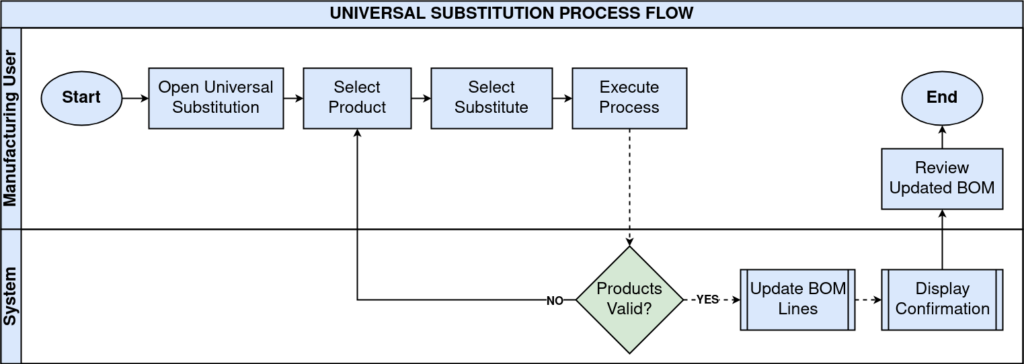
Prerequisites
- Original product configured and referenced in one or more Bills of Material.
- Substitute product created and marked Active in the Product window.
- Product Category and UOM configured correctly for the substitute product.
- Bill of Materials (BOM) structures already defined for the affected products.
- User assigned a Manufacturing role with rights to run this process.
Navigation
Menu → Manufacturing → Universal Substitution
Configuration Steps
Step 1: Select the Product to Replace
In the Product field, search and select the product being discontinued or replaced, e.g., CARD-01_Greeting Card. Use the picker icon if the exact code is unknown.
Step 2: Select the Substitute Product
In the Substitute field, select the new product record, e.g., CARD-02_Greeting Card New. Confirm it is Active and correctly categorized before proceeding.
Field Reference
| Field | Sample Value | Description |
| Product | CARD-01_Greeting Card | Existing product to be replaced in all BOMs |
| Substitute | CARD-02_Greeting Card New | New product that will replace the original |
| Run as Job | Unchecked | Runs substitution immediately instead of as a background job |
Step 3: Decide the Run as Job Option
Leave Run as Job unchecked for small updates that need instant confirmation. Check it when substituting products across a large number of BOMs to avoid session timeouts.
Step 4: Execute and Verify the Substitution
Click OK to run the process. Review the confirmation message, e.g., “1 BOM Line products updated,” then verify the affected BOMs.
Common Issues and Resolutions
| Issue | Cause | Resolution |
| No BOM lines updated | Original product not referenced in any active BOM | Verify the product exists in a BOM before running the substitution |
| Substitute field rejects entry | Substitute product not marked Active | Activate the substitute product in the Product window first |
| Process appears to hang | Large dataset run without Run as Job | Re-run with Run as Job checked for bulk substitutions |
| Same product selected twice | Product and Substitute fields match | Choose a different product code for Substitute |
| Substitution not reflected in costing | BOM not re-costed after the update | Reprocess or re-cost the affected BOM manually |
| Access denied error | User role lacks Manufacturing process rights | Assign the correct role permissions in the User/Role window |
| Confirmation message not visible | Run as Job checked, process runs in background | Check background job status in the Process Monitor window |
Next Steps
- Review the updated Bill of Materials (BOM) window to confirm new product references.
- Update Product Costing for the substitute product if pricing differs from the original.
- Check open Manufacturing Orders for any that still reference the old product.