How to Create Sales Orders from Expense in iDempiere
Create Sales Orders from Expense is an iDempiere process that converts approved, billable Expense Report lines into customer Sales Orders. Retailers running installation, POS rollout, or field-service projects use it to recover travel and material costs from customers. It groups eligible expense lines by Business Partner and Project, then generates ready-to-invoice orders, keeping billing accurate and reducing manual data entry in retail project accounting.
Process Flow

Business Rules
- Only expense lines marked as billable (Invoiced ) are converted into Sales Orders.
- Expense lines already linked to a Sales Order Line are skipped, preventing duplicate billing.
- Expense lines must belong to a processed (completed) Expense Report to qualify.
- Lines are grouped by Business Partner and Project.
- The customer must have at least one configured location, or the order cannot be created.
- Generated Sales Orders are left in Prepared status, ready for review and completion.
- The Business Partner and Date Range parameters are optional and narrow the selection scope.
Prerequisites
- Business Partner (customer) configured with a valid Business Partner Location.
- Expense Report entered, approved, and processed with billable lines (Invoiced).
- Project configured, if expenses are tracked and billed against a Project.
- Sales Document Type (On Credit Order) configured for the Organization.
- Price List and Warehouse configured for the customer or project.
- Sales Representative and Organization assigned to the transaction.
Navigation
Menu → Partner Relation → Service → Create Sales Orders from Expense
Configuration Steps
Step 1: Confirm Expense Reports Are Processed
Open the Expense Report window, confirm the report status is Completed and each billable line has a Business Partner assigned.
Step 2: Open the Create Sales Orders from Expense Window
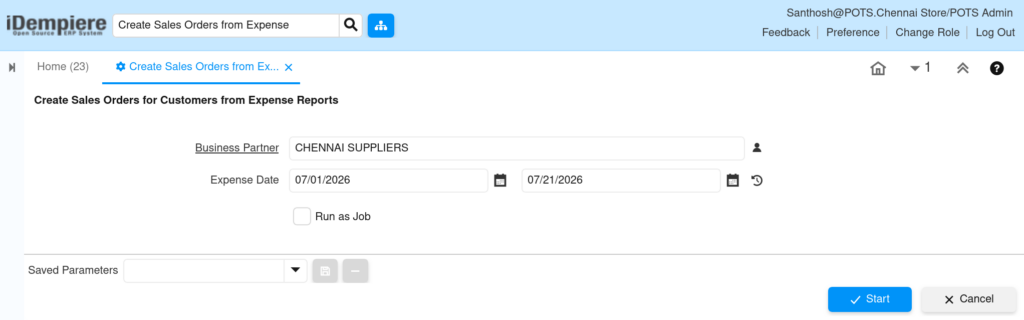
Navigate to Business Partner Relations → Service → Create Sales Orders from Expense to open the parameter screen.
Step 3: Set Selection Parameters
Enter a Business Partner to restrict the run to one customer, or leave it blank to process all customers. Set the Expense Date From and To range.
Field Reference Table
| Field | Sample Value | Description |
| Business Partner | CHENNAI SUPPLIERS | Optional filter; limits the run to one customer’s expense lines. |
| Expense Date (From) | 07/01/2026 | Start of the expense date range to include. |
| Expense Date (To) | 07/21/2026 | End of the expense date range to include. |
| Run as Job | Unchecked | When checked, runs the process in the background instead of immediately. |
Step 4: Run the Process
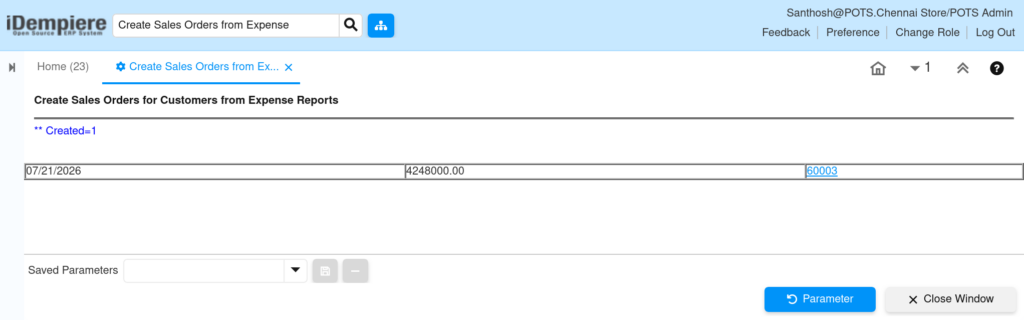
Click Start. The process log shows the number of orders created, along with the date, amount, and a link to each new Sales Order.
Step 5: Review and Complete the Generated Sales Order
Click the order link in the log (for example, 60003), verify the lines and pricing, then complete the order and proceed to invoicing.
Common Issues and Resolutions
| Issue | Cause | Resolution |
| No Sales Orders created | Expense lines not marked billable or report not processed | Mark lines Invoiced = Y and complete the Expense Report |
| Process error on order creation | Customer has no Business Partner Location | Add a valid location to the customer record |
| Orders split more than expected | Expense lines span multiple projects | Confirm project assignment on each expense line |
| Wrong price on order line | Price List not aligned with Project or Customer | Verify the Price List configured for the project or customer |
Next Steps
- Complete and invoice the generated Sales Order.
- Review Project Costing or Expense reports for reconciliation.
- Configure Sales Order to Invoice document flow if not already set up.
- Set up recurring Business Partner and Project filters for repeat billing cycles.