How to Execute the Warehouse Organization Process in iDempiere
Introduction
The Warehouse Organization process is a system utility in iDempiere Core that changes or verifies the organization ownership of a warehouse and its dependent entities.
It is used in multi-organization retail deployments where warehouses must be reassigned between organizations during restructuring, acquisitions, or store network changes.
Running the process updates Locator, Storage, Storage Reservation, and Accounting Schema linkage, which directly affects inventory transactions and financial reporting accuracy.
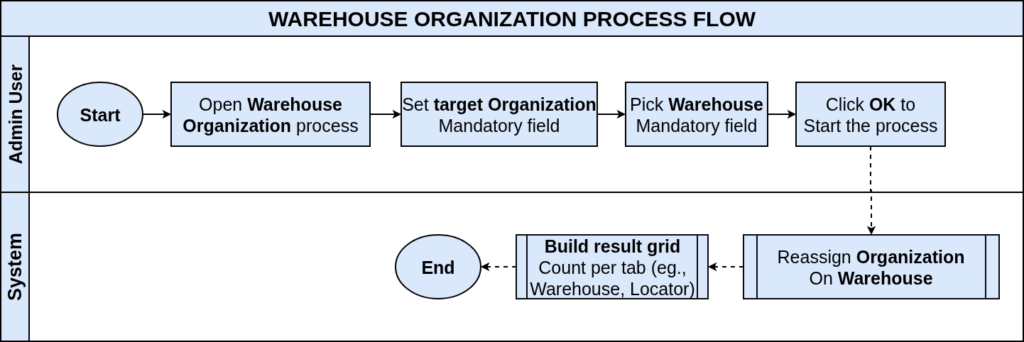
Process Flow Diagram
Business Rules
- Organization and Warehouse fields are mandatory to run the process.
- The process updates Organization on Warehouse, Locator, Storage, and Storage Reservation records.
- Accounting Schema linkage tied to the warehouse is reviewed during execution.
- Run as Job executes the process in the background instead of immediately.
- The process can be re-run to verify existing organization assignments without side effects.
- Only Active organizations and warehouses are available for selection.
- The result grid lists every dependent entity affected by the ownership change.
Prerequisites
- Organization configured under General Rules → Organization.
- Warehouse and Locators configured for the client.
- Accounting Schema assigned to the target Organization.
- User role has access rights to the source and target Organization.
Navigation
Menu → Material Management and Pricing → Material Management Rules → Warehouse Organization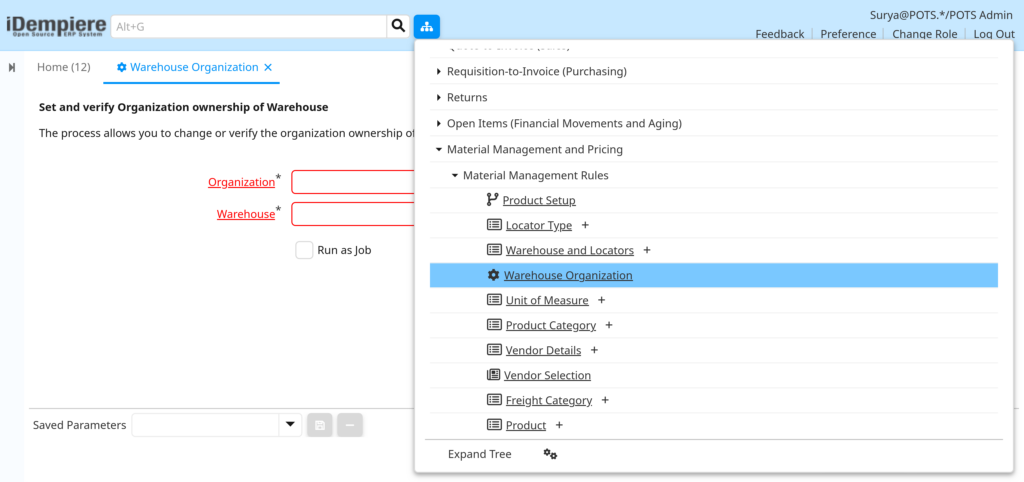
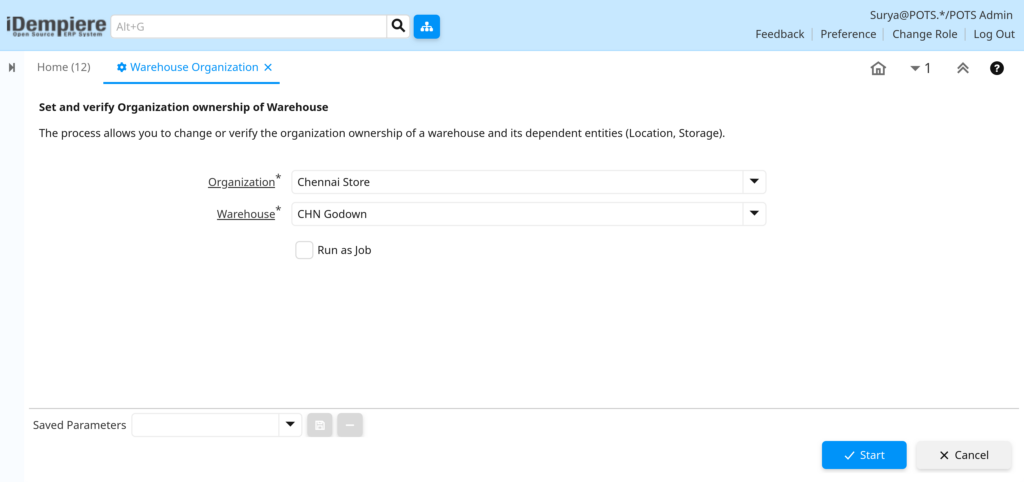
Opening the window displays Organization and Warehouse selection fields, a Run as Job checkbox, and OK/Cancel action buttons.
Configuration Steps
Step 1: Select the Organization
This defines which organization will own the warehouse and its dependent records once the process runs.
Instructions
Open the Organization dropdown and select the target organization, for example Central Retail Org, that should own the warehouse.
| Field | Sample Value | Description |
| Organization | Central Retail Org | Organization that will own the warehouse and dependent records. |
Step 2: Select the Warehouse
This identifies the warehouse whose ownership will be changed or verified against the selected organization.
Instructions
Open the Warehouse dropdown and choose the warehouse to process, for example Central Distribution Warehouse.
| Field | Sample Value | Description |
| Warehouse | Central Distribution Warehouse | Warehouse whose organization ownership is set or verified. |
Step 3: Choose Run as Job (Optional)
This determines whether the process executes immediately or runs asynchronously as a background job.
Instructions
Leave unchecked for immediate execution, or check the box to run the process as a scheduled background job.
| Field | Sample Value | Description |
| Run as Job | Unchecked | Runs the process immediately instead of as a background job. |
Step 4: Execute and Review Results
Running the process applies the organization change and returns a result grid confirming which entities were updated.
Instructions
Click OK to execute. Review the result grid listing each affected entity before closing the window.
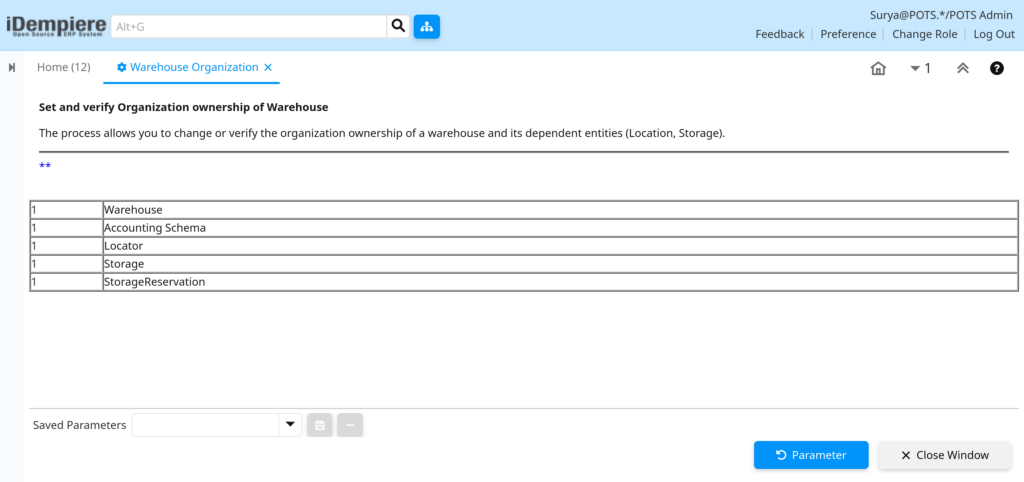
| Field | Count of records | Description |
| Warehouse | 1 | Confirms the warehouse organization was changed or verified. |
| Accounting Schema | 1 | Confirms accounting schema linkage was checked. |
| Locator | 1 | Confirms locator records now reference the target organization. |
| Storage | 1 | Confirms storage records now reference the target organization. |
| StorageReservation | 1 | Confirms storage reservation records now reference the target organization. |
Common Issues and Resolutions
| Issue | Cause | Resolution |
| Warehouse dropdown is empty | No warehouse exists for the selected organization’s client | Create the warehouse in the Warehouse & Locators window first |
| Process completes with no result rows | Warehouse already belongs to the selected organization | Verify current ownership before running the process |
| Accounting Schema not reflected as updated | Accounting Schema not linked at the client level | Confirm Accounting Schema setup in General Ledger configuration |
| Access denied when selecting Organization | User role lacks access to the target organization | Grant role access to the target organization |
| Storage Reservation rows missing from results | No open reservations exist for the warehouse | Confirm reservation records exist before executing the process |
| Run as Job shows no immediate result | Process is running asynchronously in the background | Check the Process Monitor for job completion status |
| Locator records not reassigned correctly | Locator was manually created under a different organization | Re-run the process after correcting locator setup |
Next Steps
- Configure Warehouse & Locators for the new organization.
- Review Accounting Schema and General Ledger configuration.
- Verify Business Partner and Organization setup.
- Check Storage Reservation records for accuracy.