How to Forecast Cash Flow with Cash Plan in iDempiere
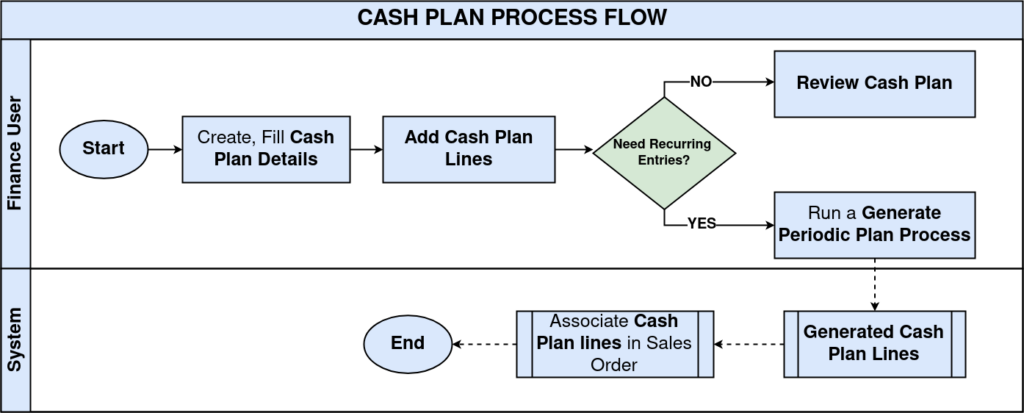
The Cash Plan window forecasts expected cash inflows and outflows, such as customer receipts and recurring expenses, before they become actual transactions.
A Cash Plan is for planning only; it does not create invoices, payments, or accounting entries, though an actual Sales Order can optionally reference a Cash Plan Line for forecast-to-actual tracking.
Process Flow
Business Rules
- A Cash Plan consists of a header and one or more Cash Plan Lines.
- A Cash Plan Line can reference either a Product or a Charge, but not both.
- The Grand Total is calculated automatically from all Cash Plan Line amounts.
- Generate Periodic Plan creates recurring Cash Plan Lines based on the selected periodicity.
- Copy From Cash Plan copies all lines from an existing Cash Plan into the current one.
- A Cash Plan does not create accounting entries, invoices, payments, or bank transactions.
- An actual Sales Order can optionally link to a Cash Plan Line for forecast-to-actual traceability.
Configuration Steps
Step 1: Create the Cash Plan Header
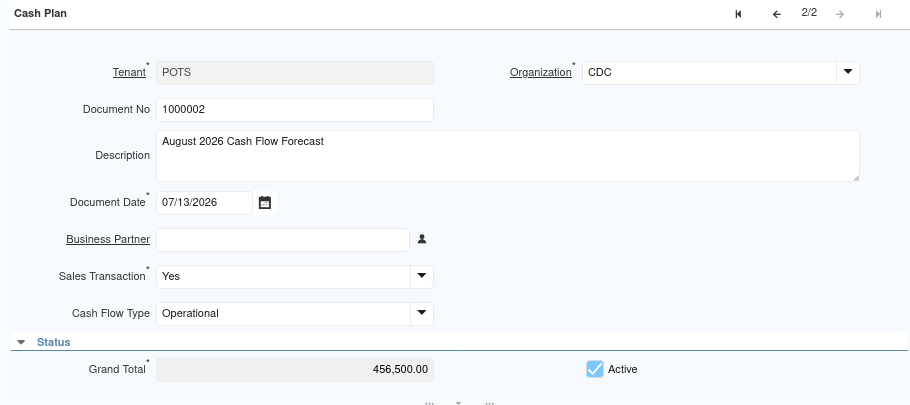
The header sets the planning date and classifies the forecast, before any individual cash movements are entered.
Create a new Cash Plan, enter the Document Date and Description, set Sales Transaction, then select a Cash Flow Type.
| Field | Sample Value | Description |
| Organization | CDC | Organization creating the cash forecast |
| Document Date | 07/13/2026 | Date of the Cash Plan |
| Description | August 2026 Cash Flow Forecast | Optional description of the forecast |
| Sales Transaction | Yes | Indicates whether the forecast relates to sales or purchasing activity |
| Cash Flow Type | Operational | Classifies the planned cash movement (Financing, Investment, or Operational) |
| Grand Total | 0.00 | Starts at zero until Cash Plan Lines are added |
Step 2: Add Cash Plan Lines
Each line records one planned cash movement, either an expected receipt tied to a product or an expected payment tied to a charge.
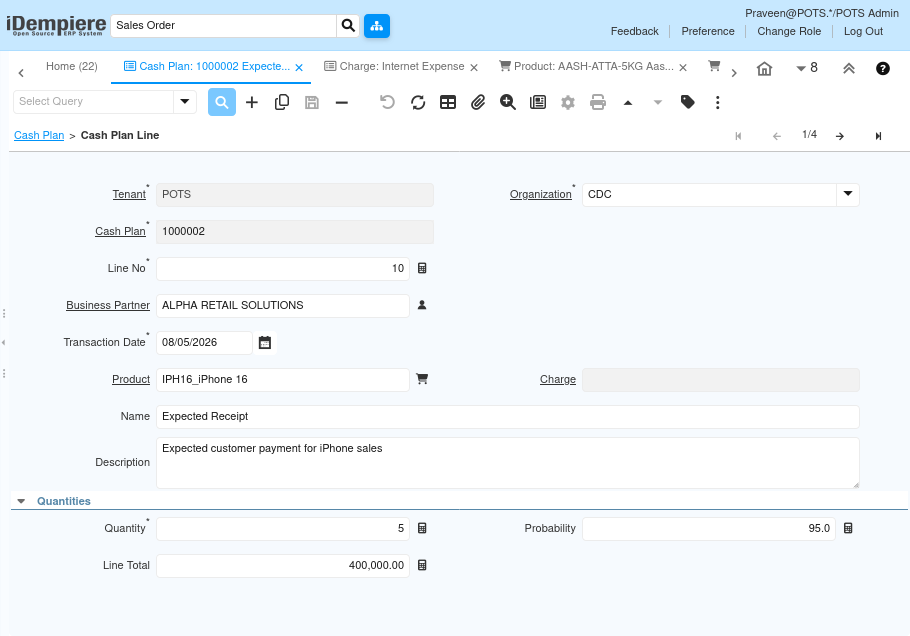
Add a Cash Plan Line, select a Business Partner if applicable, set the Transaction Date, choose either a Product or a Charge, then enter Quantity, Probability, and confirm the Line Total.
| Field | Sample Value | Description |
| Business Partner | ALPHA RETAIL SOLUTIONS | Customer expected to generate this cash movement |
| Transaction Date | 08/05/2026 | Expected date of the transaction |
| Product | IPH16_iPhone 16 | Product tied to this planned receipt |
| Name | Expected Receipt | Short label for the line |
| Description | Expected customer payment for iPhone sales | Detail describing the planned transaction |
| Quantity | 5 | Planned quantity |
| Probability | 95.0 | Likelihood the transaction occurs, as a percentage |
| Line Total | 400,000.00 | Forecast amount for this line |
Note: A Charge-based line (e.g. Office Rent, 25,000.00) works the same way but leaves Product blank; Product and Charge are never used together on one line.
Step 3: Generate a Periodic Plan (Optional)
Recurring costs like rent are easier to forecast in one pass than by adding the same line twelve separate times.
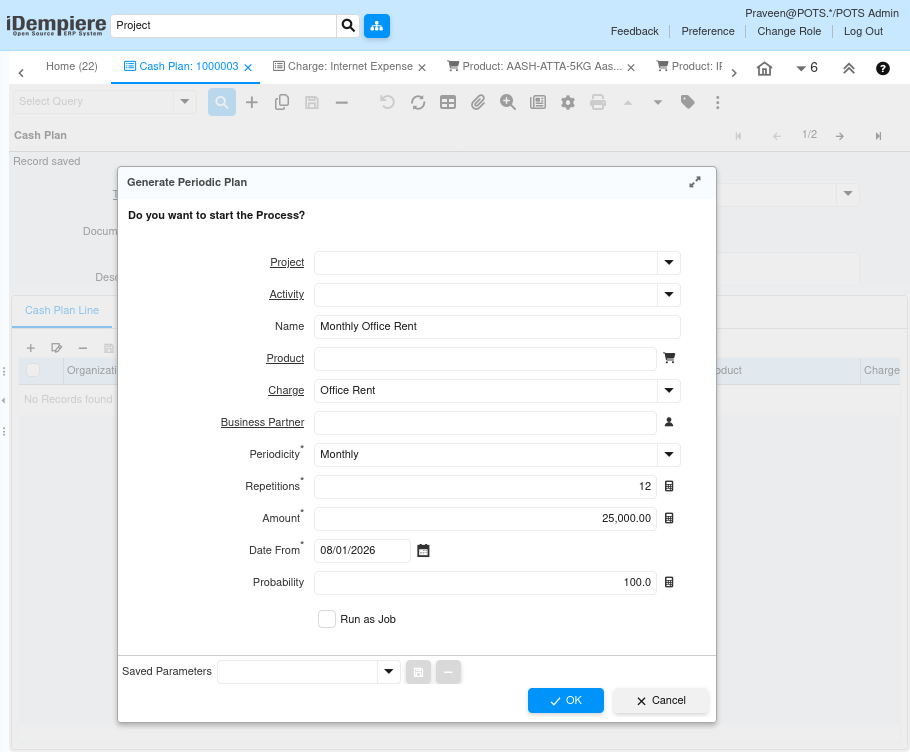
Click the actions (gear) icon, select Generate Periodic Plan, enter the Name, Charge or Product, Periodicity, Repetitions, Amount, Date From, and Probability, then click OK.
| Field | Sample Value | Description |
| Name | Monthly Office Rent | Label applied to every generated line |
| Charge | Office Rent | Charge used since no Product applies |
| Periodicity | Monthly | How often the line repeats (Daily, Weekly, Fortnightly, Biweekly, Monthly, Bimonthly, Quarterly, Semiannual, or Yearly) |
| Repetitions | 12 | Number of Cash Plan Lines to generate |
| Amount | 25,000.00 | Amount applied to each generated line |
| Date From | 08/01/2026 | Transaction Date of the first generated line |
| Probability | 100.0 | Likelihood applied to every generated line |
| Note: Generating 12 monthly lines of 25,000.00 each produced Inserted = 12 and raised the Cash Plan Grand Total to 300,000.00. | ||
Step 4: Copy From Cash Plan (Optional)
Reusing a previous forecast avoids re-entering the same recurring lines for a new planning period.
Click the actions (gear) icon, select Copy From Cash Plan, choose the source Cash Plan, then confirm to copy its lines into the current Cash Plan with new line numbers.
| Field | Sample Value | Description |
| Source Cash Plan | Monthly Cash Forecast – June 2026 | Existing Cash Plan whose lines will be copied |
Step 5: Review the Cash Plan Lines and Grand Total
Reviewing the full set of lines confirms the forecast is complete and the Grand Total reflects every planned movement.
Open the Cash Plan Line tab, scroll through all lines, and confirm the Grand Total on the header matches the sum of the Line Totals.
| Field | Sample Value | Description |
| Cash Plan | 1000003 | Cash Plan containing the generated periodic lines |
| Records | 12 | Number of Cash Plan Lines on this forecast |
| Grand Total | 300,000.00 | Sum of all 12 lines at 25,000.00 each |
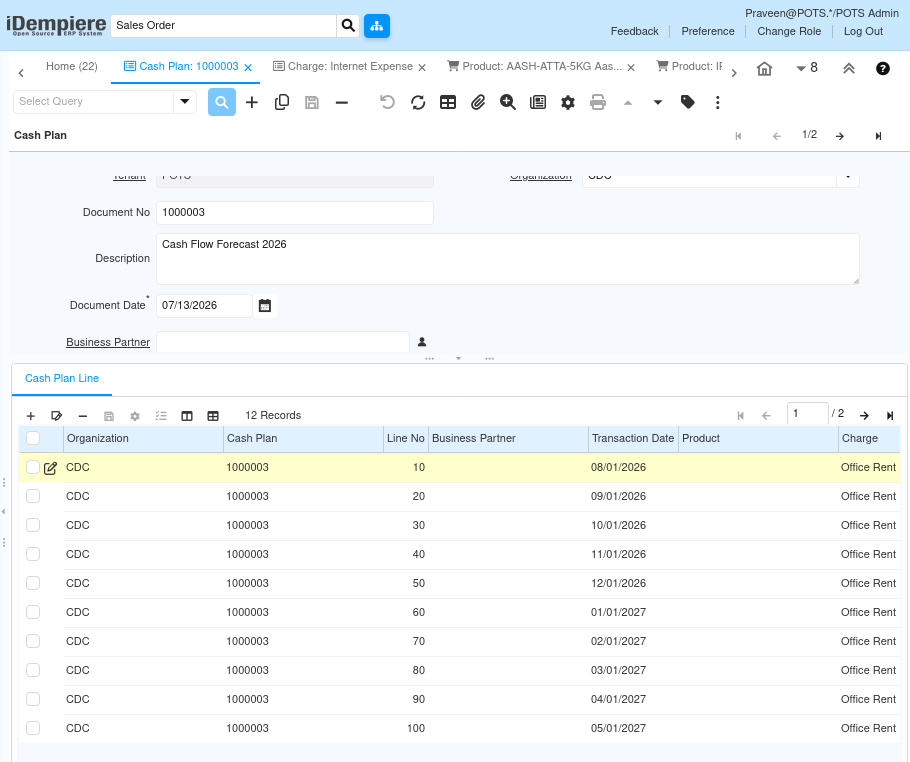
Step 6: Link a Real Transaction to the Cash Plan Line
Linking an actual Sales Order back to the Cash Plan Line it fulfils lets finance teams compare planned versus actual results without leaving the forecast disconnected from reality.
When creating the real Sales Order, select the matching Cash Plan Line in the order header’s Cash Plan Line field.
| Field | Sample Value | Description |
| Cash Plan Line | 1000002_10_08/05/2026 | Forecast line this Sales Order fulfils |
| Order | 50031_07/13/2026 | Actual Sales Order linked to the forecast line |
| Product | IPH16_iPhone 16 | Product matching the planned receipt |
| Quantity | 5 Each | Actual quantity ordered, matching the forecast |
| Grand Total | 472,000.00 INR | Actual order total, including tax, versus the 400,000.00 forecast |

Step 7: Review the Cash Flow Report (Optional)
The Cash Flow Report combines Cash Plan lines with actual orders and the initial balance into one projected cash position, useful for a final sanity check on the forecast.
Open the Cash Flow Report, and review each row’s Cash Flow Source to see whether it comes from a commitment (order), the initial balance, or another source.
| Field | Sample Value | Description |
| Cash Flow Source | 3_Commitments (Orders) | Line originates from an order, including one linked to a Cash Plan Line |
| Cash Flow Source | 1_Initial Balance | Line represents the starting cash position |
| Cash Plan Line | 1000002_10_08/05/2026 | Forecast line associated with this report row, if linked |
| Line Total | 472,000.00 | Amount contributed by this row to the projected cash position |
| Probability | 100.0 | Likelihood applied to this row in the report |
Common Issues and Resolutions
| Issue | Cause | Resolution |
| Grand Total is not updated | Cash Plan Line not saved | Save the Cash Plan Line; the Grand Total recalculates automatically |
| Product and Charge entered together | Both fields filled on the same line | Use either a Product or a Charge on a Cash Plan Line, not both |
| Generate Periodic Plan creates no records | Amount, Repetitions, or Periodicity missing | Verify a valid Amount, Repetitions, and Periodicity are entered before running the process |
| Expected recurring lines are missing | Date From or Repetitions set incorrectly | Review the process parameters, including the start date and repetition count |
| Copy From Cash Plan does not copy lines | Source Cash Plan has no lines | Verify the selected source Cash Plan contains Cash Plan Lines |
| Sales Order does not show in the forecast comparison | Cash Plan Line not selected on the order | Select the matching Cash Plan Line when creating the Sales Order |
Next Steps
- Review and update forecasted cash movements as business plans change.
- Generate recurring Cash Plan Lines for regular receipts or payments.
- Reuse previous forecasts by copying Cash Plan Lines into new planning periods.
- Link actual Sales Orders to Cash Plan Lines for forecast-to-actual tracking.
- Use the Cash Flow Report to compare the forecast against actual and committed transactions.