How to Configure GL Journal Generator in iDempiere
Configure the GL Journal Generator in iDempiere to automate store journal entries from posted accounting transactions.
Introduction
The GL Journal Generator is an iDempiere configuration window that reads posted Fact_Acct balances from a Source account and its full sub-account tree, recalculates them using multiplier and rounding rules, and generates a new GL Journal.
Businesses use it to automate recurring, rule-based entries such as inventory adjustments, fee allocations, and store-level reclassifications without manual journal entry.
Because the output posts directly to the general ledger, correct setup affects store-level P&L accuracy, financial reporting, and month-end closing time.
Process Flow
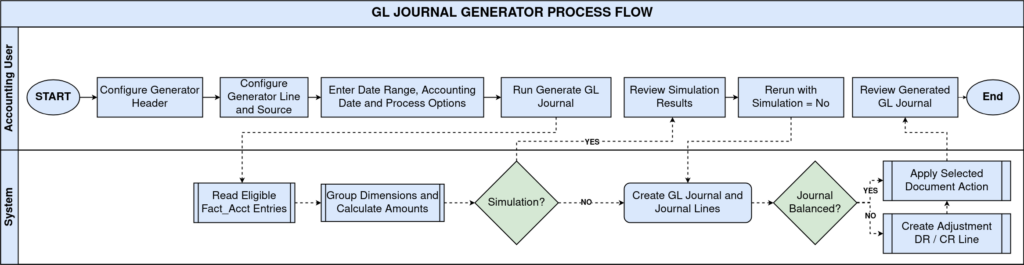
Business Rules
- Source Amount is read from the Source’s Account Element and its entire account-tree of sub-accounts.
- Only Actual posting type, active, in-range Fact_Acct entries feed the calculation.
- Source Amount is SUM(Debit – Credit), grouped by the Generator Line’s configured dimensions.
- Multiplier and Round Factor apply twice: once at the Source, again at the Generator Line.
- Same Product groups and carries the Product dimension separately for each product.
- Type of BP Dimension controls Business Partner handling: Same, Fixed, or From Column.
- Copy All Dimensions carries every Accounting Schema dimension and overrides BP/Product settings.
- Fact_Acct rows with no Business Partner are grouped into one blank-BP bucket, not per partner.
- Matching dimension groups from multiple Sources are combined into a single amount.
- Zero calculated amounts never generate an output journal line.
- Simulation mode calculates and logs results without creating or saving a GL Journal.
- An unbalanced journal is auto-balanced using the configured Adjustment DR/CR accounts.
Prerequisites
- Accounting Schema configured for the tenant.
- Chart of Accounts structured correctly, since Source matching includes the full child-account tree.
- Document Type “GL Journal” configured.
- GL Category configured (e.g., Standard).
- Organization structure configured (e.g., Chennai Store).
Navigation
Menu → Performance Analysis and Accounting → GL Journal Generator
Opening this window displays the Generator Header, with the Generator Line and Generator Source sub-tabs and a Generate GL Journal button used to run the process.
Configuration Steps
Step 1: Define the GL Journal Generator Header
Enter a Name and Description, select Document Type “GL Journal”, GL Category “Standard”, Posting Type “Actual”, and the Accounting Schema. Set Account Adjust DR/CR for balancing.
| Field | Sample Value | Description |
| Name | Inventory Adjustment Journal | Identifies the generator template |
| Document Type | GL Journal | Document type used for the generated journal |
| GL Category | Standard | Groups journal entries for reporting |
| Posting Type | Actual | Restricts source entries to actual postings |
| Accounting Schema | POTS UN/38 Indian Rupee | Schema used for reading and posting amounts |
| Account Adjust DR | B_ASSET_Checking Account | Debit account used to balance the journal |
| Account Adjust CR | B_INTERESTEXP_Interest Expense | Credit account used to balance the journal |
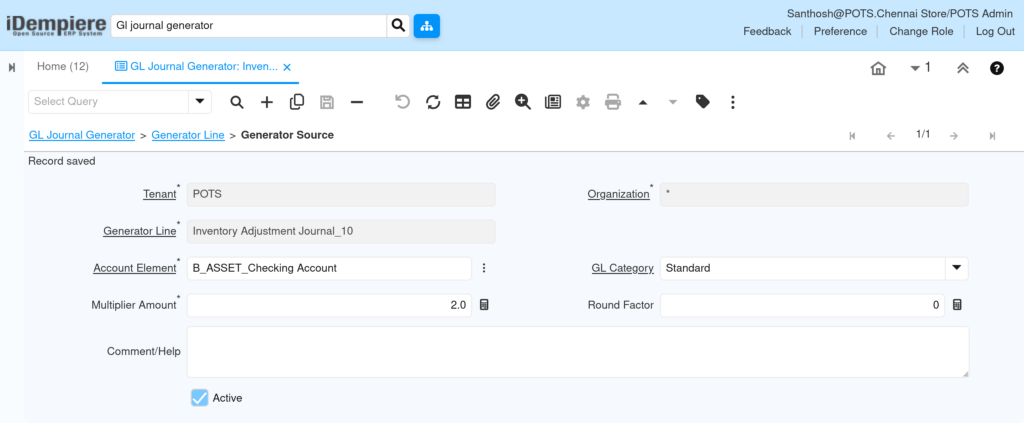
Step 2: Configure the Generator Line
Add a Generator Line with a Sequence and Description. Select Account DR and Account CR. Choose either Copy All Dimensions, or set Type of BP Dimension and Same Product individually — not both approaches at once.
| Field | Sample Value | Description |
| Sequence | 10 | Controls processing order of the line |
| Description | Inventory Adjustment Expense Entry | Explains the purpose of the line |
| Account DR | B_ASSET_Checking Account | Target Debit account for calculated amount |
| Account CR | B_INTERESTEXP_Interest Expense | Target Credit account for calculated amount |
| Type of BP Dimension | Same / Fixed / From Column / blank | Controls how Business Partner is assigned (ignored if Copy All Dimensions is checked) |
| Same Product | Checked | Groups and carries Product from the source entry |
| Copy All Dimensions | Unchecked | When checked, all Accounting Schema dimensions are copied instead of the two fields above |
| Multiplier Amount | 1.0 | Scales the combined source amount |
| Round Factor | 0 | Rounds the final calculated amount |

Type of BP Dimension — Options
| Option | Behavior | When to Use |
| Same | Groups by the source row’s own Business Partner and carries it to the output | Source entries reliably carry a real Business Partner |
| Fixed | Ignores the source’s Business Partner; assigns one hard-coded BP to every output line | Consolidating many partners into one internal partner |
| From Column | Groups by a related record’s key, then resolves the BP from a column on that record | The real BP is reachable only through a linked record, not directly on Fact_Acct |
| Blank / none | Business Partner is not grouped by or carried at all | Source account never carries a meaningful Business Partner |
Step 3: Configure Generator Source
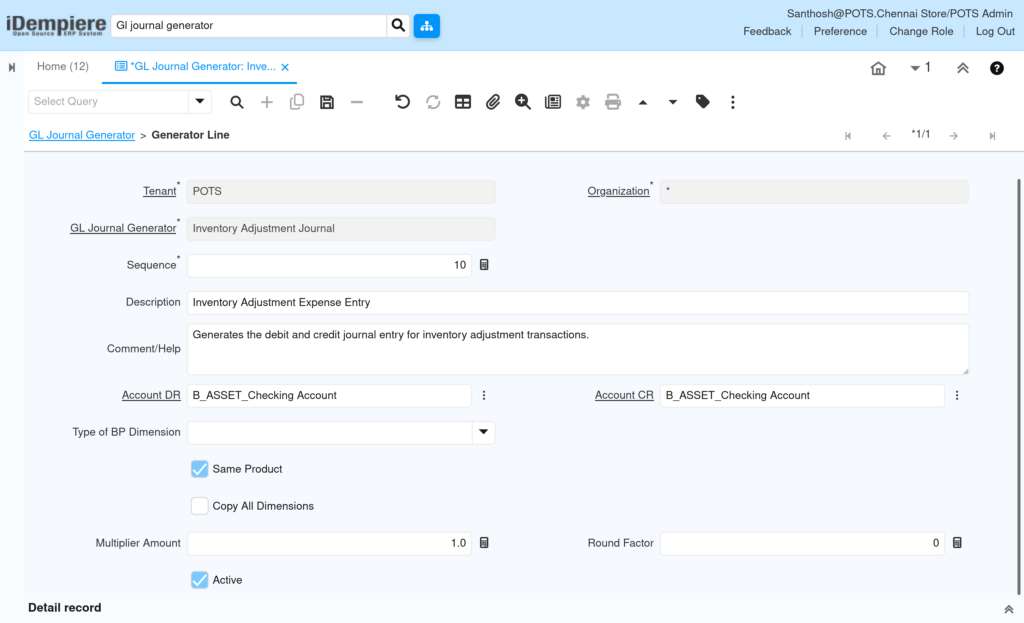
Under the Generator Line, add one or more Sources. Select the Account Element to read (a parent account matches its full subtree), an optional GL Category filter, and a Multiplier Amount or Round Factor if scaling is required.
| Field | Sample Value | Description |
| Account Element | B_ASSET_Checking Account | Source account read from Fact_Acct, including all accounts below it in the tree |
| GL Category | Standard | Optional filter on source entries |
| Multiplier Amount | 2.0 | Scales the source amount before combining with other Sources |
| Round Factor | 0 | Rounds the source amount |
Step 4: Run the Generate GL Journal Process
Click Generate GL Journal, enter the Processing Date range and Accounting Date, set Simulation to Yes to preview first, then rerun with Simulation set to No and a Document Action.
| Field | Sample Value | Description |
| Processing Date From | 01-Jul-2026 | Start date for selecting Fact_Acct entries |
| Processing Date To | 31-Jul-2026 | End date for selecting Fact_Acct entries |
| Accounting Date | 31-Jul-2026 | Accounting date of the created GL Journal |
| Simulation | Yes / No | Preview only, or create the GL Journal |
| Document Action | Prepare / Complete | Action applied to the generated journal |
| Business Partner | ABC Customer (optional) | Filters source entries by partner |
| Product | Product A (optional) | Filters source entries by product |
Note: In Simulation mode, the process log shows the resolved Account, Debit/Credit amount, Business Partner, and Product for each calculated line — always review this before running with Simulation set to No.
Common Issues and Resolutions
| Issue | Cause | Resolution |
| No journal lines generated | No matching Fact_Acct entries in the date range, schema, or account tree | Verify Processing Date range, Accounting Schema, and that the Source account tree contains posted entries |
| Source amount includes unexpected accounts | The Source’s Account Element matches its entire sub-account tree, not only the exact account | Point the Source at a leaf account, or review which child accounts sit under the selected parent |
| Journal is unbalanced and fails posting | Adjustment DR/CR accounts not configured | Configure Account Adjust DR and Account Adjust CR at header level |
| Simulation shows amounts but no journal created | Simulation parameter left as Yes | Rerun the process with Simulation set to No |
| Generated journal fails to complete | Accounting period closed or invalid Document Action | Confirm the accounting period is open before processing |
Next Steps
- Confirm the GL Journal Document Type and numbering sequence.
- Review Chart of Accounts structure, since Sources match entire account subtrees.
- Verify GL Category setup used for reporting segmentation.
- Check Period Control status before running the process each month.
- Open the GL Journal window to review and post generated entries.