How to Use the Import Currency Rate Window in iDempiere
Introduction
The Import Currency Rate window is a staging area in iDempiere where currency exchange rate data, loaded from a file, is reviewed before it becomes part of the system.
It supports businesses that trade or report in more than one currency, letting finance teams bring in daily or periodic exchange rates in bulk instead of entering each one by hand.
Once the staged rates are accepted, they update the Conversion Rate records used for pricing, invoicing, and financial reporting across currencies.
Process Flow

Business Rules
- Records in this window are loaded from a file and are not meant to be typed in manually.
- Only active, non-summary Organizations are accepted; others are rejected with an error.
- The Currency Type Key must match an existing, active Conversion Type.
- Both currencies must already be set up as active currencies for the business.
- If either Multiply Rate or Divide Rate is left blank, the system calculates it from the other.
- A blank Valid From date is automatically set to the current date during processing.
- Enabling Create Reciprocal Rate also generates the opposite currency pair automatically.
- Records with missing or invalid data are flagged with an error message and are not applied.
- Only records marked Imported are reflected in the live Conversion Rate records.
Prerequisites
- Organization configured (or the ‘*’ value for all organizations).
- Currencies configured and active for every currency used in the file.
- Conversion Type configured (for example, Spot or Company).
- Import Loader Format defined for the currency rate file layout.
- Exchange rate file prepared in the agreed column order (comma separated).
Navigation
Menu → System Admin → Data → Data Import → Import Currency Rate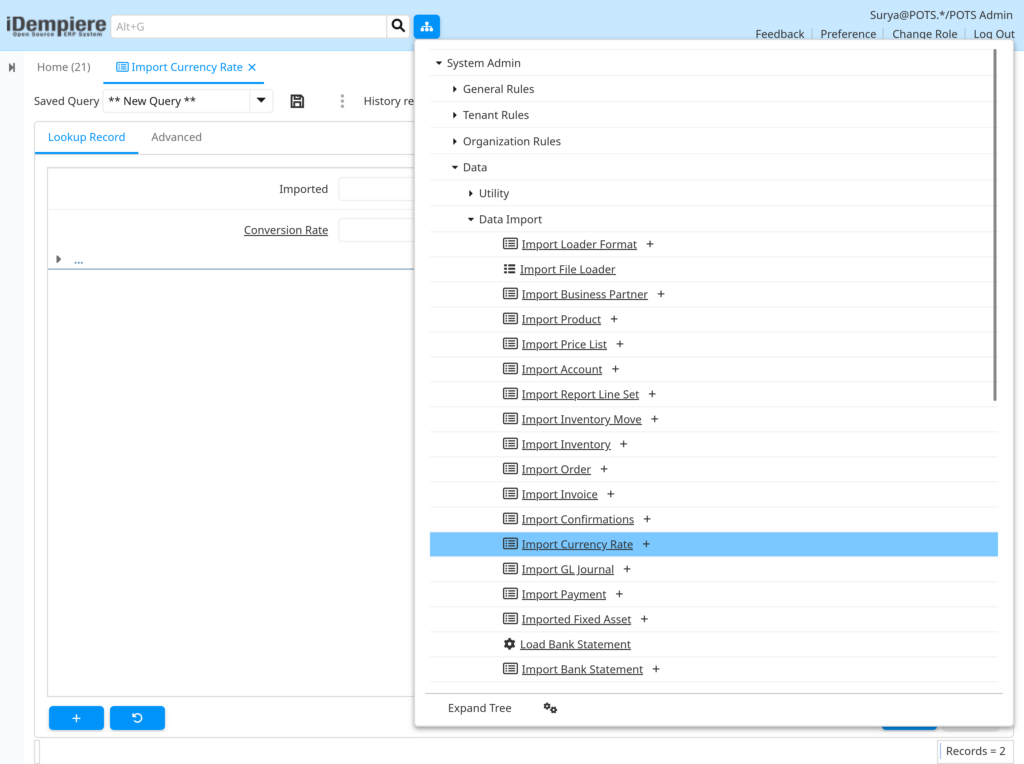
Opening the window shows a list of staged currency rate records with fields such as Organization, Currency, Currency To, Currency Type, Multiply Rate, Divide Rate, and the Valid From / Valid To dates. Each record also shows whether it has been Imported and Processed, and displays any Import Error Message.

Configuration Steps
Step 1: Prepare the Exchange Rate File
The exchange rates must be arranged in a file before they can be brought into iDempiere, so the system knows which currency, rate, and date each entry belongs to.
Instructions
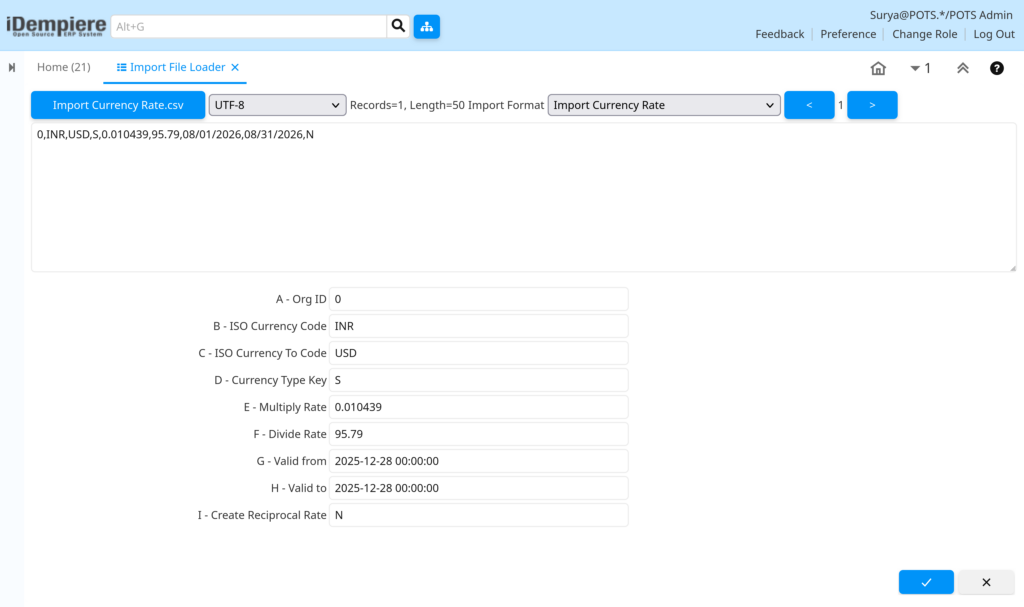
Create a comma separated file with one line per currency pair, following the column order agreed in the Import Loader Format, and save it for upload.
| Field | Sample Value | Description |
| Org ID | 0 | Organization the rate belongs to; 0 or blank applies to all organizations. |
| ISO Currency Code | INR | Currency being converted from. |
| ISO Currency To Code | USD | Currency being converted to. |
| Currency Type Key | S | Matches the Conversion Type, for example Spot. |
| Multiply Rate | 0.010439 | Rate used to convert the From currency into the To currency. |
| Divide Rate | 95.79 | Reverse rate; calculated automatically if left blank. |
| Valid from / Valid to | 08/01/2026 – 08/31/2026 | Date range the rate applies to. |
| Create Reciprocal Rate | N | Set to Y to also generate the opposite currency pair. |
Step 2: Load the File Using Import File Loader
The file has to be brought into the staging table before the records can be reviewed or corrected.
Instructions
Open Import File Loader, choose the file, select the matching Import Format, confirm the file encoding, and load it into the Import Currency Rate table.
Step 3: Review the Staged Records
Reviewing the loaded records first helps catch missing organizations, currencies, or rates before they affect financial data.
Instructions
Open the Import Currency Rate window and check each record’s Organization, Currency, Currency To, Multiply Rate, and Divide Rate for accuracy.
| Field | Sample | Purpose |
| Organization | * | Confirms which part of the business the rate applies to. |
| Currency / Currency To | INR / USD | Shows the currency pair being converted. |
| Currency Type | Spot | Confirms which rate type the record will be filed under. |
| Imported / Processed | Unchecked | Shows the record has not yet been applied to the system. |
Step 4: Run the Import Currency Rate Process
Running the process applies the reviewed rates to the system so they are available for transactions and reporting.
Instructions
From the window, run the Import Currency Rate process. The system validates each record and creates a Conversion Rate for every record that passes validation.
Step 5: Verify Processed Records
A final check confirms the rates were accepted and are ready for use in transactions.
Instructions
Reopen the window and confirm Imported and Processed are checked, and that the Conversion Rate field now shows a reference number.
| Field | Sample | Purpose |
| Imported | Checked | Confirms the record passed validation. |
| Processed | Checked | Confirms the Conversion Rate record was created. |
| Conversion Rate | 1000033 | Reference to the newly created Conversion Rate record. |
| Import Error Message | Blank | Empty when the record completed without errors. |

Common Issues and Resolutions
| Issue | Cause | Resolution |
| Record flagged Invalid Org | Organization is missing, inactive, or a summary level. | Set a valid, active, non-summary Organization on the record and reprocess. |
| Record flagged Invalid ConversionType | Currency Type Key does not match an active Conversion Type. | Correct the Conversion Type value in the source file and reload. |
| Record flagged Invalid Currency | ISO Currency Code is not configured as an active currency. | Set up the currency for the business first, then reprocess. |
| Record flagged Invalid Currency To | ISO Currency To Code is not configured as an active currency. | Add or activate the target currency, then reprocess. |
| Record flagged Invalid Rates | Both Multiply Rate and Divide Rate are missing or zero. | Provide at least one rate value; the other is calculated automatically. |
| Rate not visible in transactions | Record was staged but the process has not been run. | Run the Import Currency Rate process to complete the update. |
| Duplicate rate for the same date | A rate for the same currency pair, type, and date already exists. | Adjust the Valid From date or update the existing rate directly. |
| Old staged records reappearing | Previously imported records were not cleared before a new load. | Enable the delete option for old imported records before loading again. |
Next Steps
- Currency – confirm all currencies used in the file are active.
- Conversion Type – confirm the rate types referenced in the file exist.
- Conversion Rate – view or adjust individual rates directly if needed.
- Import Loader Format – maintain the file layout used for future imports.