How Rollup BOM Cost Process Works in iDempiere
Introduction
Rollup BOM Cost is an iDempiere process that recalculates the standard cost of a manufactured product by summing the costs of its Bill of Materials (BOM) components.
It is used in manufacturing and assembly operations, such as footwear or apparel production, where finished goods are built from multiple raw materials or sub-assemblies.
The process directly impacts product costing accuracy, inventory valuation, and cost accounting postings across the organization.
Process Flow Diagram

Business Rules
- Cost rollup processes only products with an active Standard, Production-type Bill of Materials.
- Component costs are calculated first; parent product costs are calculated recursively afterward.
- A change in Current Cost Price automatically generates a Cost Adjustment inventory document.
- Future Cost Price is updated directly on the Cost record without a document.
- Cost Adjustment documents are automatically completed and posted after the rollup finishes.
- A valid Cost Adjustment Document Type must exist under Material Physical Inventory.
- Selecting a Product Category rolls up costs for all active BOM products in that category.
- Leaving Product and Product Category blank rolls up costs for all BOM products in the client.
- The Cost Element parameter is mandatory and determines the costing method used.
- The process can run in the background using the Run as Job option.
Prerequisites
- Active Bill of Materials configured for the product.
- Cost Element (e.g., Standard Costing) configured under the Accounting Schema.
- Cost records existing for the product and all BOM components.
- Cost Adjustment Document Type configured under Material Physical Inventory.
- Charge configured for posting cost adjustment differences.
- Product Category configured, if rolling up costs by category.
Navigation
Menu → Manufacturing → Rollup BOM Cost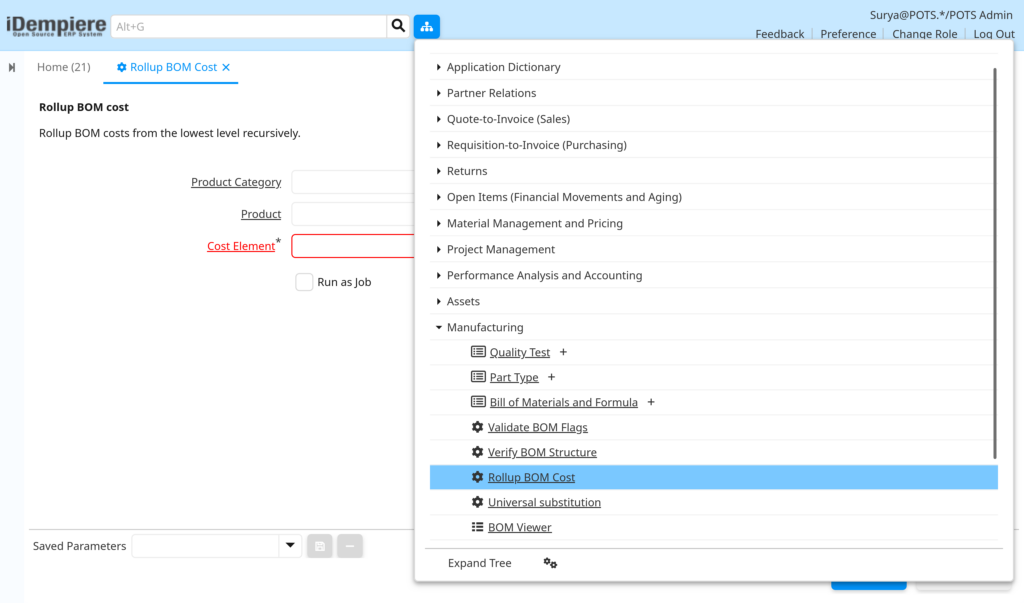
After opening the window, users see a parameter screen with Product Category, Product, Cost Element, and Run as Job fields, along with OK and Cancel buttons to launch the process.

Configuration Steps
Step 1: Access the Rollup BOM Cost Process
This step opens the process window where the scope and costing parameters for the rollup are defined.
Instructions
Open the Rollup BOM Cost window from the Material Management menu, or launch it directly from a Product record. The parameter screen appears with all input fields empty.
Step 2: Define the Product Scope
The scope determines whether the rollup applies to a single product, an entire category, or all BOM-enabled products.
Instructions
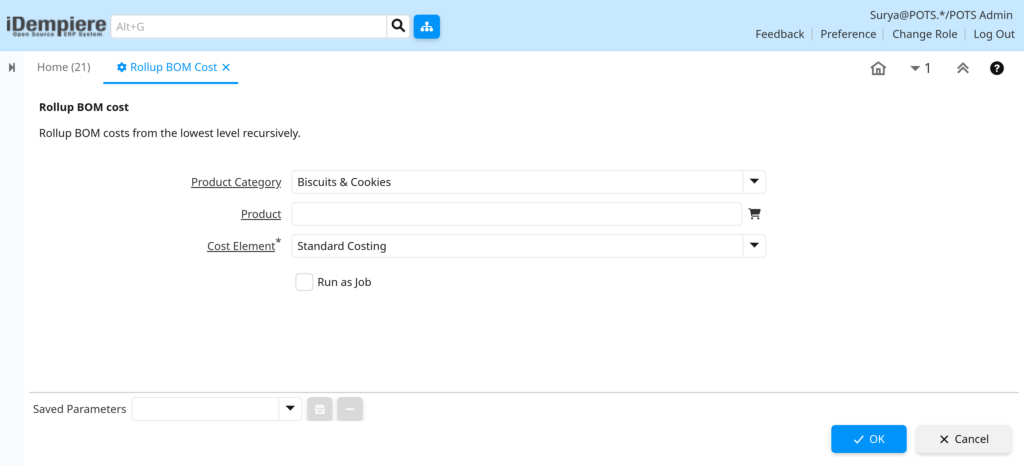
Select a Product for a single item, a Product Category to process a group, or leave both blank to roll up all active BOM products in the client.
| Field | Sample Value | Description |
| Product Category | SPORTS SHOES | Limits the rollup to products in this category. |
| Product | ADS01_Adidas Sports Shoe | Limits the rollup to this single product. |
Step 3: Select the Cost Element
The Cost Element determines which costing method (e.g., Standard Costing) is recalculated during the rollup.
Instructions
Choose the applicable Cost Element from the dropdown. This field is mandatory and cannot be left blank.
| Field | Sample Value | Description |
| Cost Element | Standard Costing | Costing method used to calculate rolled-up costs. |
Step 4: Choose the Execution Mode
Large product catalogs may take time to process, so the rollup can run interactively or as a background job.
Instructions
Check Run as Job to process the rollup asynchronously in the background. Leave it unchecked to run the process immediately and view results on screen.
| Field | Sample Value | Description |
| Run as Job | Unchecked | Runs the process immediately instead of scheduling it as a background job. |
Step 5: Execute and Review Results
Running the process applies the cost rollup and confirms how many products were updated.
Instructions
Click OK to execute. The result panel displays a summary message, such as the number of products updated, once processing completes.

Common Issues and Resolutions
| Issue | Cause | Resolution |
| Process fails with “Failed to find cost adjustment document type” | No Document Type with Sub Type = Cost Adjustment exists under Material Physical Inventory. | Create a Document Type with Doc Base Type = Material Physical Inventory and Sub Type = Cost Adjustment. |
| Cost Element field shows a validation error | Cost Element parameter was left blank; it is mandatory. | Select a valid Cost Element, such as Standard Costing, before running. |
| Product is not rolled up despite having a BOM | The BOM is inactive or not marked as a Standard, Production-type BOM. | Verify the BOM is Active, with BOM Type = Standard and BOM Use = Production. |
| No cost change is reflected after running | Component costs were unchanged since the last rollup. | Confirm component Current or Future Cost Prices were updated before rerunning. |
| Generated Cost Adjustment document stays in Drafted status | The document workflow failed to complete due to a period or account error. | Review the process log for the workflow error and complete the document manually. |
| Cost Adjustment line has no locator assigned | The system generates the adjustment line with a blank locator by default. | Open the generated Inventory Move document and assign a locator if required. |
| Rollup runs for the entire product catalog unintentionally | Both Product and Product Category fields were left blank. | Specify a Product or Product Category to limit the scope of the rollup. |
| Process appears to hang or the browser times out | A large product catalog is being processed interactively. | Enable Run as Job to execute the rollup as a background process. |
Next Steps
- Review updated cost records in the Cost Detail window.
- Verify generated Cost Adjustment documents in the Material Physical Inventory window.
- Configure the Cost Adjustment Document Type if it does not already exist.
- Reconcile the resulting accounting entries in the General Ledger.