How to Process C_Invoice Calculate Tax in iDempiere
Introduction
C_Invoice Calculate Tax is a standard iDempiere process that recalculates tax lines on a selected invoice using current tax rates, tax categories, and line amounts.
It is used in Accounts Receivable and Accounts Payable whenever invoice lines are added, modified, or imported outside the normal entry flow, keeping tax amounts accurate.
Running this process keeps invoice totals, tax reporting, and GL postings consistent, preventing mismatched tax amounts during invoice completion or accounting document generation.
Process Flow
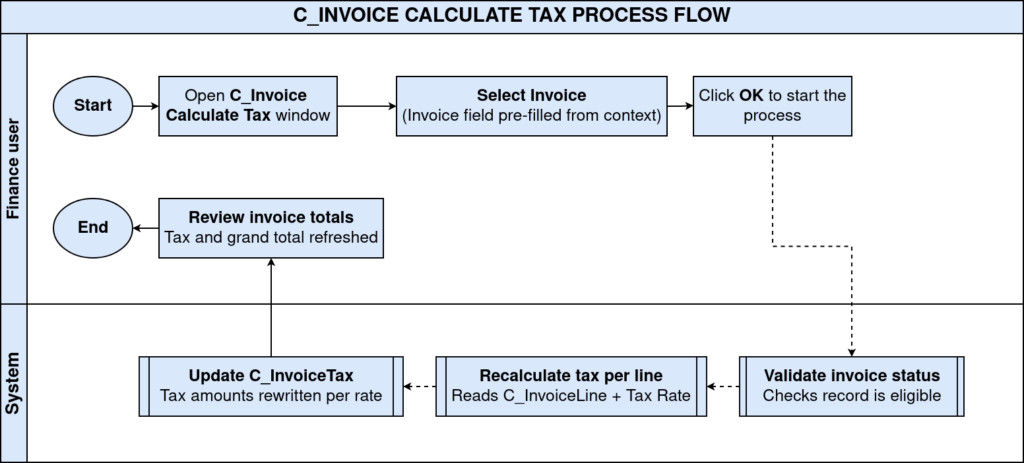
Business Rules
- Tax is recalculated only for the invoice selected in the process parameter.
- The process uses the Tax Category and Tax Rate defined on each invoice line.
- Recalculation applies to invoices in Drafted or In Progress status.
- Completed invoices must be reversed or reactivated before tax recalculation.
- Run as Job executes the process asynchronously in the background.
- Tax amounts update automatically without manual line-by-line adjustment.
- The process does not change invoice line quantities, prices, or products.
Prerequisites
- Business Partner configured with a valid Tax Category or exempt status.
- Tax Rate and Tax Category records configured under Pricing Rules.
- Invoice created with at least one invoice line entered.
- Invoice document type and status allow modification.
- User has process execution rights on C_Invoice_CalculateTax.
Navigation
Menu → Performance Analysis and Accounting → Accounting Rules → C_Invoice Calculate Tax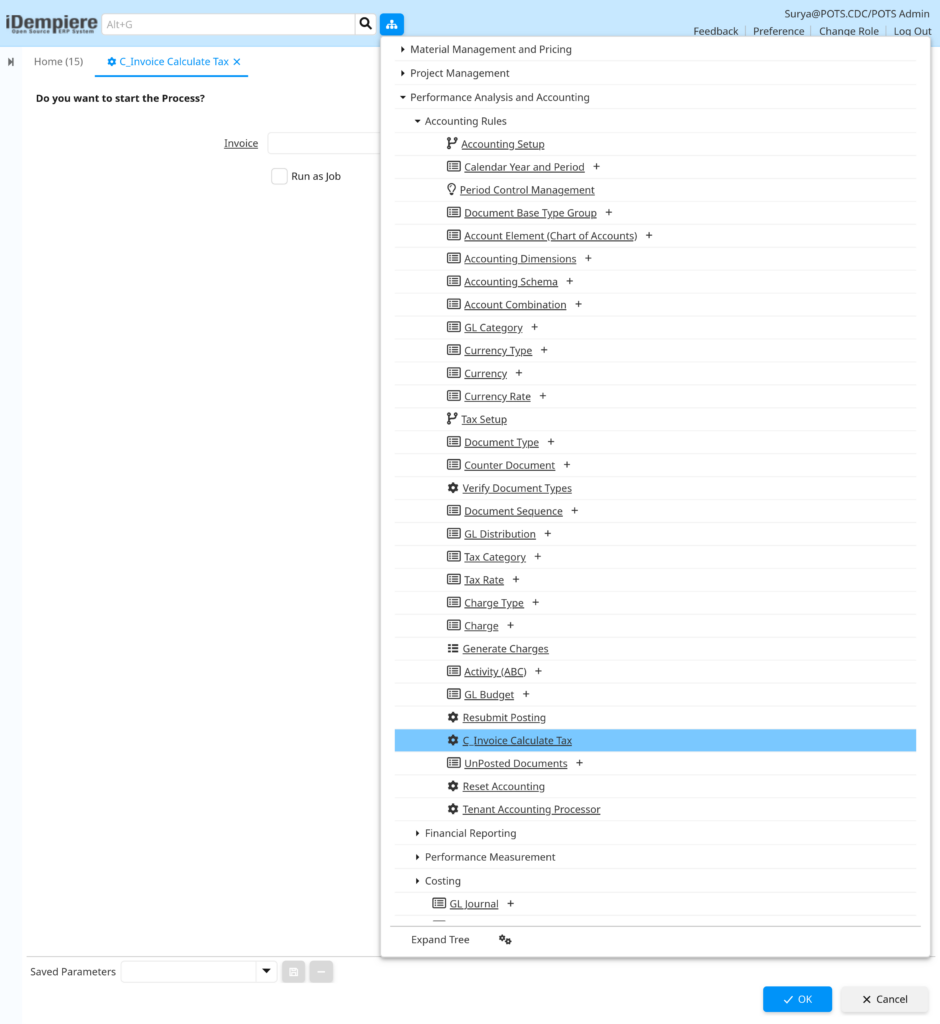
After opening, the process displays a parameter window with the prompt “Do you want to start the Process?”, an Invoice selection field, and a Run as Job checkbox.
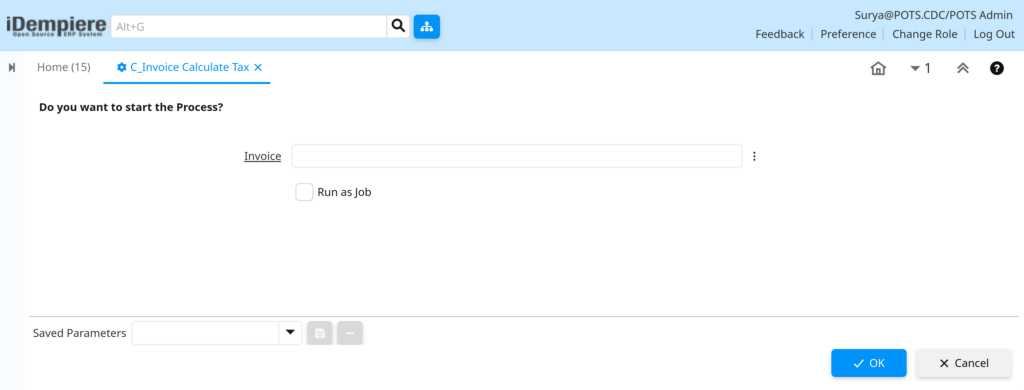
Configuration Steps
Step 1: Open the C_Invoice Calculate Tax Process
This process is not a regular window, so it must be launched directly to display its parameters.
Instructions
Use the top search bar, type “C_Invoice Calculate Tax”, and select the process from the search results. A parameter window opens with a confirmation prompt.
Step 2: Select the Invoice
The process needs to know which invoice document to recalculate.
Instructions
Click the Invoice field, search by document number or Business Partner, and select the correct invoice record before proceeding.
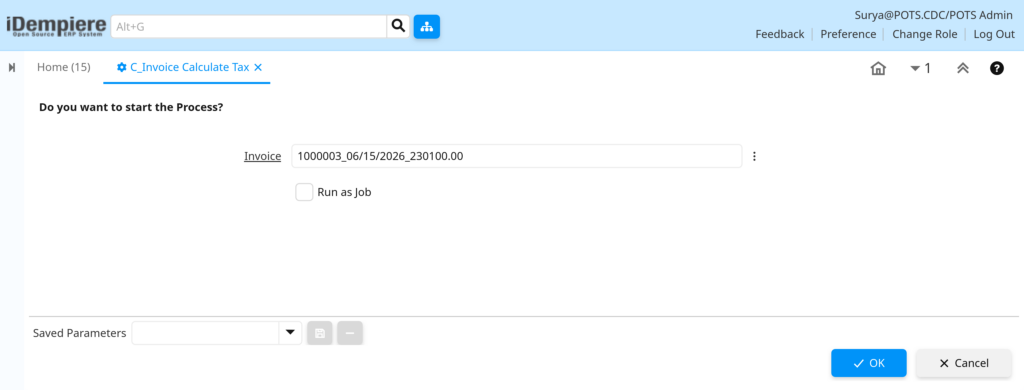
Field Reference
| Field | Sample Value | Description |
| Invoice | 1000003_06/15/2026_230100.00 | Target invoice whose tax lines will be recalculated |
Step 3: Choose the Run Mode
This determines whether the process executes immediately or runs in the background.
Instructions
Leave Run as Job unchecked for immediate execution on smaller invoices. Check it when recalculating invoices with many lines to avoid UI timeout.
Field Reference
| Field | Sample Value | Description |
| Run as Job | Unchecked | Executes the process synchronously and shows results immediately |
Step 4: Execute the Process
This step triggers the actual tax recalculation on the invoice.
Instructions
Click OK to run the process, or Cancel to exit without changes. A confirmation message displays once tax lines are recalculated successfully.

Note: Always verify the invoice document number before clicking OK, since the process runs immediately against the selected invoice.Common Issues and Resolutions
| Issue | Cause | Resolution |
| Invoice not found in selection field | Invoice filtered by role or organization access | Verify user organization and role access to the invoice |
| Incorrect tax rate applied | Business Partner Tax Category is outdated | Update the Tax Category on the Business Partner or invoice line |
| Process fails with a tax rate error | No Tax Rate exists for the line’s tax category and date | Configure a Tax Rate record for the applicable date range |
| Tax total differs from expected amount | A line-level tax override was set manually | Clear the manual override before running the process |
| OK button remains disabled | Invoice field left empty | Select a valid invoice before executing the process |
Next Steps
- Review and complete the Invoice window, then post to the General Ledger.
- Configure new Tax Rate or Tax Category records if applicable rates changed.
- Review Business Partner tax exemption settings for accuracy.
- Check Accounting Fact records after posting the invoice.