How to Configure Price List Schema in iDempiere
Introduction
The Price List Schema window defines the pricing rules that iDempiere uses to work out selling and purchase prices automatically. It removes the need to key in every price by hand for every product.
It is used wherever price lists are built for customers or vendors, such as sales pricing, purchase pricing, and promotional pricing setups across an organization.
The schema directly controls the prices shown on sales orders, purchase orders, and invoices, and feeds into pricing reports and margin analysis across the business.
Process Flow

Business Rules
- Only an active Price List Schema can be linked to a price list.
- A schema of type “Price List” is required to generate price list versions.
- Each schema line runs in the order set by its Sequence number.
- An inactive schema line is skipped during price calculation.
- The Currency Type decides which exchange rate feeds the calculation.
- The Conversion Date sets the exchange rate date used for currency conversion.
- The price source (List, Standard, or Limit) decides which base amount is used.
- Margin and discount percentages raise or lower the calculated price.
- The rounding rule decides the decimal precision of the final price.
- A schema line can target a specific product, product category, or business partner.
Prerequisites
- Organization configured.
- Currency Type configured (Company, Spot, or Purchase).
- Product Category configured, where pricing applies to a group of products.
- Business Partner configured, where pricing applies to a specific partner.
- Price List created, ready to be linked to this schema.
Navigation
Menu → Material Management and Pricing → Material Management Rules → Price List Schema
Opening the window shows the schema header first, with fields for Name, Valid From, and Schema Type. The Schema Line tab below lists the pricing rules that belong to that schema.

Configuration Steps
Step 1: Set Up the Schema Header
The header identifies the schema and confirms it is ready to be used by a price list.
Instructions
Enter a clear Name for the schema, set the Valid from date, keep Active checked, and choose Schema Type as Pricelist.
| Field | Sample Value | Description |
| Name | Standard | Identifies the pricing schema. |
| Active | Checked | Makes the schema available for use. |
| Valid from | 05/18/2026 | Date from which the schema rules apply. |
| Schema Type | Pricelist | Confirms the schema is used to build price lists. |

Step 2: Add a Schema Line
A schema line holds the actual pricing rule. Every schema needs at least one line to calculate prices.
Instructions
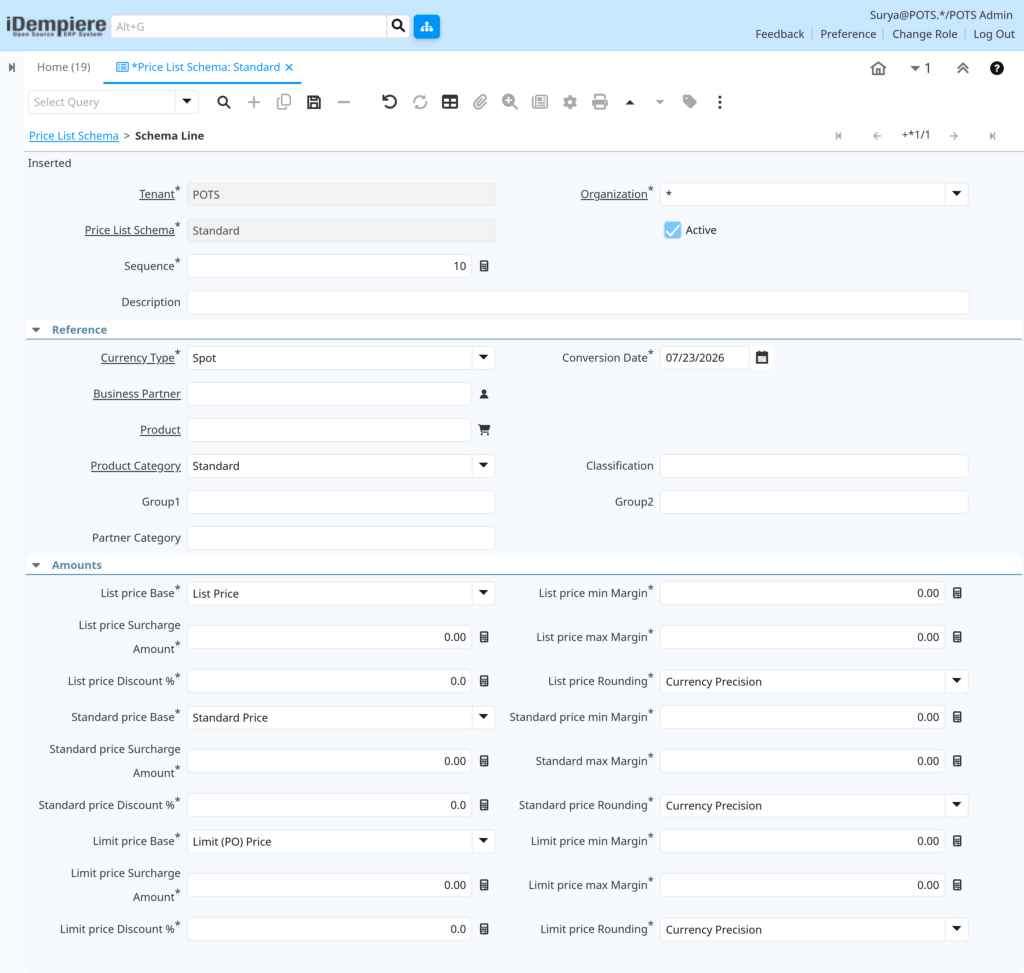
Open the Schema Line tab, add a new line, set the Sequence to control the order it runs in, and keep it Active.
Step 3: Set the Currency and Conversion Date
These fields decide which exchange rate is used when the price is worked out in a different currency.
Instructions
Choose the Currency Type (for example Spot) and set the Conversion Date to the rate date the business wants applied.
| Field | Sample Value | Description |
| Currency Type | Spot | Type of exchange rate used for conversion. |
| Conversion Date | 07/22/2026 | Date used to pick the applicable exchange rate. |
Step 4: Choose What the Rule Applies To
This step narrows the rule down to a specific product, category, business partner, or group, instead of applying it everywhere.
Instructions
Leave Product and Business Partner blank to apply the rule broadly, or select a Product Category, Classification, Group1, Group2, or Partner Category to target it.
| Field | Sample Value | Purpose |
| Product Category | Standard | Applies the rule to all products in this category. |
| Business Partner | (blank) | Leave blank to apply the rule to all partners. |
| Product | (blank) | Leave blank to apply the rule to all products. |
| Classification | (blank) | Further narrows the rule when needed. |
| Group1 / Group2 | (blank) | Optional grouping fields for targeted pricing. |
| Partner Category | (blank) | Applies the rule to a group of business partners. |
Step 5: Set the List Price Rule
This rule works out the price customers see as the standard listed price.
Instructions
Choose List Price as the price source, then set the surcharge amount, discount percentage, margin limits, and rounding as needed.
| Field | Sample | Purpose |
| List price Base | List Price | Starting price used for this calculation. |
| List price Surcharge Amount | 0.00 | Fixed amount added to the base price. |
| List price Discount % | 0.0 | Percentage reduction applied to the base price. |
| List price min Margin | 0.00 | Lowest margin the calculated price may reach. |
| List price max Margin | 0.00 | Highest margin the calculated price may reach. |
| List price Rounding | Currency Precision | Decimal precision applied to the final price. |
Step 6: Set the Standard and Limit Price Rules
The Standard price supports internal reference pricing, and the Limit price sets the lowest price allowed, often used for purchase pricing.
Instructions
Repeat the same margin, discount, surcharge, and rounding setup for Standard Price and Limit (PO) Price, matching business pricing policy for each.
| Field | Sample | Purpose |
| Standard price Base | Standard Price | Starting price for internal reference pricing. |
| Standard price Discount % | 0.0 | Percentage reduction applied to the standard price. |
| Standard price Rounding | Currency Precision | Decimal precision for the standard price. |
| Limit price Base | Limit (PO) Price | Starting price for the lowest allowed price. |
| Limit price Discount % | 0.0 | Percentage reduction applied to the limit price. |
| Limit price Rounding | Currency Precision | Decimal precision for the limit price. |
Common Issues and Resolutions
| Issue | Cause | Resolution |
| Schema line is not used in pricing | The line is inactive or the Sequence is not set correctly | Activate the line and set the correct Sequence order |
| Wrong price shows on the price list | Incorrect price source selected in the Base field | Check the List, Standard, or Limit price base and correct it |
| Price shows in the wrong currency amount | Incorrect Currency Type selected on the schema line | Set the Currency Type to match business pricing needs |
| Price has too many or too few decimals | Rounding rule does not match the currency setup | Set Rounding to Currency Precision |
| Schema does not appear when creating a price list | Schema is inactive or Schema Type is not set to Pricelist | Activate the schema and confirm Schema Type is Pricelist |
| Pricing rule applies to all products instead of one group | Product Category or Product field left blank by mistake | Assign the correct Product Category, Product, or Group field |
| Calculated price is negative or unusually low | Discount % and margin limits conflict with each other | Review the discount and min or max margin combination |
Next Steps
- Create a Price List and link it to this schema.
- Generate a Price List Version to activate the calculated prices.
- Link the Price List to Business Partners or Sales Orders.
- Set up Product Category pricing where prices vary by product group.