How to Import Price List in iDempiere
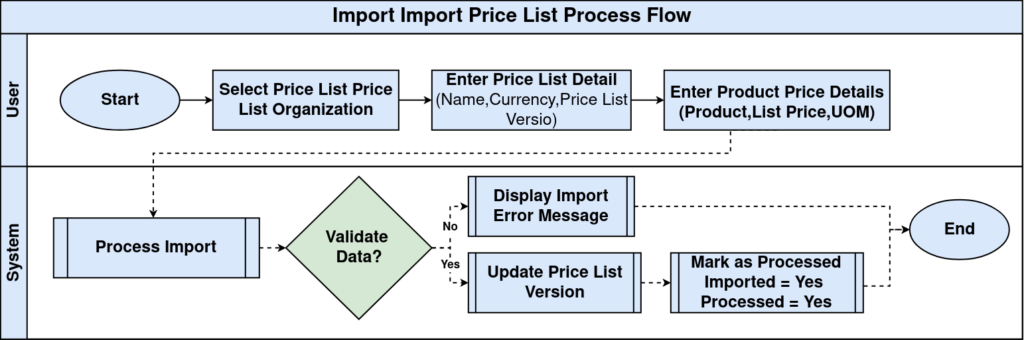
The Import Price List window imports product pricing into an existing price list. Retail users update multiple product prices efficiently while maintaining consistent pricing across stores.
Process Flow
Business Rules
- Price List must exist.
- Price List Version is mandatory.
- Currency must match the price list.
- Product must exist.
- Valid From controls activation.
- Processed records cannot be reprocessed.
- Import errors must be resolved before processing.
- Price precision follows the selected price list.
Prerequisites
- Organization configured
- Price List configured
- Price List Version created
- Products available
- Currency configured
- UOM configured
Navigation
Menu → Material Management → Import Price List
Step 1: Select Price List
Follow the onscreen fields to complete this step.
| Field | Sample Value | Description |
|---|---|---|
| Price List | Standard Sales Price List | Target price list |
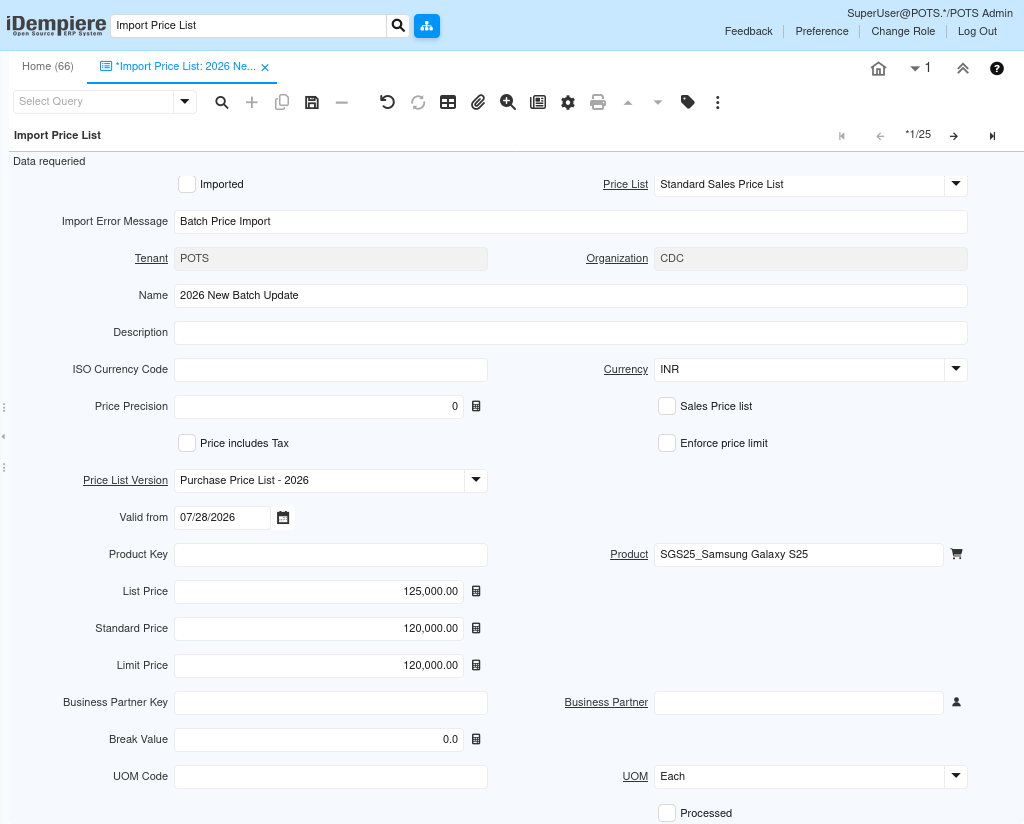
Step 2: Enter Product Prices
Follow the onscreen fields to complete this step.
| Field | Sample Value | Description |
|---|---|---|
| Product | SHIRT001 | Retail product |
Step 3: Validate Import
Follow the onscreen fields to complete this step.
| Field | Sample Value | Description |
|---|---|---|
| Import Error Message | Blank | Validation status |
Step 4: Process Import
Follow the onscreen fields to complete this step.
| Field | Sample Value | Description |
|---|---|---|
| Processed | Yes | Import completed |
Common Issues and Resolutions
| Issue | Cause | Resolution |
|---|---|---|
| Product not found | Invalid Product | Correct Product Key |
| Price List missing | Not configured | Create Price List |
| Currency mismatch | Wrong Currency | Match Currency |
| Version missing | Not available | Create Price List Version |
| Import failed | Mandatory fields missing | Complete required fields |
Next Steps
- Verify updated prices
- Review Price List Version
- Test Sales Orders
- Publish prices