How to use Indented Bill of Material Report in iDempiere
Introduction
The Indented Bill of Material report in iDempiere is a costing tool that recursively explodes a product’s Bill of Material into a multi-level, indented view of components and sub-components.
It is used by costing and manufacturing teams during BOM audits, standard cost reviews, and cost roll-up verification before period-end closing.
The report directly reflects Current and Future Cost values used in inventory valuation, margin analysis, and manufacturing cost planning.
Process Flow Diagram

Business Rules
- Accounting Schema, Product, and Cost Element fields are mandatory to run the report.
- Report explodes BOM lines recursively from the top-level product down to leaf components.
- Cost values are retrieved from cost records tied to the selected Cost Element.
- Current Cost Price reflects the active cost; Future Cost Price reflects pending cost changes.
- Components without further BOM lines are treated as leaf-level costs.
- Lower Level cost columns aggregate costs rolled up from all child components.
- The report can run interactively or as a background job using Run as Job.
- Output supports HTML view, printing, export (PDF/CSV), and emailing.
Prerequisites
- Product with an active Bill of Material (BOM) structure configured.
- Cost records (Standard or Future) maintained for the product and its components.
- Accounting Schema configured with the required Costing Method.
- Cost Element defined and marked Active.
- Organization configured for the related product and cost data.
Navigation
Menu → Manufacturing → Indented Bill of Material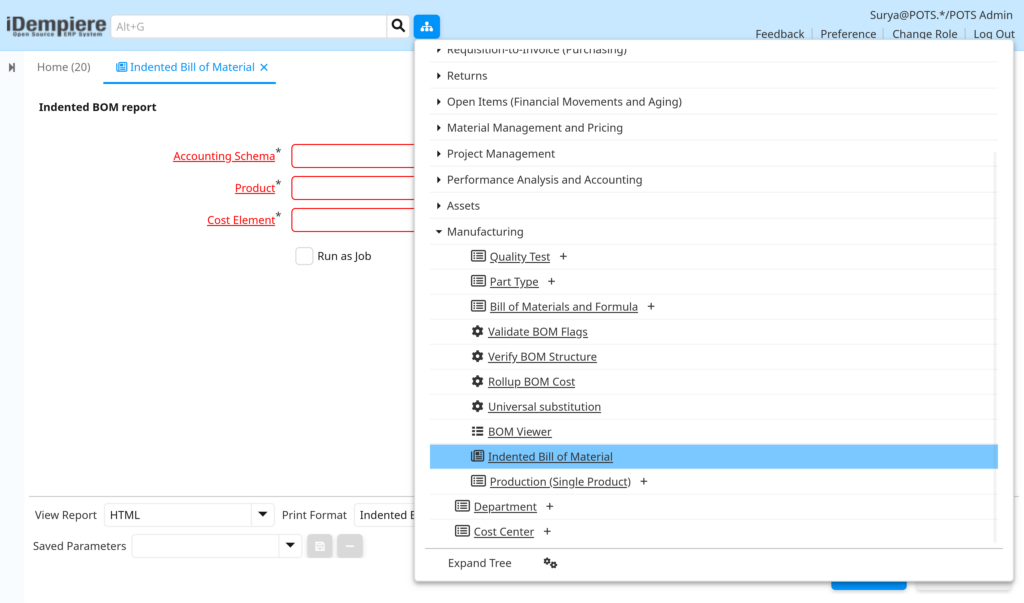
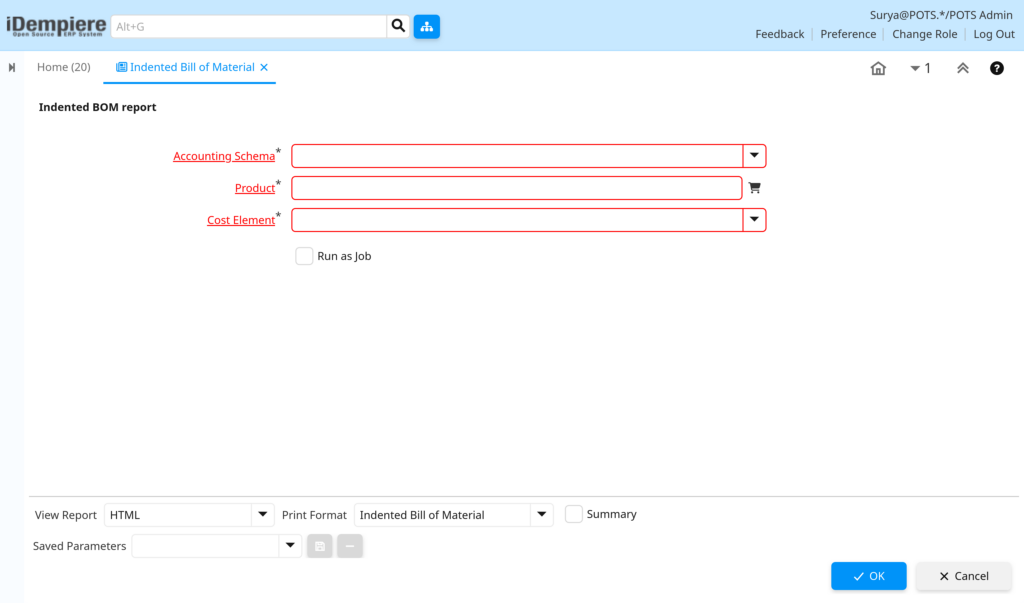
Opening the window displays the report parameter screen with Accounting Schema, Product, and Cost Element fields, plus a Run as Job checkbox and OK/Cancel buttons.
Configuration Steps
Step 1: Select Accounting Schema
Determines which costing books and currency the cost values are pulled from.
Instructions
Click the Accounting Schema field and select the relevant schema. This field is mandatory before the report can be executed.
| Field | Sample Value | Description |
| Accounting Schema | POTS UM/38 Indian Rupee | Defines the costing currency and accounting book used for calculation. |
Step 2: Select Product
Identifies the top-level product whose BOM structure will be exploded.
Instructions
Search and select the finished good or sub-assembly to analyze using the product picker. This field is mandatory.
| Field | Sample Value | Description |
| Product | BRI-GDBC-200_Britannia Good Day Butter Cookies – 200g | Top-level product whose BOM is exploded in the report. |
Step 3: Select Cost Element
Specifies which costing method drives the reported cost figures.
Instructions
Choose the applicable Cost Element from the dropdown. This determines which cost bucket is displayed in the report output.
| Field | Sample Value | Description |
| Cost Element | Standard Costing | Costing method used to calculate Current and Future cost values. |
Step 4: Enable Run as Job (Optional)
Allows the report to process in the background for products with large or deep BOM structures.
Instructions
Check Run as Job if the BOM has many levels or the report is expected to take longer to process.
Step 5: Execute the Report
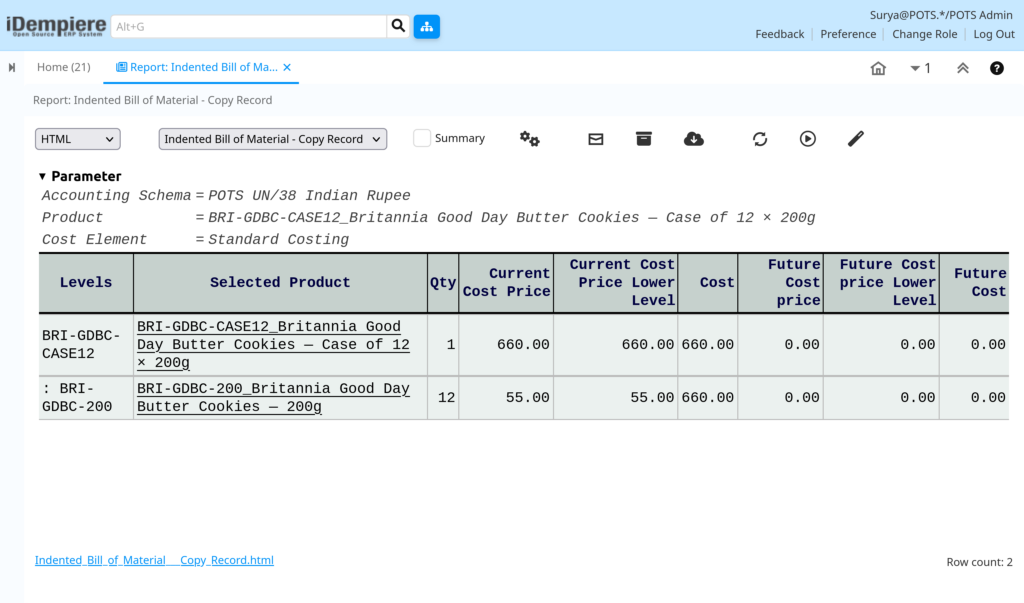
Generates the indented cost explosion output for review.
Instructions
Click OK to run the report, or Cancel to close the window without generating output.
| Field | Sample Value | Description |
| Levels | BRI-GDBC-200 | Sequential level/value code representing the BOM node. |
| Selected Product | BRI-GDBC-200_Britannia Good Day Butter Cookies – 200g | Product name at the current BOM level. |
| Qty | 1 | Quantity of the component per parent BOM level. |
| Current Cost Price | 55.00 | Active cost of the product at this level. |
| Cost | 55.00 | Cost of the level multiplied by accumulated quantity. |
| Future Cost price | 0.00 | Pending/future cost value for the level, if maintained. |
Common Issues and Resolutions
| Issue | Cause | Resolution |
| Report returns no cost values (0.00) | No cost record exists for the product/cost element combination | Run Cost Calculation from the Costing window before generating the report. |
| “Fill Mandatory” error on OK | Accounting Schema, Product, or Cost Element left blank | Complete all mandatory fields marked with an asterisk (*). |
| BOM levels not expanding | Product has no active BOM lines configured | Verify BOM lines exist and are Active in the Bill of Material window. |
| Future Cost columns show 0.00 | No future cost record maintained for the product | Enter future cost values on the Costing tab of the product. |
| Report runs slowly or times out | Deeply nested BOM structure processed interactively | Enable Run as Job to process the report in the background. |
| Incorrect currency displayed in output | Wrong Accounting Schema selected | Select the Accounting Schema matching the required costing currency. |
| Product not found in selector | Product is inactive or not linked to the organization | Verify the product is Active and assigned to the correct Organization. |
Note: Cost figures shown in this report are AS-IS values pulled from existing cost records; the report does not recalculate or post accounting entries.Next Steps
- Configure the Bill of Material / Formula for the product.
- Maintain Product Costing records via the Costing window.
- Review and maintain Cost Elements configuration.
- Run Cost Calculation periodically before generating this report.