How to Print Dunning Letters in iDempiere
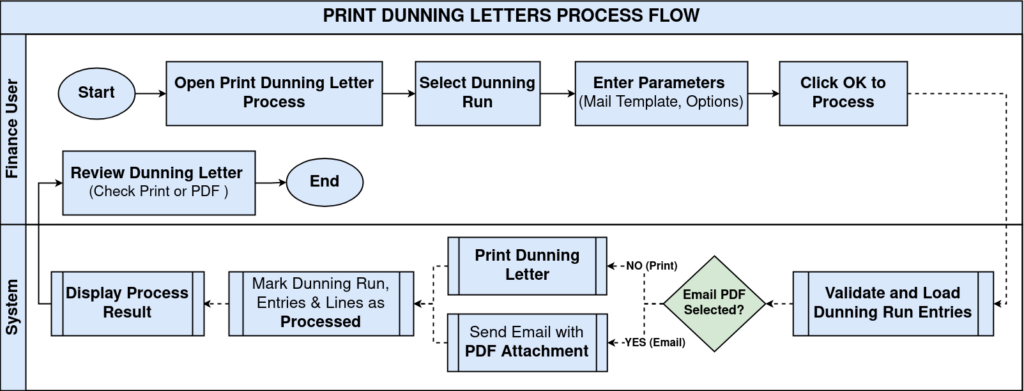
Print Dunning Letters is the iDempiere process that generates and delivers payment reminders for a completed Dunning Run.
Finance teams use it to chase overdue customer balances across stores and business partners, either as printed letters or emailed PDF attachments.
Running it correctly keeps Dunning Run Entries and the Dunning Run itself marked as processed, so collections reporting and customer aging stay accurate.
Process Flow
Business Rules
- A Mail Template is mandatory whenever EMail PDF is enabled.
- The Business Partner Contact must have a valid email address for email delivery.
- Each Dunning Level requires a configured Print Format before letters can be generated.
- Only Business Partners with a balance greater than zero are processed when balance filter is on.
- Previously processed entries are skipped when Print Unprocessed Entries Only is checked.
- A Dunning Run Entry is marked Processed only after a successful print or email.
- The Dunning Run is marked Processed once every entry completes without errors.
Prerequisites
- Dunning Run created and contains one or more Dunning Run Entries.
- Dunning Level configured with a valid Print Format.
- Business Partner Contact configured with a valid email address (for email delivery).
- Mail Template configured with subject and body content (for email delivery).
- Tenant SMTP settings configured and tested (for email delivery).
Configuration Steps
Step 1: Open the Print Dunning Letters
Navigate to Financial Management → Receivables → Dunning → Print Dunning Letters. The parameter entry form opens.
Step 2: Select the Dunning Run to Process
The Dunning Run determines which customers and overdue invoices receive letters in this batch.
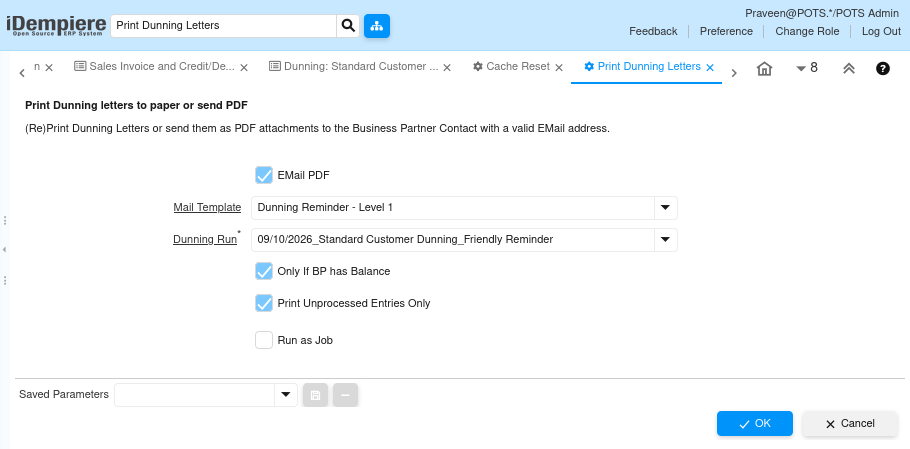
In the Dunning Run field, select the run created for this cycle,
for example 09/10/2026_Standard Customer Dunning_Friendly Reminder.
| Field | Sample Value | Purpose |
| Dunning Run | 09/10/2026_Standard Customer Dunning_Friendly Reminder | Identifies the run and entries to print or email |
Step 3: Choose the Delivery Mode
Finance Teams often mix delivery methods, emailing customers who have a contact email and printing letters for the rest.
Check EMail PDF to send letters as PDF email attachments; leave it unchecked to route letters to the printer instead.
| Field | Sample Value | Purpose |
| EMail PDF | Checked | Sends the dunning letter as a PDF email instead of printing |
Step 4: Select the Mail Template
The Mail Template supplies the subject line and body wording that matches the tone of the dunning level.
Choose the template for the dunning stage, for example Dunning Reminder – Level 1 for a friendly first notice.
| Field | Sample Value | Purpose |
| Mail Template | Dunning Reminder – Level 1 | Supplies email subject and body text; required when EMail PDF is checked |
Step 5: Apply Processing Filters
Filters prevent letters from going out again to settled accounts or entries already completed.
Check Only If BP has Balance to skip zero-balance accounts, and Print Unprocessed Entries Only to skip entries already marked Processed.
| Field | Sample Value | Purpose |
| Only If BP has Balance | Checked | Processes only Business Partners with a balance greater than zero |
| Print Unprocessed Entries Only | Checked | Skips Dunning Run Entries already marked Processed |
| Run as Job | Unchecked | Runs the process in the background when enabled |
Step 6: Execute and Review the Result
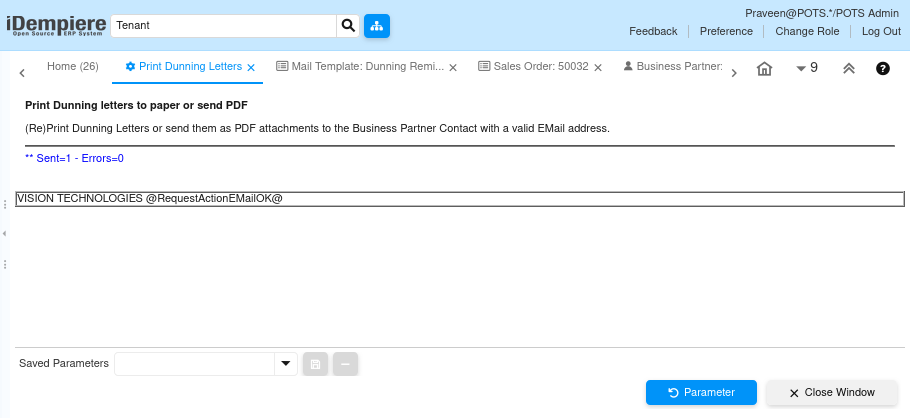
The result line confirms how many letters were sent or printed and flags errors for follow-up.
Click OK to run the process.
Review the confirmation, for example Sent=1 – Errors=0, then check the Business Partner and Mail Template – User Mail records.

Common Issues and Resolutions
| Issue | Cause | Resolution |
| Mail Template required | EMail PDF checked without a Mail Template selected | Select a valid Mail Template before running |
| Contact email missing | Business Partner Contact has no email address | Add a valid email address to the Contact record |
| No entries processed | Dunning Run has no entries, or all entries already processed | Verify Dunning Run entries or uncheck Print Unprocessed Entries Only |
| PDF not generated | Dunning Level is missing a Print Format | Assign a Print Format to the Dunning Level |
| Email not delivered | Tenant SMTP configuration is incorrect | Verify Tenant SMTP settings and send a test email |
| Zero-balance BP skipped | Only If BP has Balance enabled for a settled account | Confirm the balance, or uncheck the filter to include it |
| Duplicate letters sent | Same Dunning Run processed again without a filter | Enable Print Unprocessed Entries Only before rerunning |
Next Steps
- Configure the Dunning Run to build the next reminder cycle.
- Review Dunning Level and Print Format setup for each dunning stage.
- Maintain Mail Template content and tone for each dunning level.
- Confirm Tenant SMTP configuration for reliable email delivery.