How to Configure the Imported Fixed Asset Window in iDempiere
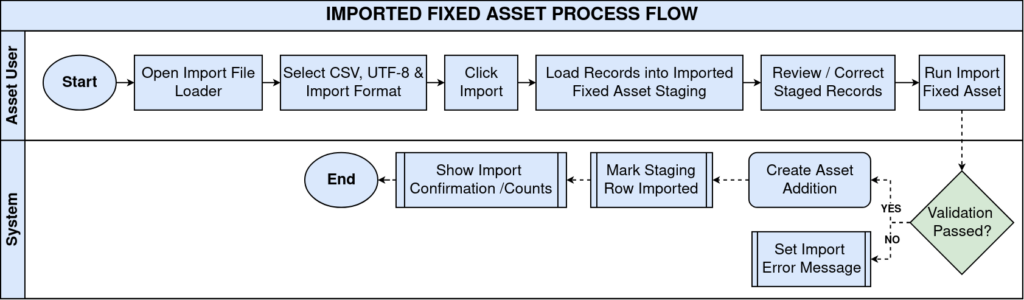
The Imported Fixed Asset window is the staging table used by iDempiere’s Import File Loader to validate Asset Addition records before they go live.
Successful imports create live asset addition records that drive depreciation schedules, accounting entries, and asset reporting across the tenant.
Process Flow
Business Rules
- Only records with Imported unchecked are picked up for processing.
- Asset, Business Partner, and Product keys must match existing master records exactly.
- Import Error Message displays the validation failure for a staged row.
- Each row must reference a valid Organization key to import correctly.
- Successful rows are marked Imported and generate a live Asset Addition record.
- Document Action controls whether the created asset posts automatically.
- Asset Cost, Salvage Value, and Depreciation must align with the Accounting Schema currency.
Prerequisites
- Asset Group configured (e.g. Electronics).
- Business Partner (Agent/Vendor) configured.
- Product record configured and linked to an Asset Group.
- Organization (store or location) configured.
- Locator configured within the target warehouse.
- Accounting Schema and Currency configured.
- Import Loader Format for Imported Fixed Asset configured.
Navigation
Menu → Data → Data Import → Imported Fixed AssetConfiguration Steps
Step 1: Configure the Import Loader Format
Open Import Loader Format, select the Imported Fixed Asset table, map each CSV column position to its staging field in sequence, then save the format.
Step 2: Prepare the Fixed Asset CSV File
Build one CSV row per asset with Organization, Asset, Inventory No, Name, service and depreciation dates, Asset Group, Business Partner, Product, and cost columns.
Step 3: Load the File via Import File Loader
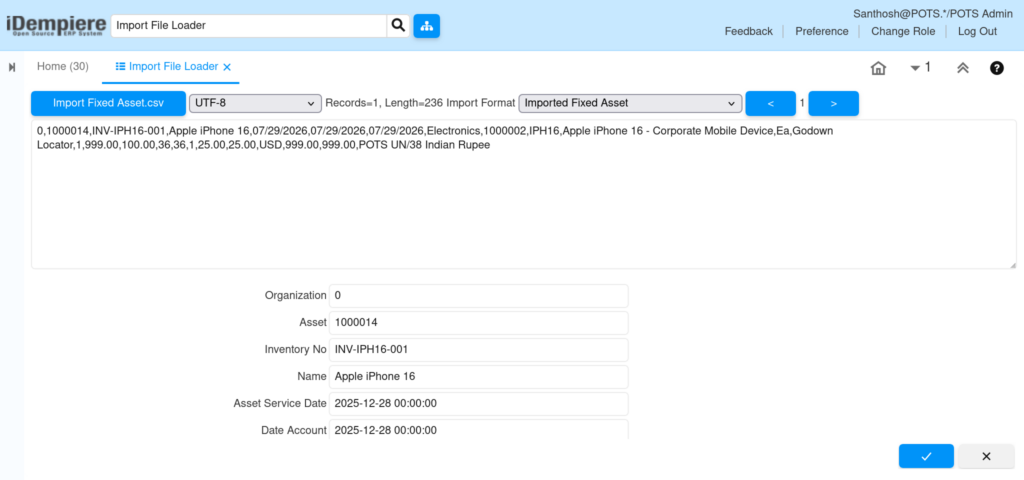
Open Import File Loader, select the Fixed Asset CSV file, choose UTF-8 encoding and the saved Import Format, then click Import to load rows into staging.
| Field | Sample Value | Purpose |
| File | Import Fixed Asset.csv | Source CSV containing asset rows |
| Encoding | UTF-8 | Character encoding of the file |
| Import Format | Imported Fixed Asset | Column-to-field mapping definition |
| Records | 1 | Number of rows loaded into staging |
Step 4: Review Staged Records in the Imported Fixed Asset Window
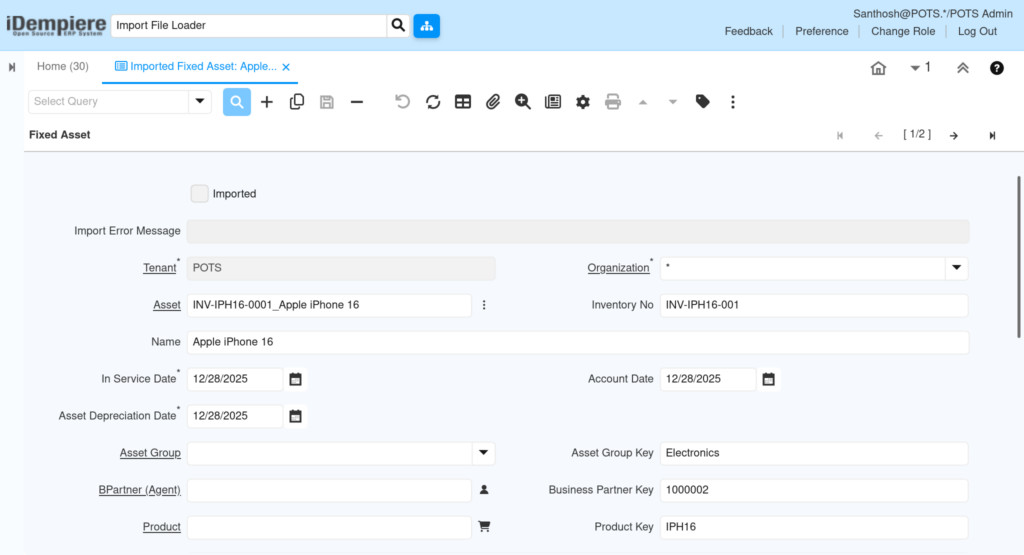
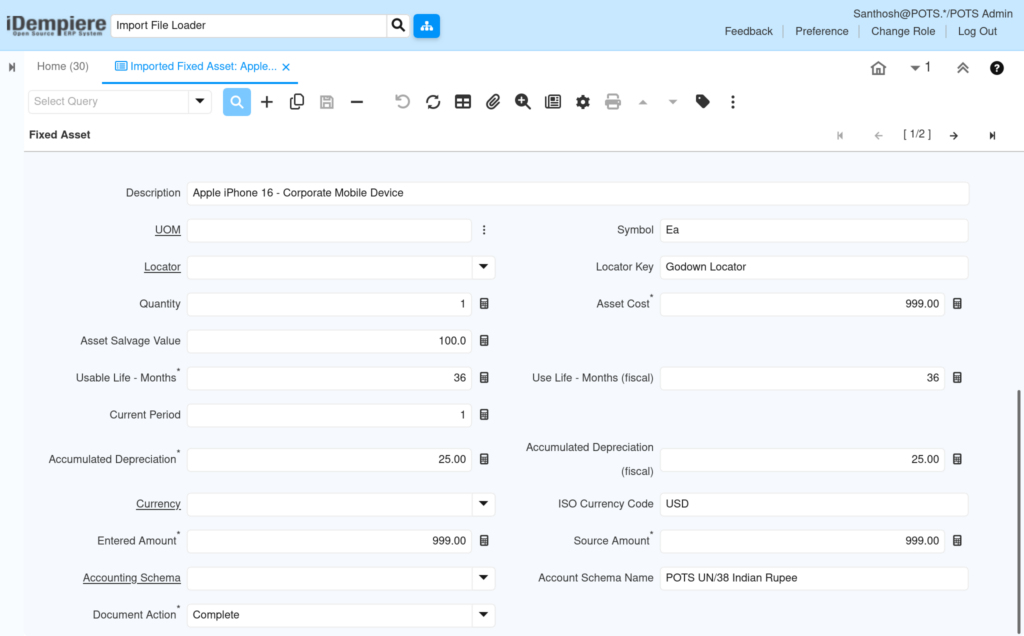
Open Imported Fixed Asset, verify Organization, Asset, Business Partner, Product, cost, and depreciation fields against the source CSV, and correct any mismatch directly in the grid.
| Field | Sample Value | Description |
| Organization | Chennai Store | Store or location the asset belongs to |
| Asset | INV-IPH16-0001_Apple iPhone 16 | Internal asset identifier |
| Inventory No | INV-IPH16-001 | Physical inventory tag number |
| Name | Apple iPhone 16 | Asset display name |
| In Service Date | 12/28/2025 | Date the asset becomes usable |
| Asset Depreciation Date | 12/28/2025 | Date depreciation calculation starts |
| Asset Group | Electronics | Depreciation and accounting category |
| BPartner (Agent) | Five Technologies Private Limited | Supplier or vendor of the asset |
| Product | IPH16_iPhone 16 | Linked product master record |
| Locator | Godown Locator | Warehouse storage location |
| Quantity | 1 | Number of units on this row |
| Asset Cost | 999.00 | Acquisition cost of the asset |
| Asset Salvage Value | 100.0 | Estimated residual value |
| Usable Life – Months | 36 | Depreciation period in months |
| Accumulated Depreciation | 25.00 | Depreciation posted to date |
| Currency | USD | Transaction currency |
| Document Action | Complete | Action applied when the asset is created |
Step 5: Run the Import Process
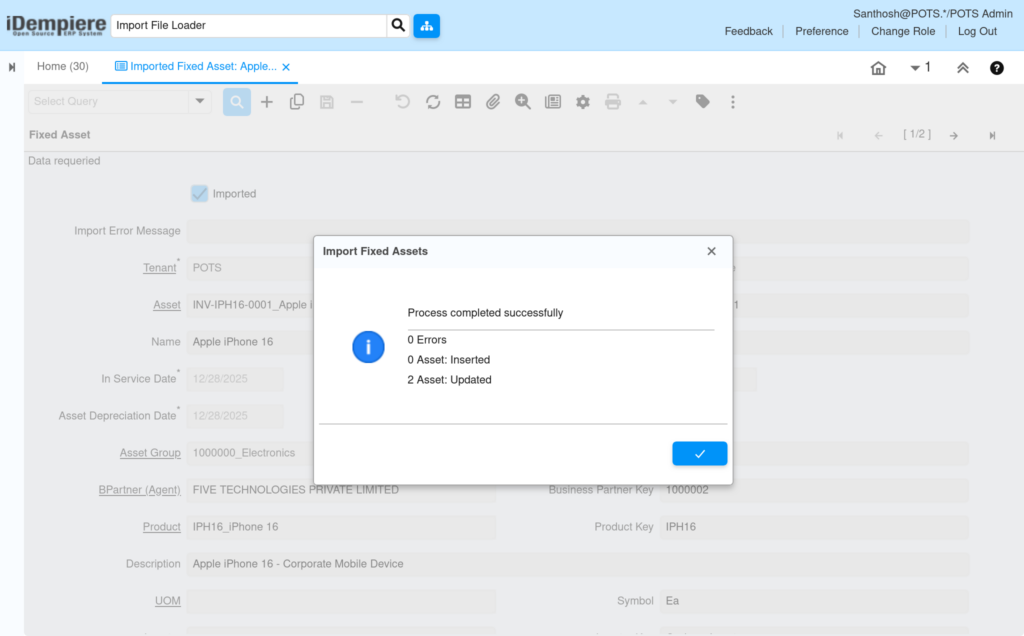
With the row selected, run the Import Fixed Asset process. The system marks the row as Imported and shows a confirmation such as “Rows in file / loaded and ready to import: 1/1”.
Step 6: Verify the Created Fixed Asset Record
Open the Asset Addition window, search by Inventory No or Name, and confirm cost, depreciation, and organization values match the imported data.
Common Issues and Resolutions
| Issue | Cause | Resolution |
| Row not imported; Imported stays unchecked | Mandatory field missing (Business Partner, Product, or Organization) | Check Import Error Message, complete the missing key, re-run import |
| Invalid Business Partner Key error | BPartner value in CSV does not match an existing Business Partner | Verify the Business Partner master exists with the exact key used |
| Product not found | Product Key in CSV is missing from the Product master | Create or correct the Product record before re-importing |
| Wrong Organization on imported asset | Organization column left blank or mismatched in CSV | Update the Organization column with the correct store code |
| Depreciation values incorrect after import | Usable Life or Accumulated Depreciation entered inconsistently | Recalculate values and correct the source CSV before loading |
| Currency mismatch on Asset Cost | Accounting Schema currency differs from the CSV Currency column | Align CSV currency with the tenant’s Accounting Schema currency |
| File fails to load in Import File Loader | Encoding mismatch or incorrect Import Format selected | Re-select UTF-8 encoding and confirm the correct Import Loader Format |
Next Steps
- Configure the Fixed Asset Depreciation Workbench for periodic depreciation runs.
- Set up the Asset Disposal window for retiring store equipment.
- Review Fixed Asset Group setup for additional asset categories.
- Configure Accounting Schema mapping for asset depreciation accounts.