How Does Work Print Format Window In iDempiere
The Print Format window in iDempiere is used to design how data from a table or report view appears on a printed document. It controls which fields print, their order, sorting, sizing, and calculations.
It is used across standard business processes wherever documents or reports are printed, such as invoices, statements, or extracts.
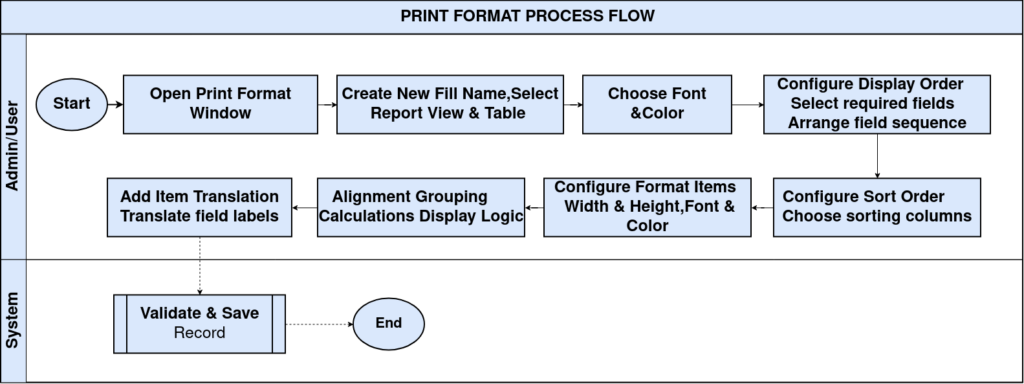
Process Flow
Business Rules
- A Print Format defines how data from a table or report view is laid out on a printed document.
- Each Print Format is linked to a single Table or Report View that supplies the printable data.
- Display Order controls which fields print and the sequence in which they appear on the page.
- Sort Order controls the sequence in which records are printed, independent of the display sequence.
- Format Item settings apply layout rules — width, height, alignment, and font — to each individual field.
- Calculation options on a Format Item can total, count, or group values without custom reports.
- Item Translation allows individual field labels to print in a language different from the base setup.
- The Translate tab allows the Print Format name, description, and file name to appear in another language.
- A Print Format can be set as Default so it is automatically used when printing from its linked window.
Prerequisites
- A Table or Report View must already exist in the Application Dictionary to link to the Print Format.
- User must have Role access to the Application Dictionary and Print Format window.
- Required languages must be enabled at System level before Item Translation or Translate can be used.
- Print Paper, Print Font, and Print Color references should be reviewed or configured before formatting.
- The window or process that will use the Print Format should be identified in advance.
Navigation
Menu → Application Dictionary → Print Format. Users see the Print Format header details along with Display Order, Sort Order, Format Item, Item Translation, and Translate tabs.
Configuration Steps
Step 1: Access the Print Format Window
Opening the window is the starting point for creating or reviewing how a report or document will be printed.
Search for Print Format from the main menu or open it via Application Dictionary. Select an existing Print Format or create a new one.
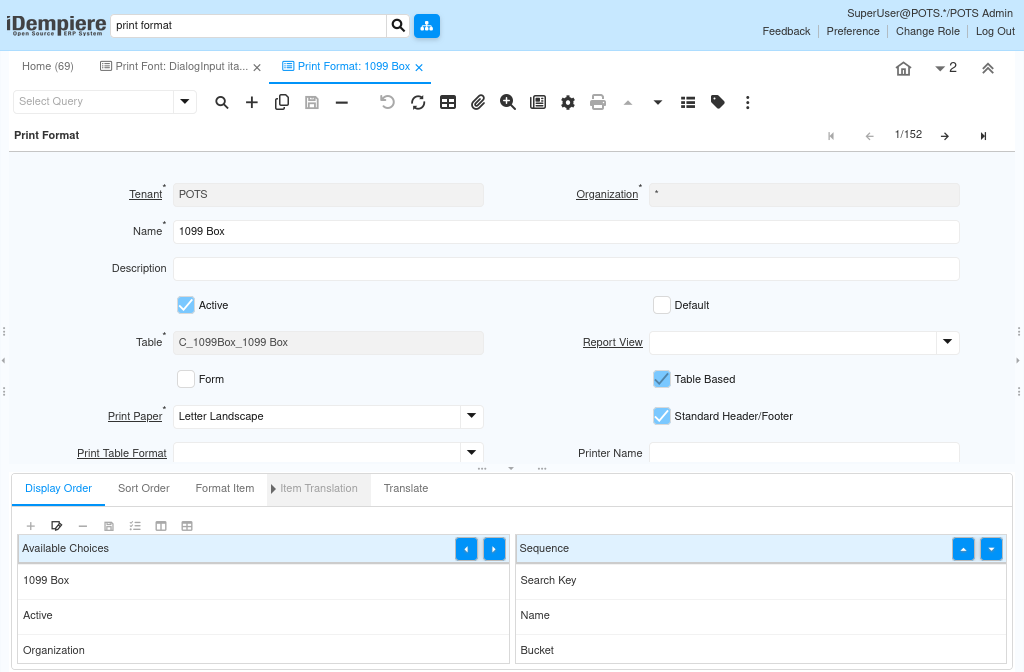
Step 2: Configure Header Details
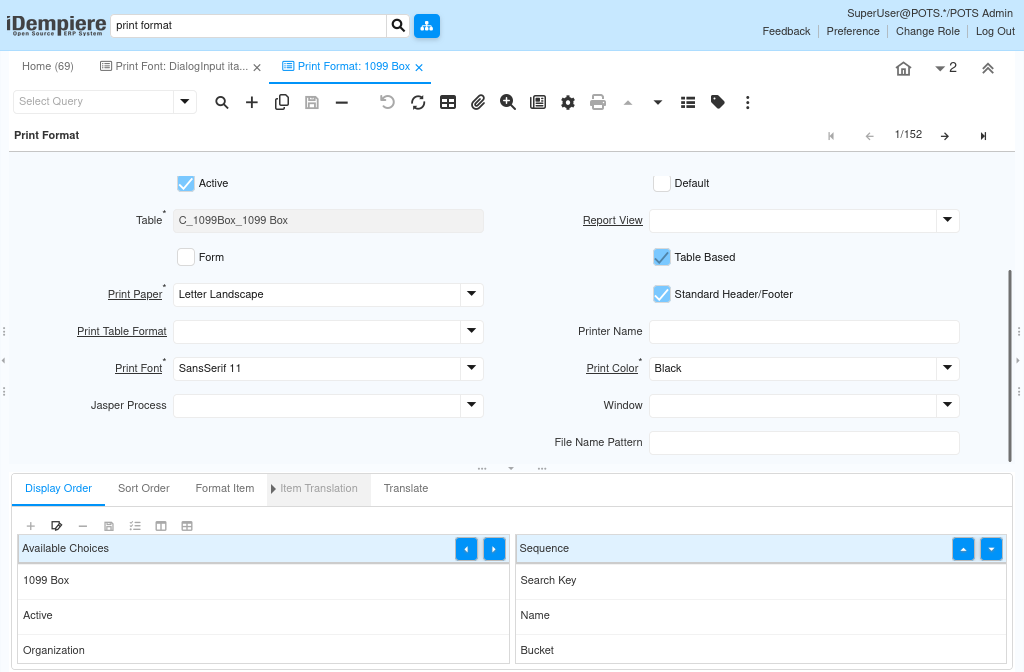
The header defines the base settings that control the overall report layout, source data, and output style.
Enter the Name, link the source Table or Report View, and set Print Paper, Print Font, Print Color, and related layout options.
Step 3: Configure Display Order
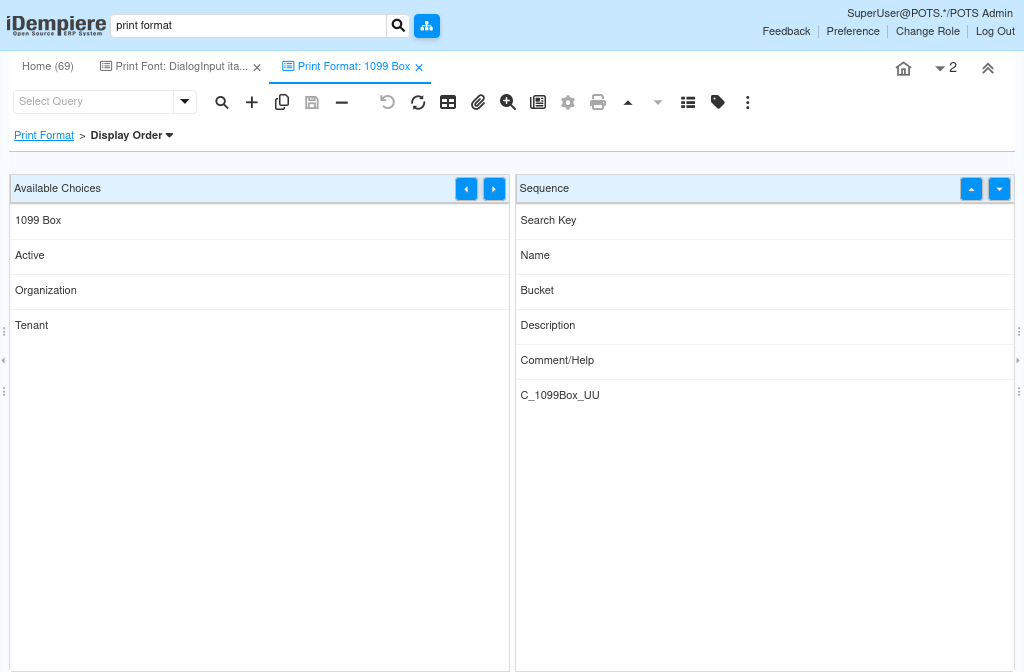
Display Order determines which fields from the source table are included in the report and their column sequence.
Move fields from Available Choices into the Sequence list in the order they should appear on the printed output.
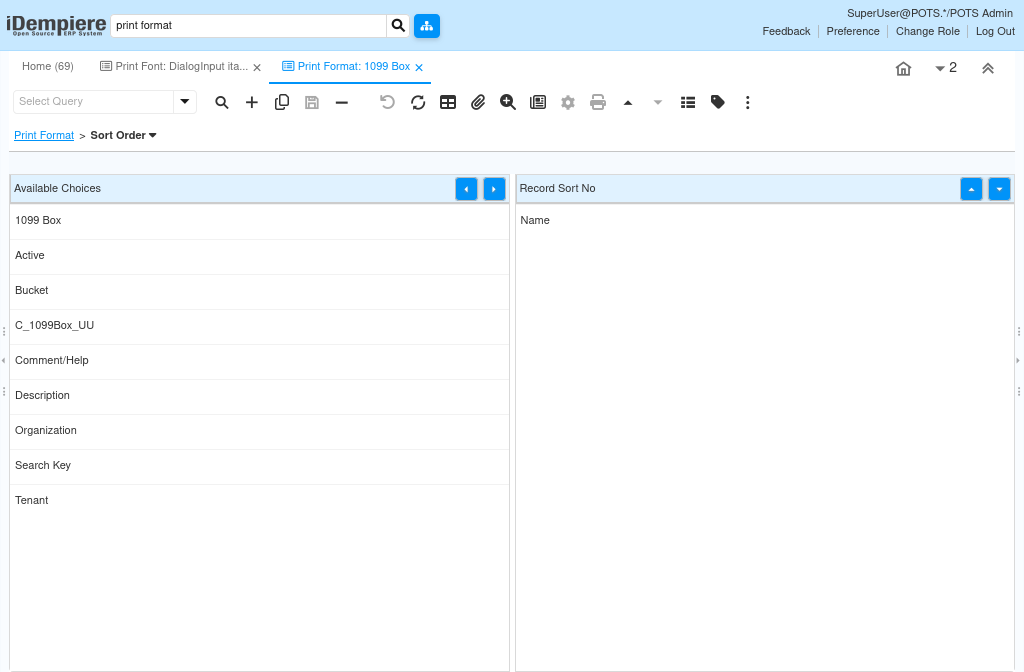
Step 4: Configure Sort Order
Sort Order determines the order in which records print, which is independent of the column display order.
Move fields from Available Choices into the Record Sort No list to define the record sorting sequence.
Step 5: Customize Format Item Settings
Each Format Item controls how its individual field is laid out and whether it performs a calculation.
Open a Format Item and set Field Alignment, Max Width, Max Height, Print Font or Color, and any required calculation option.
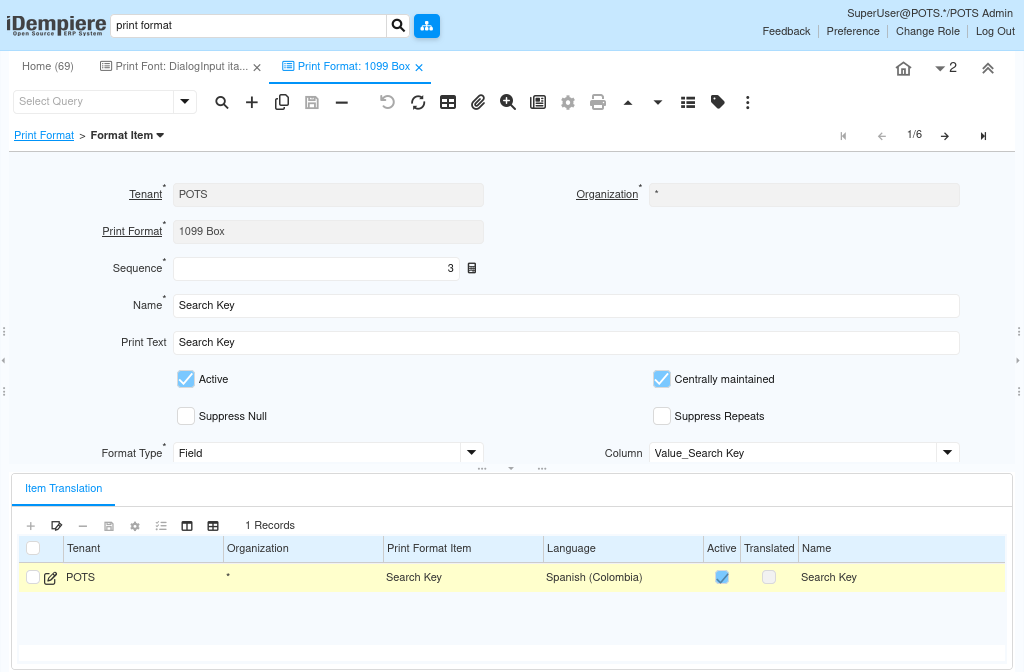
Step 6: Add Item Translation
Item Translation lets a single field label print correctly for users in a different language.
From the Format Item’s Item Translation tab, select the Language and enter the translated Name and Print Text.
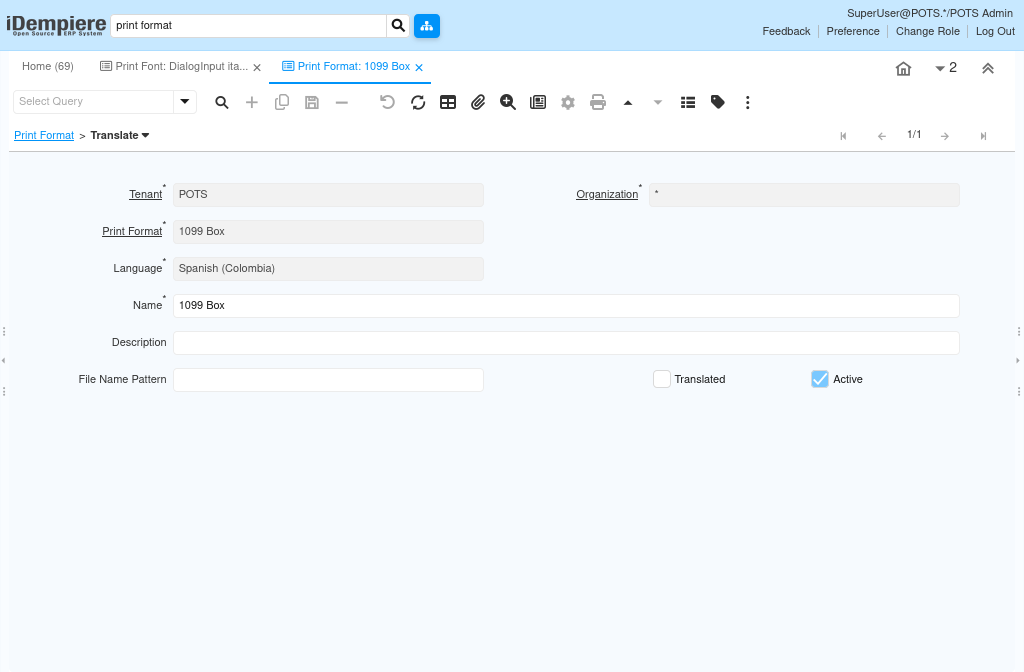
Step 7: Add Print Format Translation
Translating the Print Format itself ensures the report name and description display correctly for other locales.
Open the Translate tab, select the Language, and enter the translated Name, Description, and File Name Pattern.
Field Reference
The tables below list the fields visible on each tab of the Print Format window — Header, Display Order, Sort Order, Format Item, Item Translation, and Translate.
Header
| Field | Sample Value | Description |
| Tenant | System | Client that owns the Print Format. |
| Organization | * | Organization scope; * indicates all organizations. |
| Name | 1099 Extract | Name identifying the Print Format. |
| Description | (blank) | Optional description of the Print Format. |
| Active | Checked | Indicates the Print Format is available for use. |
| Default | Unchecked | Marks this as the default Print Format for its table. |
| Table | RV_T_1099Extract_1099 Extract | Source table or view supplying report data. |
| Report View | RV_T_1099Extract | Report view used to retrieve and display data. |
| Form | Unchecked | Indicates whether the format uses a form-style layout. |
| Table Based | Checked | Indicates the format prints data in a tabular layout. |
| Print Paper | Letter Landscape | Paper size and orientation used for printing. |
| Standard Header/Footer | Checked | Applies the standard system header and footer to the output. |
| Print Font | SansSerif 10 | Default font used across the Print Format. |
| Printer Name | (blank) | Specific printer assigned to this Print Format. |
| Print Color | Black | Default print color used across the Print Format. |
| Jasper Process | (blank) | Optional Jasper report process linked to this format. |
| Window | (blank) | Window associated with this Print Format, if applicable. |
| Print Table Format | (blank) | Optional formatting rules applied to tabular output. |
| File Name Pattern | (blank) | Pattern used to generate the output file name. |
Display Order
| Field | Sample Value | Description |
| Available Choices | Active, Address, Business Partner… | All fields on the source table available for printing. |
| Sequence | Name, Address 1, Address 2… | Fields selected to print, in column display order. |
Sort Order
| Field | Sample Value | Description |
| Available Choices | Active, Address 1, Address 2… | All fields available to define record sorting. |
| Record Sort No | Name | Fields selected to control the printed record sequence. |
Format Item
| Field | Sample Value | Description |
| Next Line | Unchecked | Forces the next field to print on a new line. |
| Next Page | Unchecked | Forces the next field to print on a new page. |
| Field Alignment | Leading (left) | Horizontal alignment of the field’s printed value. |
| Max Width | 180 | Maximum width allocated to the field on the page. |
| Fixed Width | Unchecked | Locks the field to a fixed width instead of auto-sizing. |
| Max Height | 0 | Maximum height allocated to the field; 0 uses default. |
| One Line Only | Unchecked | Restricts the field’s printed value to a single line. |
| Order By | Checked | Includes this field in the record sort sequence. |
| Descending | Unchecked | Sorts this field’s values in descending order. |
| Group By | Unchecked | Groups printed records by this field’s value. |
| Calculate Sum (Σ) | Unchecked | Prints a total sum for this field. |
| Calculate Count (No) | Unchecked | Prints a count of records for this field. |
Item Translation
| Field | Sample Value | Description |
| Print Format Item | Name | Format Item whose label is being translated. |
| Language | Spanish (Colombia) | Language for this field-level translation. |
| Active | Checked | Indicates the translation record is available for use. |
| Translated | Unchecked | Confirms the translation has been fully reviewed. |
| Name | Nombre | Translated label shown for this field. |
| Print Text | Nombre | Translated text printed for this field on the report. |
Translate
| Field | Sample Value | Description |
| Print Format | 1099 Extract | Print Format being translated. |
| Language | Spanish (Colombia) | Language for this Print Format translation. |
| Name | Extracto 1099 | Translated name of the Print Format. |
| File Name Pattern | (blank) | Translated file name pattern, if used. |
| Translated | Checked | Confirms the Print Format translation is complete. |
| Active | Checked | Indicates the translation record is available for use. |
Common Issues and Resolutions
| Issue | Cause | Resolution |
| Field does not appear on the printed output | Field was not added to the Sequence list under Display Order | Add the field to Display Order and place it in the correct sequence |
| Records print in the wrong order | No field is set under Sort Order, or the Format Item Order By flag is not set | Add the required field to Sort Order and enable Order By on the Format Item |
| Translated label does not appear on the report | Item Translation is not marked Active or the Language does not match the run-time language | Verify Item Translation is Active and the Language matches the user’s session language |
| Print Format is not offered as an option when printing | The Active flag is unchecked or the format is not linked to the correct Table or Window | Activate the Print Format and confirm the Table or Window association |
| Field values are cut off on the printed page | Max Width or Max Height is too small for the field’s content | Increase Max Width or Max Height, or enable One Line Only where appropriate |
| Group or total values missing from the report | Group By or Calculate Sum/Count options are not enabled on the Format Item | Enable the required calculation option on the relevant Format Item |
| Wrong paper size or orientation on output | Print Paper setting on the header does not match the intended output | Update the Print Paper field on the Print Format header |
Next Steps
- Report View window – define or review the data source used by the Print Format.
- Window / Tab window – confirm which window links to this Print Format for default printing.
- Report and Process window – run the report using the configured Print Format.
- Language window – confirm required languages are enabled before adding translations.