How to Configure Revenue Recognition in iDempiere
Revenue Recognition is the iDempiere feature that defers revenue from an invoice into Unearned Revenue and releases it to Product Revenue on a defined schedule.
Businesses use it for ERP subscriptions, implementation projects, and service contracts, choosing either Service-Based milestones or Time-Based periods.
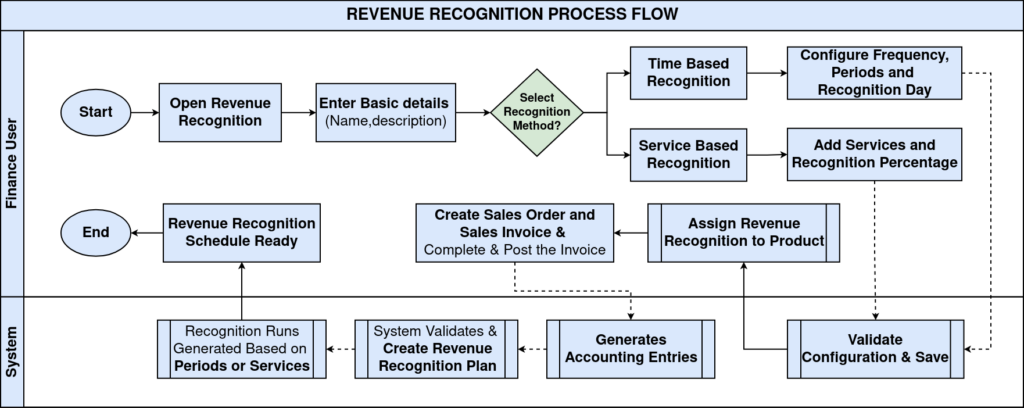
Posting the invoice automatically creates the Revenue Recognition Plan and Runs; the Revenue Recognition Process later generates the GL Journal that recognizes the revenue.
Process Flow
Business Rules
- A Revenue Recognition Plan is created only during invoice posting, not on save or complete.
- Only one Plan is created per Invoice Line and Accounting Schema.
- Plan Total Amount is taken from the posted accounting balance.
- Service-Based recognition creates one Run per configured service line.
- Service-Based recognized amount equals Plan Total multiplied by the service percentage.
- Time-Based recognition creates one Run per configured period.
- Time-Based recognized amount equals Plan Total divided by the configured periods.
- The last Run absorbs any rounding difference in both recognition methods.
- The Revenue Recognition Process only recognizes Runs not yet linked to a GL Journal.
Prerequisites
- Revenue Recognition definition created as Service-Based or Time-Based.
- Revenue Recognition assigned on the Product’s Accounting tab.
- Accounting Schema, Unearned Revenue, and Product Revenue accounts configured.
- Sales Order and AR Invoice process configured for the product.
Configuration Steps
Step 1: Create a Revenue Recognition Definition
This defines the header record and selects the recognition method, Service-Based or Time-Based.
Navigate to Partner Relations → Revenue Recognition, click New, enter a Name and Description, and check Time based only if using time-based recognition.
| Field | Sample Value | Purpose |
| Name | ERP Implementation Recognition | Identifies a Service-Based recognition definition |
| Name | ERP Annual Subscription Recognition | Identifies a Time-Based recognition definition |
| Time based | Unchecked / Checked | Selects Service-Based (unchecked) or Time-Based (checked) recognition |
Step 2: Configure Service-Based Recognition
For Service-Based definitions, the Service tab defines milestones and the percentage of revenue recognized at each stage.
Open the Service tab, add a line for each milestone with Line No, Percent, and Description; the percentages across all lines should total 100%.
| Line No | Percent | Description |
| 10 | 20.00 | ERP Requirement Analysis |
| 20 | 40.00 | ERP Implementation & Customization |
| 30 | 20.00 | User Training |
| 40 | 20.00 | Go-Live Support |

Step 3: Configure Time-Based Recognition
For Time-Based definitions, frequency and period fields determine how many equal Runs are generated.
Check Time based, select the Recognition frequency, enter Number of Months, and set Fixed recognition day to 0 for equal monthly distribution.
| Field | Sample Value | Purpose |
| Recognition frequency | Month | Interval between each Revenue Recognition Run |
| Number of Months | 12 | Total number of Runs to generate |
| Fixed recognition day | 0 | Distributes the amount equally with no proration |

Step 4: Assign Revenue Recognition to the Product
Only products with an assigned Revenue Recognition definition trigger plan creation during invoice posting.
Open the Product window → Accounting tab, select the Revenue Recognition definition, and save.
| Field | Sample Value | Purpose |
| Revenue Recognition | ERP Annual Subscription Recognition | Links the Product to the recognition schedule |
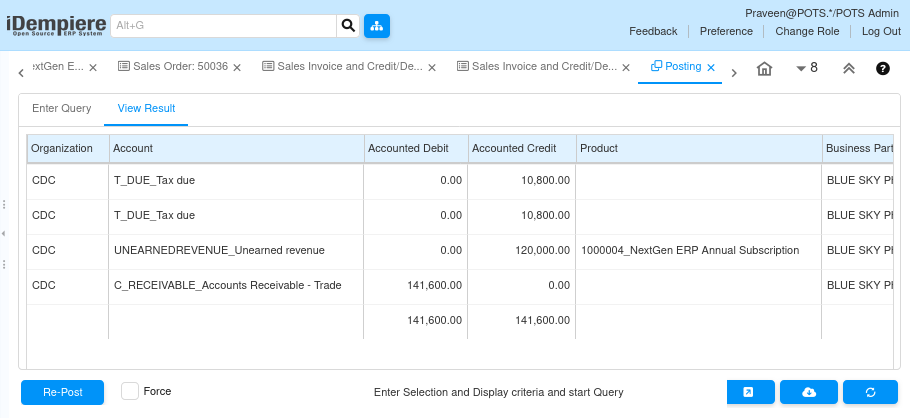
Step 5: Create and Post the Invoice to Generate the Plan
Posting is the trigger point; completing the invoice alone does not create a Revenue Recognition Plan.
Create the Sales Order, generate the AR Invoice, Complete it, then Post it. The Revenue Recognition Plan and its Runs are created automatically during posting.
| Field | Sample Value | Purpose |
| Invoice Line | 100029_07/22/2026_141600.00_10_120000 | Source line the Plan is generated from |
| Total Amount | -120,000.00 | Posted accounting balance carried into the Plan |
| Unearned Revenue | CDC-UNEARNEDREVENUE-1000004-1000048-_-_ | Account holding revenue until it is recognized |
| Product Revenue | CDC-P_REVENUE-1000004-1000048-_-_ | Account credited when revenue is recognized |
Step 6: Verify the Runs and Execute the Revenue Recognition Process
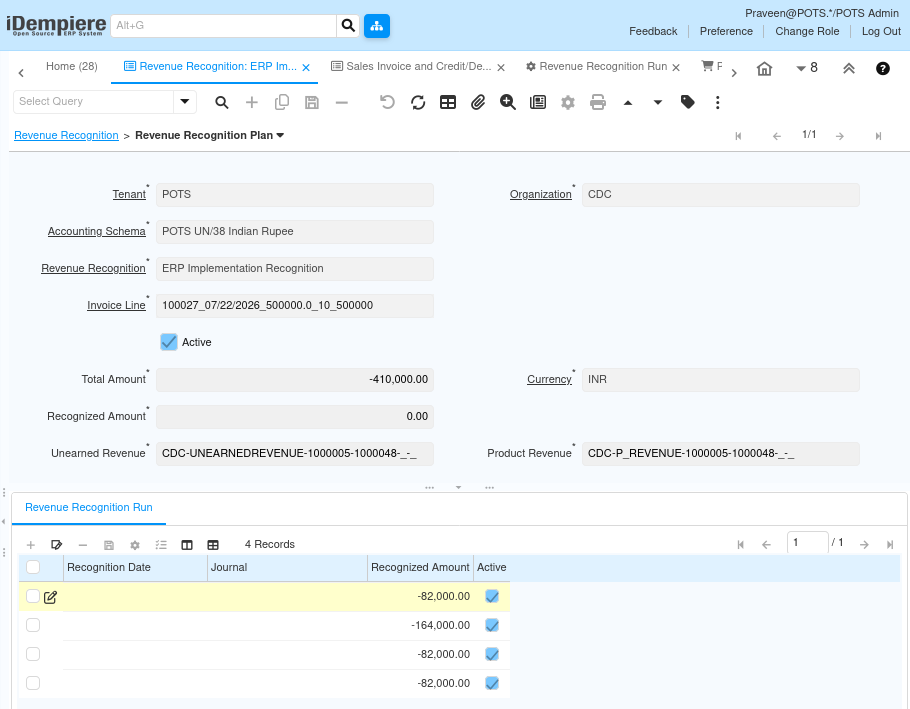
This confirms the generated Runs match the configured method, then recognizes revenue by creating the GL Journal.
Review the Revenue Recognition Run tab for the expected schedule, then run the Revenue Recognition Process with an Accounting Date to generate the GL Journal for eligible Runs.
| Recognition Date | Recognized Amount | Method |
| 07/22/2026 | -10,000.00 | Time-Based, equal monthly amount (12 Runs of ₹120,000 total) |
| Service milestone runs | -82,000.00 / -164,000.00 / -82,000.00 / -82,000.00 | Service-Based, percentage of ₹410,000 total per milestone |
Common Issues and Resolutions
| Issue | Cause | Resolution |
| Plan not created | Product has no Revenue Recognition assigned | Assign a Revenue Recognition definition to the Product’s Accounting tab |
| Plan not created | Invoice was completed but not posted | Post the invoice; posting alone triggers plan creation |
| Plan not created | Invoice Line has no Revenue Recognition | Confirm the invoice line’s product carries the Revenue Recognition assignment |
| No GL Journal generated | Revenue Recognition Process not executed | Run the Revenue Recognition Process for eligible Runs |
| Revenue already recognized | Run already linked to a GL Journal | Use a new Accounting Date or verify the Run’s Journal reference |
| Service percentages don’t total 100% | Service lines misconfigured | Review the Service tab and adjust percentages to total 100% |
| Uneven period amounts | Rounding difference not aligned to the last Run | Expected behavior; the last Run absorbs rounding differences |
Next Steps
- Execute the Revenue Recognition Process periodically as Runs become eligible.
- Review generated GL Journals for Unearned Revenue and Product Revenue postings.
- Monitor the Revenue Recognition Run tab for upcoming recognition dates.
- Reuse the Revenue Recognition definition for similar retail service or subscription products.