How to Configure Production (Single Product) in iDempiere
Configure the Production (Single Product) window in iDempiere to assemble kits and gift hampers from BOM components and update stock.
Introduction
The Production (Single Product) window in iDempiere converts raw materials and components into a single finished item using a Bill of Materials. Retailers use it to assemble kits, combos, and gift hampers from purchased stock.
Completing the document consumes component inventory, receives the finished product into stock, and updates costing and accounting entries used in inventory valuation reports.
Process Flow

Business Rules
- Only one BOM with BOM Type (Current Active) and BOM Use (Master) should be used to create production.
- Production Quantity drives the planned quantity on every generated production line.
- Production lines must be created or updated before the document can be completed.
- Completing the document consumes component stock and receives the finished product.
- A Quality Test can be attached to a production line before it is processed.
- Recreate replaces existing lines, new lines are appended instead.
- Posted documents automatically generate accounting entries for the transaction.
Prerequisites
- Finished product (e.g. Gift Hamper) configured in Product Info with correct UOM.
- Product BOM defined with BOM Type Current Active and BOM Use set to BOM Use.
- Component products configured with sufficient stock in the source Locator.
- Warehouse and Locator (e.g. Godown) configured for the Organization.
- Document Type Material Production configured for the client.
- Organization (e.g. Chennai Store) configured and assigned to the user role.
- Quality Test definitions configured, if QC sign-off is required before sale.
Navigation
Menu → Manufacturing → Production (Single Product)
Configuration Steps
Step 1: Create the Production Header
Set Document Type to Material Production, enter a Name and Description, set Date Promised and Movement Date, select the finished Product and source Locator, then enter Production Quantity.
| Field | Sample Value | Description |
| Document Type | Material Production | Identifies this as a manufacturing/kitting document. |
| Name | Premium Gift Hamper Production – July Batch | Descriptive label for the production run. |
| Date Promised | 07/17/2026 | Target completion date for the batch. |
| Movement Date | 07/16/2026 | Date used for the inventory and accounting entries. |
| Product | GH-001_Premium Gift Hamper | Finished good to be assembled. |
| Locator | Godown | Warehouse locator where components and output are moved. |
| Production Quantity | 100.00 | Number of finished units to assemble. |

Step 2: Generate Production Lines from the BOM
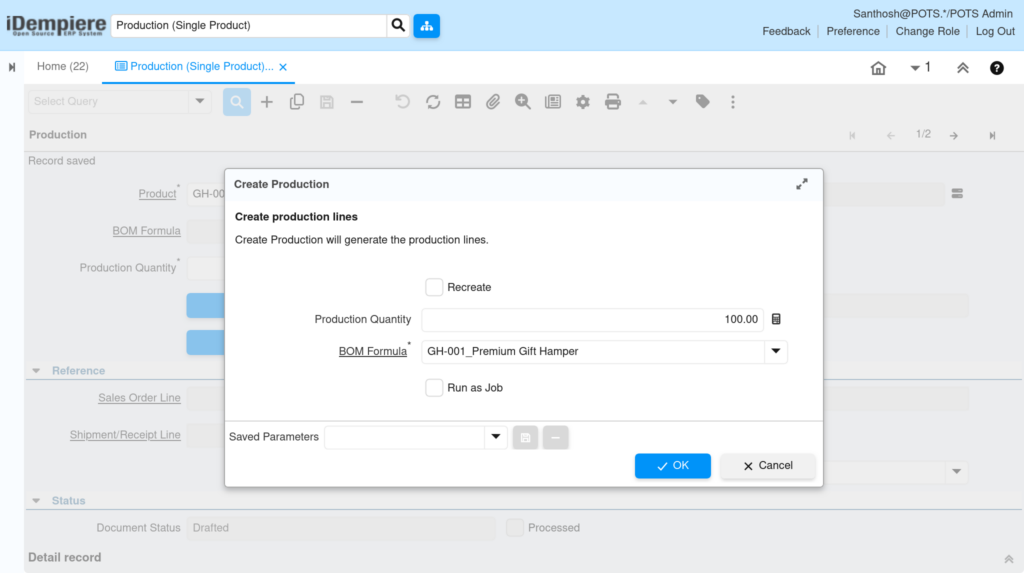
Click Create/Update Production lines, confirm the BOM Formula and Production Quantity in the popup, leave Recreate unchecked for a first run, then click OK.
| Field | Sample Value | Description |
| Recreate | Unchecked | Replaces existing lines when checked; leave off for a first run. |
| Production Quantity | 100.00 | Confirms the quantity to generate lines for. |
| BOM Formula | GH-001_Premium Gift Hamper | Active BOM used to explode components. |
| Run as Job | Unchecked | Runs line generation in the background for large BOMs. |
Note: iDempiere selects the BOM automatically where BOM Type is Current Active and BOM Use is Master, unless a specific BOM Formula is chosen.
Step 3: Review Production Line Details
Open each Production Line, verify Product, Movement Quantity, and Locator, and confirm Available Quantity covers the requirement before proceeding.
| Field | Sample Value | Purpose |
| Line No | 100 | Sequence of the component or end product line. |
| Product | GH-001_Premium Gift Hamper | Item consumed or produced on this line. |
| End Product | Checked | Marks the line as the finished good rather than a component. |
| Planned Quantity | 100.00 | Quantity expected from the BOM explosion. |
| Movement Quantity | 100 | Quantity actually moved when the document completes. |
| Locator | Godown Locator | Stock location for this line’s movement. |
| Available Quantity | 0 | On-hand stock available at the locator for this line. |

Step 4: Record a Quality Test (Optional)
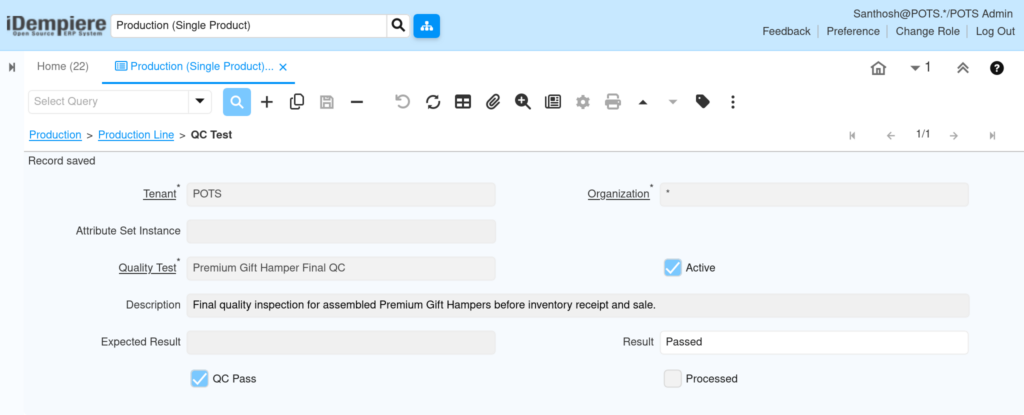
From the Production Line, open the QC Test tab, select the Quality Test, enter the Result, and check QC Pass once the inspection succeeds.
| Field | Sample Value | Purpose |
| Quality Test | Premium Gift Hamper Final QC | Test definition applied to this production line. |
| Description | Final quality inspection for assembled Premium Gift Hampers before inventory receipt and sale. | Explains what the test checks. |
| Result | Passed | Recorded outcome of the inspection. |
| QC Pass | Checked | Confirms the line meets the required standard. |
Step 5: Complete and Post the Production Document
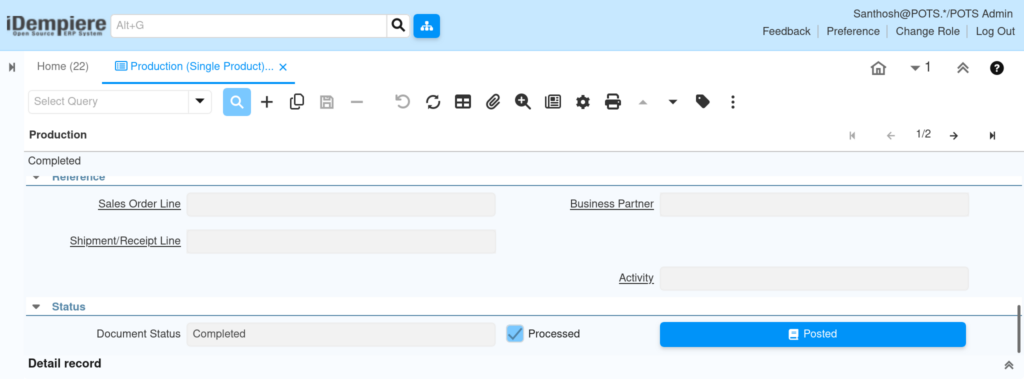
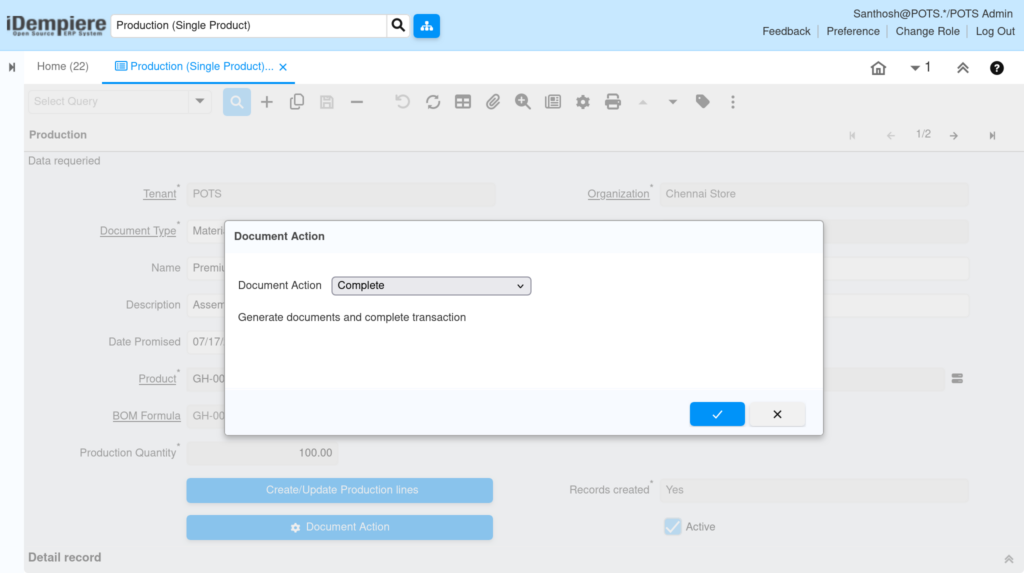
Click Document Action, select Complete, and confirm. Verify Document Status changes to Completed and Posted shows a successful posting.
| Field | Sample Value | Description |
| Document Action | Complete | Generates documents and completes the transaction. |
| Records created | Yes | Confirms production lines exist before completion. |
| Document Status | Completed | Final status once processing succeeds. |
| Processed | Checked | Indicates the document has been processed. |
| Posted | Posted | Confirms accounting entries were generated. |
Common Issues and Resolutions
| Issue | Cause | Resolution |
| Cannot complete the document | Production lines not yet generated | Click Create/Update Production lines before running Document Action. |
| Available Quantity shows 0 | Component stock not received into the Locator | Post the pending receipt or inventory move for the component. |
Next Steps
- Configure Product BOM for additional retail kits and combo products.
- Set up Locator and Warehouse structures for each store or godown.
- Define Quality Test templates for categories requiring inspection.
- Review the Inventory Value and Costing reports after production posting.